Permission Required Item Option (Access Code) Tutorial
Overview
The Permission Required (customer must enter access code) item option allows you to restrict the purchase of an item to customers who have a valid access code. This is ideal for:
-
Wholesale or pre-approved customers
-
Limited-access or invite-only products
-
Private promotions or gated sales
Each access code is one-time use and is automatically removed once redeemed.
Note: There are no automatic notifications for low or depleted access codes. You must monitor and replenish codes manually.
What You'll Need
-
Access to Item Management → Items
-
An existing item to configure
-
A list of access codes (or the ability to generate them)
-
Basic familiarity with Item Options
-
Reference:
Steps
Step 1: Navigate to the Item
-
Go to Item Management → Items
-
Click on the Item ID you want to configure
-
Select the Options/Variations tab
Step 2: Add a New Item Option
-
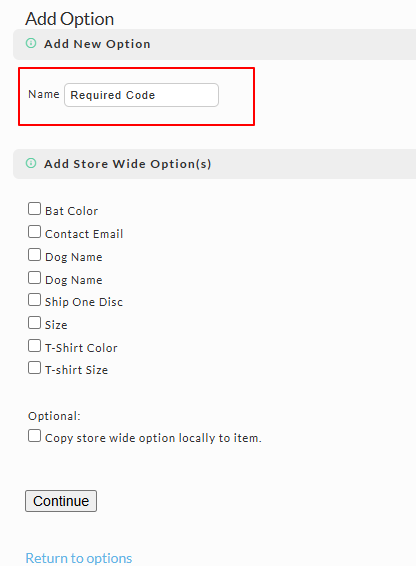
Click Add Option
-
Enter a name (e.g.,
Required Code) -
Click Continue
Step 3: Configure Option Description
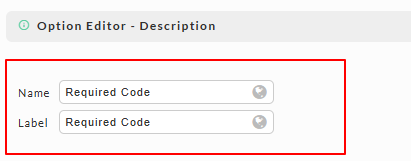
In the Option Editor → Description section:
-
Name: Internal name (e.g.,
Required Code) -
Label: Customer-facing label (e.g.,
Access Code)
Step 4: Configure Checkout Settings
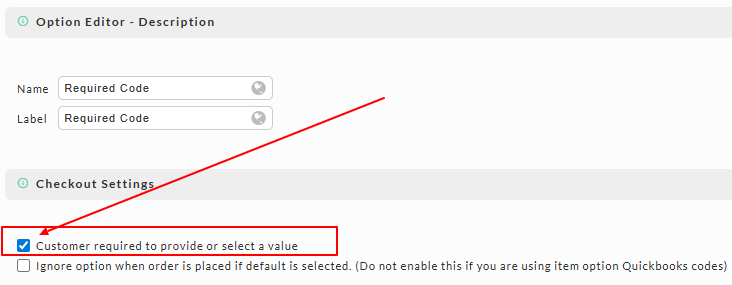
- Enable Customer required to provide or select a value
This ensures the customer cannot proceed through checkout without entering a valid code.
Step 5: Select Option Type
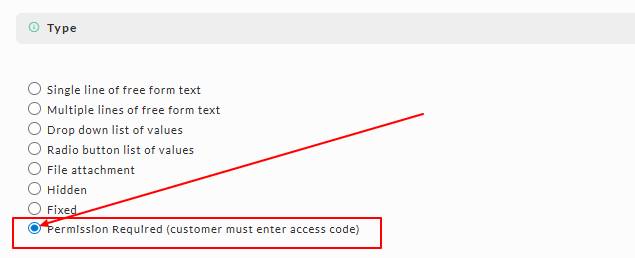
Under Type, select:
- Permission Required (customer must enter access code)
This setting enforces access control at checkout by requiring a valid code.
Step 6: Configure Access Codes
Scroll to the Access Codes for Permission Required option section.
You have two options:
Option A: Manually Enter Codes
-
Enter one code per line
-
Example:
ABC123XYZ
VIPACCESS001
WHOLESALE2026
Option B: Generate Codes
-
Enter:
-
Count (number of codes)
-
Length (characters per code)
-
-
Click Generate and append
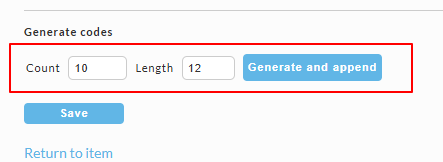
Tip: Generate more codes than your expected sales volume to avoid interruptions.
Step 7: Save the Option
-
Click Save
-
Confirm the option appears in the item’s options list
How It Works at Checkout
When a customer adds the item to their cart:
-
An Access Code field appears under the item
-
The customer must enter a valid, unused code
-
If no code is entered, or the code is invalid:
-
Checkout is blocked
-
An error message is displayed
-
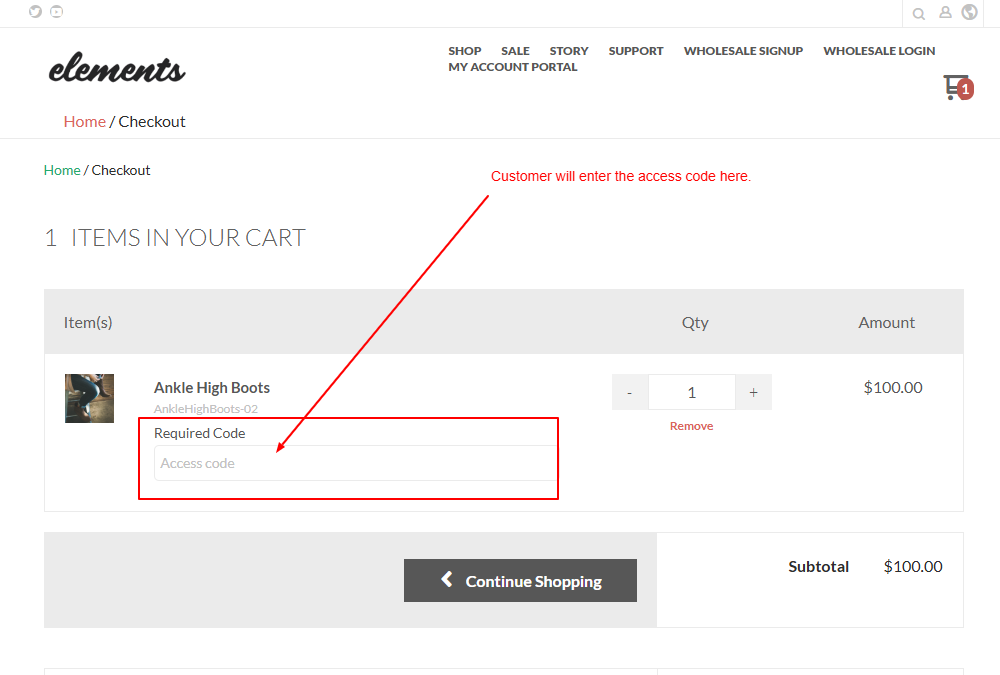
Code Required Validation:
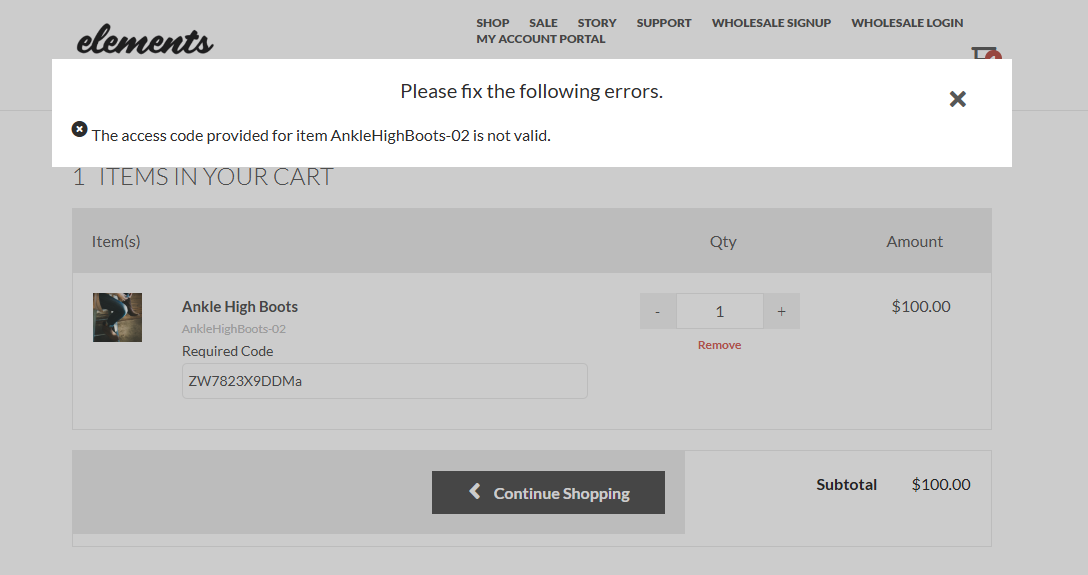
Once a valid code is used:
-
The code is consumed and removed
-
It cannot be reused
Monitoring and Reporting
UltraCart provides reporting to help track usage:
-
Navigate to Reporting → Item Options (or similar report)
-
This report shows:
-
Items using Permission Required options
-
Configured access codes
-
Remaining available codes
-
Warning: There is no automatic alert when codes run low or are exhausted. Regularly review this report.
Expected Outcome
After completing this setup:
-
Only customers with valid access codes can purchase the item
-
Each code is used once and automatically invalidated
-
Unauthorized customers are blocked at checkout
Troubleshooting
Customers cannot checkout
-
Ensure Customer required is enabled
-
Verify codes exist and are not already used
Codes not working
-
Confirm codes are entered exactly (case-sensitive)
-
Check that codes have not already been redeemed
Option not appearing
-
Confirm the option is saved and attached to the item
-
Verify the storefront theme is displaying item options correctly
FAQ
Q: Are access codes reusable?
A: No. Each code is one-time use and is automatically removed after redemption.
Q: What happens if I run out of codes?
A: Customers will be unable to complete checkout. You must manually add or generate additional codes.
Q: Does UltraCart notify me when codes are low?
A: No. There are no low-code or depletion notifications, so you should monitor usage regularly.
Q: Can I reuse a code after it has been used?
A: No. Once redeemed, the code is permanently removed from the list.
Q: Can I restrict codes to specific customers?
A: Not directly. Codes function as access keys. To restrict usage, distribute codes only to intended customers.
Q: Can I export or view used codes?
A: You can use reporting to view configured codes and associated items. Used codes are removed, so maintaining an external record is recommended if tracking is required.
Q: Can I combine this with other item options?
A: Yes. This option can be used alongside other item options, but it will always enforce access code validation before checkout.
Conclusion
The Permission Required item option is a powerful way to control access to specific products without requiring complex customer account rules. It is best suited for controlled distribution scenarios where access must be tightly managed.
Next Steps
-
Explore other Item Option Types for customization needs
-
Review Customer Groups and Pricing Tiers for alternative access control strategies
-
Set up internal processes to manage and distribute access codes effectively