Affiliate Dashbaord View
The following document will give you a tour of what the affiliate experiences after they login to their portal. Upon logging into their affiliate account, the affiliate will be presented with a 'Reports at a Glance' and an 'Affiliate Tools' menu along the right side of the page.
The dashboard looks like the screenshot below:
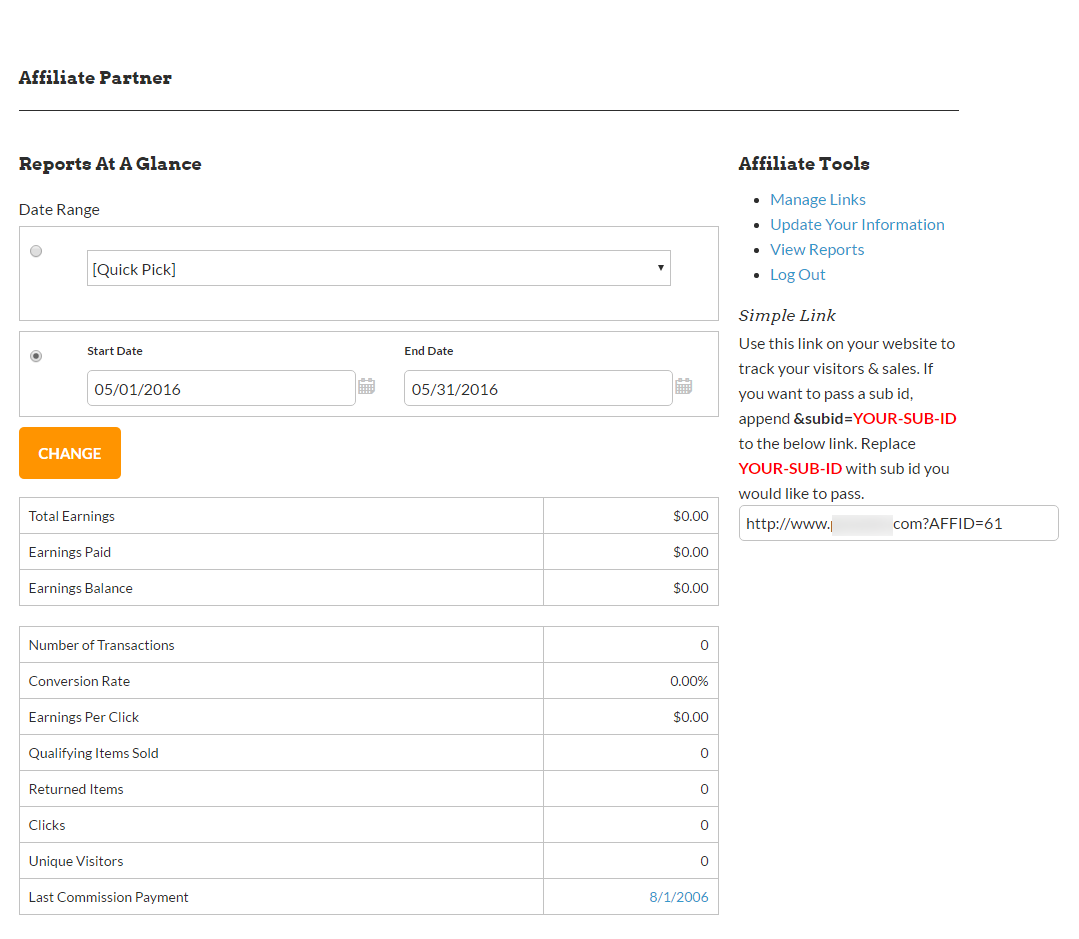
The main dashboard will give them a report at a glance. The affiliate can change the date range and quickly see how they are performing. From there a number of tools are available to the affiliate.
| Link | Description |
|---|---|
| Manage Links | If the affiliate does not want to utilize the simple link provided, they can go into the Manage Links section to obtain more sophisticated affiliate links that contain different size banner images and promotional text. |
| Tier Affiliate Program (Optional ) | If this applies to the affiliate, they will be presented with their recruiting link that they can use to recruit other affiliates under them. |
| Report | Description |
|---|---|
| Completed Transactions | This report contains all the transactions that are attributed to the affiliate for the reporting period. The report contains the following columns: Column A → Transaction Date **Column B → Memo contain OrderID ** Column C → Sub-Category ID Column D → Tier Column E → Commission Percentage Column F → Commission Amount Column G → Paid Column H → Balance **Column I → Status ** :::info This report should be the primary reconciliation report. Column Column 'H' - the 'Balance' column, will show: - Positive dollar commissions accrued for placed orders that are approved - Zero dollar commissions for rejected orders - Negative dollar commissions for refunds. ::: |
| Click History | The report contains the click history for each affiliate link. Column A → Click Date Column B → IP Address Column C → Sub-Category ID Column D → Referral Source |
| Impression Entries | This report details the impressions (rendered pages) for each affiliate link that contains the tracking pixel. Column A → View Date Column B → IP Address ** Column C → Sub-Category ID Column D → Referral Source :::info 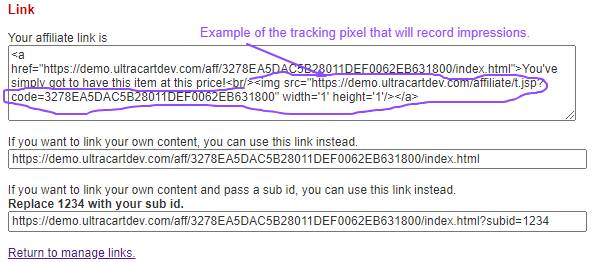 *Please note that some links, such as those that the affiliate hand codes, may not contain the tracking pixel used for this report.** ::: |
| Landing Page | This report will provide details regarding the activity by landing page. Column A → Landing Page Column B → Number of Clicks Column C → Number of Orders Column D → Commissions Column E → EPC Column F → Conversion Percentage |
| Referrer | This report provides the referring page for each affiliate link. Column A → URL Column B → Number of Clicks Column C → Number of Orders Column D → Commissions :::info This applies to the 'simple' links that have the AFFID appended to the link, and also the 'Invisible' affiliate links, which both use the 'Invisible link script to pull the referrer page. ::: |
| Sub ID | The report provides a summary for each link that has a sub-affiliate ID appended to it. Column A → Sub-Category ID Column B → Number of Clicks Column C → Number of Orders Column D → Commissions Column E → EPC :::info This is a summary of Sub-Category activity. Please refer to the Completed Transaction report for reconciliation. ::: |
Was this page helpful?