Coupons
Coupons allow merchants to offer discounts on various items or costs related to an order. Once you have created your coupon, merchants can display the coupon code on their web site (usually near the Buy Now button) that invites the customer to enter the code during the purchase process (at checkout). You can also generate Campaigns within UltraCart (covered later) which will generate random coupon codes so they can be used only by a single Email recipient (once).
Navigation
To create your first coupon navigate to:
NAVIGATE: Main Menu → Configuration ("Checkout" Section) → Coupons
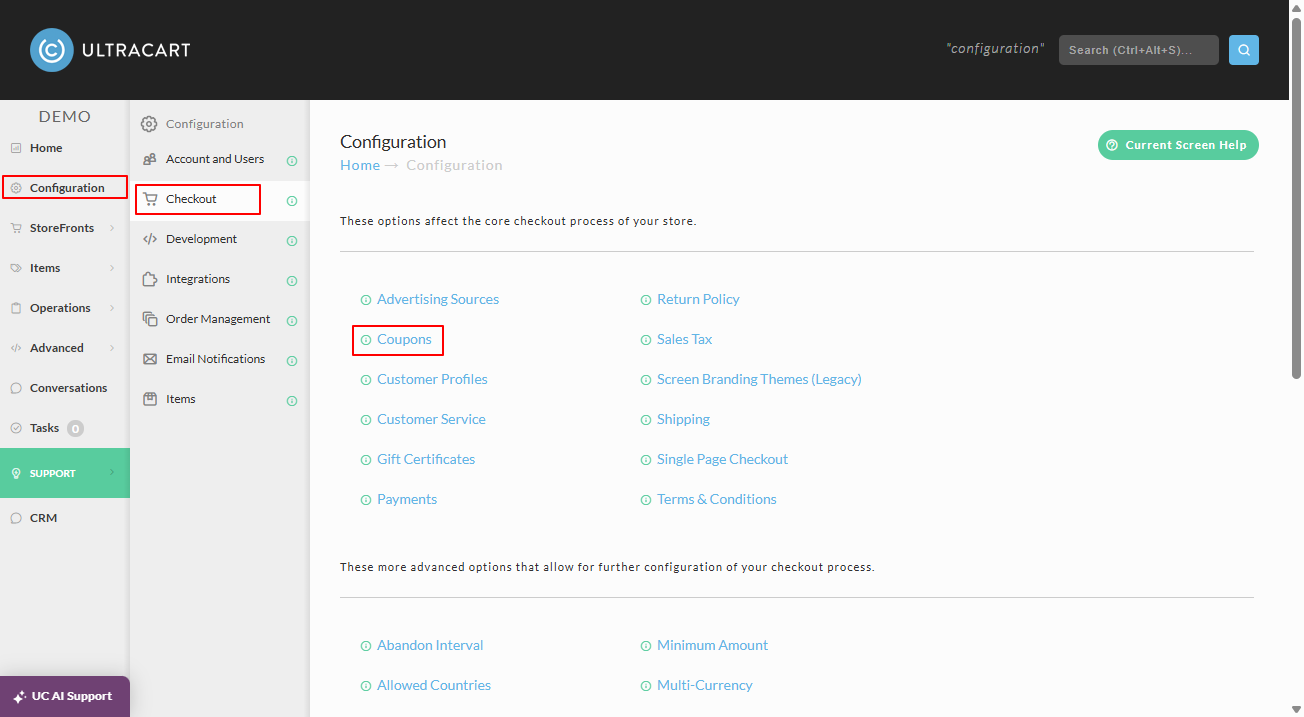
Creating a Coupon
Now click on the New button as shown below.
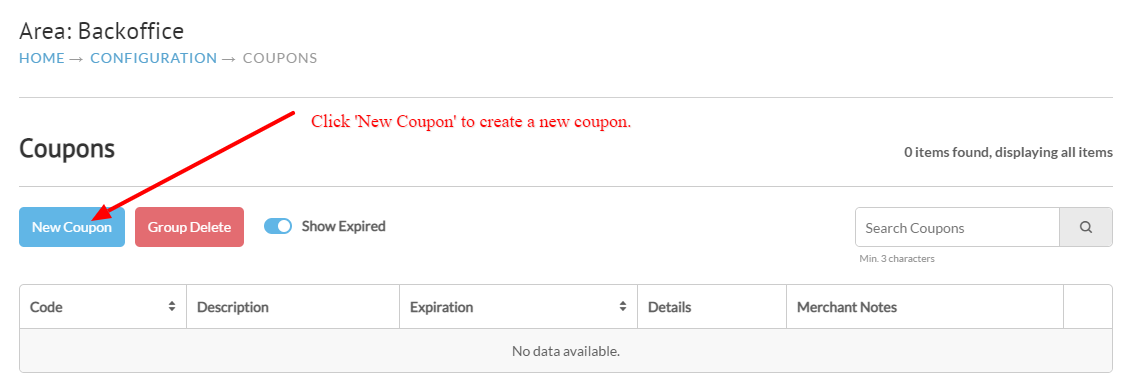
This will present you with a drop-down list of all the coupon types that UltraCart supports:
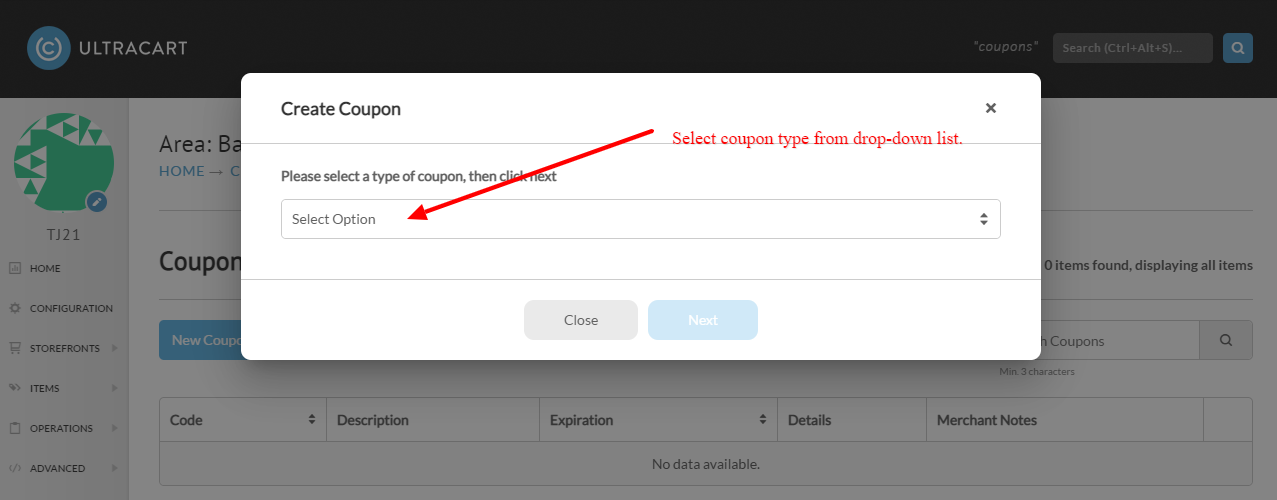
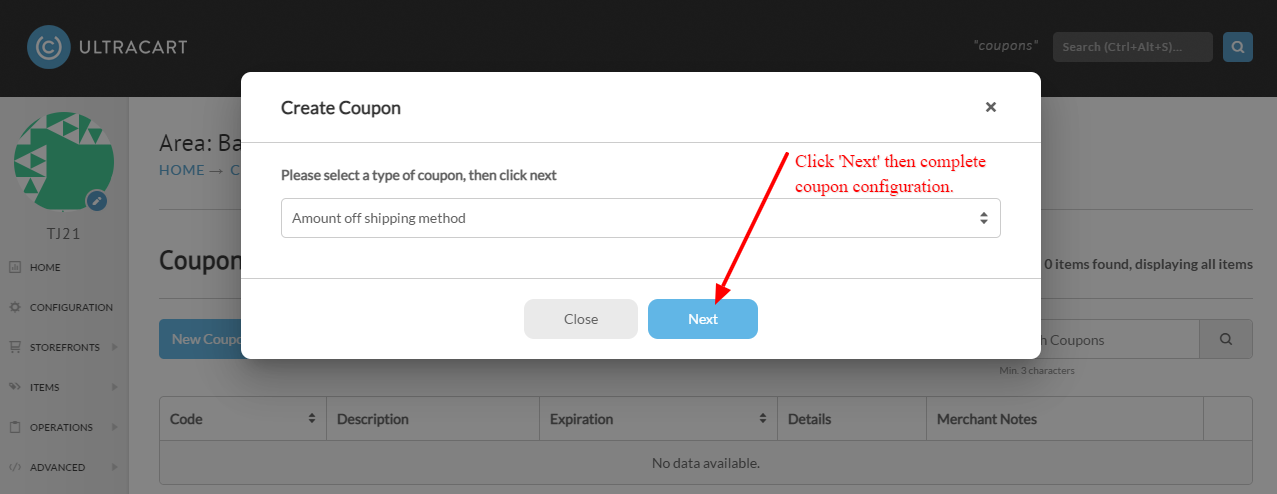
Select the type of coupon you would like to configure and then click Next as shown below:
Item specific coupons vs order level coupons
In the drop-down list of coupon types, the coupons that allow for specifying items, look for the descriptions that references item(s).
Order level coupons will either reference **subtotal **in the radio button list.
There is also an "exclude from coupons" checkbox setting in the bottom of the first tab of the item/Kit item editor. Please note that the exclude from coupons setting in the item editor will apply to all coupons!
Subtotal coupons have no field for skipping individual items. If you need a storewide percentage discount that excludes a category of products, such as clearance items, choose one of the Percent off item(s) types instead, the only coupon types with excluded item fields: see Excluding items by tag from a percentage discount below.
Not every item field has a tag-based alternate. On Buy one get one free items with limit, Item Tag(s) selects which items receive the discount, but the purchase that triggers the offer is set only in BOGO Items, which has no tag field. On Percent off item with items quantity purchase, both the discounted items and the required purchase items can be chosen by item or by tag. Check each field's own inline description in the coupon editor before leaving it blank.
Coupon Editor Field Descriptions
A summary of available coupon types appears in the table below:
| Coupon | Description – "Allows a merchant to:" |
|---|---|
| Amount off subtotal | discount a specific amount off the cart's subtotal. |
| Amt off subtotal & free shipping w/certain size purchase | a specific amount off the cart's subtotal and free shipping (specified method) with certain size purchase. |
| Amt off subtotal w/purchase of item block | a specific amount off the cart's subtotal for each block (qty) of a certain item. |
| Amount off subtotal with purchase of items | a specific amount off the cart's subtotal for purchase of specified qty of specified items. |
| Percentage off subtotal | discount a specific percentage off the cart's subtotal. |
| Percentage off subtotal (limited) | discount a specific percentage off first (specified amount) of subtotal |
| Percentage off subtotal and free shipping method | discount a specific percentage off the cart's subtotal and offer free shipping for a specified shipping method. |
| Percentage off subtotal with a certain size purchase | discount a specific percentage off the cart's subtotal with a purchase of a minimum dollar amount. |
| Amount off shipping method | discount a specific amount off a specific shipping method. |
| Percent off shipping method | discount a specific percentage off a specific shipping method. |
| Free shipping method | offer free (specified) shipping method. |
| Free shipping method with subtotal | offer free (specified) shipping method with minimum subtotal. |
| Amount off item(s) (with optional limit on quantity) | offer specific amount off specified items, with an optional limit on purchase quantity. |
| Tiered amt off an item (with optional limit on quantity) | offer tiered discount off specified item and quantity, with an optional limit on purchase quantity. |
| Tiered percent off subtotal | offer tiered percent off subtotal towards an optional specified set of items. Otherwise, all items qualify for the discount. |
| Tiered dollar off subtotal | offer tiered amount off subtotal towards an optional specified set of items. Otherwise, all items qualify for the discount. |
| Percent off item(s) (with minimum item amount) | This coupon lets you set a percentage discount on specific items, but the discount will only apply when the dollar amount of that item in the cart meets or exceeds a minimum threshold you define. If a customer is purchasing the item for less than the minimum amount, the coupon simply won't apply to that item. Example setup: - 10% off Item ABC, minimum item amount $50 - A customer buying $60 worth of Item ABC gets 10% off - A customer buying $30 worth of Item ABC does not get the discount - Other items in the cart are unaffected Features supported: - Percentage discount amount - Minimum item dollar amount threshold (with currency support) - Target specific items or item tags. Leave Items and Item Tags blank to apply the discount to all items except excluded ones - Exclude specific items or item tags - Optional quantity limit on discounted items |
| Buy one get one free items with limit | give a customer more of the same item they bought for free, with an optional cap on how many free items one order can get. |
| Percent off item with items quantity purchase | discount specified items by a percentage when the customer buys a required quantity of the required purchase items. Both the discounted items and the required purchase items can be chosen by item or by tag. You can optionally limit the quantity of discounted items. |
| Field | Description | Required |
|---|---|---|
| Code | The base code for the coupon. This should be a short value such as 10OFF for a coupon that gives $10 off the subtotal. :::info ### Coupon Codes Are Not Case Sensitive Please note that the coupon code redemption logic is not case sensitive, so do not create multiple coupons with the same code. Example Improper coupon codes that will cause the coupon to not be applied: "BUY1GET1" & "buy1get1" will be treated as the same code, resulting in the checkout rejecting the coupon code. ::: | Yes |
| Description | A description of the coupon. This information is displayed to the customer on the their order. A good idea is to describe the marketing channel that this coupon will be used through. | Yes |
| Expiration | If the coupon has an expiration, enter that date here. Please note you can enter a date or date and time. UltraCart Server Time Zone | |
| Usable By | Who can use the coupon. - Anyone (no limitations) - People that receive unique code from email campaign: This setting is only used in conjunction with the UltraCart Email Campaigns tool. - Each person only once (based upon ship to address): This one screens against the numeric portion of the street address and the zip code. - New customers only once (based upon email address): This one will only apply if the email address of the customer does not exist on any previous order. NOTE: The most common setting is anyone, but you may want to restrict it based upon your marketing offer | Yes |
| Hide Coupon From Customer | This will prevent customers from seeing this coupon during checkout or on the receipt | |
| Skip on Rebill | This will skip the application of the coupon on subsequent auto-order charges | |
| Allow multiple one-time use codes of this coupon to be used per cart | If enabled, multiple one-time use codes will be allowed to be redeemed within a single cart. | |
| Valid with Other Coupons |  Set this to No if the coupon can not be used with any other coupons. :::info ### New setting Super - This setting allow the coupon to override any other coupon setting for the Valid with. This allow this coupon to always be applied. ::: | Yes |
| Discount | Each coupon will have a set of configurable options for the discount type that the coupon provides | Yes |
| Quickbooks Code | If you are using QuickBooks, then you will need to specify the QuickBooks Item that this coupon matches up with so the order can import | |
| Affiliate | If an affiliate is selected, then the affiliate will receive credit for the sale if this coupon is used by the user. | |
| Restrict Usage to Zip Code(s) | Limits the usage of the coupon to people ordering within certain zip codes. Useful for coupons distributed at local conferences, etc. | |
| Automatically apply additional coupons | This feature allows you to apply additional coupons to be applied to the cart if the customer enters the coupon into the checkout. If there are already coupons being automatically applied then no additional coupon will be applied in this way. |
Excluding Items by Tag from a Percentage Discount
If you want to discount the entire order by a percentage but exclude a category of products, like clearance items, a subtotal coupon can't do it: Percentage off subtotal, Amount off subtotal, and Tiered percent off subtotal all discount the cart total as a whole and have no field for skipping individual items. To get a storewide percentage discount that skips tagged items, use one of the Percent off item(s) coupon types instead: Percent off item(s) (with optional limit on quantity), the free shipping variant of it, or Percent off item(s) (with minimum item amount). Only these three types have Excluded Items and Excluded Item Tags fields. The other item-level types, such as Amount off item(s) and the tiered item coupons, have Items and Item Tags but no way to exclude items.
Setting up the coupon
- Navigate to Main Menu → Configuration → Coupons → New.
- Choose the Percent off item(s) (with optional limit on quantity) coupon type and click Next.
- Set Discount percent to the percentage you want to take off.
- Leave Items and Item Tags blank. When both are blank, the discount applies to all items except excluded items.
- In Excluded Item Tags, enter the tag assigned to the items you want to skip, for example
clearance. - Leave Limit blank unless you want to cap the number of discounted items per order.
- Fill in the coupon Code, Description, Expiration, and Usable By settings, then click Save.
At checkout, every item in the cart is discounted except items carrying the excluded tag; those ring up at full price.
Enter the tag in Excluded Item Tags exactly as it appears on the item. If the tag differs from the item's tag, the item is not excluded.
Verifying an item's tags
Go to Main Menu → Items → Item Management, open the item, and check its tags. Tagging Items shows where tags are assigned. Confirm the tag you used in Excluded Item Tags appears in the item's tag list. If it's missing or differs from your entry, the coupon won't exclude that item.
The Exclude from coupons checkbox in the item editor's first tab is a separate setting: it excludes the item from every coupon, not just this one. Use an item tag in the coupon's Excluded Item Tags field when the exclusion should apply to specific coupons only.
Troubleshooting
The discount still applies to items I meant to exclude. Open one of the affected items and check that the tag matches the item's tag exactly, as entered in Excluded Item Tags. A mismatch is the usual cause.
The discount doesn't apply to anything. Check whether Items or Item Tags on the coupon contain a value. Either field overrides the all-items default, so an entry that doesn't match anything in the cart discounts nothing. Clear both fields to restore the all-items default.
Editing Existing Coupons
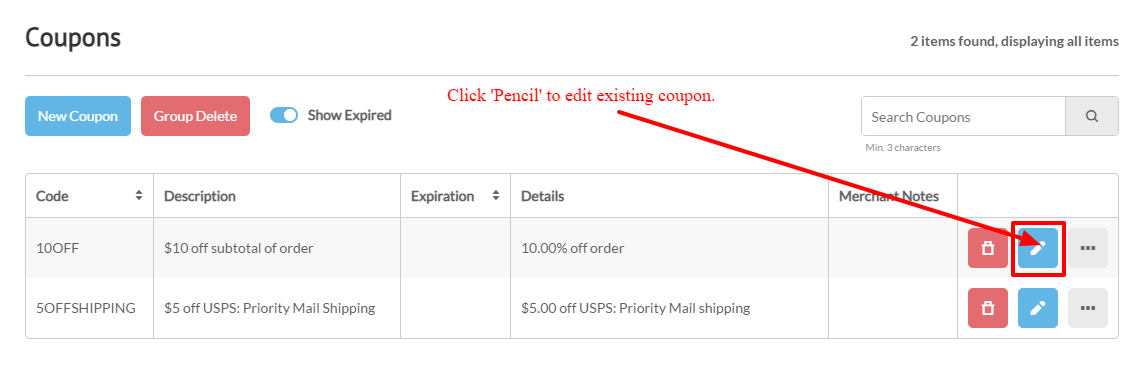
To edit an existing coupon, click on the "edit" button to the right of the coupon you want to change. You will be taken to the Coupon editing screen. Any of the coupon fields can be edited. However, if you change the Coupon CODE field, all previously issued coupons under the original coupon code will no longer be valid. Click on the "Save" button after making your changes.
'Apply Coupon' Suppression
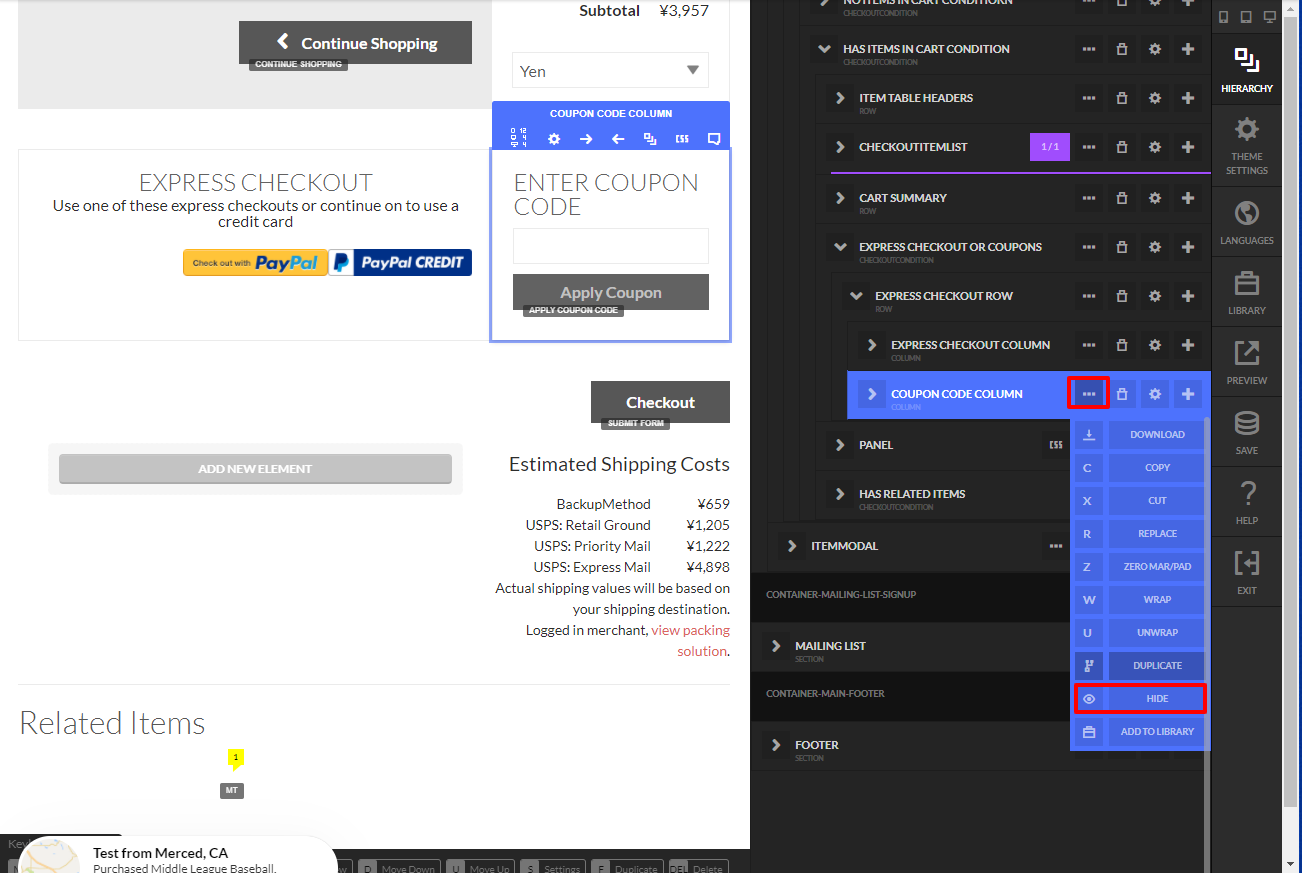
Please note that by default the coupon entry field is suppressed when there are no active coupons configured. Once one or more active coupons are configured in the account, an 'Apply Coupon' section will appear in the checkout.
Visual Builder supported Storefront Themes:
IF you have active coupons but wish to suppress the 'Apply Coupon' section from appearing in the checkout. You can edit the storefront theme using the Visual Builder and then select the coupon code column, then click the "three dots" menu then click the 'Hide' menu option:
Accessing Coupon Tools in the 'Three Dots' menu
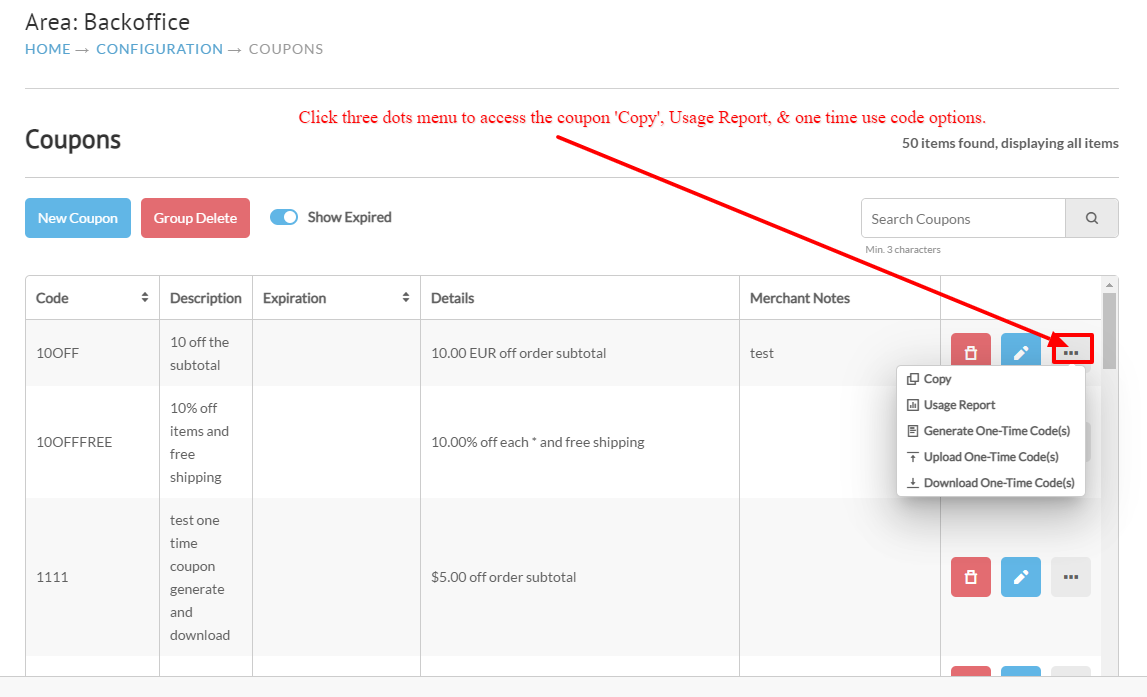
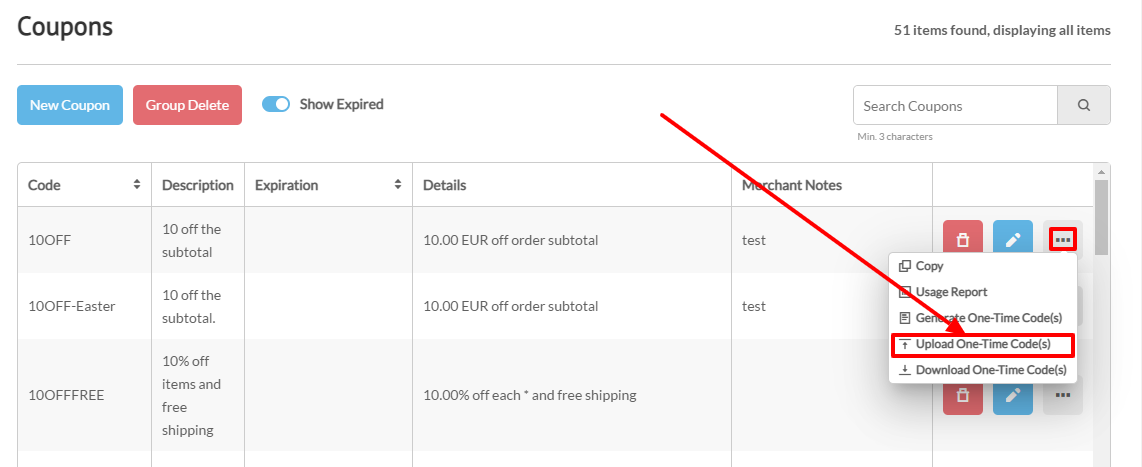
Each existing coupon will have a 'Three Dots' menu, which contains the tools for:
-
Copying an existing coupon code
-
Usage Report
-
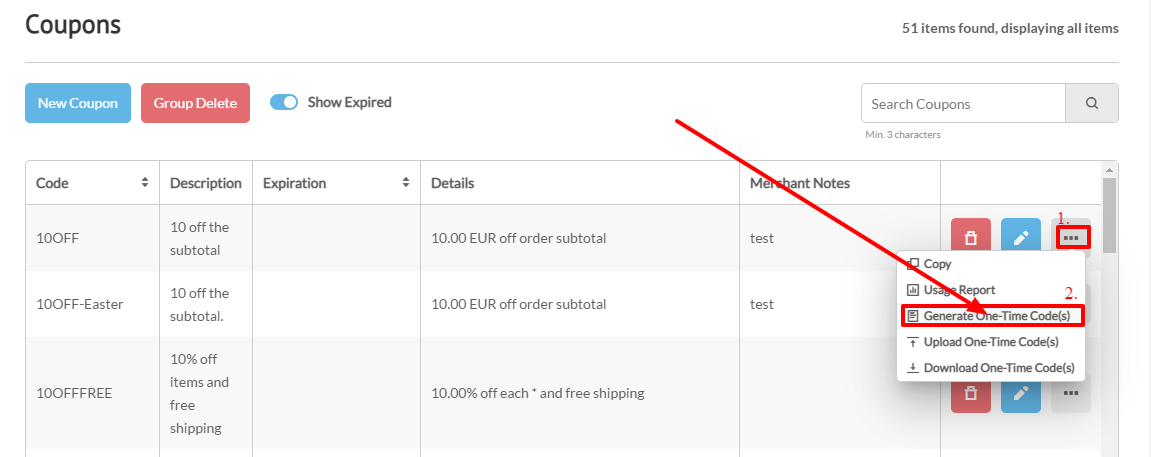
Generate One-Time Code(s)
-
Upload One-Time Code(s)
-
Download One-Time Code(s)
Copying Existing Coupons
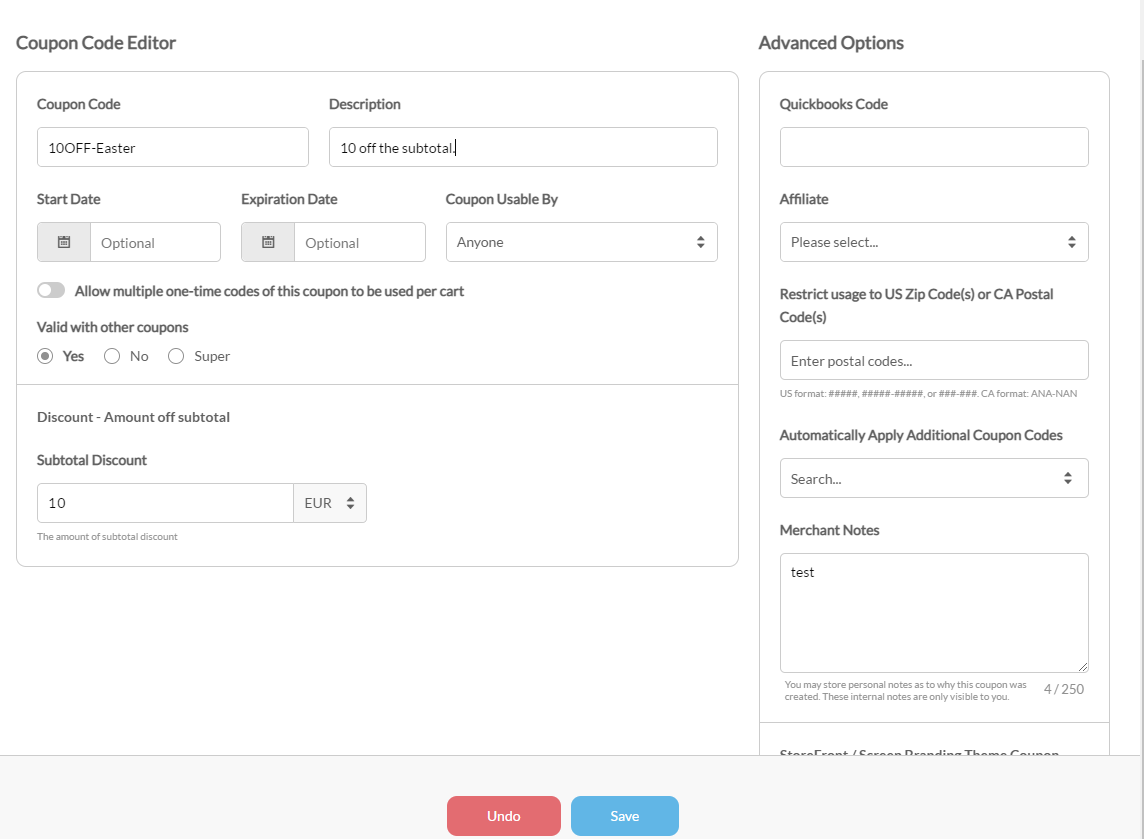
To duplicate (copy) a coupon, click the "three dots menu" to the right of the edit button for the existing coupon code and then click on the "Copy" button.
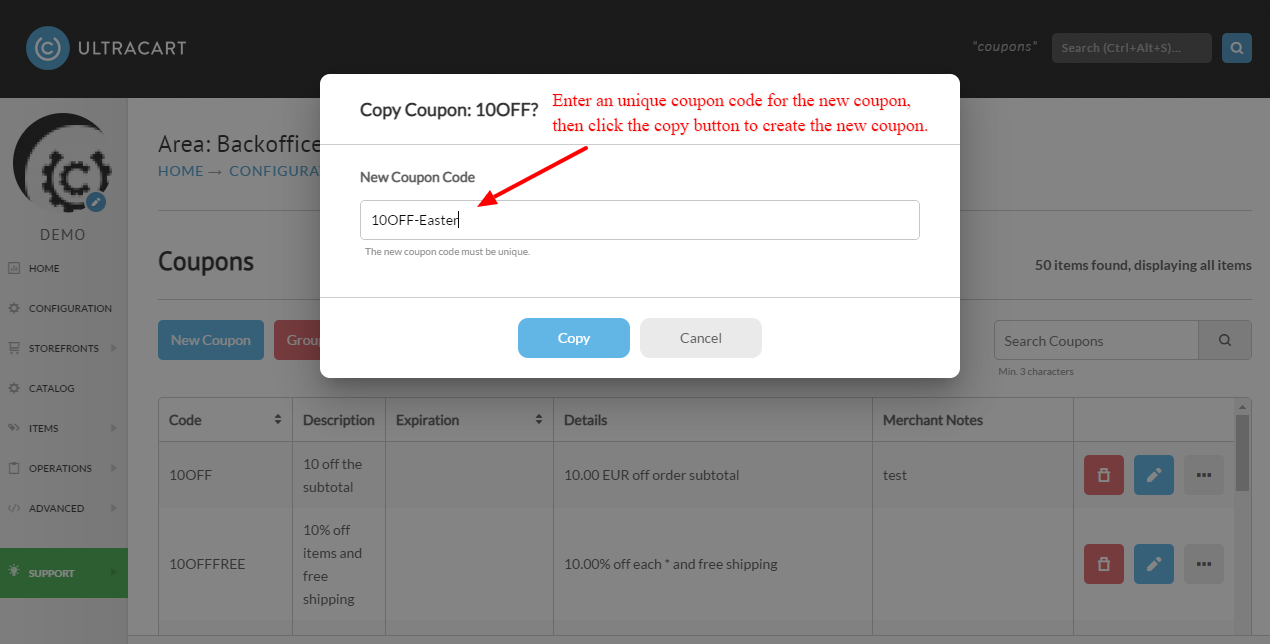
You'll be in the coupon editor after clicking the 'Copy' button. Create any changes to the coupon as needed, then save the changes:
Generate One Time Codes
This feature is ideal for those merchants that want to disseminate coupon codes via their own devices; newsletter, merchandise show, their own email campaign, etc. When utilized, this routine will create a specified number (up to 1000) of unique, one-time usage codes for distribution to customers.
From the three dots menu for an existing coupon, click "Generate One-Time Code(s)" button, a dialog window will appear asking "How many one-time coupons do you need?"
Enter the number of codes you need and click the "Generate" button.
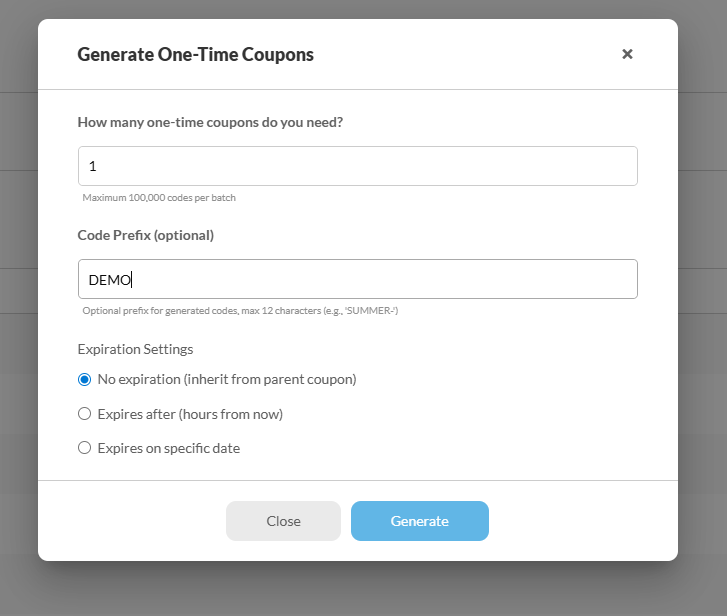
The model for the Generate One-Time Coupons will allow you to set how many codes you need to generate and configure any expiration settings you may been. By default this will use any expiration set on the parent coupon.
| Setting | Description |
|---|---|
| No expiration (inherit from parent coupon) | (Default Setting) this allows for no expiration or for it to use any expiration set on the parent item. |
| Code Prefix | This allows you to generate your codes with a prefix. There is a limit of 12 characters for the Prefix. |
| Expires after (hours from now) | Allow you to set the number of hours the coupon will be valid for, for example 24 hours. |
| Expires on specific date | Allow you to set a specific date in the future that the coupon will expire. |
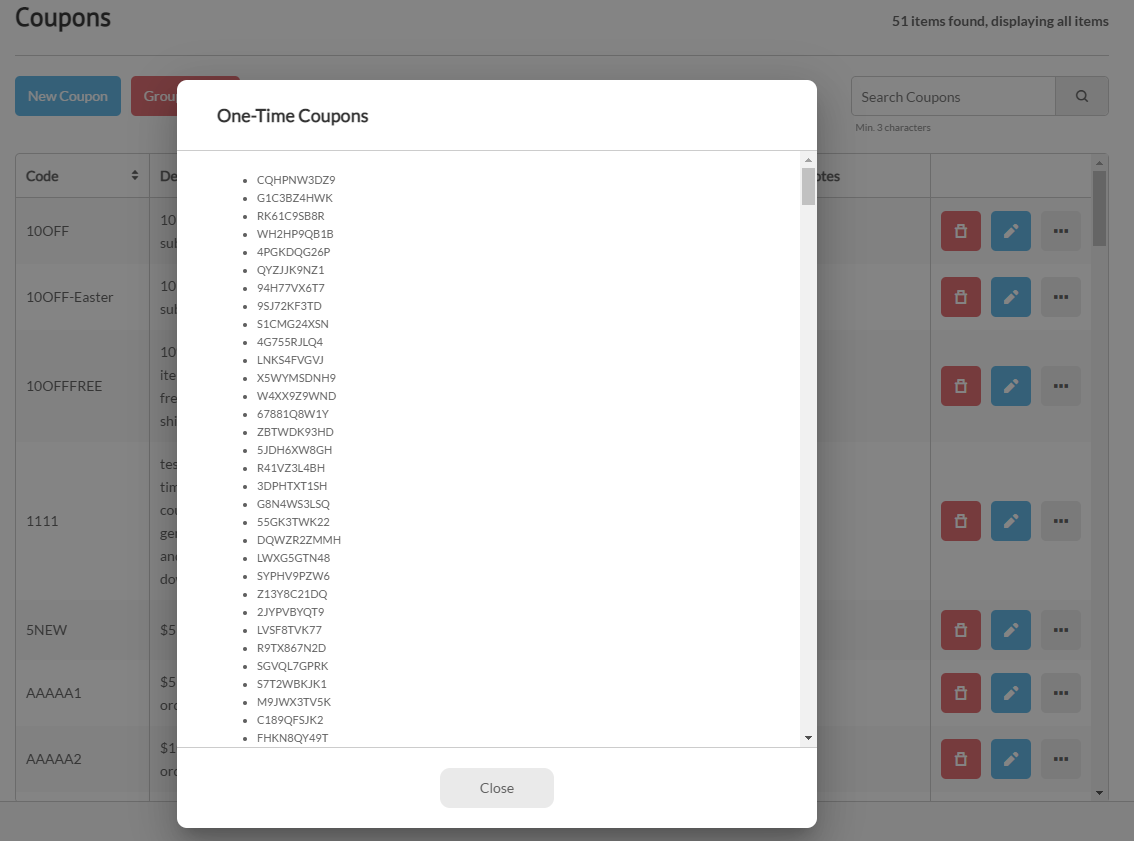
Once you have provided the number of coupons you wish to generate and the expiration setting, simply click on Generate for the system to create your codes. It will do this in batches of 1,000 codes and display a progress bar and a download when it is complete. The generate codes will also be displayed in the model when it is complete.
Upload One Time Codes
There are times were you need to upload one time use codes that have been generated by an external party. This feature is often used by merchants that are doing a Groupon.com offer. To upload one time use codes click the button as shown below.
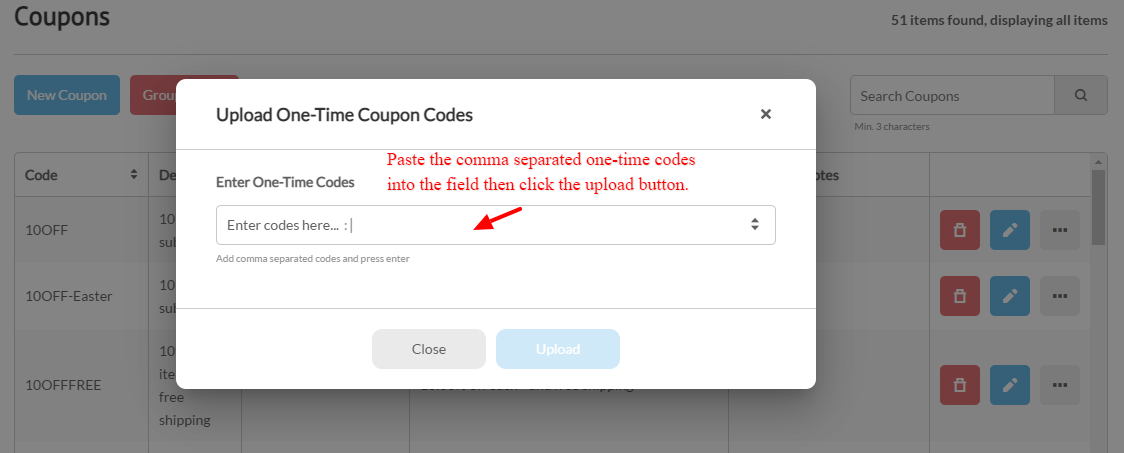
Paste the comma separated one-time use codes into the text field as shown below and then click upload.
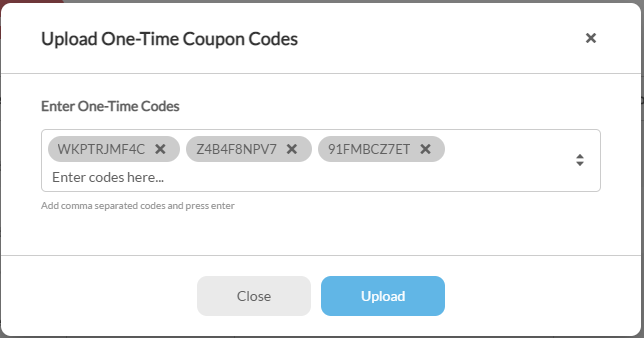
After pasting the codes into the field, hit the enter key which will save the separate codes in the field like this:
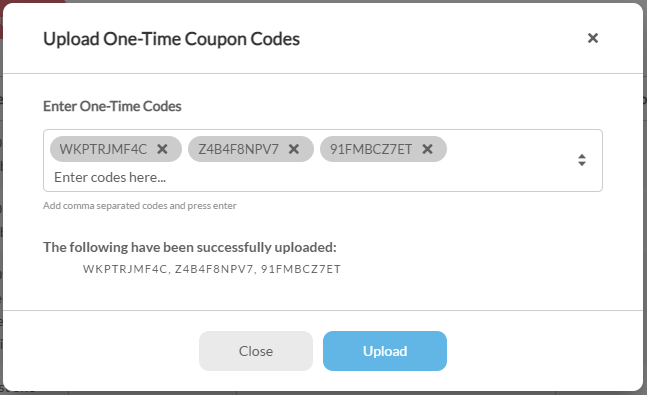
Then click the 'Upload' button to upload the codes and you'll receive a confirmation of the uploaded codes in the dialog window:
Once you have uploaded all of your coupons click the 'Close' button in the dialog window.
Reporting on Usage
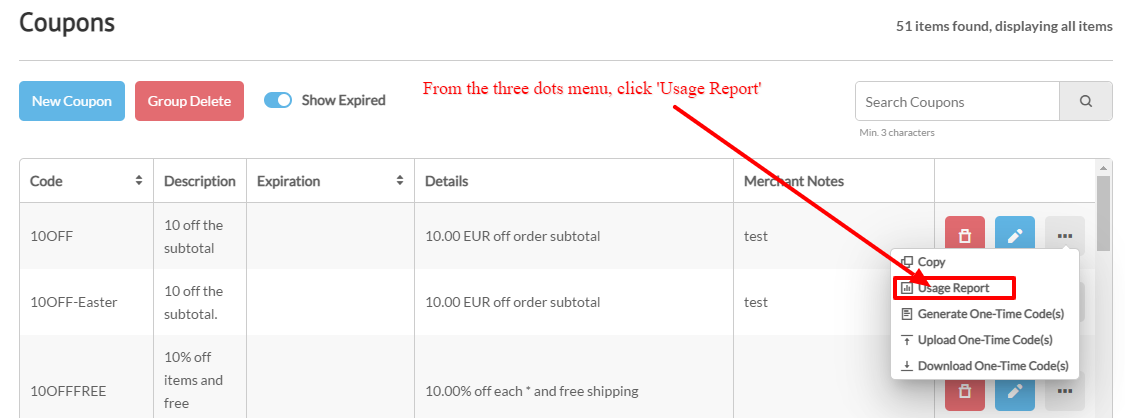
This is an excellent way to obtain data about the customer usage of any particular coupon. Click on the three dots menu, then click the "Usage Report" button:
The following screen will appear:
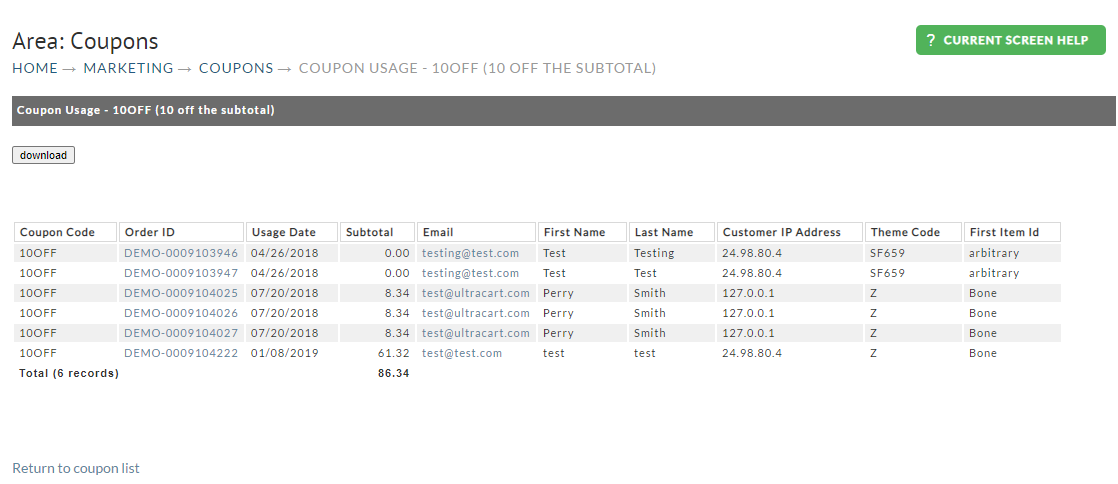
For each usage the report will show you the actual code (in case they used a one-time use code), the order ID, the date of the order, and the subtotal of the order.
NOTE: You can download the usage report details by clicking the 'download' button that appears in the top left side of the page.
'Apply Coupon' Suppression
Please note that by default the coupon entry field is suppressed when there are no active coupons configured. Once one or more active coupons are configured in the account, an 'Apply Coupon' section will appear in the checkout.
Visual Builder supported Storefront Themes:
IF you have active coupons but wish to suppress the 'Apply Coupon' section from appearing in the checkout. You can edit the storefront theme using the Visual Builder and then select the coupon code column, then click the "three dots" menu then click the 'Hide' menu option:
Hiding coupon entry field
In addition to the suppression configuration field listed above there is another on located in the first tab of the legacy screen branding themes editor, which allows for selective suppression of the coupon field based upon the screen branding theme.
Also note that even with the coupon suppression enabled, coupon codes can be applied to a purchase via inclusion to a buy link or buy form (see: " Parameters that can be passed to UCEditor")
Auto Apply Coupons
You can automatically apply coupons to a customer's order to provide them discounts. This feature makes it easy to trigger promotional discounts without requiring the customer to enter a code. A customer only receives one level of coupons. A level can have more than one coupon, added by selecting multiple coupons from the search results in the Coupon Code field.
Recommended Coupon Types:
-
Tiered percent off subtotal
-
Tiered dollar off subtotal
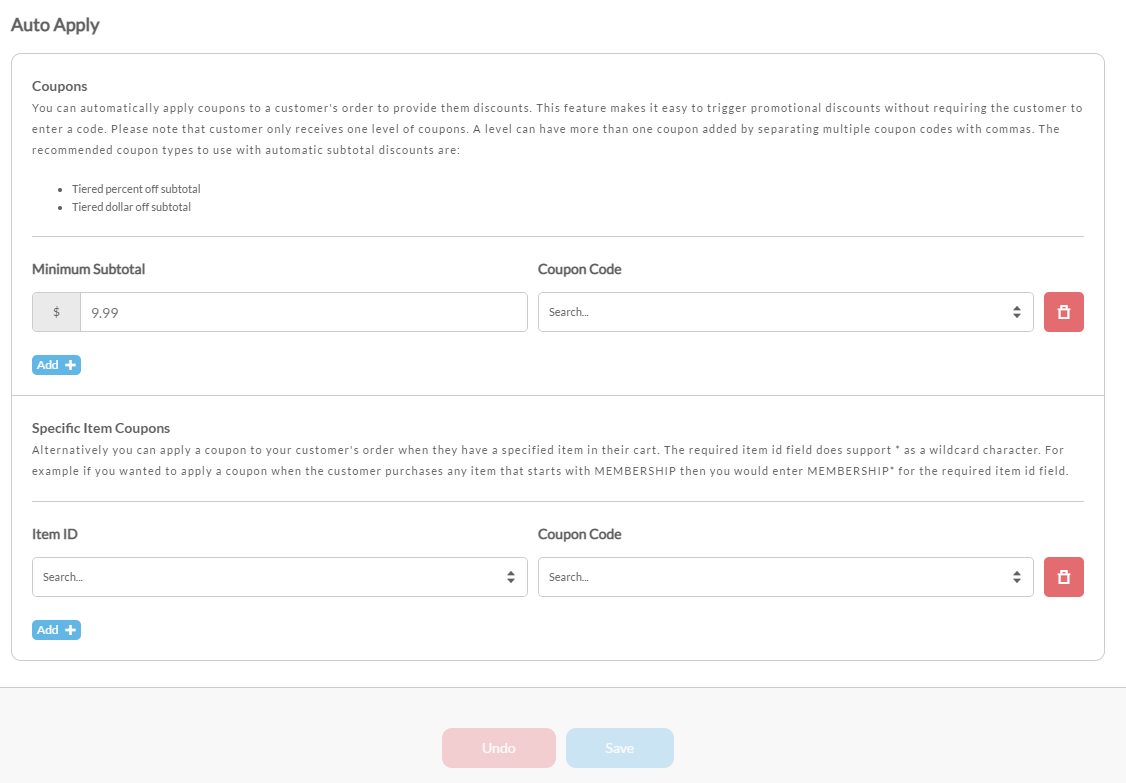
There are two type of Auto Apply Coupons that can be configured:
-
Subtotal based coupon (this means that when the customer hits the required subtotal the coupon will be applied to the cart automatically)

-
Based on an item coupon, (IF the customer purchases a specific item apply coupon to the order)
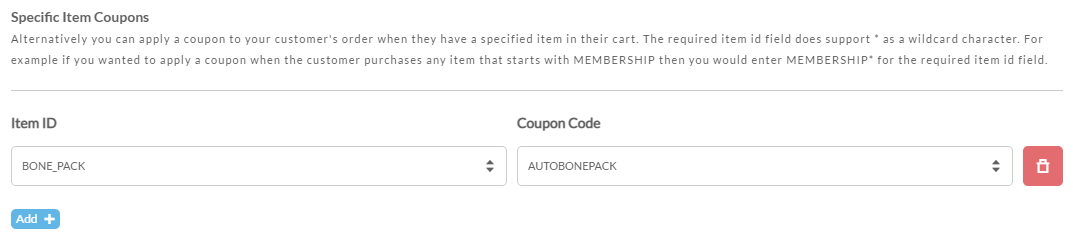
In this example we are using item BONE_PACK to apply the coupon. When this item is added to the cart the coupon assigned AUTOBONEPACK will automatically apply to provide the customer with a discount on the item.
Import Note Regarding Auto Apply Coupons
It is important to note that when using this feature the auto applied coupons will not be displayed as coupons to the customer in the checkout. The customer will see any discount applied to either the subtotal or the item/s, but they will not see that a coupon is being applies.
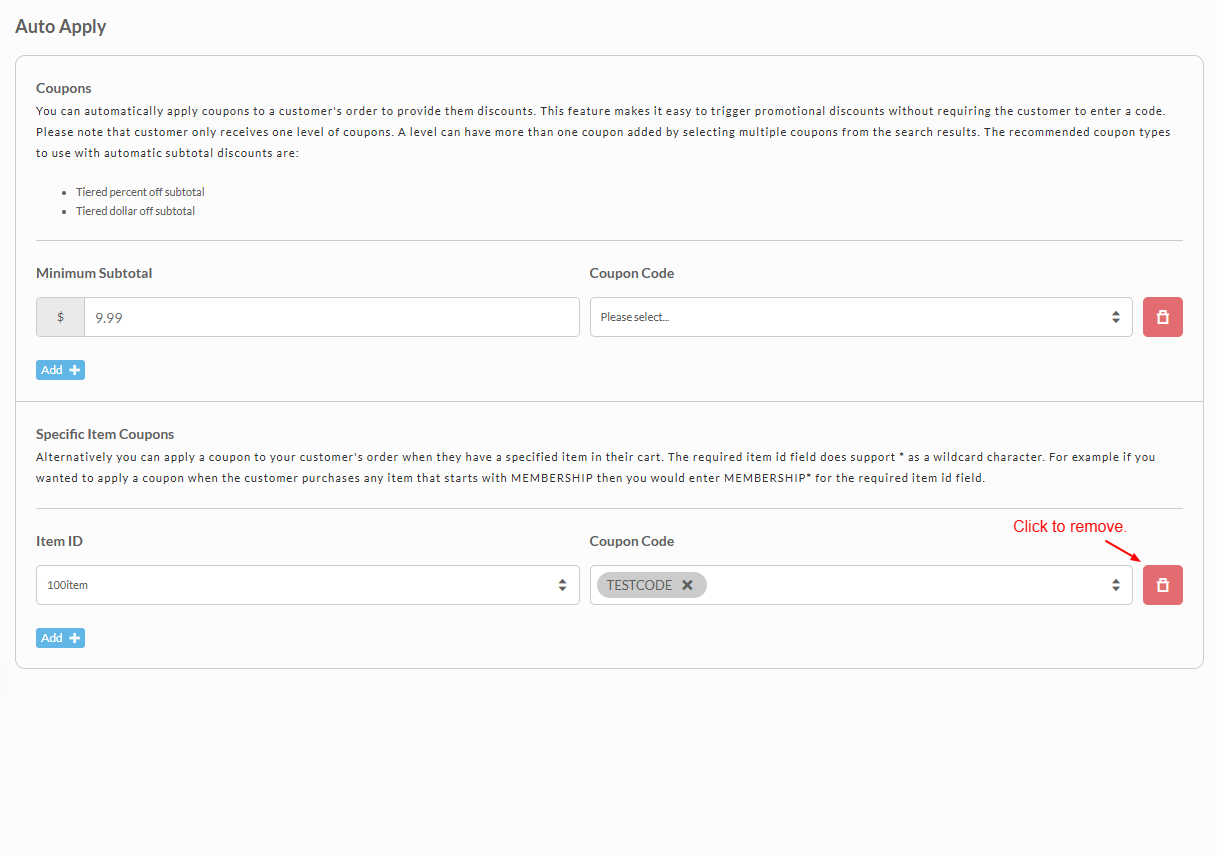
Turning off an Auto Apply rule
Removing an Auto Apply rule stops the coupon from being applied automatically. It does not delete the coupon. Customers can still enter the coupon code manually at checkout unless you delete the coupon or it expires.
-
Navigate to Main Menu → Configuration → Coupons.
-
Scroll down to the Auto Apply section.
-
Find the rule to remove:
- Subtotal based rules are listed under Coupons, with a Minimum Subtotal and a Coupon Code.
- Item based rules are listed under Specific Item Coupons, with an Item ID and a Coupon Code.
-
Click the red trash icon to the right of that row.
-
Click Save at the bottom of the page.
To stop the coupon from being used at all, delete it or set an expiration date from the coupon list at the top of the same page. See Deleting Existing Coupons.
To confirm the change, start a new checkout in a private browser window and check that the discount does not appear until you enter a code.
A Minimum Subtotal rule with a very low amount, such as $1, applies the coupon to nearly every order. If a discount shows on every order without a code, check the Auto Apply section first.
Deleting Existing Coupons
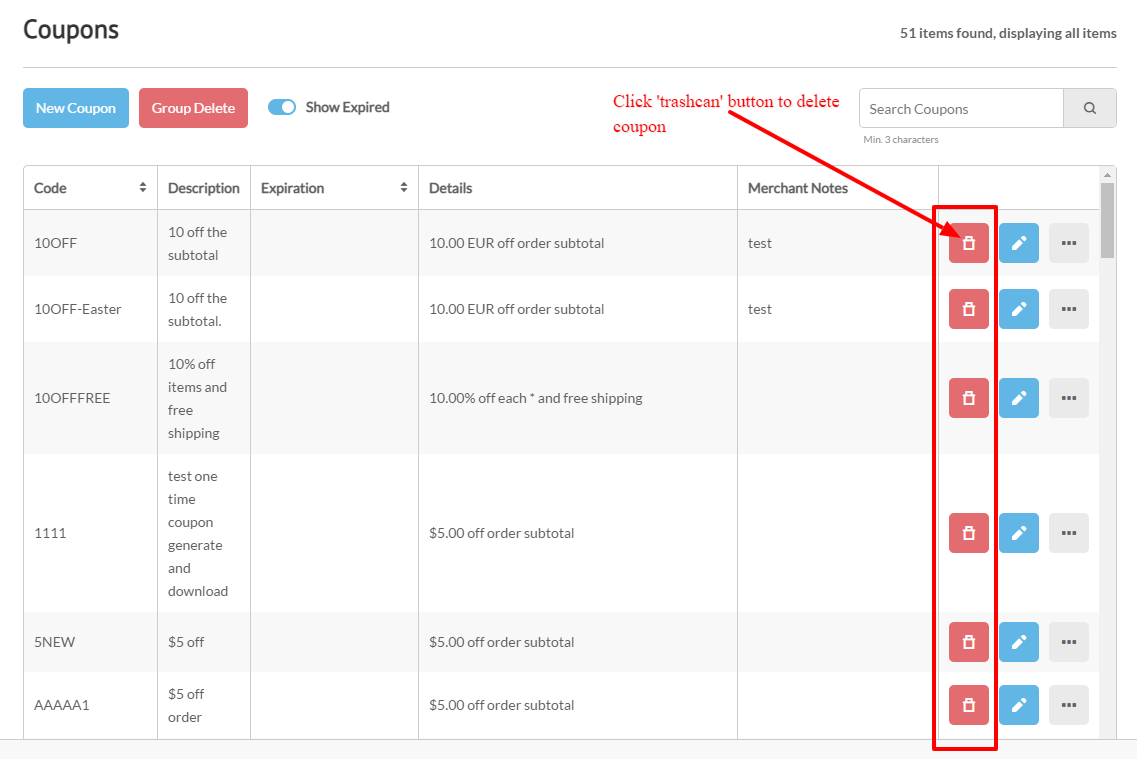
UltraCart provides two options for deleting coupons — individual deletion and group deletion.
Individual Coupon Deletion
To delete a single coupon, click the red Delete button located to the right of the coupon you wish to remove.
Warning: This action is permanent. Once deleted, the coupon cannot be recovered.
If the deleted coupon was used in an email marketing campaign, all of the custom coupon codes associated with that campaign will also become invalid.
Group Delete (Bulk Coupon Removal)
For scenarios where multiple coupon codes need to be deleted at once, use the Group Delete tool.
-
Click the Group Delete button located at the top of the coupon list.
-
A dialog window will appear with a large text area.
-
Paste multiple coupon codes (one per line or separated by commas) into the dialog window.
-
Click Delete to remove all the listed coupon codes simultaneously.
Tip: Use this feature when retiring large batches of single-use or campaign-generated coupon codes to save time.
Note: When coupons are deleted, any associated auto-apply logic will no longer activate in checkout. Customers will still see discounts applied directly to items or subtotals, but the coupon name itself will not appear.
If you delete a coupon code that was used in an e-mail marketing campaign, all of the custom coupon codes created that reference this coupon will no longer function.
Adding a Coupon Code to a Buy Link
UltraCart makes adding a coupon to a buy link really easy. When you are in the link builder for your item use the Advanced Buy Link screen. Just enter the coupon code into the form and it will display the proper link for you.
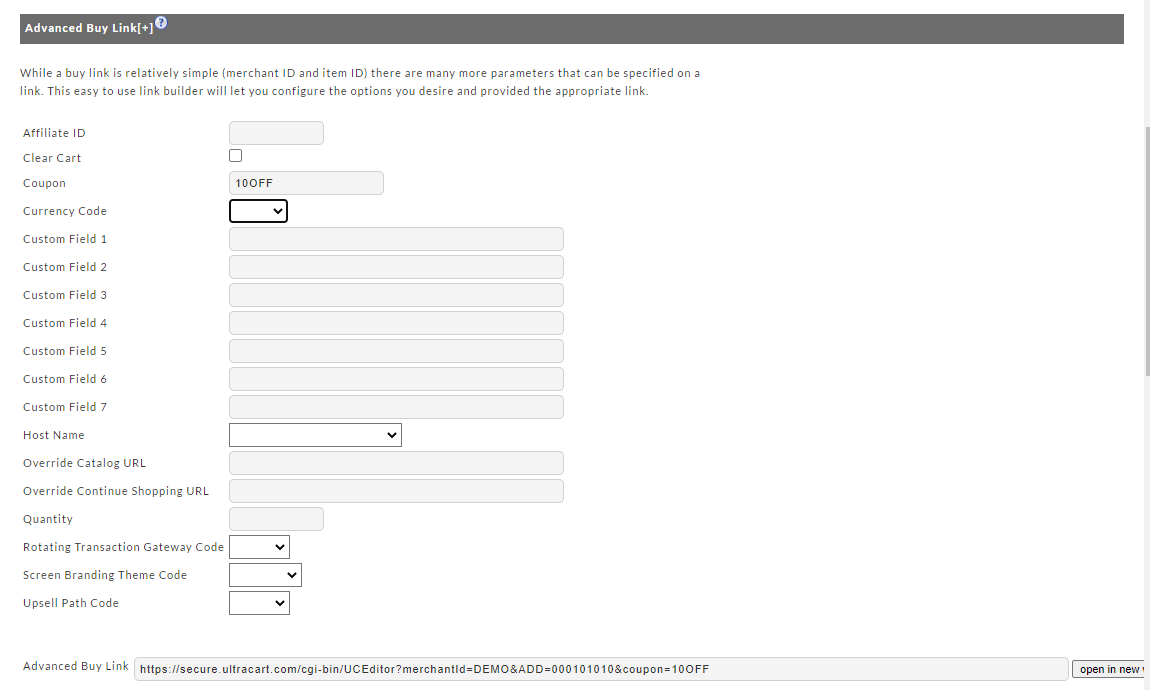
To access the Advanced Link Builder go to
Main Menu → Item Management → Items → [links]
Adding a Coupon Code to Buy Form Code
You can insert the coupon field into the "buy form" code as a hidden input field, like this (see line 4). You could also create a visible text input field for passing the coupon over:
Coupon as hidden field to Buy Form
<form method="post" action="https://ucsupport.ultracart.com/cgi-bin/UCEditor">
  <input type="hidden" name="merchantId" value="DEMO" />
  <input type="hidden" name="add" value="Bone" />
  <input type="hidden" name="coupon" value="10off" />
  <table class="uc-item-table">
    <tr class="uc-item-qty-row">
      <td class="uc-item-qty-label">Qty</td>
      <td class="uc-item-qty-field">
        <input type="text" name="quantity" value="1" />
      </td>
    </tr>
    <tr class="uc-item-cost-row">
      <td class="uc-item-cost-label">Cost</td>
      <td class="uc-item-cost-value"><script type="text/javascript" src="https://ucsupport.ultracart.com/cgi-bin/UCPrice?MERCHANTID=DEMO&ITEM=BONE&output=Javascript"></script></td>
    </tr>
    <tr class="uc-item-submit-row">
      <td></td>
      <td>
        <input type="submit" name="submit" value="add to cart" />
      </td>
    </tr>
  </table>
</form>
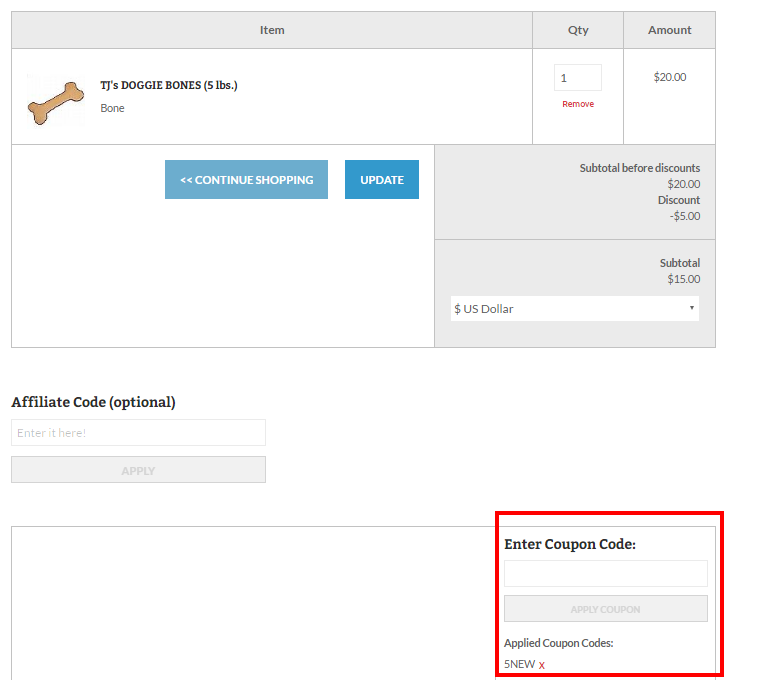
Using Coupon in a storefront checkout
The coupon field will typically appear in the lower right portion of the checkout page:
Troubleshooting
A "Buy one get one free" coupon is accepted but no discount applies
Symptoms: A customer enters a coupon code for a Buy one get one free items with limit coupon at checkout. The code is accepted with no error, but no discount appears on the order, on any storefront.
Cause: BOGO Items sets the items a customer must purchase to trigger the offer, and it has no tag-based alternate. Item Tag(s) on this coupon type selects which items receive the discount. It is not a trigger, so tagging items there does not make the coupon apply.
Fix: Open the coupon and check which items BOGO Items lists. If none are selected, set BOGO Items to the item(s) that should trigger the offer, save the coupon, and test it again at checkout.
Frequently Asked Questions
**Q: We noticed that there is some sort of limit to the number of characters or the number of zip codes or something. long story short, folks are calling in because they're coupons are not working because of the zip code constraint. I noticed that it's cutting off our list at a certain point. so, I'm wondering if that is something easy that can be changed or if we need to create more coupons and break the zip codes out more. **
A: The zip code configuration field is limited to 1000 characters in the database. However, please note you can use ranges to make things more compact:
You can use a 3 digit prefix (example: 303*), 5 digit prefix (example: 30319*), 3 digit to 3 digit range (example 303*-305*) and then 5 digit to 5 digit ranges (example 30312-30319).
Q: How do I set a 10% off discount sales price for all items?
A: A simple way to apply a percentage discount off all items is to use the auto apply coupon feature to apply a 10% discount off the order. Do implement this 10% discount, first create a coupon using the ‘Percentage off subtotal’ coupon type with the percentage set to 10%. Next, configure the coupon as a ‘auto apply’ coupon using the ‘Minimum Subtotal’ configuration, say $1.00 or whatever your lowest qualifying item would be.
Q: I want a percentage discount on the entire order, but need to skip clearance items. Which coupon type should I use?
A: Not a subtotal type; they have no way to skip items. Use one of the Percent off item(s) types, such as Percent off item(s) (with optional limit on quantity), and enter your clearance tag in Excluded Item Tags. See Excluding Items by Tag from a Percentage Discount above.
Q: What permission is required to be able to create and edit coupons?
A: The ‘Edit Settings’ permission is required in order to add, edit, or remove coupons.
Q: I need to create a coupon code, where do I create the discount code?
A: To create a coupon code, navigate from the Main Menu → Configuration → ('Config' menu) Checkout → Coupons.
notec71aa8a3-ef47-4084-b56a-7402e172909e
TIP: Use the Search field located at the top right side of a page. Typing ‘Coupons’ will provide a pop up menu with two panes the left side links to documentation and the right pane provides navigation short cut to matching pages.
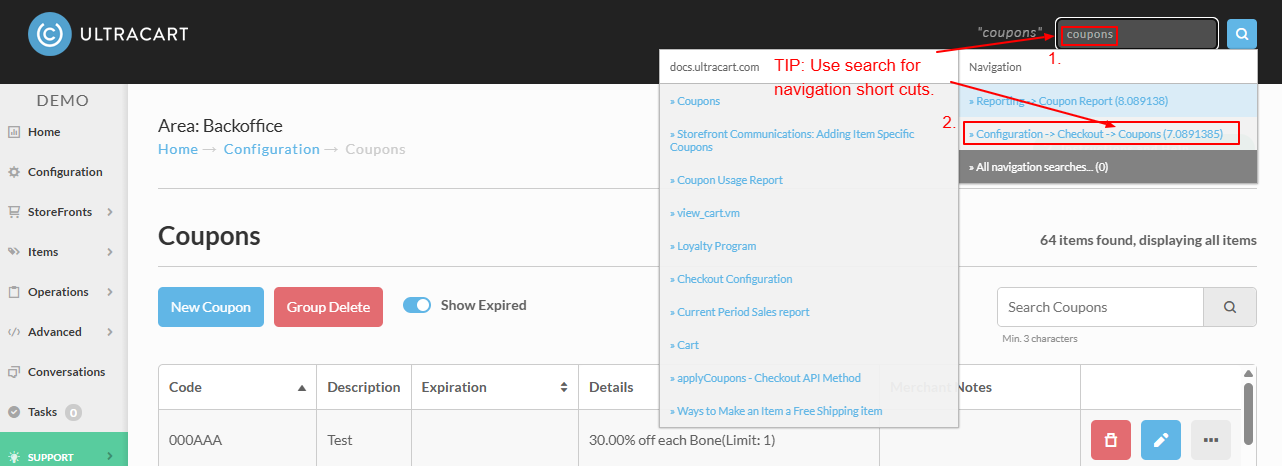
TIP: Use the Search field located at the top right side of a page. Typing ‘Coupons’ will provide a pop up menu with two panes the left side links to documentation and the right pane provides navigation short cut to matching pages.

Q: I configured a coupon for use in a Storefront Visual Builder email or flow, but I do not want the base coupon code to be usable by anyone at checkout. How should I configure it?
A: When a coupon is being distributed through UltraCart email campaigns or flows, set the coupon’s Usable By option to People that receive unique code from email campaign instead of Anyone. This setting is intended for campaign-generated unique coupon codes and helps prevent misuse of the base coupon code configured in the back end. With this option enabled, the master coupon code itself will not be accepted at checkout on its own; only the unique generated codes sent to recipients will work. This provides added protection for coupons used with Storefront Visual Builder-driven promotions and email-based offers.