Attentive Integration
Attentive is an SMS and mobile marketing platform. Connecting it to UltraCart lets you collect SMS subscribers during checkout and feed shopper activity into Attentive so your journeys can trigger on real cart and order behavior.
The integration has two halves that you turn on separately.
- Server side, from UltraCart to the Attentive API. This carries subscribe, add to cart, checkout, and purchase activity, and uploads your product catalog. It runs off your Attentive API key.
- The Attentive tag, a small piece of JavaScript UltraCart adds to your StoreFront pages for you. It reports product views, which the server cannot see, and it displays the sign-up units you have built in Attentive. It runs off your Attentive Company ID.
You can run either half on its own. Entering only the API key gives you the server events with no tag on your pages. Entering only the Company ID gives you the tag with no server events. Most merchants want both.
No theme edits are required either way. UltraCart adds the tag to your pages automatically once the Company ID is saved.
What UltraCart sends to Attentive
Each event is sent by exactly one half of the integration. Attentive has no way to recognize the same event arriving twice, so UltraCart never sends one from both.
| Event | Sent by | Sent when | Sent to Attentive as |
|---|---|---|---|
| Subscribe | Server | A shopper opts in, and automatically alongside each add-to-cart event | /v1/subscriptions |
| Unsubscribe | Server | A shopper opts out through UltraCart | /v1/subscriptions/unsubscribe |
| Add to Cart | Server | An item is added to a cart that has an email address or a consented mobile number | /v1/events/ecommerce/add-to-cart |
| Add to Cart | Tag | An item is added to a cart with no email address and no consented mobile number | addToCart |
| Checkout Started | Server | The shopper enters checkout | Custom event, type Checkout Started |
| Checkout Abandoned | Server | The shopper leaves checkout without ordering | Custom event, type Checkout Abandoned |
| Purchase | Server | An order is placed | /v1/events/ecommerce/purchase |
| Product View | Tag | A shopper opens a product page | productView |
| Identify | Tag | The shopper's email address becomes known, at checkout and on the receipt | identify |
| Product catalog sync | Server | The catalog sync job runs | /v1/product-catalog/uploads |
Product view is the reason to run the tag. UltraCart's servers never see a product page load, so there is no server-side equivalent and no other way to feed browse behavior into Attentive.
The Identify event matters more than its name suggests. It ties Attentive's own visitor cookie to a shopper you can contact, which is what lets Attentive connect anonymous browsing earlier in the session to the person who eventually checked out. Without it, product views from a shopper who had not yet entered an email address stay unattached to any subscriber.
Before you begin
Confirm the following:
- You have an active Attentive account with SMS marketing enabled.
- You have administrator or developer access in Attentive, enough to create an app and view sign-up units.
- Transactional messaging is enabled in Attentive if you plan to send order-related texts.
- You can access UltraCart with Marketing permissions.
Some sign-up units may need to be created for you by your Attentive Customer Success Manager. If you cannot find the units described below, contact them before continuing.
Step 1: Create an Attentive API key
UltraCart authenticates to Attentive with a private API key, sent as a bearer token on every request.
- Sign in to your Attentive admin account.
- Open the integrations or app marketplace area and choose to create an app.
- Give the app a recognizable name, such as
UltraCart Integration, and enter a contact email address. - Grant the app write permission to eCommerce, Subscribers, and Custom Events. UltraCart needs all three: eCommerce for add-to-cart and purchase, Subscribers for opt-ins and opt-outs, and Custom Events for the checkout events.
- Create the app and copy the generated key.
Attentive may display the API key only once. Copy it somewhere safe before leaving the page. If you lose it, generate a new key and update UltraCart, because the old key stops working.
Step 2: Collect your sign-up source IDs
Sign-up source IDs are the numeric identifiers of your Attentive sign-up units. In Attentive, open Sign-Up Units and stay on the Sign-up units tab, then note the value in the ID column for each unit you plan to use.
Take the IDs from the Sign-up units tab, not the A/B tests tab alongside it. The A/B tests tab also has an ID column, but those are test identifiers. Entering one in UltraCart produces no error and no events reach the intended sign-up source.
Two of these IDs are in use today:
- Transactional Source ID, the unit tied to transactional opt-in, used for order and shipping notifications.
- Add to Cart Source ID, the unit UltraCart subscribes shoppers to when they add an item to the cart.
A third field, Product View Source ID, has no effect and you can leave it blank. It was added in anticipation of product view tracking, but product views turned out to be reported by the Attentive tag rather than the API, and the tag identifies visitors by its own cookie instead of a sign-up source. UltraCart stores whatever you enter and never sends it.
Source IDs must be numeric. A value containing anything other than digits is discarded when you save.
Some Attentive accounts use one marketing unit for several purposes, and reusing the same ID across fields is valid if that matches how your account is set up. Confirm with Attentive if you are unsure. Attentive documents where these IDs live in its Subscribe user reference.
Step 3: Enter your credentials in UltraCart
The same four settings exist in two places, and which one you use depends on how your account is organized.
Account-level settings
Navigate to Home -> Marketing -> Attentive.
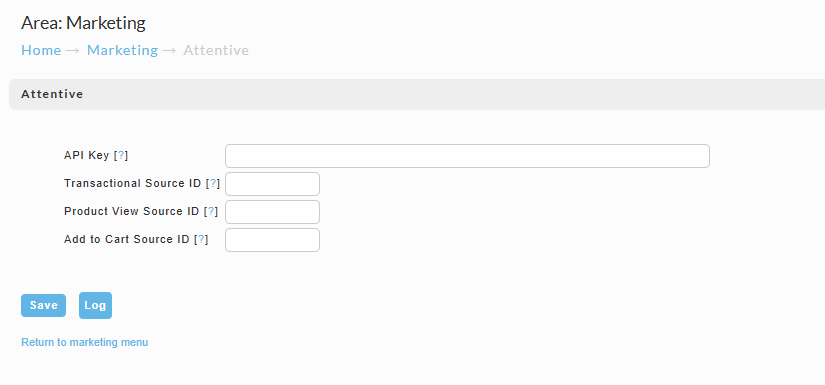
| Field | Value to enter |
|---|---|
| API Key | The private key from Step 1 |
| Transactional Source ID | Sign-up source ID for transactional opt-ins |
| Product View Source ID | Optional. Reserved for future use, no effect today |
| Add to Cart Source ID | Sign-up source ID for cart activity |
Click Save. The Log button on this screen opens the integration log described in Verifying the integration.
StoreFront-level settings
The same four settings also exist per StoreFront. Use these when different StoreFronts should report into different Attentive sign-up units.
- Go to StoreFronts and select the StoreFront you want to configure.
- Choose Privacy & Tracking.
- Open the Other tab.
- Scroll to the Attentive SMS block.
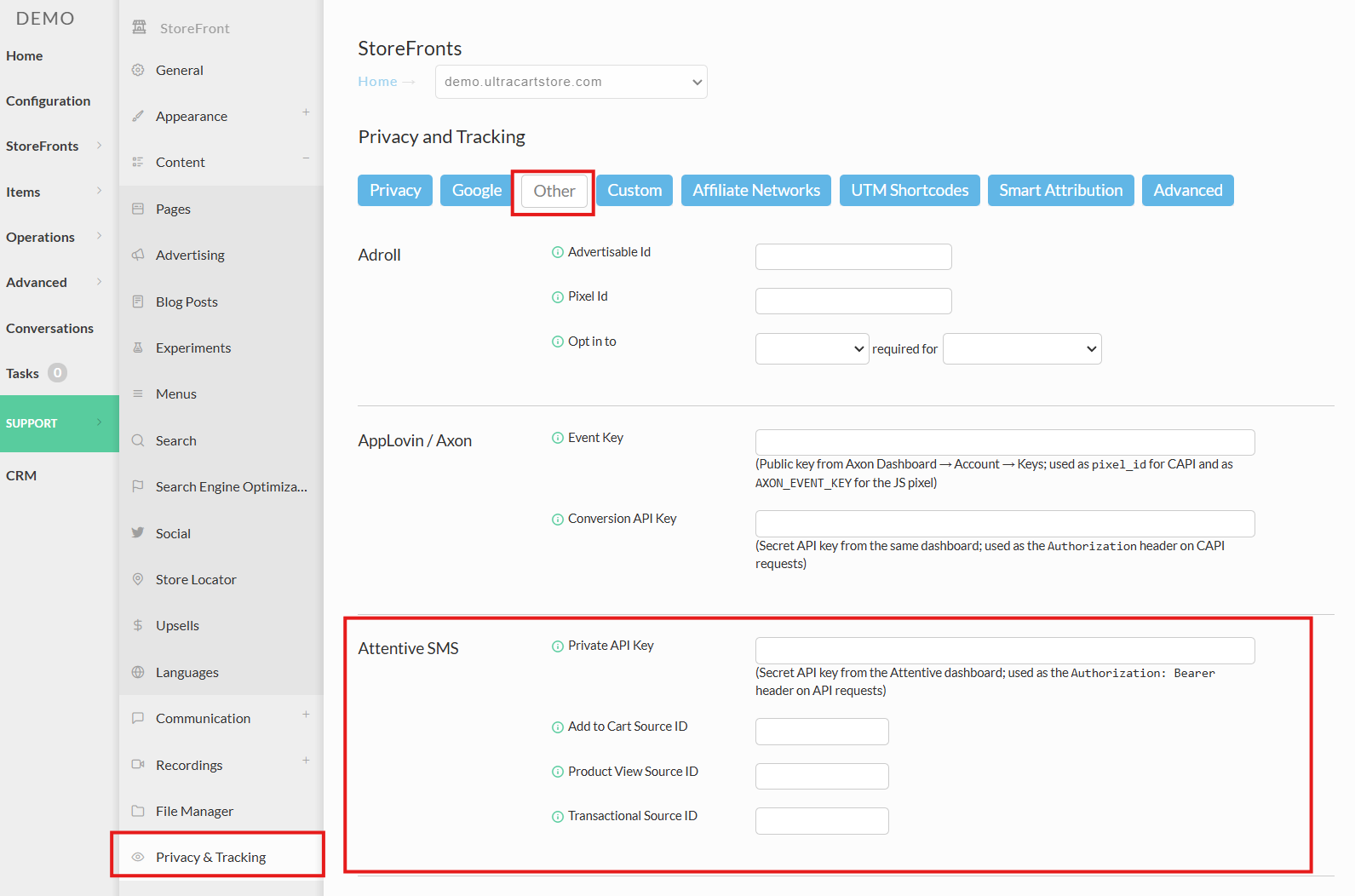
| Field | Maximum length |
|---|---|
| Private API Key | 250 characters |
| Company ID | 40 characters |
| Add to Cart Source ID | 20 characters |
| Product View Source ID | 20 characters |
| Transactional Source ID | 20 characters |
Company ID is the field that turns on the Attentive tag, and it exists only here, not at the account level. See Turning on the Attentive tag.
Which setting wins
A StoreFront value overrides the account-level value, for that StoreFront only.
Resolution happens one field at a time, not all or nothing. A field you leave blank on a StoreFront inherits the account-level value instead of blanking it. So you can enter the private API key once at the account level and override only a single source ID on one StoreFront.
Because non-numeric source IDs are discarded when you save, entering one on a StoreFront leaves that field blank, and the StoreFront quietly falls back to the account-level value.
This override applies to the subscribe, unsubscribe, and product catalog sync paths. The add-to-cart and purchase events do not resolve per-StoreFront settings yet, so they always use the account-level values regardless of what a StoreFront specifies.
Turning on the Attentive tag
Enter your Attentive Company ID in the StoreFront settings and click Save. UltraCart starts adding the tag to that StoreFront's pages immediately. There is nothing to paste into a theme and nothing to deploy.
Your Company ID is the identifier in your Attentive tag snippet. If Attentive gave you a line
that looks like https://cdn.attn.tv/YOURBRAND/dtag.js, then YOURBRAND is the value to
enter. It is a short text code rather than a number, and it is not a secret, unlike your API
key.
Clearing the field removes the tag from your pages. Your server-side events keep running, because those depend on the API key instead.
The tag also displays your sign-up units
Attentive's tag does two jobs. It reports the browser events listed above, and it displays the sign-up units you have configured in Attentive: the popups, full-screen takeovers, footers, and spin-to-win offers that collect phone numbers and email addresses.
If you have no active sign-up units in Attentive, nothing appears and the tag is invisible to shoppers. If you do have active units, they will start appearing on your UltraCart StoreFront the same way they appear on the rest of your site.
Sign-up units display automatically and UltraCart cannot suppress them. Before saving your Company ID, check which units are active in Attentive and where they are set to appear. A popup over your checkout form will cost you orders.
Control this in Attentive rather than in UltraCart, using the Hide sign-up unit if section of each unit's display rules. Add your checkout path to URL contains there to keep units off the pages where they do damage.
If you already collect SMS opt-ins with UltraCart's own SMS opt-in checkout widgets, decide which one you want. Running an Attentive sign-up unit alongside the UltraCart widget asks the same shopper for the same consent twice.
How shoppers are identified
Attentive needs at least one identifier to attach an event to a shopper. Which identifiers UltraCart is willing to send is a consent question as much as a technical one.
- Add to Cart, Checkout Started, and Checkout Abandoned are sent when the cart has a valid
email address or a mobile number the shopper consented to receive SMS marketing on. If it
has neither, the event is skipped and recorded in the integration log with a status of
WARNING. - Purchase requires an email address.
Phone numbers require an SMS opt-in
A phone number reaches Attentive only when the shopper has opted in to SMS marketing, and only the mobile number they opted in with. Shipping and billing phone numbers are fulfillment contact details rather than marketing consent, so they stay out of every event. Numbers are sent in E.164 format.
Shoppers give that consent through the SMS opt-in checkbox on your checkout, or through whichever StoreFront widget you have configured to capture it. If you are not seeing phone numbers in Attentive, make sure you are collecting a positive opt-in in your checkout.
A cart whose only identifier is an unconsented phone number has nothing Attentive can use, so
its events are skipped and recorded in the integration log with a status of WARNING.
Customer profile data
Every event carries the shopper's name and address into Attentive as custom identifiers,
so the data is available for segmentation. UltraCart sends firstName, lastName,
address1, address2, city, state, zip, and country.
The shipping address is preferred. If the shipping address is incomplete, UltraCart falls back to the billing address as a whole rather than mixing fields from both, so a digital-only order with no shipping address still produces a complete profile.
Marketing versus transactional subscriptions
When UltraCart subscribes a shopper, it compares the sign-up source ID being used against your configured Transactional Source ID:
- The two match, so the subscription is sent as
TRANSACTIONAL. - The two differ, or no Transactional Source ID is configured, so the subscription is sent
as
MARKETING.
This matters because Attentive applies different consent and messaging rules to each type. If your transactional messages are not going out, verify that the Transactional Source ID in UltraCart matches the transactional unit in Attentive exactly.
Checkout event data
Checkout Started and Checkout Abandoned are sent as Attentive custom events. Custom events carry a flat set of properties rather than a line item array, so UltraCart summarizes the cart into values you can trigger journeys on:
| Property | Contents |
|---|---|
itemCount | Number of distinct items in the cart |
totalQuantity | Total quantity across all items |
cartValue | Sum of item cost multiplied by quantity |
currency | Cart currency code |
productIds | Comma-separated list of item IDs |
productNames | Comma-separated list of item descriptions |
Kit component items are excluded from all cart and order events, so a kit reports as the single item the shopper actually bought.
Product catalog sync
UltraCart uploads your catalog to Attentive so journeys can reference real products.
Each product includes its ID, name, description, price, image, and URL. Items with
variations are uploaded as a single parent product with a variants array, and each
variant carries its own ID, name, SKU, price, image, link, and option values such as size
and color. Child items are not uploaded as separate products. Inactive items and inactive
child items are skipped.
Category and collection data is not included yet. The sync job does not resolve a StoreFront, so no catalog host is available and category and collection information is skipped. The upload still reports success, and a warning is written to the integration log. Do not build Attentive segments that depend on product category or collection until this is delivered.
If your account has linked child accounts, the parent account gathers and uploads the catalog for the whole family. Child accounts are skipped so items are not uploaded twice.
UltraCart waits for Attentive to validate each upload instead of sending and forgetting. It polls for up to 10 minutes, and the resulting counts or per-item errors are written to the integration log.
Verifying the integration
Every Attentive call is written to the UltraCart integration log, including the JSON payload that was sent and the HTTP status code that came back. The API key is masked. Use the Log button on the Marketing Attentive screen to open it.
Statuses you will see:
| Status | Meaning |
|---|---|
SUCCESS | Attentive returned HTTP 200 and accepted the event |
WARNING | The event was skipped, either because the cart had no usable identifier at all, or because its only phone number lacked an SMS opt-in |
ERROR | Attentive rejected the call, or the request failed |
Start troubleshooting here. The log tells you whether UltraCart sent the event at all, which separates a UltraCart configuration problem from an Attentive journey problem.
The integration log covers the server side only. Events sent by the Attentive tag go straight
from the shopper's browser to Attentive and never pass through UltraCart, so they do not appear
here. Check those in Attentive's own reporting, or in your browser's developer tools by
watching for requests to events.attentive while you browse a product page.
Troubleshooting
Authentication errors
A 401 response means Attentive rejected the API key. Confirm the key was copied in full, confirm the app in Attentive still exists and has write permission to eCommerce, Subscribers, and Custom Events, then regenerate the key and save it in UltraCart again.
Events are not reaching Attentive
Check the integration log first.
- No log entry at all means UltraCart never attempted the call. Verify the API key and source IDs are saved.
- A
WARNINGentry means the cart carried no identifier Attentive can use. Read the message: it distinguishes a cart with no email address and no phone number at all from one whose only phone number had no SMS opt-in behind it. - An
ERRORentry includes the status code Attentive returned.
Product views are not appearing in Attentive
Product views come from the Attentive tag, not the server, so the integration log will not show them either way. Check the Company ID is saved on the StoreFront the shopper is browsing, because it is a per-StoreFront setting with no account-level fallback.
Then open a product page with your browser's developer tools on the Network tab and look for a
request to cdn.attn.tv. If it is missing, the tag is not loading: confirm the Company ID is
correct, and check whether a privacy or consent banner on your StoreFront is holding it back,
since UltraCart withholds the tag until a shopper grants marketing consent.
A sign-up unit is appearing where you do not want it
Sign-up units are controlled entirely in Attentive. Open the unit, find the Hide sign-up unit if section of its display rules, and add the path you want it kept off in URL contains. Clearing your UltraCart Company ID also removes every unit at once, along with product view tracking.
Journeys are not triggering
If the log shows SUCCESS but nothing happens in Attentive, the problem is on the
Attentive side. Confirm the journey is active, confirm the shopper is subscribed, and
confirm the journey is listening on the same sign-up source ID you configured in UltraCart.
Products are missing from the catalog
Inactive items are skipped by design, as are child items of a variation parent, which appear inside the parent's variants instead. If a whole catalog is missing, check the integration log for the upload result, which reports validation errors per item.
Frequently asked questions
Can I use the same source ID in more than one field? Yes, if your Attentive account uses a shared marketing unit. Be aware that the transactional or marketing classification is decided by comparing against the Transactional Source ID, so sharing that particular ID changes how subscriptions are classified.
What happens if I regenerate my Attentive API key? UltraCart calls start failing with a 401 until you save the new key. Update it in UltraCart immediately after regenerating.
Do I need to add anything to my storefront theme? No. UltraCart adds the Attentive tag to your pages for you once you save a Company ID, and removes it when you clear the field.
Can I run the Attentive tag for tracking without the sign-up popups? Not from UltraCart. The tag is one file and it carries both. Your options are to keep every sign-up unit paused or archived in Attentive, to scope them with display rules so they never match your StoreFront pages, or to ask Attentive support to disable auto-load on your account.
Why does UltraCart subscribe shoppers on add to cart? Add-to-cart events include a subscribe call using your Add to Cart Source ID, so the shopper exists in Attentive and can be targeted by cart recovery journeys.
I am not seeing phone numbers in Attentive. Why? Make sure you are collecting a positive SMS opt-in in your checkout. A phone number is sent only when the shopper has opted in, and only the mobile number they opted in with. See Phone numbers require an SMS opt-in.
Related resources
- 3rd Party Marketing for the full list of supported providers
- Attentive guides
- Attentive developer documentation