Introduction
This article will discuss how to configure the Affiliate Network Pixel to support TUNE and perform server-to-server postback.
Before we get started, there are three important documents that cover both systems in detail.
UltraCart - Affiliate Network Pixel Configuration Tutorial
TUNE - Server Postback Tracking Explained
TUNE - Implementing Server Postback Tracking
Configuring the Offer In TUNE
When configuring the offer within TUNE you want to select Server Postback w/ Transaction ID as shown below.
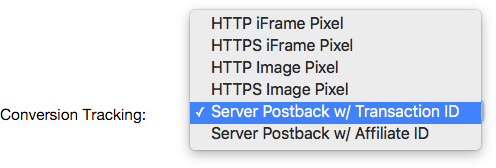
Then you will Configuring the Default Offer URL. An example URL for TUNE looks like
https://advertiser.example.com/offer/ad?offer=102&session_id={transaction_id}&campaign={aff_sub}&source={source}&n=tune
Now let’s break down the URL so we can understand the components
| Value | Description |
|---|---|
| https://advertiser.example.com/offer/ad | This is the URL of your offer landing page. |
| offer=102 | This is the offer number within TUNE. |
| session_id={transaction_id} | This is important to leave just like you see it. The {transaction_id} token will be replaced with a value by TUNE. |
| Field | Description |
|---|---|
| Network Name | TUNE |
| Parameter Name | n |
| Parameter Value | tune |
| Conversion Type | server-to-server |
| Conversion Pixel | http://examplenetwork.go2cloud.org/aff_lsr?offer_id=[anp_param_offer]&transaction_id=[anp_param_session_id] |
Make sure you understand that the conversion pixel URL is going to very for your TUNE instance. Start wit the value they provide you. It’s important to note the tokens that we’re using in the conversion pixel.
[anp_param_
-
offer
-
session_id
We do that with the tokens:
-
[anp_param_offer]
-
[anp-param_session_id]