Overview
This tutorial shows how to configure Share-A-Sale for the legacy configuration under Screen Branding Conversion and Tracking.
If you are using Storefronts, use Configuring Share-A-Sale StoreFront Tutorial.
Most third party conversion and tracking systems, such as Google Adwords, work by including a snippet of html/javascript on the checkout. Some merchants will place these snippets in the footer of their receipt but this can lead to accidental overwrites when people update the screen branding pages. To make things easier your UltraCart back office provides quick configuration for some of the most popular third party conversion and tracking systems. This particular article is for configuring Share-A-Sale.
Configuration
To configure your Share-A-Sale account navigate to:
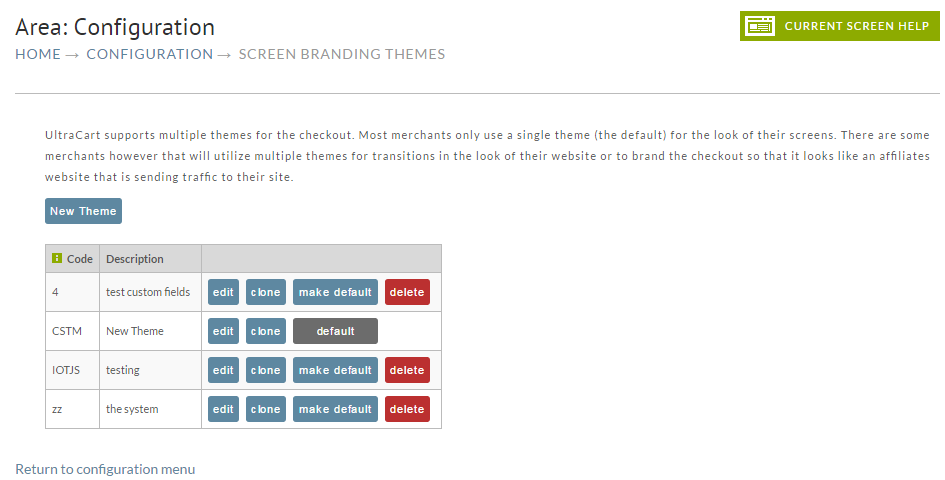
HOME → CONFIGURATION → CHECKOUT → SCREEN BRANDING THEMES
At the Screen Branding Themes screen, click on the "edit" button for the Theme you want to work with.
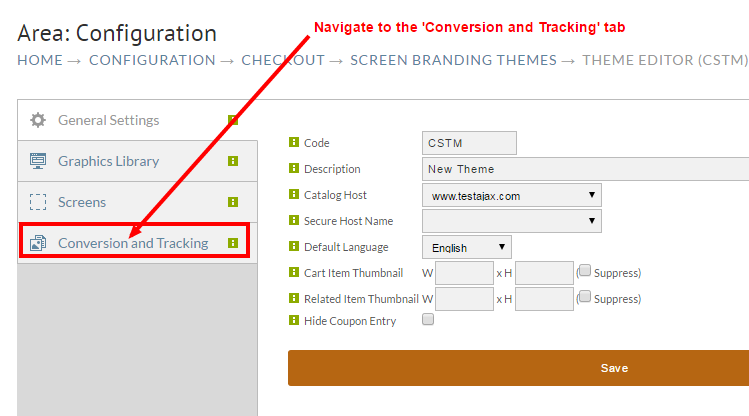
Next you'll see the Theme Editor screen. Click on the Conversion and Tracking button.
At the next screen, scroll down to the Share-A-Sale Merchant Id field located below the Supported Conversion Pixels section.
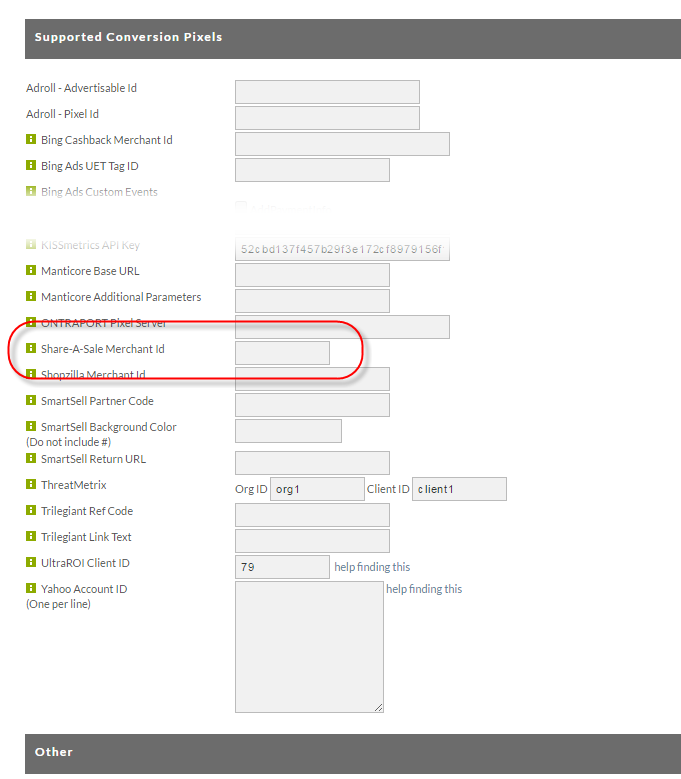
Enter your Share-A-Sale Id in the text box. Then scroll to the bottom of the screen and click the Save button.