Chargeback Processing (Configuration)
Introduction
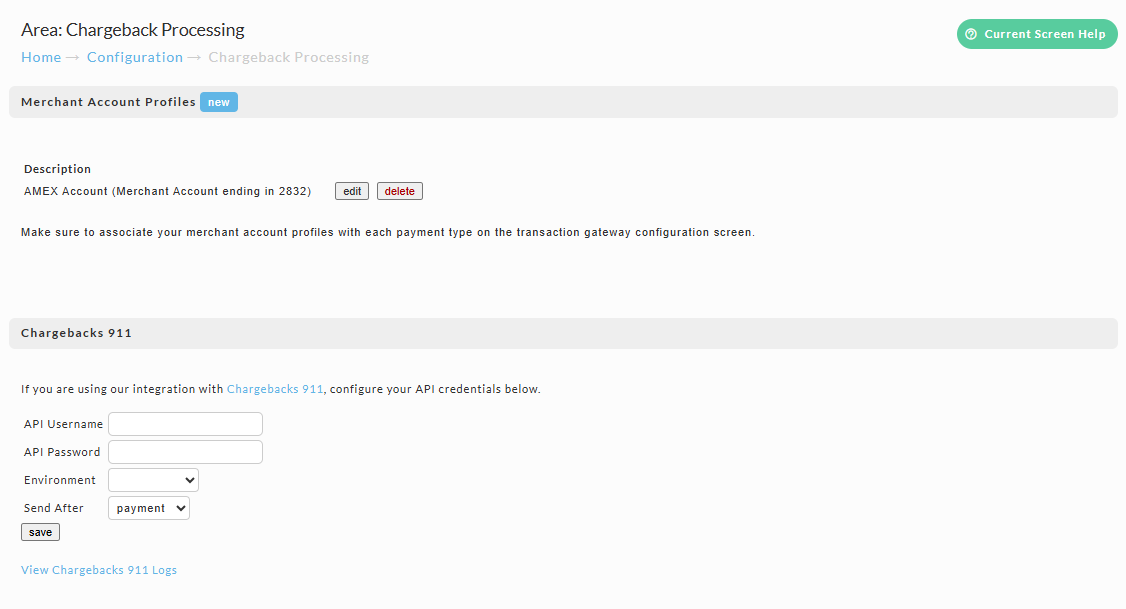
The Chargeback Processing page holds two sections: Merchant Account Profiles, which describe the merchant accounts your store processes through, and Chargebacks 911, which holds the API credentials for the Chargebacks911 integration.
Merchant account profiles do two jobs today:
- They route orders to Chargebacks911. A profile with its Transmission Mechanism set to Chargebacks 911 carries the Chargebacks911 account and merchant ID that orders on that profile are filed under. This is required for the integration to work.
- They feed analytics. The Account Number and Analytics values are used in the processing cost calculations that appear in UltraCart Analytics and in the Statistics (Basic) widget on the Dashboard.
The older transmission options on the profile editor, Fax to, EPX, Network Merchants, and Email, are legacy and no longer used. So are the Filter Reason Codes and No Dispute Reason Codes boxes. See Legacy fields.
Where to find it
Main Menu → Configuration → Order Management → Chargeback Processing
The page's own breadcrumb reads Home → Configuration → Chargeback Processing, without the Order Management step.
Viewing or saving anything on this page requires the Edit Items permission.
For the setup walkthrough, see the Chargebacks 911 tutorial.
Merchant Account Profiles list
The list at the top of the page shows every merchant account profile in the account.
| Field or Button | Description |
|---|---|
| new | Opens the Merchant Account Profile editor and creates a new profile. |
| Description | The profile's label. This is the text that appears in the Merchant Account Profile dropdowns on your transaction gateways. |
| edit | Opens the selected profile for editing. |
| delete | Deletes the selected profile. |
Below the list, the page displays the reminder "Make sure to associate your merchant account profiles with each payment type on the transaction gateway configuration screen." A profile has no effect until it is assigned on a gateway.
Deleting a merchant account profile also clears it from every card brand slot on every gateway that referenced it. If that profile was the one transmitting to Chargebacks911, those orders stop being sent, with no warning and no log entry.
Merchant Account Profile fields
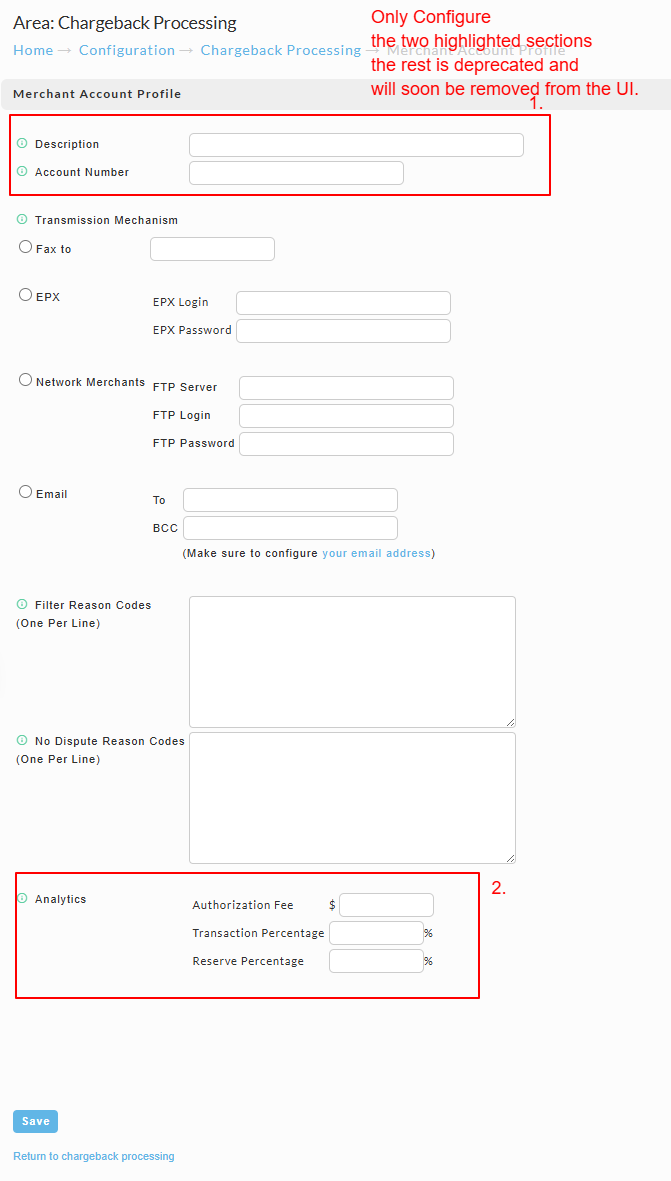
These are the fields in the Merchant Account Profile editor, in the order they appear.
| Field | Description |
|---|---|
| Description | The profile label, up to 100 characters. Identifies the profile in the gateway dropdowns. |
| Account Number | The merchant account number, up to 50 characters. Not used by the Chargebacks911 transmission. Feeds analytics cost reporting. |
| Transmission Mechanism | Selects how chargeback data leaves UltraCart. Set this to Chargebacks 911 for the Chargebacks911 integration. The other options are legacy. |
| CB911 Account ID | The Chargebacks911 account that orders on this profile are filed under. Appears only when Chargebacks 911 is selected. |
| CB911 Merchant ID | The Chargebacks911 merchant ID that orders on this profile are filed under. Appears only when Chargebacks 911 is selected. |
| Authorization Fee | The fixed per authorization fee, in dollars, used in analytics cost calculations. |
| Transaction Percentage | The per transaction percentage used in analytics cost calculations. |
| Reserve Percentage | The reserve percentage used in analytics cost calculations. |
The Chargebacks 911 option is gated on saved credentials
The Chargebacks 911 radio option and its two dropdowns are not rendered in the profile editor until an API Username has been saved in the Chargebacks 911 section of the Chargeback Processing page. The password and environment are not checked, so saving a username on its own makes the option appear while leaving both dropdowns empty.
UltraCart populates CB911 Account ID and CB911 Merchant ID by authenticating to Chargebacks911 every time the editor loads. The values are live rather than stored copies, which is why the editor can be slow to open, and why the dropdowns render empty with no error message when the credentials or environment are wrong.
Legacy fields
The following fields still appear in the profile editor but are no longer used by any active chargeback workflow. Leave them empty.
| Field or Section | Status |
|---|---|
| Fax to | Legacy. Not used. |
| EPX, EPX Login, EPX Password | Legacy. Not used. |
| Network Merchants, FTP Server, FTP Login, FTP Password | Legacy. Not used. |
| Email, To, BCC | Legacy. Not used. |
| Filter Reason Codes | Not used by the Chargebacks911 integration. |
| No Dispute Reason Codes | Not used by the Chargebacks911 integration. |
Chargebacks 911 settings
The Chargebacks 911 section of the page holds the account level credentials for the integration.
| Field or Button | Description |
|---|---|
| API Username | The API username issued by Chargebacks911. Saving a value here is also what makes the Chargebacks 911 option appear in the Merchant Account Profile editor. |
| API Password | The API password issued by Chargebacks911. |
| Environment | production, sandbox, or blank. Must match the credentials entered above. Blank disables the integration entirely. |
| Send After | payment or shipment. Controls the point in an order's life at which it is sent. Defaults to payment. See Send After. |
| save | Saves the Chargebacks 911 settings. |
| View Chargebacks 911 Logs | Opens the Integration Log filtered to Chargebacks 911 entries. |
Send After
Send After decides whether an order is created in Chargebacks911 at payment and enriched later, or created once at shipment as a single complete record.
| Send After | At payment | At shipment |
|---|---|---|
payment (default) | The order is created in Chargebacks911. | The order is updated with the ship date and tracking number. |
shipment | Nothing is sent. | The order is created in Chargebacks911, already including the shipping details. |
payment gets the transaction on file as early as possible, which matters because a dispute can be filed on an order that never ships. shipment sends one complete record per order, but nothing exists in Chargebacks911 for orders that never ship.
What UltraCart transmits
Only orders paid by credit card are transmitted, and only through gateways with a merchant account profile assigned for that order's card brand. Per order, UltraCart sends:
Order and customer
- Order ID, order date, order total, and coupon or subtotal discount
- Billing name, full billing address, email, and phone
- Merchant notes on the order, if any
- Affiliate ID, if the order came through an affiliate
Transaction, taken from the first successful credit card transaction on the order
- Gateway transaction ID and authorization code
- AVS and CVV response codes
- Card type, expiration month and year, and a masked card number showing the BIN and last four digits only
- Settlement amount, settlement date, and your base currency
- Customer IP address
- Billing cycle number, and for subscriptions whether the payment cascaded to a different gateway
- A flag marking the transaction as Card Not Present and eCommerce
Products, one entry per order item, with kit components rolled into their parent item
- Item ID, description, quantity, and price after discount
- Whether the item was an upsell
- For auto orders, that the item is recurring, plus the next scheduled shipment date
- A link back to the store
Shipping, included once a physical order has shipped
- Ship to name and address, ship date, tracking number, and shipping method
The full credit card number never leaves UltraCart, and it is scrubbed from the integration log as well.
Timing and retries
Transmission is asynchronous and queued. It does not run during checkout and does not delay or block an order. A background process picks the work up shortly afterward, so expect an order to appear in Chargebacks911 within a few minutes of payment or shipment rather than instantly.
If Chargebacks911 is unreachable or returns an error, UltraCart retries roughly once an hour until the send succeeds. If an order is sent twice, UltraCart detects that Chargebacks911 already holds it and converts the second send into an update instead of failing.
Two things are not retried: orders skipped because no profile was assigned, which produce no log entry at all, and orders rejected because a profile's CB911 Account ID or CB911 Merchant ID was left blank.
Best Practices
- Save the Chargebacks 911 credentials before creating or editing any merchant account profile, otherwise the Chargebacks 911 option is not available.
- Fill in all four Chargebacks 911 fields at once. A saved username with a blank environment leaves the integration switched off.
- Assign a merchant account profile to every card brand you accept, on every gateway that processes credit cards.
- Create separate profiles when different merchant accounts or card types carry different fee structures, so analytics costs stay accurate.
- Write profile descriptions that identify the processor or merchant account, since the description is what you pick from on the gateway screen.
- Review the analytics values whenever processor fees or reserve terms change.
Troubleshooting
The Chargebacks 911 option is missing from the profile editor
No API Username has been saved in the Chargebacks 911 section. Save the credentials first, then reopen the profile.
The CB911 Account ID or Merchant ID dropdowns are empty
UltraCart could not authenticate to Chargebacks911 when the editor loaded, and the screen shows no error when that happens. Confirm the API Username and API Password, and confirm Environment matches those credentials. Sandbox credentials with Environment set to production, or the reverse, produces exactly this result. If the credentials and environment are correct and the dropdowns are still empty, contact UltraCart support.
No Chargebacks 911 log entries for an order
Orders are skipped silently, with no log entry, in any of these cases: the order was not paid by credit card, the order has no successful credit card transaction, the gateway that took the payment has no profile assigned for that card brand, the assigned profile's Transmission Mechanism is not Chargebacks 911, the card brand falls outside the six the integration supports, or the gateway has since been deleted or renamed.
Errors appear in the log and then stop
Expected. Transient failures retry roughly hourly and resolve themselves without any action from you.
Analytics values are missing or inaccurate
Confirm that a merchant account profile exists for the merchant account or card type in question, that its Account Number is entered, and that Authorization Fee, Transaction Percentage, and Reserve Percentage match the current processor fee structure.
Next Steps
- Follow the Chargebacks 911 tutorial to set the integration up end to end.
- Review the UltraCart Dashboard widgets documentation.
- Review Using UltraCart Analytics.