Custom Fields Configuration
Introduction
UltraCart supports up to 10 Custom Fields on orders. This optional configuration page allows merchants to define constrained value sets for these fields, limiting the input available when editing placed orders.
Note: This configuration only affects the order editing interface—it does not impact the checkout experience for customers.
If a custom field is not assigned a predefined value set, it remains an open text field in the Order Editor. If a value set is configured, the field will appear as a dropdown containing only the allowed values.
Prerequisites
To access and configure custom fields, you must have administrator-level access to the UltraCart back office.
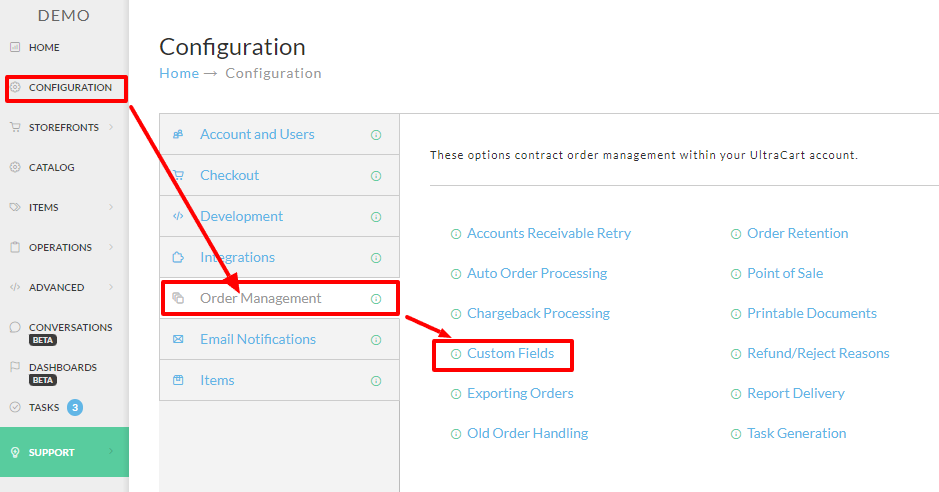
Navigation
-
Go to Main Menu → Configuration
-
Select the Order Management tab
-
Click on Custom Fields
Configuring the Custom Value Sets
Step-by-step Instructions
1. Configure Custom Value Sets
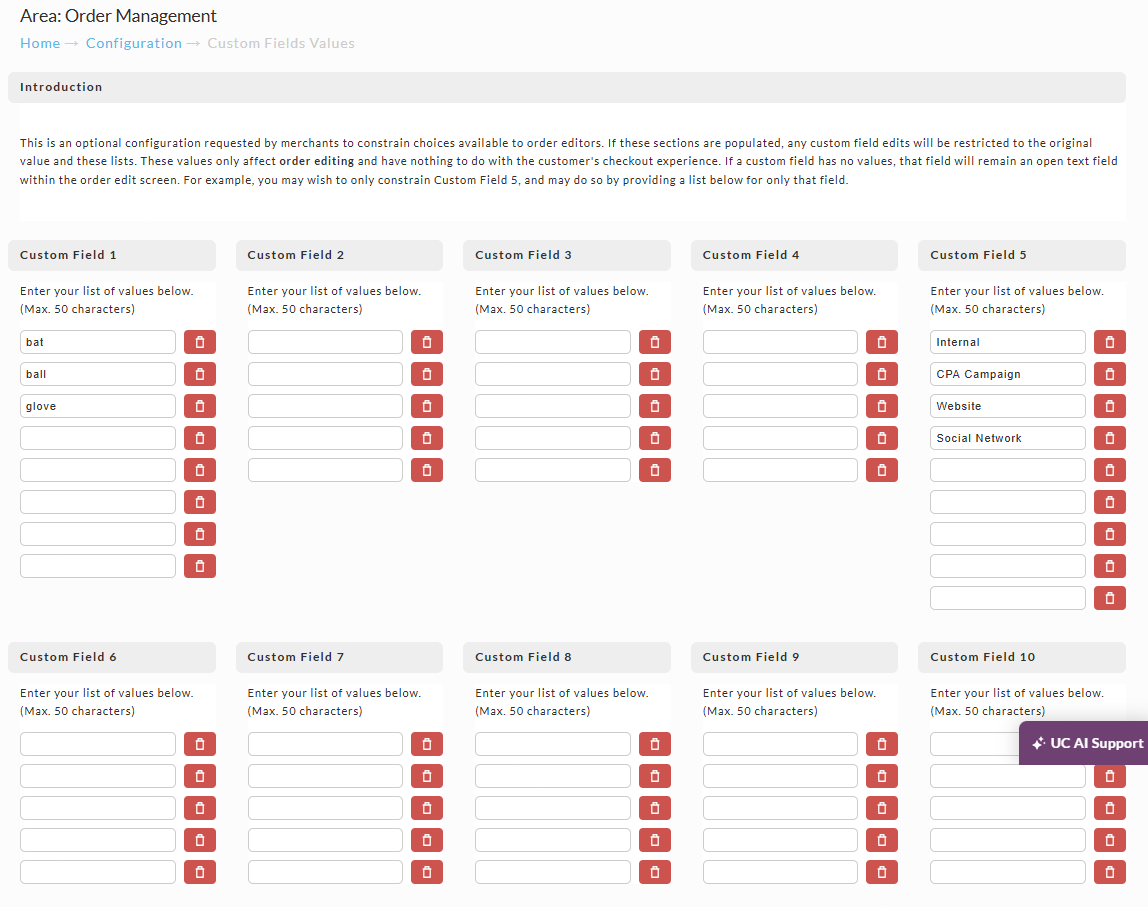
On the Custom Fields configuration page, you will see editable value sets for each of the 10 custom fields.
-
Leave a field empty if you want it to remain open for manual entry during order editing.
-
Enter values (one per line) to constrain the field to a dropdown list.
Example:
Custom Field 5 has a value set defined and will appear as a dropdown.
Custom Field 6 has no values defined and will remain an open text field.
2. Edit Custom Field Values in the Order Editor
To modify the custom field values on a placed order:
-
Navigate to the order and open it in the Order Editor.
-
Select the Other tab.
-
Scroll down to the Custom Fields section.
If a value set is defined, a dropdown will be available for that custom field. If not, the field will be editable as plain text.
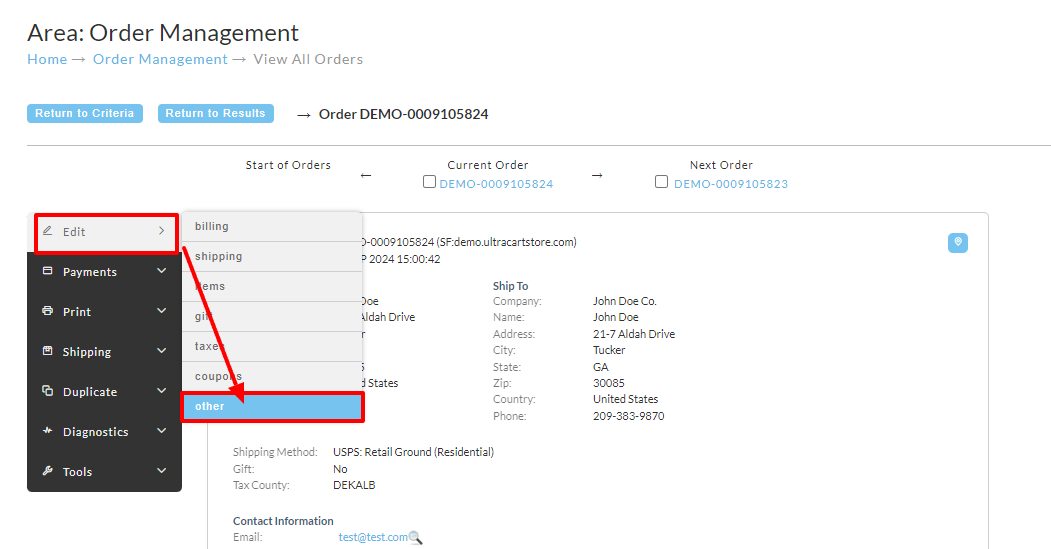
In the ‘Other’ tab of the order editor scroll down to the Custom Fields:
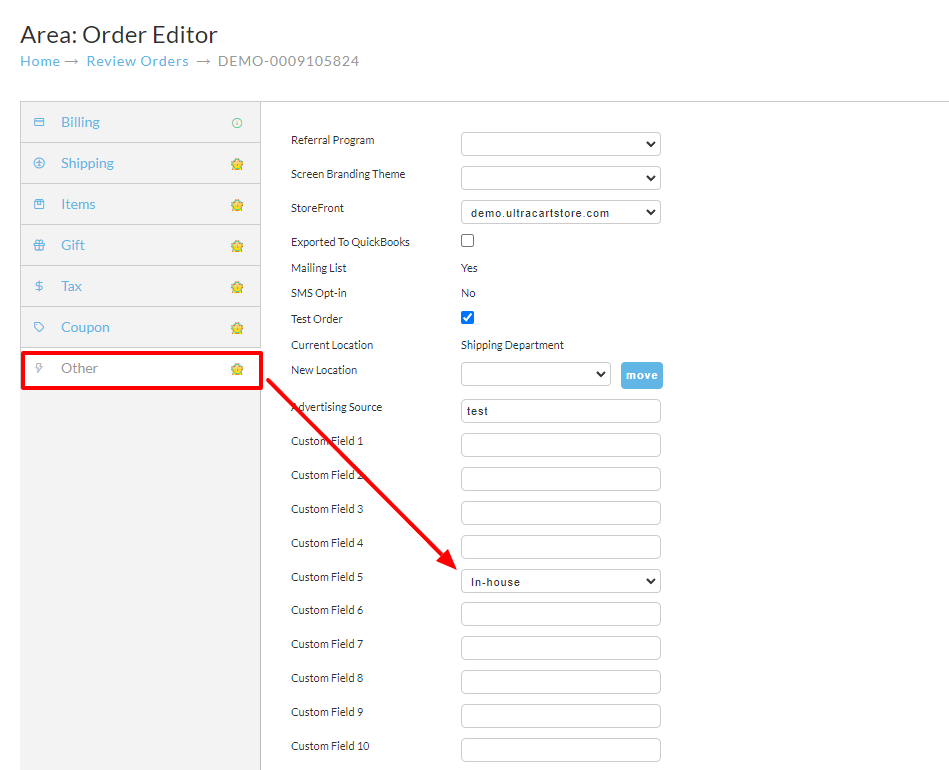
Viewing these field in the order editor, they appear like this:

Selecting the drop down will present the configured Custom Field value set:

Tip: Only fields with configured value sets will be constrained. You may configure as many or as few of the 10 custom fields as needed.
Conclusion
Using custom value sets helps standardize order data by restricting edits to predefined options. This reduces errors and enforces consistency when processing orders.