Order Management - Auto Orders
UltraCart’s Auto Order feature allows you to set a schedule in UltraCart to automatically order an item for a customer on a set schedule. This is also known as free trials, recurring, subscription, membership, or continuity programs.
The Auto Order feature allows a merchant to configure an item on a schedule that will be followed to automatically order again in the future. UltraCart also gives the unique ability to use different items at different intervals in your Auto Order schedule.
Visa Rules regarding Subscriptions
Update Merchant Obligations From 18 April 2020, globally, merchants selling both physical and digital goods and services who offer free trials or discounted introductory offers as part of a subscription (“recurring”) service must comply with the updated requirements. Following is a Quick Reference card with a summary of the requirements:
Store credit on rebills
If the original order is tied to a customer profile, and that profile has store credit available, UltraCart applies that store credit to the rebill automatically. This happens on every rebill and there is no setting to enable or disable it.
The credit comes from the customer profile's store credit balance. That is the same balance shown on the customer's Loyalty tab, and it is funded by cashback loyalty earnings, refunds issued as store credit, and manual ledger entries. See Loyalty programs and store credit.
A few consequences worth knowing:
-
The auto order holds no balance of its own. The connection is the customer profile attached to the original order, so credit added to the profile between rebills is picked up on the next rebill without any change to the auto order.
-
A fully covered rebill never reaches the payment gateway. If the available store credit covers the rebill total, no charge is attempted. The order still places and ships normally, and the billing attempt counter is not affected.
-
The original order is the template. The profile link is read from the original order, not looked up by email address at rebill time.
-
Rebills earn cashback as well as spend it. A rebill accrues cashback like any other order, at the customer's loyalty tier rate. Earned cashback becomes spendable after the vesting period configured for your loyalty program, so a subscription steadily builds credit toward its own future rebills.
When store credit is not applied
The rebill bills the full amount whenever the original order has no customer profile attached, or the attached profile has no store credit balance. The most common cause is an order placed before the customer profile existed. Open the original order and confirm a customer profile is attached before investigating further.
Note that cashback earned on a rebill is not necessarily available to the very next rebill. If the vesting period is longer than the rebill interval, the credit is still vesting when the next charge runs. The customer's Loyalty tab separates the Available balance from the Vesting balance, which is the quickest way to check this.
Auto Order Search
At times a merchant may desire to edit, disable, enable or cancel a customer’s auto order. Although an email is usually (merchant option) sent to the customer with a cancellation link, they may call upon you, the merchant, to make changes (e.g., updating credit card information). You can enter one of 19 different search criteria to locate the customer’s auto order. Your entry must be an exact match and is case-sensitive. If it fails, return to the Auto Order Search screen and try a different field (e.g., use email versus last name).
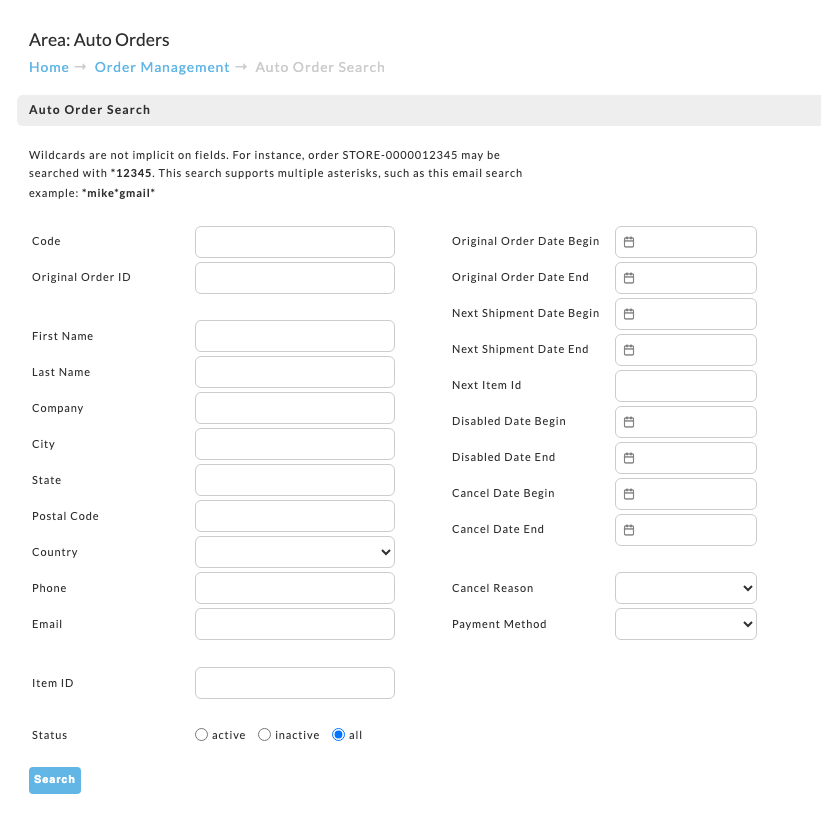
Auto Order Search screen
Once you've entered your criteria, click on the "Search" button. If a match is found, the Search (results) screen will then appear with a list of the order(s) that match the criteria.
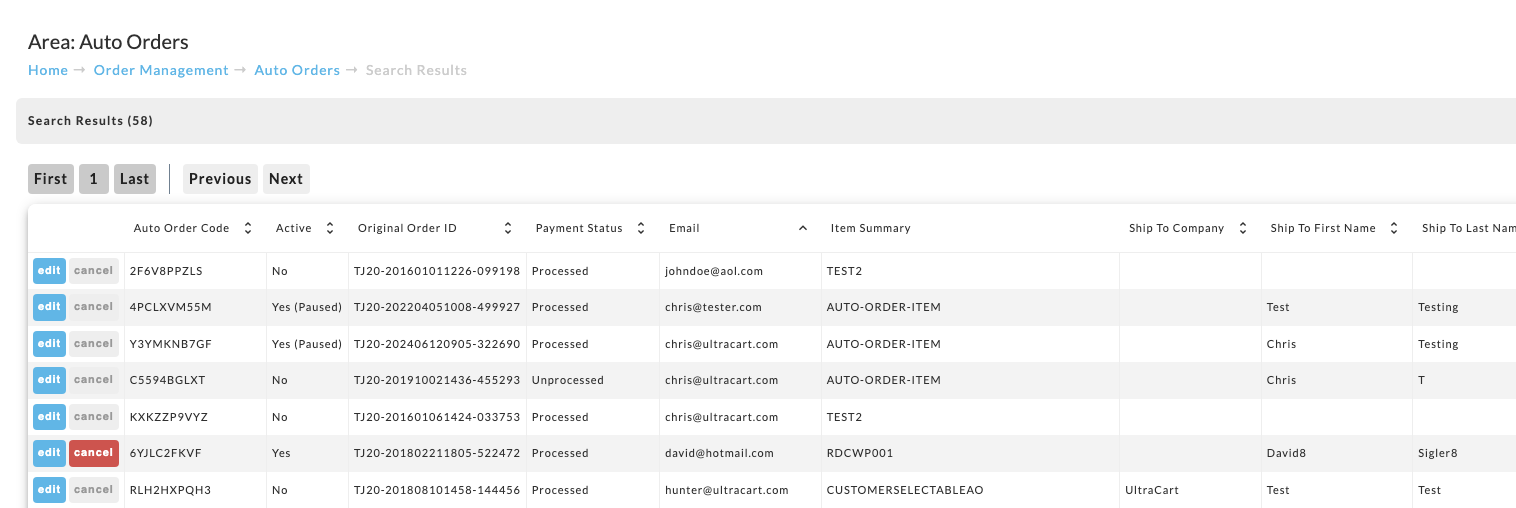
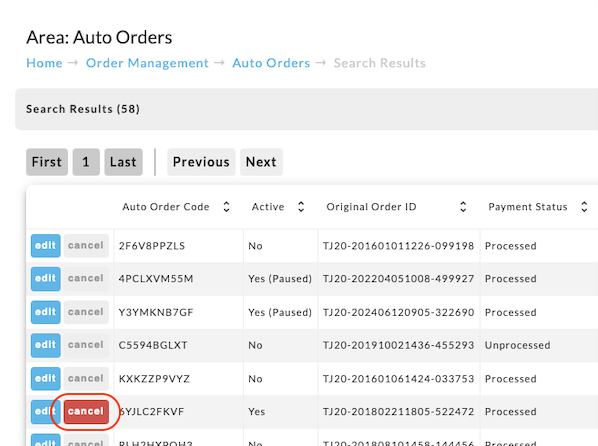
Cancel Auto Orders
To cancel a customer’s auto order, click the Cancel button. Make sure you select the correct order, as a customer may have more than one.
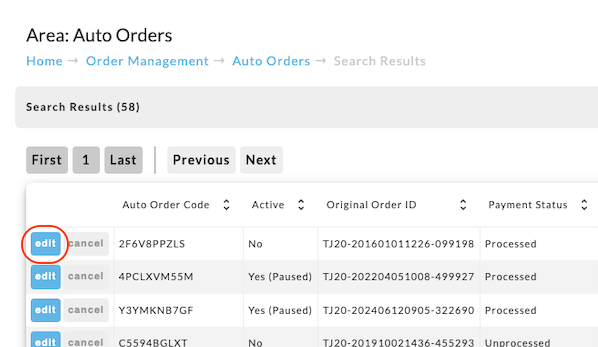
Edit Auto Orders
Once you’ve located an auto order in the search results list, click Edit to open the Auto Order Editor.
Auto Order Editor
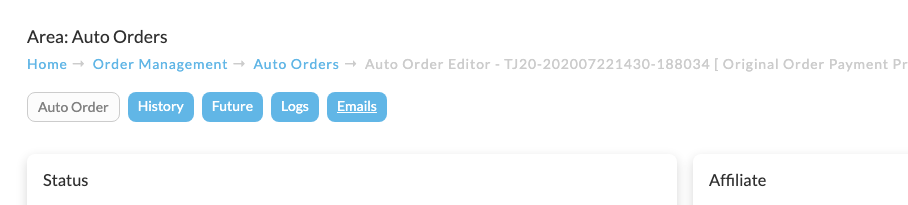
This Auto Order Editor is divided into 5 Tabs:
-
Auto Order tab
-
History tab
-
Future tab
-
Logs tab
-
Emails tab
Auto Order tab
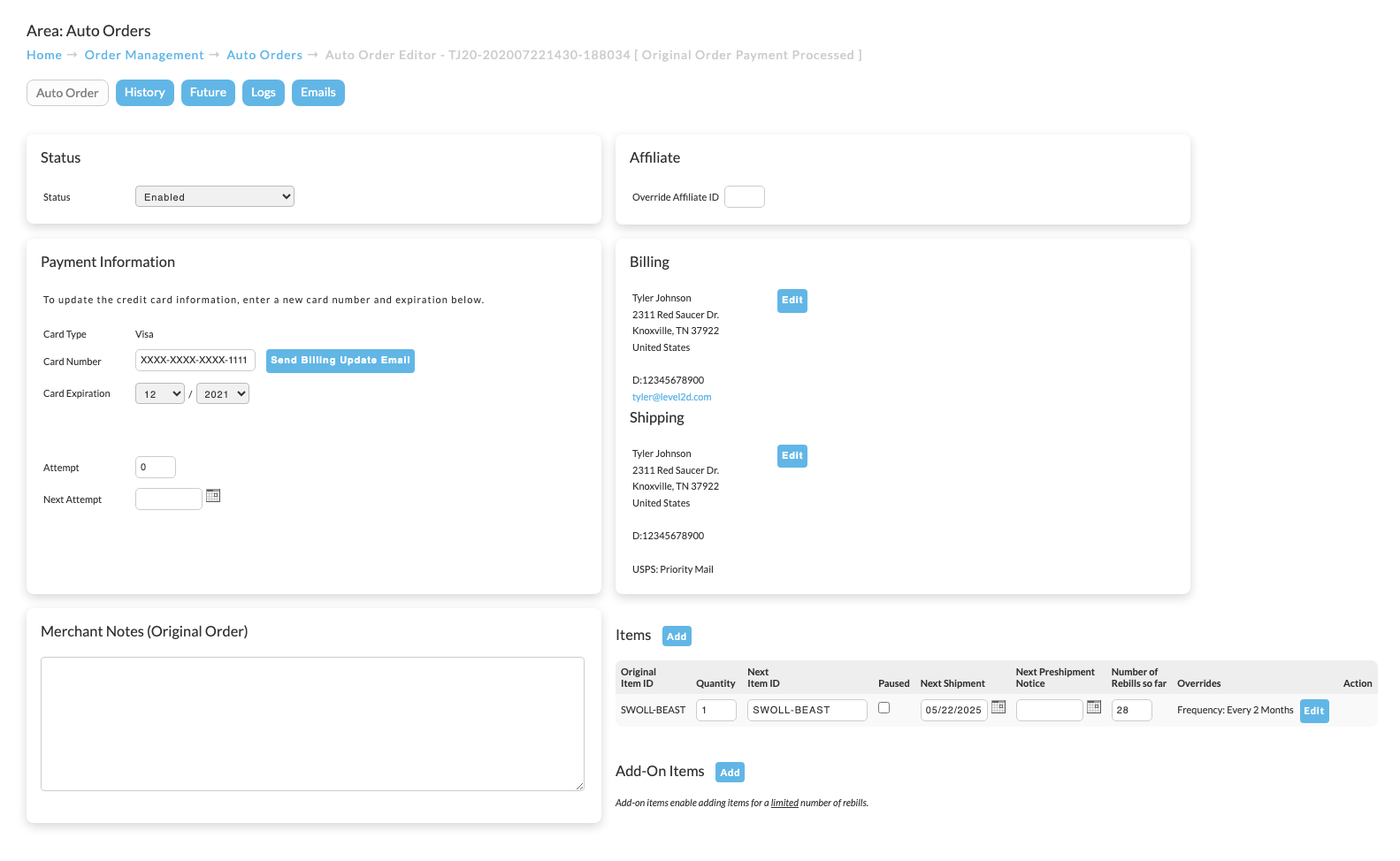
The Auto Order tab is where you can view and enable/disable the auto order.
The following is a description of the Auto Order tab to the auto order editor:
| Section Name | Description | |
|---|---|---|
| Status | The Status field indicated the current status of the auto order as: - Enabled - Disabled (occurs when the payment for the next scheduled fails the specified attemps as configured in the Auto Order Processing Retry Settings) - Cancelled by Customer - Cancelled by Merchant - Cancel After To modify that staus of the order, select the new status from the drop-down list , then click the save button at bottom of the page to save the changes. | |
| Affiliate | The Affiliate section displays a field for "Override Affiliate ID", where you can enter an affiliateID to the order. | |
| Payment Information | The Payment Information section is the section where you'll be able to update the customers credit card details, as well as review or edit the Billing Attempts and Next Billing Attempt date. The number of billing attempts will determine when the auto order will automatically disable due to failed processing attempts. See: Auto Order Processing#RetrySettings This field indicates the next date the credit card will be processed after failure. The default is every 3 days. If the card fails after 3 attempts, the Auto Order will be set to inactive (the check mark in the Enable Field will automatically be removed). | |
| Billing (Address) | The Billing section allows you to review and edit the billing address for the future orders. :::info ### Address Changes NOTE: Changes to the address will be reflected on the original order, because it is the template for the creation of the subsequent rebills. ::: | |
| Shipping (Address) | The Shipping section allows you to review and edit the shipping address for the future orders. :::info ### Address Changes NOTE: Changes to the address will be reflected on the original order, because it is the template for the creation of the subsequent rebills. ::: | |
| Merchant Notes | ||
| Items | Original Item ID - is the Item ID you assigned during creation of the item in the item editor. This field cannot be changed. **Quantity - **will be the Quantity of the item that the customer selected on the original order. Next Item ID - This will be the item that is processed in the next rebill. This is initially determined by the steps configured on the original item. You can manually change the itemID by typing in a new item ID. That item ID will carry forward using the same frequency as is configured in the original item auto order steps. you can manually override the frequency in the override settings. **Paused - **When selected the auto order will be paused, the next shipment date will be pushed back each day until it has been un-paused. Next Shipment - Represent the next time the auto order will process a new rebill. This is reset upon each rebill based upon the steps schedule of the original auto order item or the override settings. Next Preshipment Notice - This date will be populated by the 'Preshipment Days field in the Steps configuration on the original Item ID. PLEASE NOTE: Manually configuring the Preshipment date field will only work for the next rebill. This is because the Pre-shipment date calculation is performed as a trigger upon the processing of the next rebill. So check the step configuration in the original Item ID to set the ongoing preshipment date configuration. **Number of Rebills - **This is initially calculated by the number of rebills for the auto order. This is used to determine the end date for a item step or the total number of rebills for installment billing configurations. OVERRIDE (Settings) - Configure these by clicking the 'Edit' button **Frequency Override - **Use this to override the defaulted frequency for the item rebills. **No Orders After - **Use this to cause the auto order to stop rebilling after a a specified date. **Unit Cost - **Use this to override the default item cost for future rebills. **Unit Cost for Next "x" Orders - **Configure this is the Unit Cost override should only process for 'x' number of future rebills. Once that rebill count is reached the item will revert to the default rebill amount. **Percentage Discount - **Configure a percentage discount on the unit cost for the item. | |
| Add Item Button | The "Add" (item) button can be used to add additional items to the existing auto order. #### Add non auto order items to existing auto orders :::info ### New Feature - Add non auto order items to existing auto orders The auto order editor now supports adding non auto order items. The auto order item editor will add the item with a "Next Shipment" date out in the future. After the item is added, you'll need to adjust the the next shipment date to match the existing items in the auto order. The interval will be set to monthly (you can use the "Overrides" to change the interval.) ::: | |
| Add-On Items | #### Add-On Items Allows adding items for a limited number of rebills: 1. Click Add, enter the Item ID. 2. In Add-On Items, set Next X Orders (default 1); configure free shipping or custom cost if needed. 3. Click Save & Reload. 4. Verify schedule in the Future tab. |
History tab
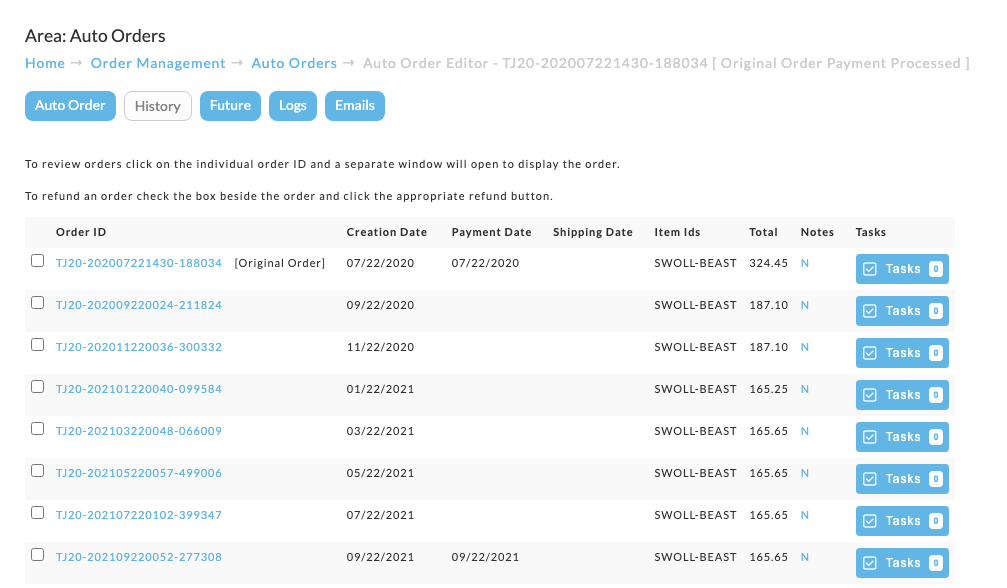
Shows all orders generated historically for the auto order.
Future Tab
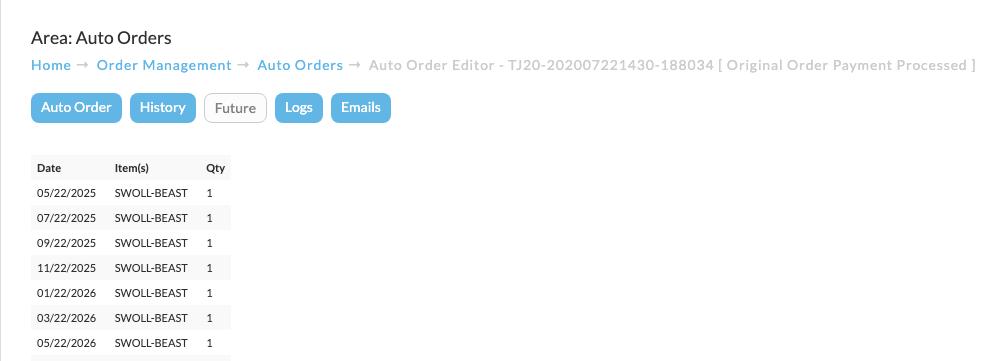
Displays the next 20 scheduled orders when the auto order is active.
Logs tab
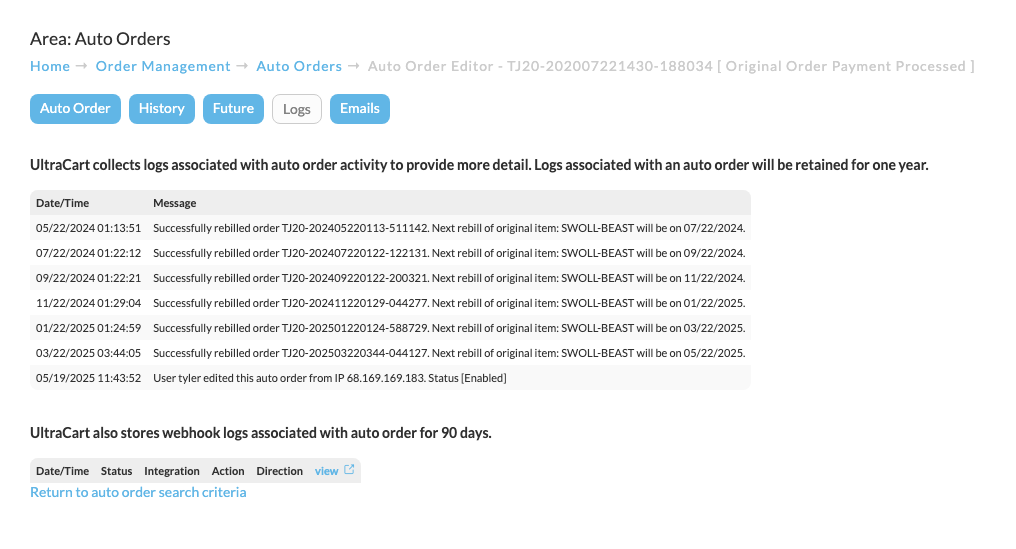
Records activity including rebills and edits. If webhooks are configured, webhook activity appears here.
 note83b1e396-65dc-4121-b7cf-644dee1dc0f9
Note: Restrictions to Logs
-
Auto order logs: 1 year
-
Webhook logs: 90 days
Note: Restrictions to Logs
-
Auto order logs: 1 year
-
Webhook logs: 90 days
Emails tab
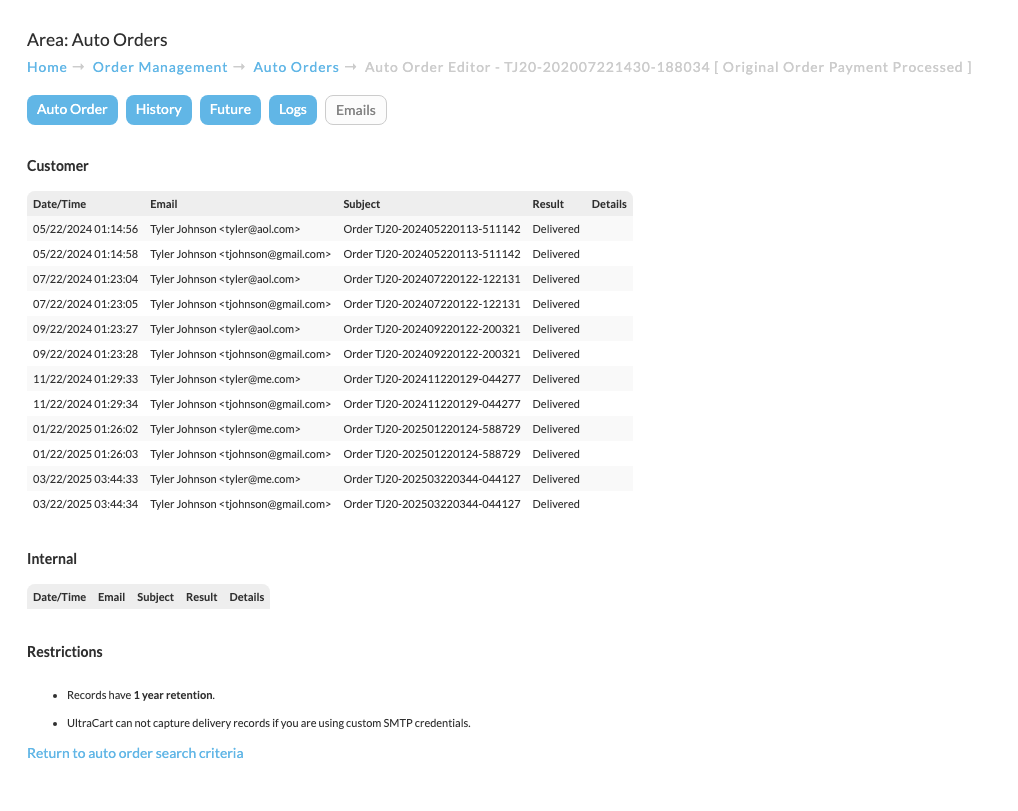
Provides email deliverability details for both customer and internal user emails. See Email Delivery for how to read those results.
 notedfb31b05-cb54-4f82-a346-8ee48494608f
Note: Restrictions to Email Logs
-
Email logs: 1 year
-
Custom SMTP: delivery records not captured by UltraCart
Note: Restrictions to Email Logs
-
Email logs: 1 year
-
Custom SMTP: delivery records not captured by UltraCart
FAQ
Q: How can I generate a report of the auto orders that have one or more retries at processing the next order before a successful charge occurs?
A: A merchant comment will be added to an or "Retry successful". You can run the order comments report or perform an order export using a export mapping that contains the "merchant comments" field, then sorting the exported orders on the merchant comments field and then deleting the orders that do not contain "retry successful".
Q: How can I configure an auto order to trigger on a specific day of the month, regardless of when the auto order item is originally purchased?
A: The way this should be accomplished is to start off the auto order items auto order steps with a "pause" step and then set the delay until a future date. All new orders placed will pause rebilling until that date. As you ship for that month, just edit the item and set a new pause date.
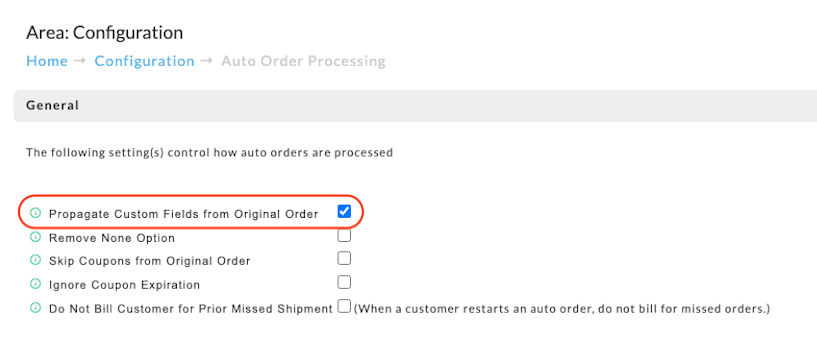
Q: Propagate Custom Field Data to subsequent Auto Orders.
A: The following demonstrates how to pass Custom Field Data to subsequent (Recurring) Auto Orders.
Navigate to Configuration
Configuration → Order Management → Auto Order Processing → Propagate Custom Fields
Auto Orders are configured within the Auto Order tab of the Item Editor.
More configuration of Auto Orders is covered at the following links:
Related Configuration
Auto Order Processing Configuration screen
Converting a Regular Order to Auto Order