Completed Orders Page
The Completed Orders page provides a quick overview of all orders that have reached the “Completed” state within a specified date range, as configured in the View Orders Search page. To reach the completed orders stage, shippable orders will have been processed for payment and marked as “Shipped”, and service and digitial orders reach the “Completed” stage after payment has been processed.
Use this page to review order details, print invoices, issue refunds, and perform other post‑processing tasks.
Prerequisite: Ensure your merchant account has the appropriate permissions to view and modify order data.
Warning: Deleting orders is irreversible.Note: Be certain before confirming deletion. Rejecting of orders is an option that leaves the record in order database, while removing the order from the Period Sales reports.
Note: The results on this page respect the Creation Date Begin and Creation Date End filters as configured on the View Orders search page. By default, View Orders applies a 90‑day range.
Accessing the Completed Orders Page
There are two options:
-
Navigate to Order Management → View All Orders → Then Selecting ‘Completed’ from the Current Stage drop-down list, then clicking Search.
-
From Order Management click the Completed Orders .
Date Range Filters
-
Creation Date Begin and Creation Date End determine which orders appear.
-
These filters are based on derived from the View Orders search page.
-
Default Range: Shows orders created in the last 90 days.
-
To adjust the range, click the date fields and select new start/end dates.
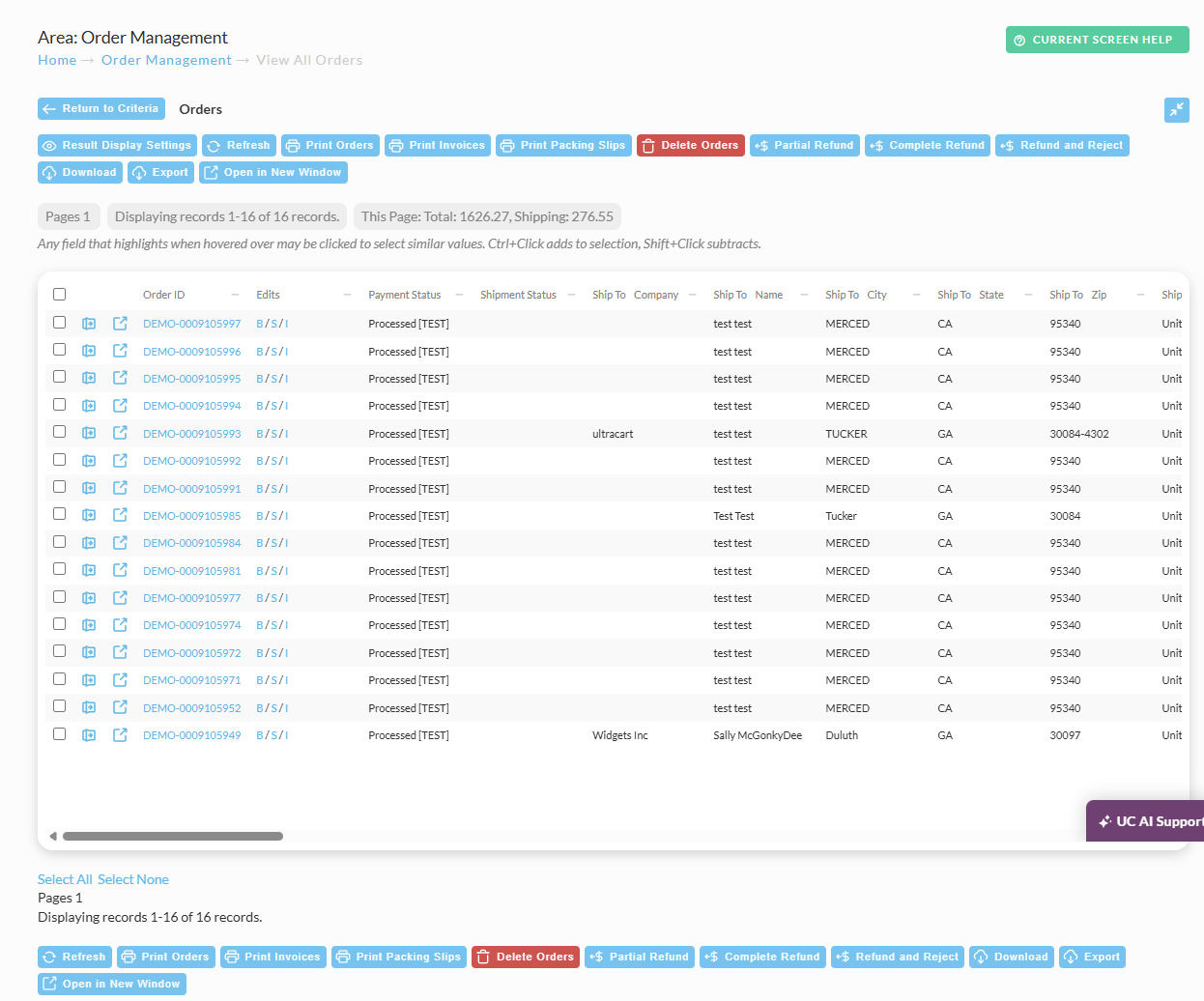
Understanding the Results Table
The table displays one row per order, with the following columns:
| Column | Description |
|---|---|
| Order ID | The orderID of the order. |
| Edits | Icons to view or edit Billing, Shipping, or Items for each order. |
| Payment Status | Shows if the order is Paid, Partially Refunded, or Refunded. |
| Shipment Status | Indicates Shipped, Partially Shipped, or Pending Shipment. |
| Ship To Company | The company name entered for the shipping address. |
| Ship To Name | The recipient’s full name on the shipping address. |
| Ship To City | The receipient’s city on the shipping address. |
| Ship To State | The receipient’s State on the shipping address. |
| Ship To Zip | The receipient’s Zip Code on the shipping address. |
| Ship To Country | The receipient’s Country on the shipping address. |
| Phone | The receipient’s Phone Number on the shipping address. |
| The receipient’s Email Address on the shipping address. | |
| Bill To Company | The receipient’s Company Name on the billing address. |
| Bill to Name | The receipient’s Name on the billing address. |
| Bill To City | The receipient’s City on the billing address. |
| Bill To State | The receipient’s State on the billing address. |
| Bill To Zip | The receipient’s Zip Code/ Postal Code on the billing address. |
| Bill To Country | The receipient’s Country on the billing address. |
| Creation Date | The Creation Date of the order. |
| Shipping Date | The Shipping Date of the order. |
| Shipping Method | The Shipping Method on the order. |
| Tracking Number | The Tracking Number on the order. |
| Storefront | The Storefront host that the order was processed through. |
| RMA | The Return Authorization Number on the order. |
| Shipping Total | The shipping total on the order. |
| Order Total | The total on the order. |
Note: Use the ‘Result Display Settings’ to fine tune Column Ordering and Row Ordering, as well as hide or show additional columns.
Actions
Above the table, you can perform bulk or individual actions:
-
Refresh: Reload the table with current filter values.
-
Print Orders: Print packing slips, invoices, or entire orders.
-
Delete Orders: Permanently remove selected orders.
-
Partial Refund / Complete Refund / Refund and Reject: Issue refunds directly from the list.
-
Download / Export: Export selected orders in CSV format.
-
Open in New Window: View detailed order editor in a separate tab.
Next Steps
-
To view all orders (regardless of status), return to View All Orders.
-
For step-by-step order processing, see the Order Processing Guide.
-
For API access to completed orders, refer to the Orders API Reference.
Why an Order Might Not Appear in the Completed Orders List in UltraCart
If you are unable to locate an order in the completed orders list, there could be several reasons for this. Here are some common scenarios and solutions based on the UltraCart knowledge base:
Payment Status Issues
-
Authorized but Not Captured: If an order has a payment status of "Authorized" but has not been captured, it will not appear in the completed orders list. This typically occurs with the "Auth then Capture" authorization model. To resolve this, ensure that the order is marked as shipped in the shipping department to trigger the capture process.
-
Declined Payments: Orders with declined payments are sent to Accounts Receivable and may not appear in the completed orders list. Check the Payment Status column for any orders marked as "Declined" and review the decline-related settings.
-
Manual Processing: If an order was manually processed outside of UltraCart, it may still show as "Authorized" within UltraCart. You can mark such orders as processed using the "mark processed (externally captured)" option in the Review Orders system.
Configuration and Integration Issues
-
Shipping Method Mapping: Ensure that the shipping method mapping is correctly configured. Incorrect mappings can cause orders to be held up or not appear in the completed orders list.
-
API Permissions: For integrations like PayPal, ensure that UltraCart has the necessary API permissions to capture payments. Without these permissions, orders may remain in a "pending" state.
-
Date Range Filters: Check the date range filters on the View Orders search page. By default, orders created in the last 90 days are shown. Adjust the range if necessary to include the order you are looking for.
Other Considerations
-
Auto Orders: If the order is part of an auto order schedule, ensure that the auto order is not inactive or canceled. Inactive auto orders can be found and reviewed under Operations → Order Management → Auto Orders.
-
Imported Orders: If you are importing orders from external sources like eBay or Amazon, ensure that the import process is correctly configured and that the orders are marked as "completed" during import.
If you have checked these scenarios and still cannot locate the order, consider reaching out to UltraCart support for further assistance.