Editing items in a Placed Order
Items Tab
This will list all items of the order. Merchants can modify all item details as well as delete or add individual items from the order.
Note: If items are added or changed after payment has been processed for the original order details, you'll need to proceed to the billing tab and use the virtual "terminal" button to perform the payment processing for the difference, when there is a additional amount versus the original purchase. *And, if the edited order has a lower subtotal/total, you'll perform a partial refund for the difference. |
Each item on the order has an Edit Order Item button and a Remove Item from Order button. To edit every item at once, click Edit All Order Items at the top of the Items view. Use the Jump to Item dropdown to go straight to an item on a long order.
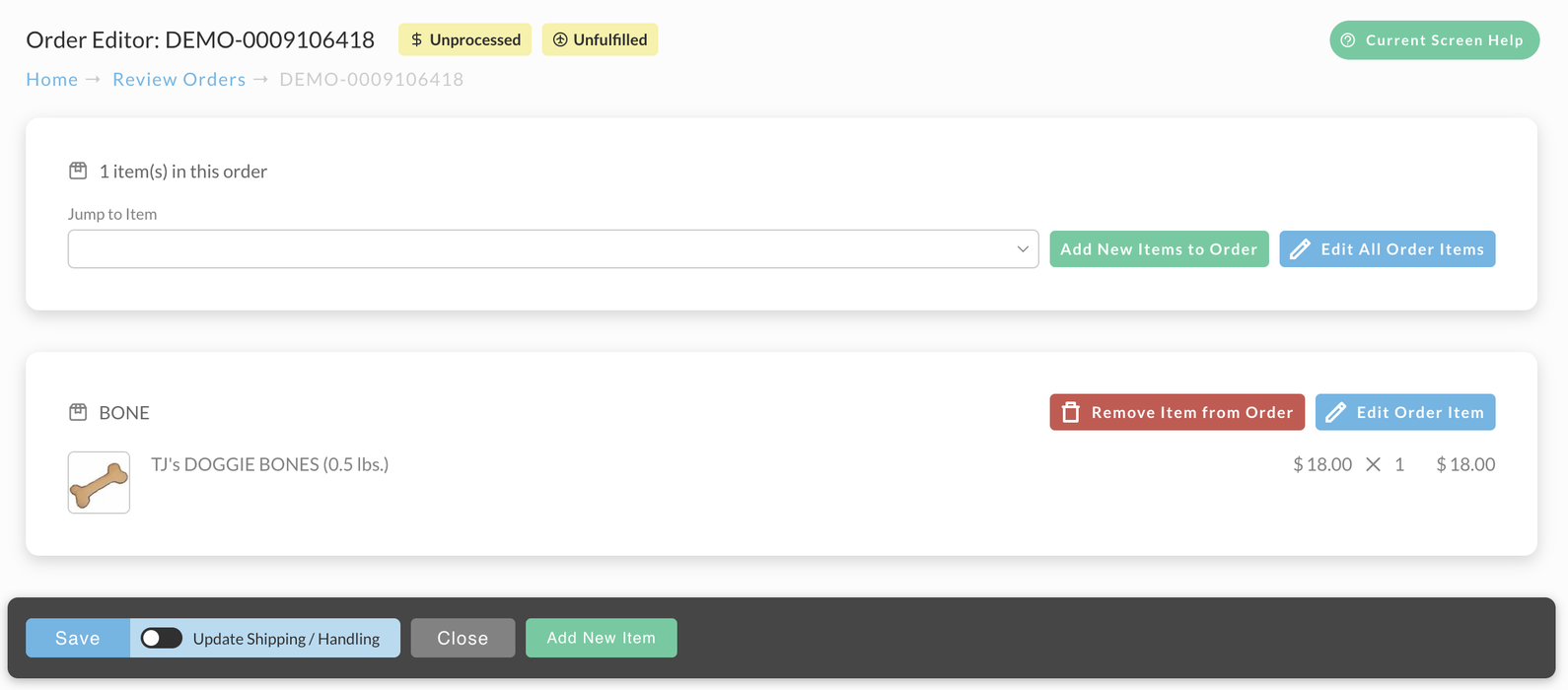
Click Save in the bar at the bottom of the screen to keep your changes. You stay in the editor, so you can save as often as you like, and UltraCart recalculates the order's subtotal and total from the changed items and quantities each time. Click Close when you are done.
Recalculate Shipping and Handling after making item changes
Saving does not change the order's shipping and handling on its own. To recalculate them from your item changes, turn on the Update Shipping / Handling toggle next to Save in the bar at the bottom of the screen, then click Save.
Please Note: There are additional options for modifying the shipping method selection and recalculating the shipping/handling amount in the Shipping Tab of the order editor. |
Editing Items
Each item ordered will have editable fields for item details including: Costs, Logistics, Shipping, Flags, Options, Properties & Tags.
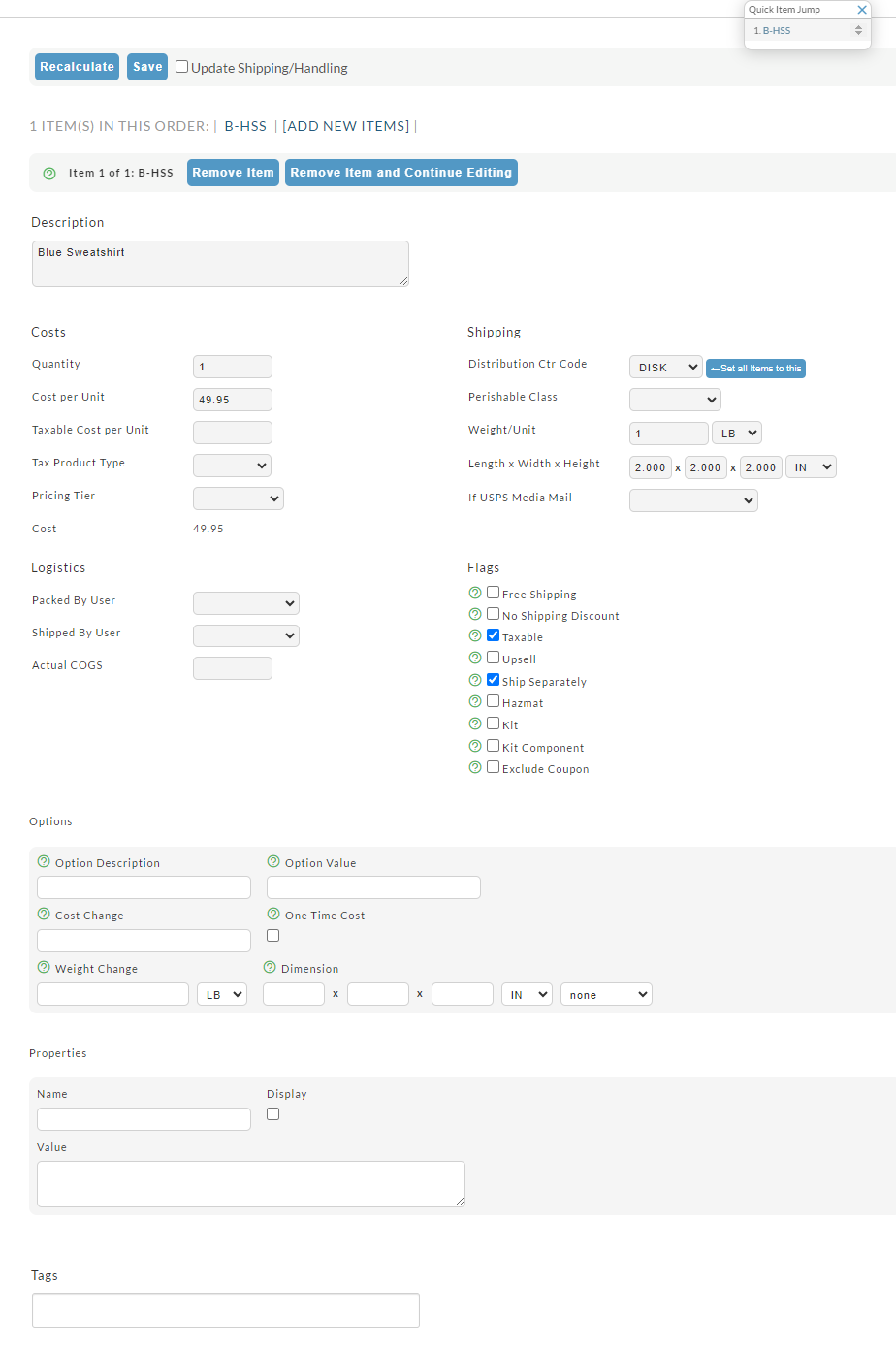
The "Options" section (the bottom section) is auto-expandable. Once you complete one entry and click Save, another empty line appears for your next option.
Item flags and shipping toggles
These toggles apply to this line item on this order only. They do not change the item's default settings in the item editor. After changing a shipping-related toggle, turn on Update Shipping / Handling before saving so the order's shipping is recalculated.
| Toggle | What it does |
|---|---|
| Free shipping | Marks this line item as free shipping on this order. The shipping method must also be set to Qualifies for Free Shipping (Configuration → Shipping → Methods). Recalculate shipping after changing it. |
| No shipping discount | Excludes this line item from free shipping and shipping discounts on this order, even when the shipping method qualifies for free shipping. Recalculate shipping after changing it. |
| Ship separately | Ships this line item in its own package instead of combining it with other items. Shipping calculations treat it as a separate package. Recalculate shipping after changing it. |
| Taxable | Includes this line item in the order's sales tax calculation. Third-party tax integrations such as Anrok also rely on this flag, so an item that isn't marked taxable won't have tax calculated. |
| Kit | Marks the kit row of a kit. Set automatically from the kit item's configuration. See Kits on an order below. |
| Kit Component | Marks a component row of a kit. Set automatically from the kit item's configuration. See Kits on an order below. |
| Hazmat | Marks this line item as a hazardous material. Hazmat handling charges configured on the shipping method (Configuration → Shipping → Methods → Handling Charge) apply when shipping is recalculated. |
| Upsell | Indicates this line item was added through an upsell offer rather than selected in the original cart. |
| Exclude Coupon | Prevents coupons applied to this order from discounting this line item. The item's default is the Exclude from Coupons setting in the item editor. |
For the item-level defaults behind Free shipping, No shipping discount, Ship separately, and Hazmat, see the Shipping tab in the item editor.
Kits on an order
A kit item appears on an order as one kit row followed by one or more kit component rows. The kit row carries the cost, and the kit component rows carry the weight and dimensions used for the shipment. The Kit and Kit Component flags are set automatically based on the kit item's configuration, so you normally don't need to edit them. Changing them by hand can break the relationship between the kit and its components.
See Item Management: Kit Items for how kits are configured.
Adding New Items
To add items to the order, click Add New Items to Order at the top of the Items view, or Add New Item in the bar at the bottom of the screen. The new items appear in the list with the others. Click Save when you are done, and turn on Update Shipping / Handling first if the new items should change the shipping.