Quote Request
A quote request lets a shopper ask for a price instead of paying at checkout. The shopper fills the cart and picks Quote Request as the payment method. Nothing is charged and no order is created. The request lands in your Quote Requests queue, where you adjust the pricing and then send the quote, convert it to an order, or reject it.
Use it for wholesale and business buyers, custom orders, or any sale where the price is agreed before the customer pays.
Navigate: Main Menu → Operations → Order Management → Quote Request
Turn on quote requests
Quote requests are off until you enable them as a payment method.
- Go to Main Menu → Configuration → Checkout tab → Payments.
- Scroll to Quote Requests and turn on its checkbox. Settings and Restrictions buttons appear beside it.
- Scroll to the bottom and click Save. The screen returns to the Configuration menu without a message, so open Payments again to confirm the box is still checked.
Two optional buttons control who can request a quote:
-
Settings opens Quote Request Settings, which has one option, Approved customers only. Check it to limit quote requests to customers you have approved. See the Quotes Tutorial for how to approve a customer.

-
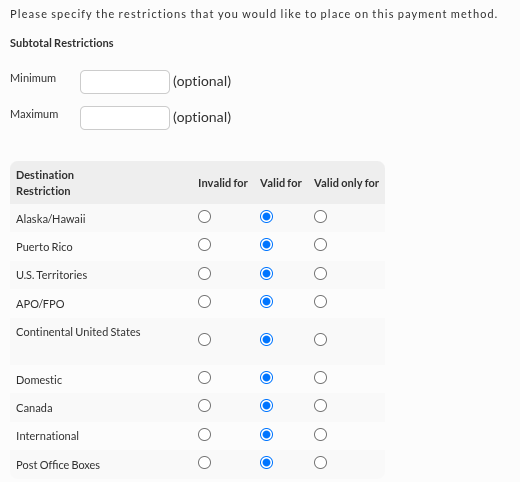
Restrictions opens a page where you can set a minimum and maximum subtotal, and choose Invalid for, Valid for, or Valid only for on each destination. Valid only for offers quote requests only to the destinations you mark. The same page lets you restrict by StoreFront. Everything is Valid for by default.
For the other payment method settings, see Payment methods.
What the shopper sees
Once the method is on, Quote Request appears under Payment at checkout, next to the card and eCheck choices. The shopper fills in the contact and shipping details as usual, selects Quote Request, and clicks Complete Order.
The receipt reads Thank you for ordering and shows a Quote Request ID, the request date, and the shopper's details. The cart is empty afterward. The ID starts with your merchant ID.
Process a quote request
- Open Main Menu → Operations → Order Management → Quote Request. The left list shows Quote Requests with a count for requests waiting, and Recent Quotes Sent for quotes you have already sent.
- Click a quote request ID.
The quote shows the request ID, the StoreFront it came from, the request date, the bill-to and ship-to details, the items, and the totals. Use the buttons at the top to change it:

- Edit Customer opens the customer and billing details. It also has a Quote Expiration field, the payment method, and the currency.
- Edit Items opens the order's items, where you can change the price, quantity, and description of each line, or add and remove items.
Adjust the pricing first. For example, changing a $29.95 item to 25.00 with a quantity of 2 changes the line to 50.00, and the quote total updates to match.
Send, convert, or reject
The bottom of the quote has three actions.
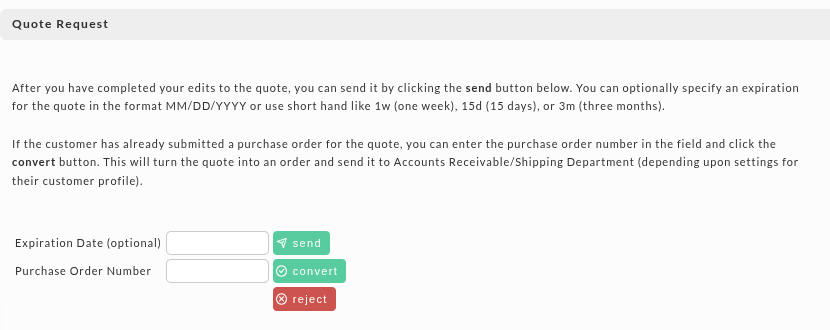
- send emails the finished quote to the customer. The email contains a link the customer
uses to come back and pay at the quoted price. Expiration Date (optional) limits how long
the price is good for. Enter a date as MM/DD/YYYY, or use shorthand:
1wfor one week,15dfor 15 days, or3mfor three months.1wsets the expiration to the end of the day one week out. The sent quote moves to Recent Quotes Sent. - convert turns the quote into an order. Use it when the customer has already given you a purchase order: enter the number in Purchase Order Number and click convert. The order goes to Accounts Receivable or the shipping department, depending on the customer's profile settings.
- reject removes the quote when you do not want to respond, and takes it off both lists. You can reject a quote you have already sent.
The quote screen also has a Merchant Comments box and a Save Comments button.
For the emails customers receive, the user permission that gives access, and creating quotes from Back End Order Entry, see the Quotes Tutorial.
Next steps
- Quotes Tutorial for the full setup, including approved customers, user permissions, and email templates.
- Payment methods for the other checkout payment options.