This page covers the individual order detail view. To search for and filter across all orders, see Review Orders (order list and search).
Review Order Screen
The Review Order screen is the individual order view of your order records.
Navigation
Operations → Order Management → View Orders → Then Select a specific order
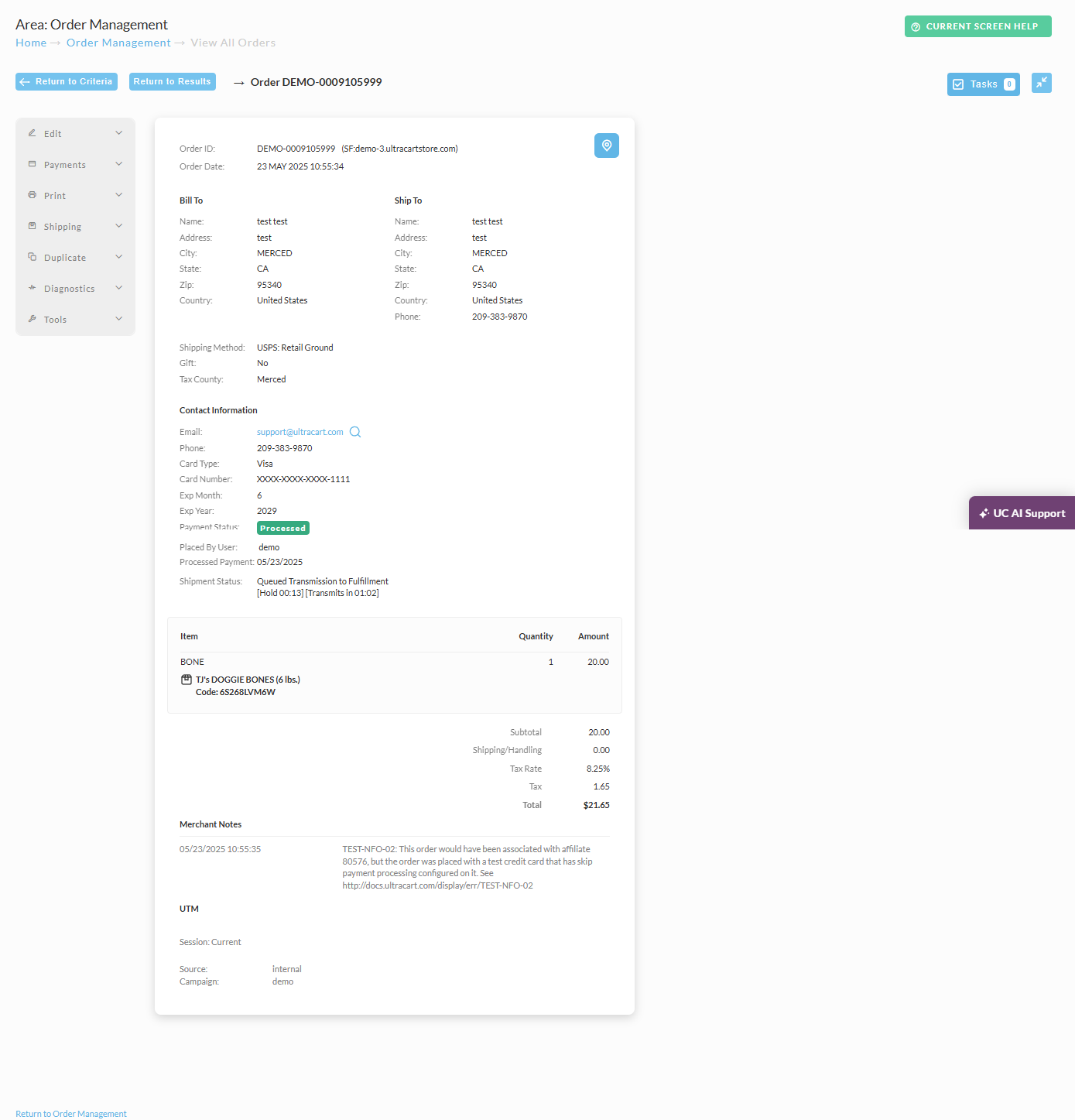
Review order view
The review order view will display the action button along the top of the page, followed by the Current view of the order:
Performing Actions
The 'Possible Actions' menu, provides the list of actions that can be taken against a single order. To do so, mouse over the Possible Action menu list, then choosing the action from the secondary menu.
The Possible Actions Menu List
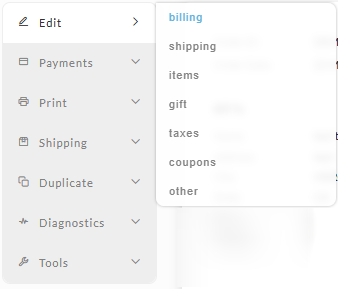
(Mouse over) Edit:
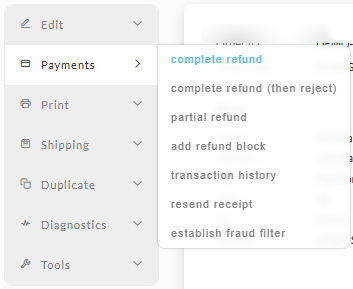
(Mouse over) Payments:
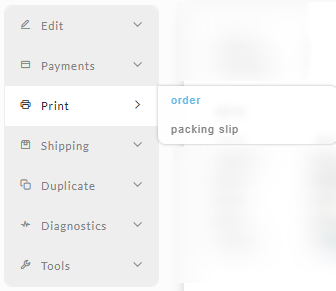
(Mouse over) Print:
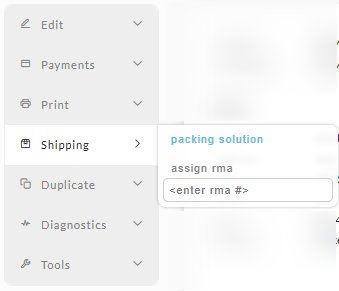
(Mouse over) Shipping:
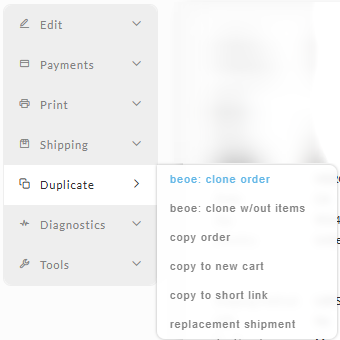
(Mouse over) Duplicate:
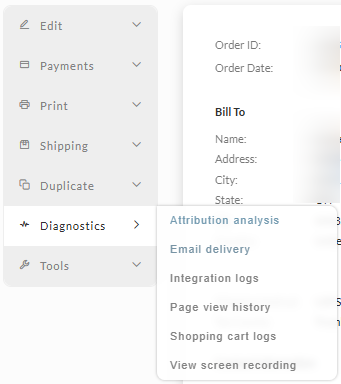
(Mouse over) Diagnostics:
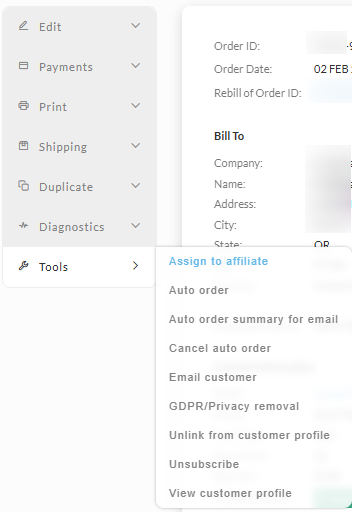
(Mouse over) Tools:
| Action Group | Action | Description |
|---|---|---|
| #### Edit | ||
| customer information | This button allows you to edit the billing, shipping, coupons, taxes, items, and other attributes about the order. | |
| items | This button takes you straight to the item editing for the order. It's provided as a shortcut | |
| #### Payments | ||
| complete refund | Start the refund process out with a complete refund of the order. This is typically used when an order is returned and the merchant wants to provide a 100% refund. | |
| complete refund (then reject) | Start the refund process out with a complete refund of the order, but when the refund is successful reject the order at the same time. This button is typically used to refund the customer and cancel the order right after a customer has placed it and changes their mind. | |
| partial refund | Initiates the refund process. The merchant will decide how much of the order is refunded. | |
| resend receipt | Resends the receipt email to the customer | |
| transaction history | View all the transaction history records stored by UltraCart. This is where you can find the gateway transaction ids, etc. | |
| order | Reprints a PDF of the order. Useful for accounting purposes or as an attachment to email correspondence. | |
| packing slip | Reprints a PDF of the packing slip. | |
| reprint labels | Reprints any labels generated through label servers like Express1.com as a PDF file. Use this if the printer acts up and destroys the original copy. | |
| #### Shipping | ||
| packing solution | Provides a copy of the packing solution so the merchant can see how UltraCart recommends packing the order. Useful for large shipments and troubleshooting configurations. | |
| resend shipment confirmation | Resends the shipment configuration email to the customer including any tracking numbers that have been entered. | |
| retransmit to dist. center | If the order is being handled by a fulfillment house, this button will resend the order to the fulfillment house. | |
| #### Duplicate | ||
| BEOE: Clone Order | Clone order to BEOE | Use this to clone a new order from this order. |
| BEOE: Clone w/out Items | Clone order to BEOE without the items | Use this to clone a new order from this order, without the items from the previous order. |
| Copy Order | Create a new order. | Creates a new order from the previous order, and places the order. You're prompted on the qty of new orders to create, is defaults to 1 buy can copy up to 50 new orders. The new orders will be placed into the A/R for follow up for payment processing. |
| Copy to New Cart | Copies the checkout details from the order to a fresh shopping cart session. | Use this to quickly create a new order using the same details as the original order. |
| Copy to short Link | Copies the order details to a short URL link. | This will create a link for the order details. "The short link below will create a new cart for the customer with the copied order data." Use this to create a checkout that you can send to the customer to complete their purchase. |
| Replacement Shipment | ||
| #### Diagnostics | ||
| Attribution Analysis | Provides an AI analysis of attribution for the order. | The following information is provided to the AI model: - Order - Utms - Affiliate Tracking - Affiliate Network - Page View History (URLs and parameters) - Affiliate Network Configuration - Test Credit Card Usage - Integration Logs (for affiliate network postback) - Internal logs (for receipt conversion pixels) The prompt for the model is designed to help you analyze how the tracking occurred, detect issues (such as the test credit card being used on this order), as well as variables in URL parameters that were not populated properly. The goal is for the executive summary portion of the report to provide you with quick overview and action items. There are additional steps to the report that break everything down. |
| Email Delivery | Lists Emails sent to the Customer and also to UltraCart Users. | Use this tool top review emails that are sent to the customer and also to any users that have order email notifications enabled. Shows whether each message was delivered, opened, clicked, or bounced. |
| Integration Logs | Integration Logs | The integration logs will appear for any 3rd party integrations related to the order. Use the integration logs to troubleshoot integration issues. |
| Page View History | List page views related to the order. | The page views history is useful for gaining insights into the shopping activity related to the order. *Must have the UC Analytics script deployed to capture the page view history. |
| #### Tools | ||
| Assign to affiliate | Assigns the order to an affiliate account for tracking commissions and affiliate-related reporting. Useful when an order should be credited to a specific affiliate after the order has already been placed. | |
| auto order | Takes the user to the auto order editor if one is associated with this order. | |
| Auto order summary for email | Generates a summary of the auto order configuration for use in customer communications or email notifications. | |
| cancel auto order | Cancels any auto order that this order is associated with. This does not have to be the original order in the sequence. | |
| ebay Data | If this order is associated with eBay, this button will display all the XML information received from eBay to generate the order. This is good for troubleshooting any eBay orders. | |
| digital delivery reset | Reset the download counters for the order and resend the customer a new download link. | |
| digital delivery report | A report of the download attempts for this order. | |
| email customer | Opens the email customer function, allowing the merchant to send an email directly to the customer associated with the order.(From the Case Management 'Customer Feedback' screen) | |
| establish fraud filter | Sets up new fraud filters based upon the credit card information, address information, and IP address of the customer. | |
| GDPR/Privacy removal | Removes or anonymizes customer personal information from the order in support of GDPR and privacy compliance requirements. | |
| remove from affiliate | Remove the commission for this order from the associated affiliate. | |
| resend EDI confirmation | Resends advanced shipment notices (ASN) and invoices to the EDI trading partner associated with this order. | |
| Unlink from customer profile | Removes the association between the order and the linked customer profile without deleting the order itself. | |
| Unsubscribe | Unsubscribes the customer from marketing or communication lists associated with the order email address. | |
| View customer profile | Opens the linked customer profile record for the customer associated with the order. This allows review and management of saved customer information, order history, and profile settings. |
Payment Status
The order record has a Payment Status, which appears in the Contact Information section.
Below is a description of the various statuses listed in that column:
| Status | Description |
|---|---|
| Unprocessed | Placed order in either Pre-orders or Accounts Receivables (or marked as 'skip payment processing from A/R department) |
| Authorized | Placed order that has a credit card authorization but has not performed the capture the pending authorization. Typically this has to do with the "Auth then Capture" authorization model, in which the authorization occurs during the initial payment of the order and the capture occurs when the order is marked as shipped in the shipping department. |
| Approved | A placed order of a payment type that requires either manual or automatic approval, such as: - Cash - Check - Purchase Order |
| Declined | An order sent to the A/R due to the payment being declined. :::info ### Decline related settings See also: Payments#MethodsCreditCardPaymentSettings the "After Failed Attempts __ at processing the payment collect the order information and store in accounts receivable." field determine the number of attempts during checkout before the order is captured with declined status. Also, if you have upsell after offers configured, orders captured during an auto closing of an upsell after can be designated as declined: Upsell After ::: |
| Quote Received | An order was created using the "Quotation" selection during checkout, which is awaiting review and approval.(See Quotes Tutorial) |
| Quote Sent | The received quote has been reviewed and sent by the merchant back to the customer. (See Quotes Tutorial) |
| Processed | A placed order that has been processed for payment. |
| Processed (Pending Clearance) | A placed order paid via Amazon Payments in which the order has been authorized and is awaiting the instant payment notification that the payment has cleared. (see FAQ about Amazon Payments#Q:WhydoAmazonPaymentordersgointopendingclearance?) |
| Status | Description |
|---|---|
| Queued Transmission to Fulfillment [Transmits in 00:36] | Indicates the order is in the Shipping department in the Queued for transmission an provides an time to transmit indicator [hh:mm] until the transmission occurs. |
Frequently Asked Questions
Q: Where can I view the credit card transaction history of an order?
From the review order 'Actions menu' mouseover 'Payment' then select 'Transaction History. From the A/R department, click on the orderID to view the order, then scroll down below the order to 'Last transaction'; click the 'Complete Transaction History' hyperlink below the last transaction response details.
Q: Where do you see subscription details on a customer order?
From the review order 'Actions menu' mouseover 'Tools' then select 'Auto order'. Alternatively, you can use the Auto Order search located on the Order Management > Order Processing > Auto Orders. Use the Auto Order search form to search for and view auto order records.
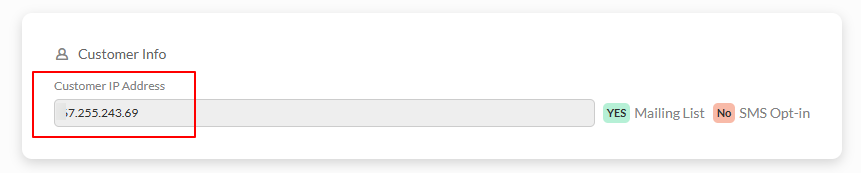
Q: Where can I see the IP address used when the order was processed?
From the Review Order 'Actions menu' mouseover 'Edit' then select either edit option, then select the 'Other' tab in the order editor, then scroll down to the 'Customer Info' section:
Q: How can I find which product was added to the cart first?
To determine the order in which products were added to the cart, use the Diagnostics tools available in the Order Actions menu:
-
Navigate to the Review Order page
-
Click on Order Actions menu
-
Select Diagnostics
The following three diagnostic options will show you the session details, including the chronological order of items added to the cart:
-
Page View History - Displays chronological page views during the shopping session
-
Screen Recordings - Provides visual playback of the customer's session activity
-
Attribution Analysis - Tracks the complete customer journey and interactions
Each tool provides insight into shopping session activity, allowing you to see exactly when and in what order products were added to the cart.
Q: How do I resend a receipt with the invoice PDF attached?
I need to resend a customer a receipt for their purchase. I want the receipt to include the invoice as a PDF attachment. How do I go about resending the receipt including the invoice PDF?
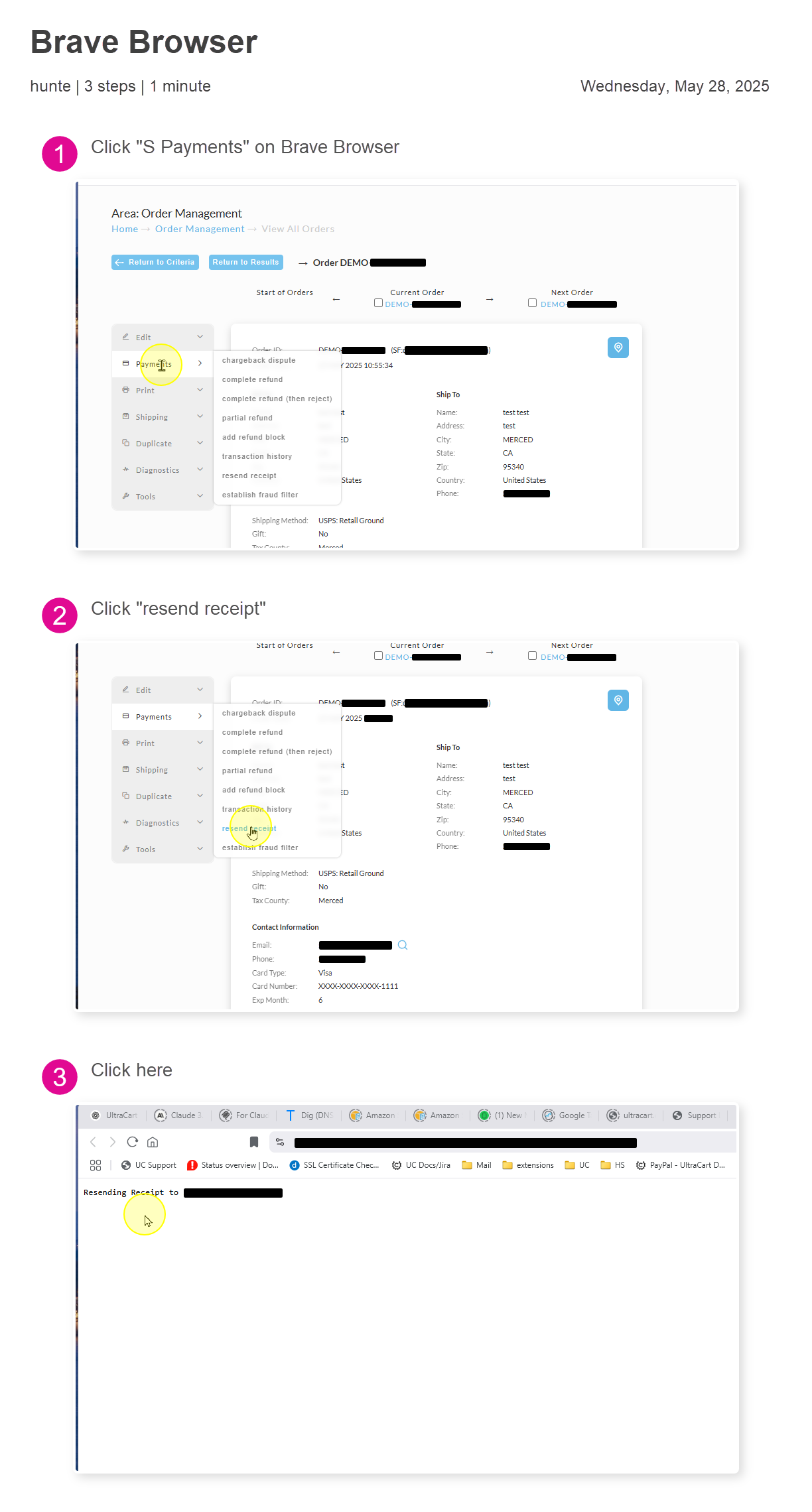
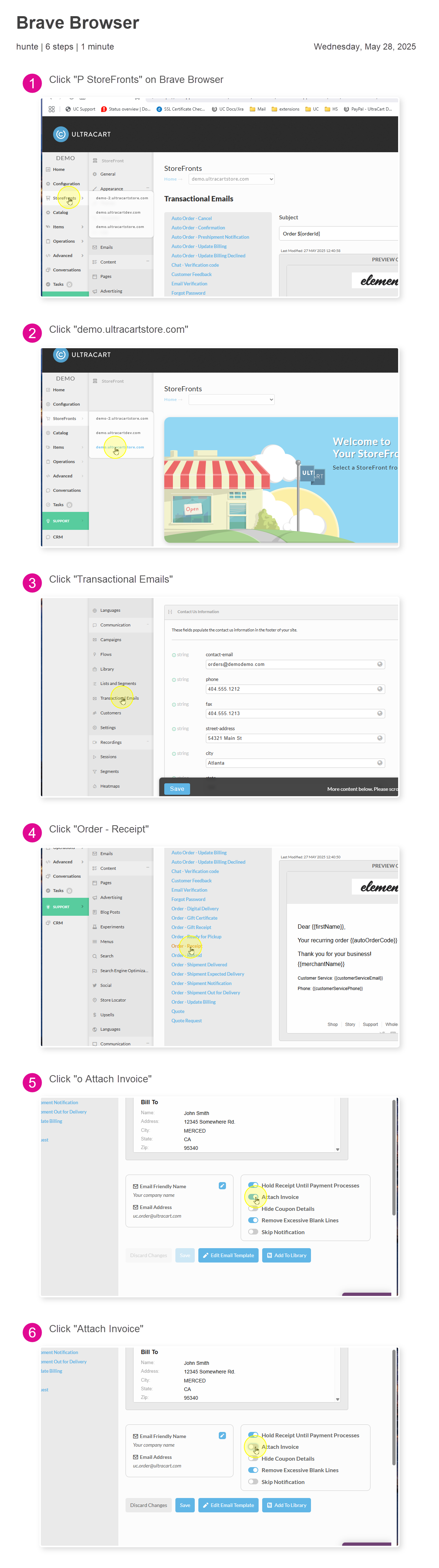
You can resend the receipt from the review order page by mousing over the payment menu option then choosing 'resend receipt'. This will resend the 'Order - Receipt' transaction email to the customer. To include the invoice as a PDF requires enabling that setting in the optional settings for the transactional email template. Enabling this setting will result in all receipt notifications for the storefront host to include the invoice PDF as an attachment.
From Review order → Mouseover Payments → Click 'Resend Receipt'
Resend Receipt:
To enable the PDF invoice, navigate to the Storefront Menu for the host, then select 'Transactional Emails' (in the 'Communication' section of the storefront menu), then clicking on 'Order - Receipt', then selecting the slider for 'Attach Invoice' then clicking the save button to save the changes.
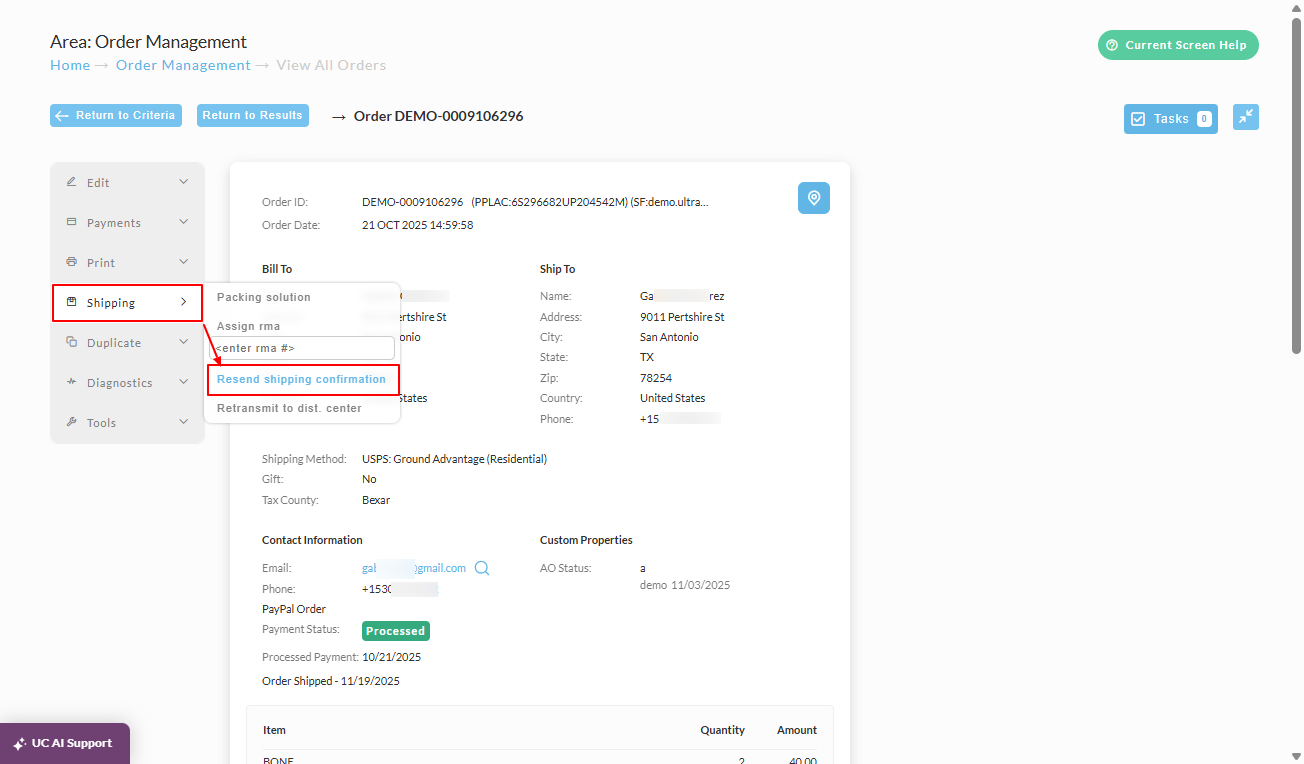
Q: How can I resend the shipping confirmation email after updating the email address on an order?
Use the View Orders search to locate the order, then in the Review Order page, mouse over 'Shipping' in the Order Actions Menu, then click 'Resend Shipment Confirmation':
Q: How can I reject an order?
An order can be rejected from the Accounts Receivable and Shipping Departments using 'Reject Order' by clicking the 'Reject Order' button that appears in the menu when viewing the order. you can also move an order to rejected orders location via the order editor.
Edit the order Edit → Other (tab) then select 'Rejected orders' in the drop-down list for the move order field, then click the 'Move' button.
When viewing orders from the 'View orders search results'; Accounts Receivable; and Shipping departments, you can use the 'Reject' order button, however, if the order is alread processed for payment, such as in the shipping department, the 'Complete Refund then Reject' or 'Partial Refund' options would be the proper procedure.
Q: How do I re-send an order receipt email to the customer?
From the review order actions menu, mouse over 'Payments' then select 'Resend Receipt', which will trigger sending a new copy of the order receipt email notification to the customer's email address.