Introduction
This guide explains how to generate a replacement shipment for an existing customer order within UltraCart. A replacement shipment may be used when a product needs to be resent due to damage, loss, or other customer service-related issues.
Prerequisites
Prerequisite: The user must have the following permissions enabled:
Review Orders
Access Accounts Receivable
Step-by-step Instructions
1. Locate the Original Order
-
Navigate to:
Main Menu → Order Management → View All Orders -
Use the search or browse tools to locate the order that requires a replacement shipment.
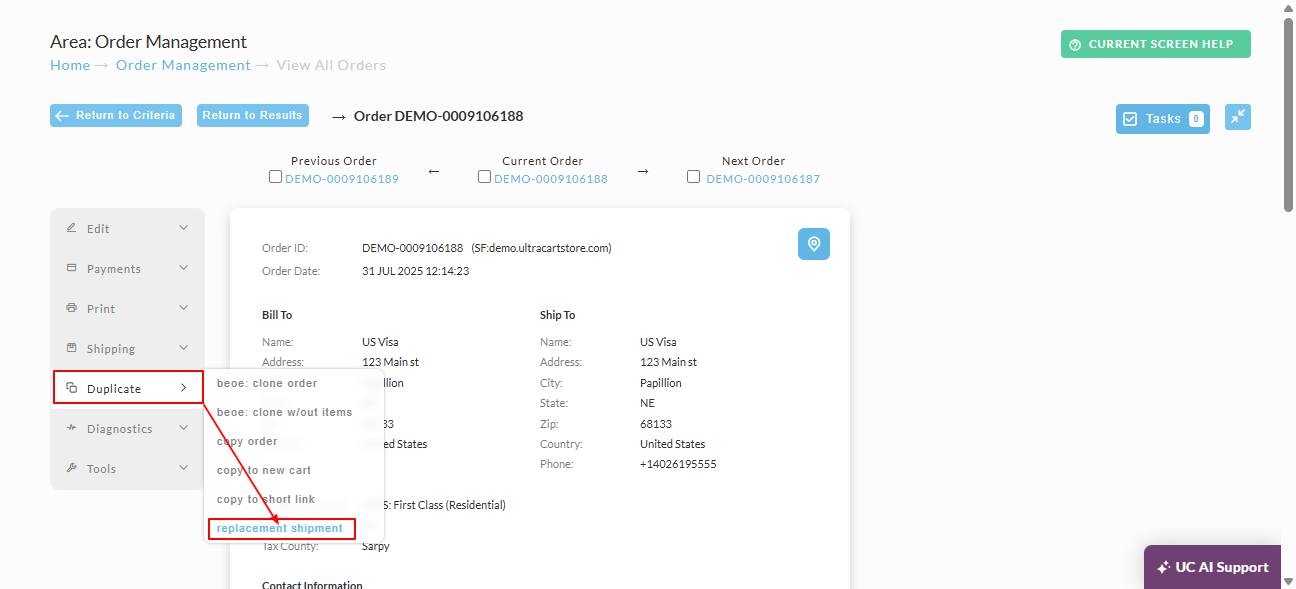
-
Click the Replacement Shipment button located on the left side of the order row.
2. Configure the Replacement Shipment
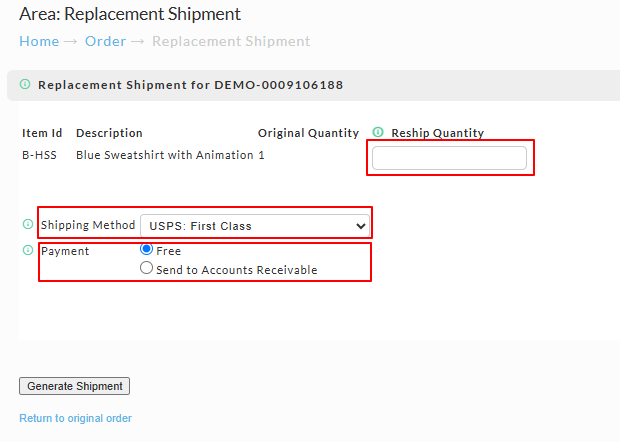
You’ll be presented with a screen containing the following configuration options:
| Field | Description |
|---|---|
| Reship Quantity | Enter the quantity for each item you want to reship. Leave it blank to exclude an item. |
| Shipping Method | Select a shipping method for the replacement shipment. Defaults to the original order’s method. |
| Payment | Choose whether the replacement is Free or Send to Accounts Receivable for manual adjustment for item unit cost, shipping method and shipping cost, etc. |
Note: Choosing Send to Accounts Receivable allows advanced control over order pricing and shipping cost.
- After configuring the replacement shipment, click Generate Shipment.
3. Confirm the Replacement Order
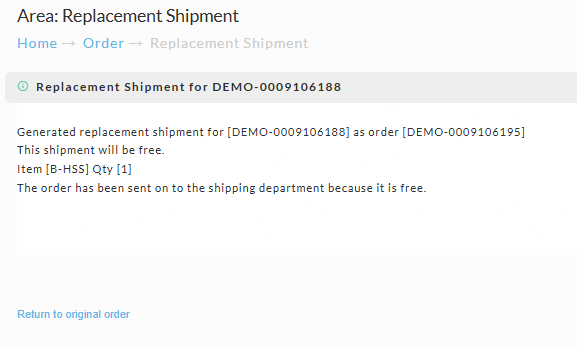
After submission, a confirmation screen will appear. Both the original and replacement orders will include a merchant note with the date, user, and description of the replacement.
Frequently Asked Questions
How do I manually generate a replacement shipment that only charges shipping and handling, but the item is free?
-
On the Payment dropdown, select Send To Accounts Receivable.
-
In the Order Editor, click the Items tab.
-
Change the Unit Cost of the replacement item to
0.00and save the changes. -
Go to the Shipping tab, select the shipping method, and set the appropriate shipping cost. Save the changes.
-
Finally, navigate to Accounts Receivable, select the order, and process the payment.