Introduction
The Review Orders screen serves as UltraCart’s primary order search and management tool, providing intuitive access to view all order records in your account. From this interface, you can locate specific orders, customize your view, perform single-order and bulk actions, and monitor order status—all from a centralized location. If you need to view all the orders from a specific storefront, for example, you can select the storefront in the View order search form.
This guide is tailored for new users and offers step-by-step explanations of core features and best practices.
Prerequisites
Prerequisite: You must have an UltraCart account with the Operations → Order Management → View All Orders permission enabled. If you do not have access, contact your account administrator to request the appropriate permissions.Getting Started
Tip: Bookmark this guide for quick reference, and consider creating custom views (using column and row ordering) that align with your day-to-day workflow to improve efficiency.
Navigation
To access the Review Orders screen, navigate through your UltraCart dashboard using this path:
Main Menu: Operations → Order Management → View All Orders (in any stage)
Accessing the Review Orders Screen
-
Sign in to your UltraCart merchant dashboard.
-
Navigate to Operations in the left-hand menu.
-
Select Order Management, then click View All Orders (in any stage).
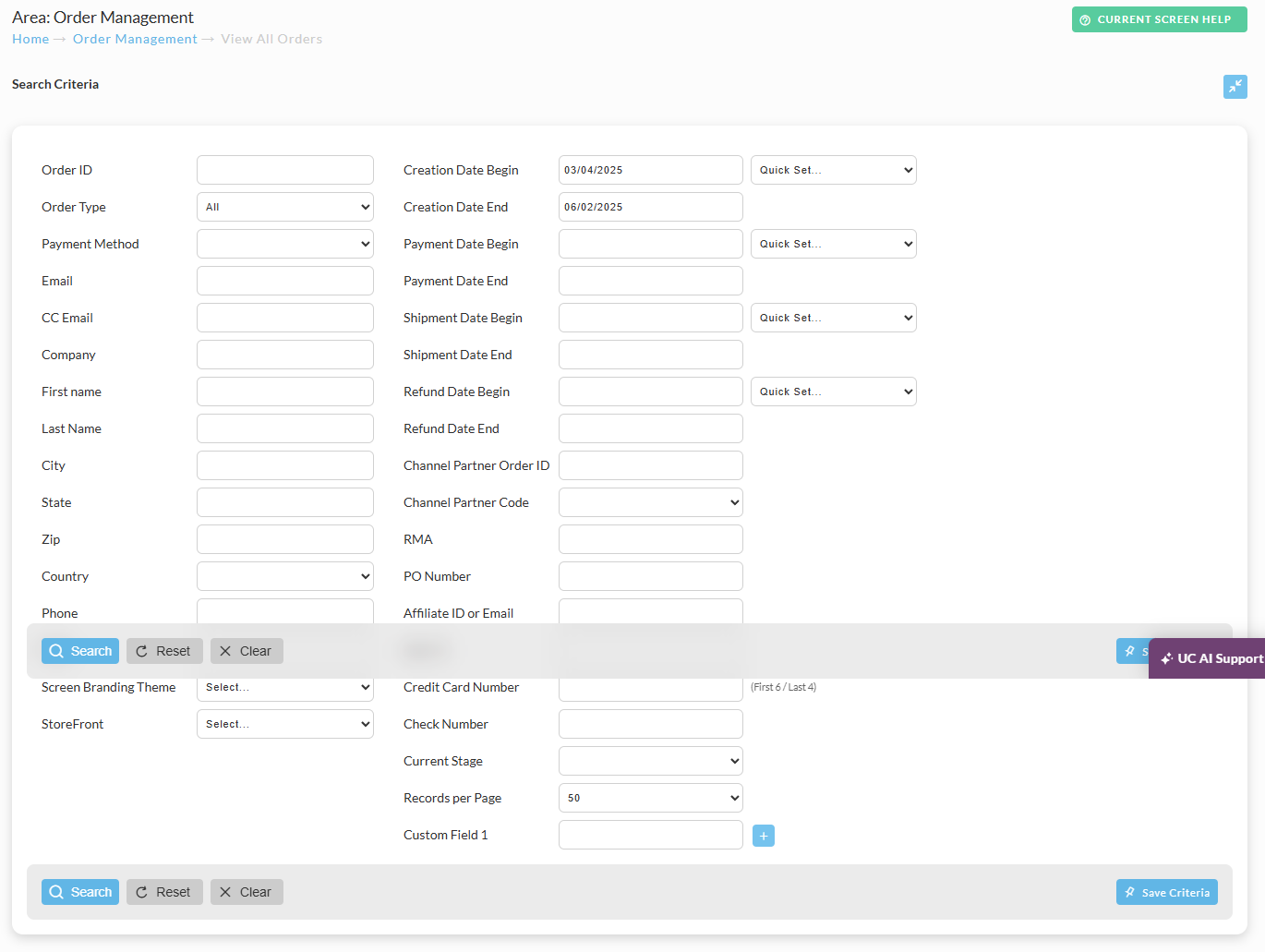
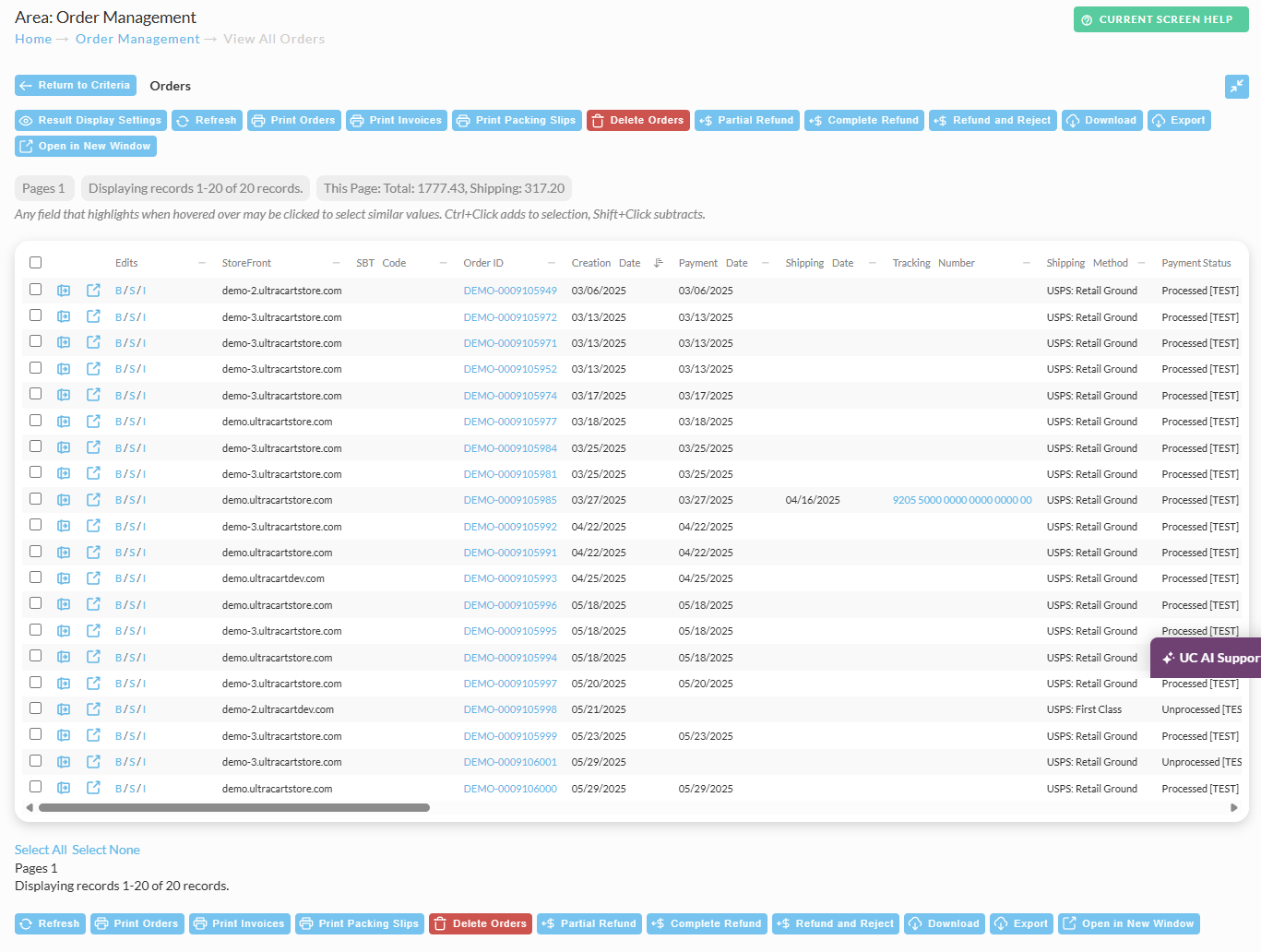
Once selected, the Review Orders interface will display both a Search Criteria form and, upon execution of a search, the Results Table.
View of the View Orders Search Form:
View of the View Orders Search results table:
(*this view appears when when multiple orders are returned)
Accessing the Review Orders Screen
-
Sign in to your UltraCart merchant dashboard.
-
Navigate to Operations in the left-hand menu.
-
Select Order Management, then click View All Orders (in any stage).
Once selected, the Review Orders interface will display both a Search Criteria form and, upon execution of a search, the Results Table.
Screen Layout Overview
The Review Orders interface consists of several key components that work together to help you manage your orders effectively. The main screen displays a searchable list of orders with customizable columns, while additional tools allow you to filter results, adjust display settings, and perform bulk actions.
Note: If you're new to UltraCart, we recommend taking a few minutes to familiarize yourself with the interface before diving into advanced features.
Display and Navigation
Maximizing Screen Real Estate
When working with large order datasets, screen space becomes valuable. UltraCart provides several ways to optimize your viewing experience:

Full Screen Mode: Located on the far right side of the "View all orders" search page, you'll find a "Toggle Full Screen" button. Clicking this button hides the UltraCart title bar and navigation sections, dedicating more space to your order results. Your browser window size remains unchanged, and the system remembers your preference through a stored cookie.

Horizontal Scrolling: When your order list contains more columns than can fit on screen, use the horizontal scroll bar at the bottom of the orders list to view additional columns that extend beyond the right edge of your display.
Column Management: The most effective solution for crowded displays involves customizing which columns appear and their order, which we'll cover in detail below. To access the Result Display Settings click the button in the search results menu (appears both above and below the search results tab.)
Understanding the Interface Tour
UltraCart's order management system includes several modern features designed to streamline your workflow. Understanding these components will help you work more efficiently with your order data.
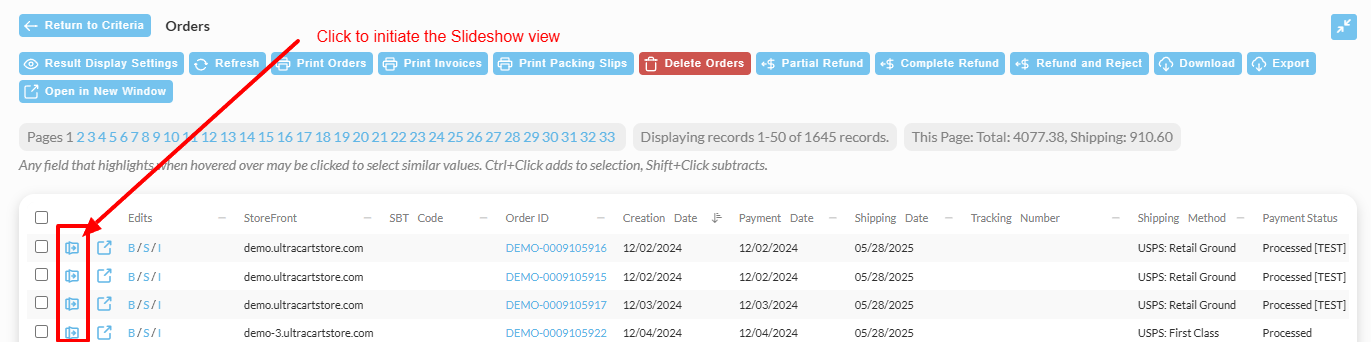
The interface combines traditional list views with interactive slideshow functionality, allowing you to quickly browse individual orders while maintaining context of your overall order list. Filter options provide granular control over which orders appear, while sorting and column management tools help you organize information according to your specific business needs.
Filtering and Search
Basic Search Options
The Search Criteria form allows you to specify exactly which orders you want to review. Most fields in the filter section are self-explanatory, but understanding the advanced options can significantly improve your search efficiency.
Order ID Search with Wildcards: The Order ID field supports wildcard searches using asterisks. This powerful feature enables flexible searching patterns:
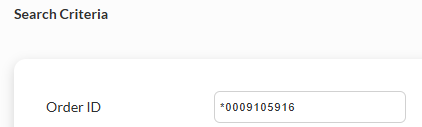
Examples: (Example OrderID ‘DEMO-0009105916’)
-
Use leading asterisks to find orders ending with specific digits:
*0009105916 -
Use trailing asterisks to find orders beginning with specific characters: DEMO-0009105*
-
Combine both for middle-pattern matching:
*0009105*
Display Options: After setting your filters, you have two primary output options:
-
Search (Button): Generates the search results as an HTML listing directly on the current page, respecting both your row and column ordering preferences, as set in the Result Display Settings.
-
Download Report: Creates a PDF report in a new window, which honors your filter settings and row ordering but ignores column customizations
-
Export Report: Exports the search results using a configured export mapping, allowing for custom column exporting.
Tip: Use the HTML display option for interactive work and the PDF download when you need printable reports or external sharing.
Customizing Your View
Row and Column Ordering System
UltraCart’s flexibility allows you to tailor which columns appear and how orders are sorted using the Result Display Settings button above or below the results table.
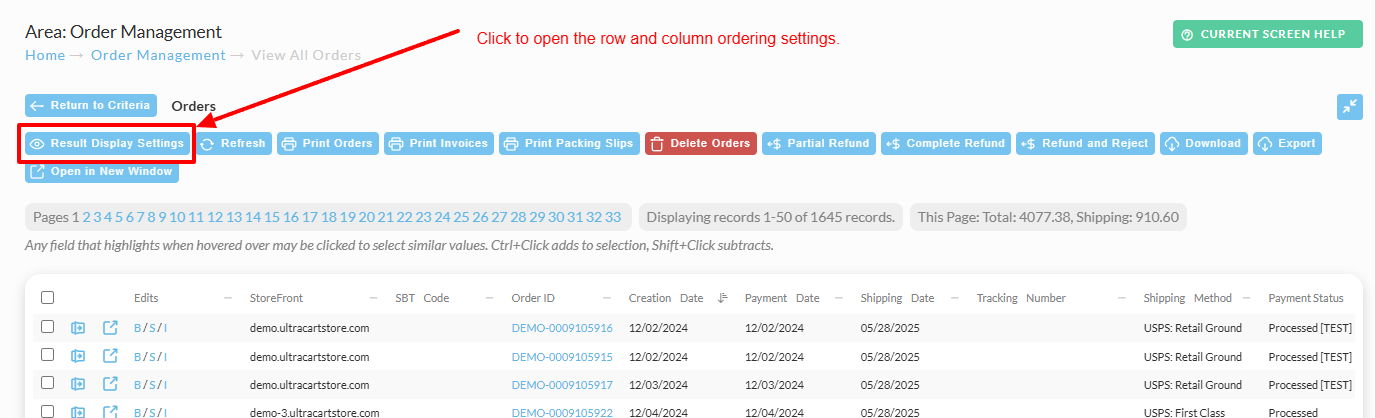
Column Ordering
| Action | Description |
|---|---|
| Click Result Display Settings | Open the Column Ordering panel. |
| Strategy | Description |
|---|
| Action | Description |
| Action | Description |
|---|---|
| Chargeback Dispute | Initiate a dispute if configuring UltraCart for chargeback processing. |
| Truncate Credit Card | Immediately mask payment card digits to only the last four (for PCI/DSS compliance). |
| Complete Refund | Process a full refund (commonly used for returned orders). |
| Complete Refund (then Reject) | Refund and simultaneously reject the order (used when customers cancel shortly after placing an order). |
| Partial Refund | Open the refund interface to issue a partial refund. |
| Action | Description |
|---|
| Action | Description |
|---|---|
| Packing Solution | View UltraCart’s recommended packaging method for complex orders. |
| Action | Description |
|---|---|
| BEOE: Clone Order | Copy all order details into the Back End Order Entry tool to create a new order. |
| BEOE: Clone w/out Items | Copy order details without line items (useful when you want the same customer information but different products). |
| Copy Order | Duplicate the order in-place. |
| Action | Description |
|---|---|
| Email Delivery | View detailed logs of all emails (order confirmations, shipping notifications, etc.) sent for the order. |
| Action | Description |
|---|---|
| Assign to Affiliate / Remove from Affiliate | Associate or dissociate an order with an affiliate account. |
| Cancel Auto Order | Terminate any recurring billing relationship tied to this order. |
| GDPR/Privacy Removal | Permanently remove customer personal data upon a GDPR request. |
| Auto Order | Jump to the auto-order editor for subscription-based orders. |
| eBay Data | Display raw XML data for orders placed via eBay (for troubleshooting). |
| Digital Delivery Reset | Reset download counters and resend fresh download links for digital products. |
| Digital Delivery Report | View a log of customer download attempts. |
| Establish Fraud Filter | Create a new fraud filter based on the customer’s credit card, billing address, and IP address. |
| Resend EDI Confirmation | Resend advanced shipment notices (ASN) and invoices to an EDI trading partner (if EDI is configured). |
Bulk Operations
Actions taken on multiple orders from the View Orders Search results.
| Step | Description |
|---|
| Payment Status | Description |
|---|---|
| Unprocessed | Orders in Pre-orders or Accounts Receivable, or orders marked to skip payment processing. |
| Authorized | Credit card has been authorized but not yet captured (common in “Auth then Capture” workflows). |
| Approved | Payment types requiring manual or automatic approval (e.g., Cash, Check, Purchase Order). |
| Quote Received | Orders created via the Quotation system, awaiting merchant review. |
| Quote Sent | Merchant has responded to a received quote. |
| Declined | Payment was rejected, sending the order to Accounts Receivable. |
| Processed | Payment has successfully completed. |
| Processed (Pending Clearance) | Amazon Payments orders authorized but awaiting final clearance. |
| Shipment Status | Description |
|---|---|
| Available for Pickup | Order has reached the shipping department and is ready for carrier pickup. |
| Awaiting Pickup | Order awaits scheduled pickup by a third-party fulfillment service. |
| Pending Transmission to Fulfillment | Order is queued for transmission to a third-party fulfillment center. |
| Queued for Transmission to Fulfillment | Scheduled for the next transmission batch. |
| Transmitted to Fulfillment | Order information has been sent to fulfillment partners. |
| Untracked In Transit | Order is en route with no detailed tracking. |
| Info Received | Tracking information has been sent to the carrier but no further status is available. |
| Shipped | Carrier has accepted the package but it has not been delivered yet. |
| Out for Delivery | Package is in final delivery phase. |
| Expected Delivery | Carrier’s estimated delivery date. |
| Delivered | Package has been delivered successfully. |
| Failed Attempt | Carrier attempted delivery but was unsuccessful. |
| Exception | An error or unusual condition has occurred in the tracking system. |
| Order Type | Retention Policy |
|---|---|
| Rejected Orders | Retained for 1 year only, regardless of your general order retention settings. After one year, rejected orders are purged to optimize database performance. |
| Regular Orders | Follow your account’s configured retention period (e.g., 2–5 years). Adjust retention settings under Operations → System Settings → Order Retention as needed. |
Decline Processing Configuration
The number of payment attempts before an order is marked as declined can be configured in your payment settings. Navigate to the credit card payment settings and locate the "After Failed Attempts" field to adjust how many processing attempts occur before orders are captured with declined status.
Orders processed through upsell after offers can also be designated as declined when auto-closing processes are configured. Review your upsell after configuration to understand how these scenarios are handled.
| Step | Description |
|---|---|
| Configure Failed Attempts | Navigate to Payment Settings → Credit Card Payment Settings to configure the “After Failed Attempts” field (number of processing attempts before an order is marked as declined). |
| Upsell-Auto-Close | If you have upsell-after offers enabled, orders that auto-close through upsell may also be designated as declined. |
Integration Dependencies
| Dependency | Requirement |
|---|---|
| Fulfillment Integration | To use features like Retransmit to Distribution Center or advanced shipment tracking, ensure you have a compatible fulfillment service set up under Operations → Shipping & Fulfillment → Fulfillment Centers. |
| EDI Functionality | Enable and configure EDI under Account Settings → Integrations → EDI to resend ASNs and invoices to trading partners. |
| Front-End Tracking Scripts | Implement tracking scripts on your storefront if you wish to use Page View History for customer behavior analysis. |
| GDPR Compliance | Ensure your GDPR/privacy removal settings are configured under Account Settings → Privacy & Compliance before using the GDPR/Privacy Removal tool. |
Several features described in this guide depend on specific integrations or configurations:
Enhanced shipment tracking requires integration with compatible shipping services. Fulfillment center features require established connections with third-party fulfillment providers. EDI functionality requires proper EDI configuration and trading partner setup.
Page view history requires implementation of tracking scripts on your website front-end. Some diagnostic features may require specific account configurations or support assistance.
Conclusion
The Review Orders screen is the central hub for managing all aspects of your order lifecycle—from search and customization to single-order and bulk actions. By mastering the Search Criteria, customizing your view, and utilizing the slideshow and action tools, you can streamline your order management processes and respond quickly to customer needs.
Next Steps
Now that you understand the Review Orders interface, consider exploring related UltraCart features that complement order management:
-
Order Processing Workflows: Explore Operations → Order Management → Order Processing Rules to automate order routing based on criteria (e.g., payment status, shipping destination).
-
Shipping Configuration: Visit Operations → Shipping & Fulfillment → Shipping Methods to set up carriers, rates, and packaging profiles.
-
Payment Gateway Setup: Configure additional payment methods under Operations → Payment Gateway Configuration to expand your accepted payment types.
-
Reporting & Analytics: Review Analytics → Reports → Order Reports to gain insights into sales trends, average order values, and customer behavior.
-
API Integration: For developers, refer to the UltraCart REST API documentation to build custom order management tools or integrate with external systems.
The Review Orders screen serves as the central hub for order management, but understanding how it integrates with other UltraCart features will help you build a comprehensive e-commerce operation that scales with your business growth.
For details on a specific order, please see ‘View Order’.
Review Order