Introduction
The Shipping Department is the staging area where shippable orders, which have successfully processed payment, await fulfillment. Depending on your configuration, the interface will vary based on whether you process orders in-house or transmit them to a fulfillment provider.
Prerequisites
-
Payment must be successfully processed on the orders.
-
Distribution Centers must be properly configured.
Navigation
Main Menu: Operations → Order Management → Shipping Department
Shipping Department
Once payment for an order has been processed, the order is moved to the Shipping Department. This Section can also be displayed in 1 of 2 ways.
-
For merchants with a single Distribution Center configured you will be taken directly into your shipping department. There you can view the orders based on weather you are using a fulfillment center or handling the shipping yourself.
-
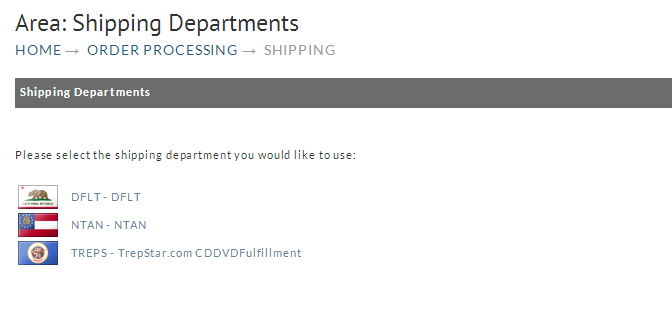
For those merchants that have multiple shipping departments you will see the following screen first. Each additional distribution center (configured earlier) will display a link on this page. The following example shows multiple Shipping Departments.
Self-Service (In-House Processing) vs. Fulfillment Provider
UltraCart supports two modes for shipping operations:
Self-Service View
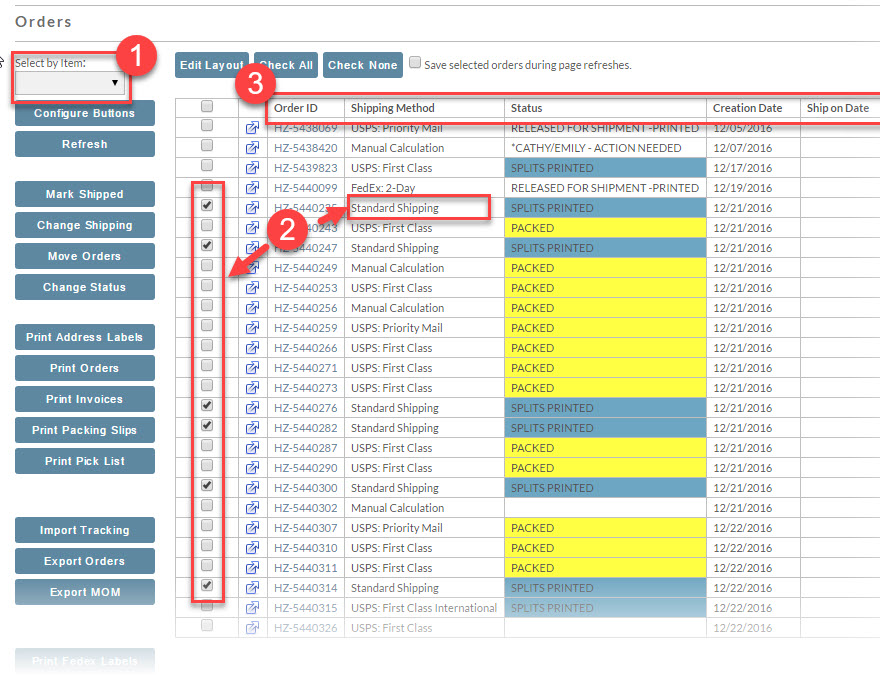
This view is for merchants managing their own shipping. Available actions include:
-
Item Dropdown: Filter orders by specific items.
-
Field Selection: Click any field value (e.g., shipping method) to select all orders sharing that value.
-
Column Sorting: Click column headers to sort orders.
-
Order Editing: Edit orders directly prior to fulfillment.
Note: See Order Editing - Shipping for more details.
-
The item dropdown will allow you to select all the order for a particular item.
-
Click on any field to select all the order with the same value. For this example we are clicking on the shipping method " Standard Shipping" and all orders with that method are selected.
-
You Can also click on Column headers to sort orders
Import Tracking via CSV file
Please see the following for details regarding the formatting of the import CSV file: Import Tracking
In the self-service view, you will find situations where you need to edit an order prior to shipping.
(click here for more details)
Editing Orders and Credit Card charges or refunds
Please keep in mind that editing an order from the shipping department will not affect the credit card authorizations.
-
If the changes you make correspond with an additional charge, then you should apply the additional amount using the "virtual terminal" tool. (See: Virtual Terminal Button for more details).
-
If changes to the order will result in a partial refund, then you can perform that by navigating to the order in the "view all orders (in any stage)" search tool then clicking the partial refund button. In the partial refund screen you can credit for removed items then process the refund (See How do I perform a Refund for more details).
Fulfillment Provider View
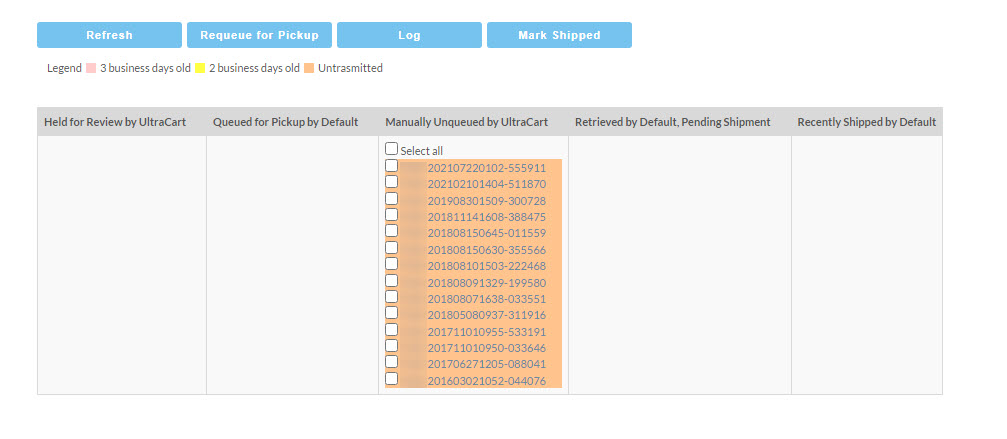
This view is for merchants using integrated 3rd-party fulfillment providers (requires Transmission Mechanism configuration).
Action Buttons
| Button | Description |
|---|---|
| Refresh | Reload the screen to view the most current order data and clear selections. |
| Release | Move orders from Held for Review to Queued for Transmission. |
| Remove from Queue | Exclude selected orders from transmission to the fulfillment center. |
There is a new warning if there are orders that were manually held.

Multiple Shipping Departments Support
Merchants can configure multiple Distribution Centers to support complex logistics, such as multiple fulfillment providers across different regions or a combination of in-house and outsourced shipping.
Note: See Self-Serviced Distribution Center for in-house setup instructions.
Shipping Department Widget
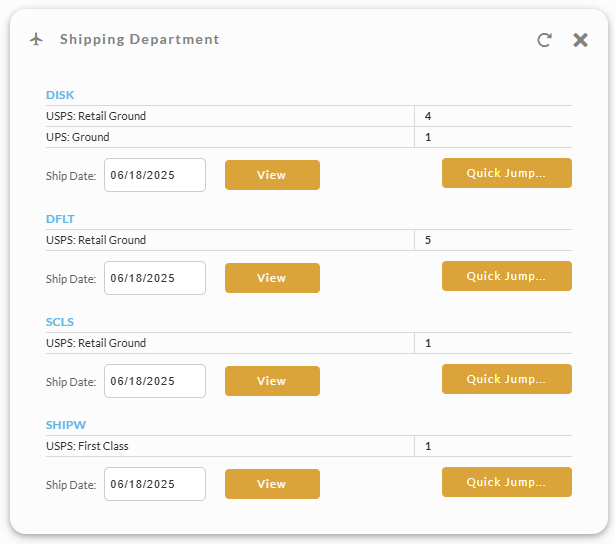
You can add the Shipping Department widget to your UltraCart Home page for quick access:
-
Open the Home page customization panel.
-
Drag the Shipping Department widget from the right panel to the left.
-
Arrange widgets as desired and save the layout.
Shipping Department Widget
You can add the Shipping Department widget to your UltraCart Home page for quick access:
-
Open the Home page customization panel.
-
Drag the Shipping Department widget from the right panel to the left.
-
Arrange widgets as desired and save the layout.
Editing Orders and Processing Refunds
Editing orders in the Shipping Department does not alter existing credit card authorizations.
-
For additional charges, use the Virtual Terminal tool. (See Virtual Terminal Button)
-
For partial refunds, locate the order via View All Orders, select Partial Refund, adjust item quantities, and process the refund. (See How to Perform a Refund)
Frequently Asked Questions
We have some orders in the Shipping department that are showing a message that the orders are on hold, what are the possible reasons for these orders to be in a hold status instead of immediately transmitting?
Orders can be placed into a hold queue for the following reasons:
-
Manual Hold
-
Transmission Schedules
-
Held for Review
-
Configuration Errors between UC and Fulfillment center
-
Fulfillment Center validation issues
-
Placed in ‘Held Orders’ location
-
Order has a future ‘Ship on Date’ or 'Delivery Date'
In situations where order(s) are not transmitting as expected, review the order details to the issues listed above.
What happens if an order is rejected while in the transmission queue?
Rejected orders are excluded from transmission. The transmission routine checks for rejections before sending orders and omits them from the batch.
Will a rejected order still appear as a sale in reports?
-
Refund & Reject: Returns funds to the customer and voids the sale (not counted in sales reports).
-
Reject Only: Excluded from sales reports.
Reference: Understanding Period Sales Reports and Refund Reporting