The #1 Tracking Solution for eCommerce Businesses.
AfterShip.com is a 3rd-party shipping tracking service that allows you to:
- Engage your customers with Branded Tracking Page
- Send your customers proactive delivery updates
Signing up with AfterShip.com
Register Account
The first step to integrating AfterShip with your UltraCart account is to create your AfterShip.com account.
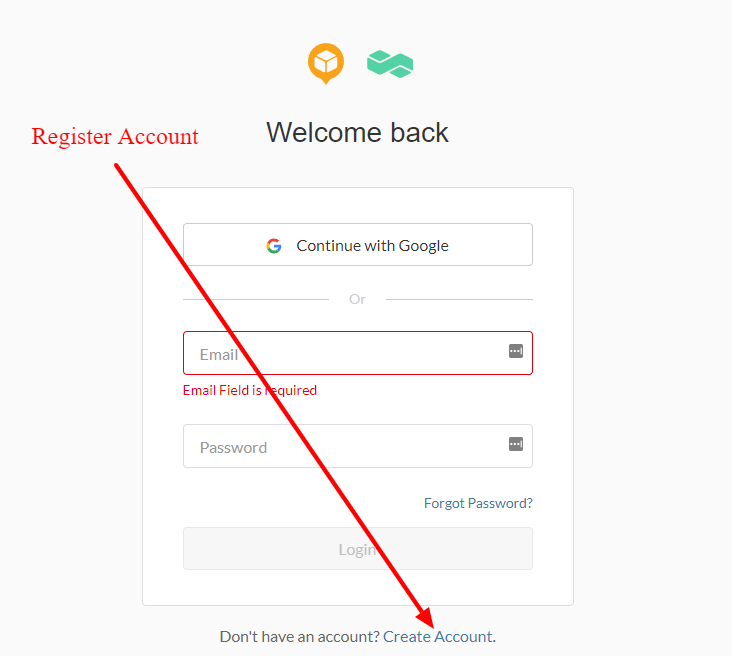
Next Click the "Create Account" link at the bottom of the page:
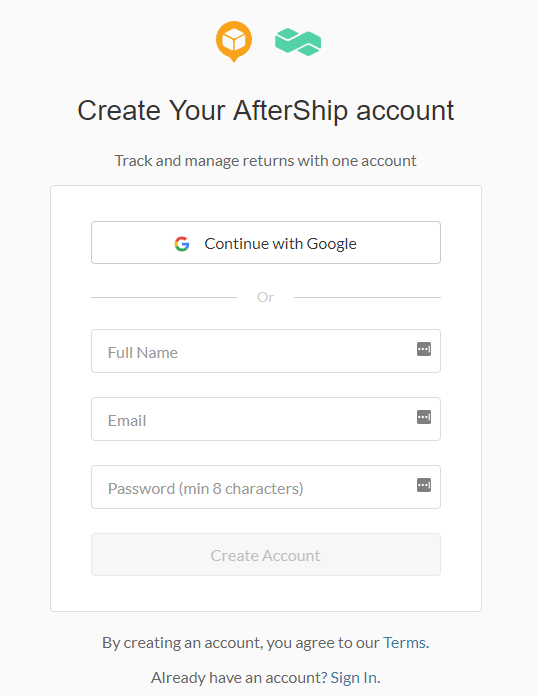
To complete the account registration, either login with your Google account OR enter your Full Name, Email address, and Password, then click the "Create account" button.
After completing the registration, you'll be presented with the following page, where you are asked:
- Brand Name
- Store Website URL
- Monthly Shipment volume (Select from list)
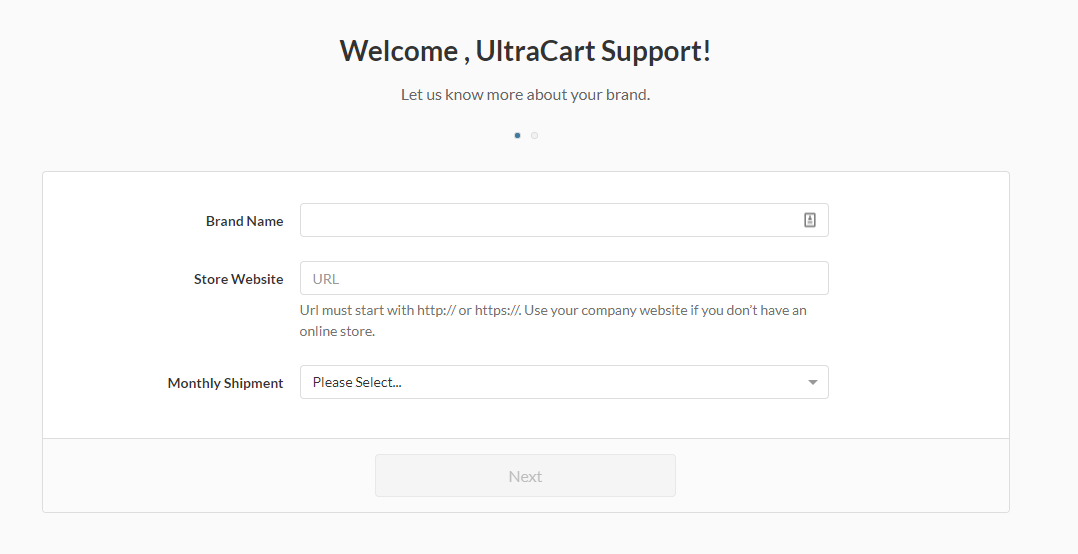
After completing the form, you'll next be asked to choose your subdomain:
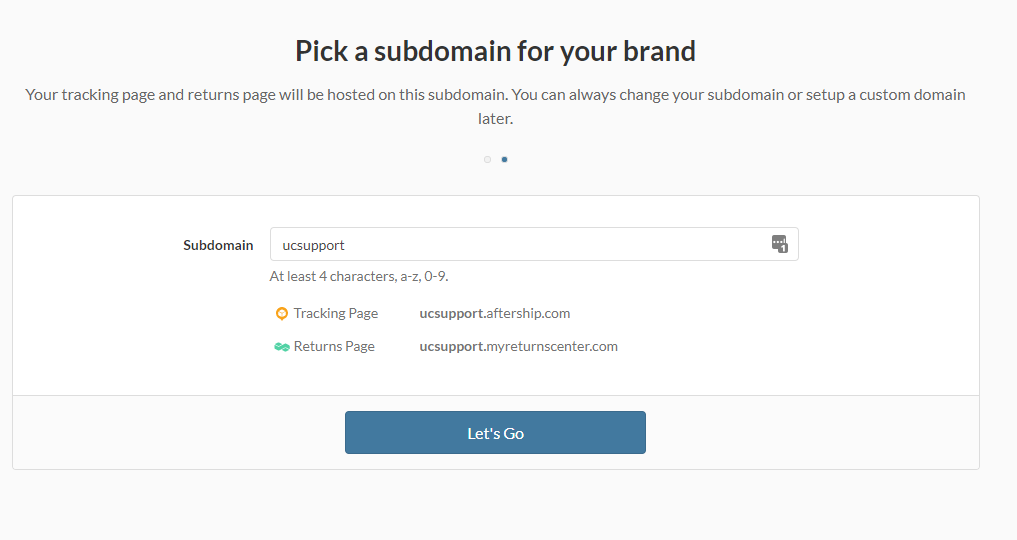
After entering your desired sub-domain and clicking the "Let's Go" button, you'll be presented with your account dashboard:
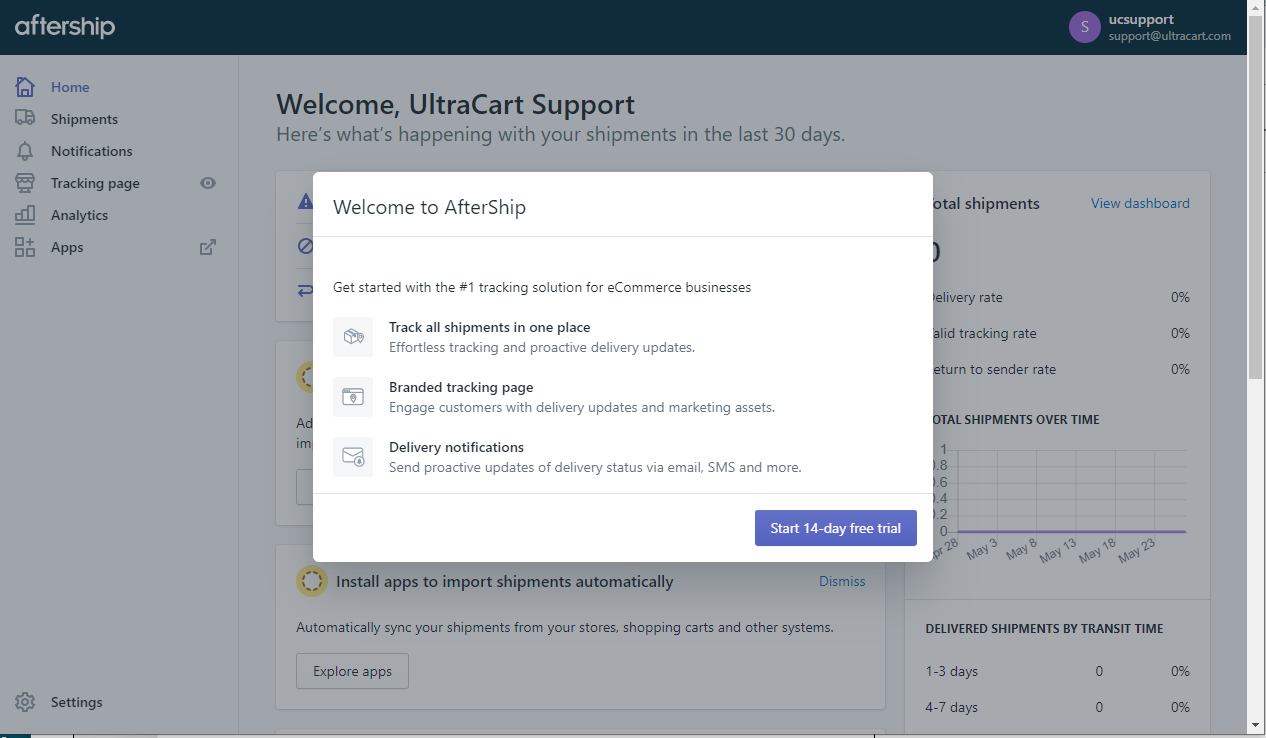
Click the "Start 14-day free trial" button then on the next page,configure your Shipping Carriers:
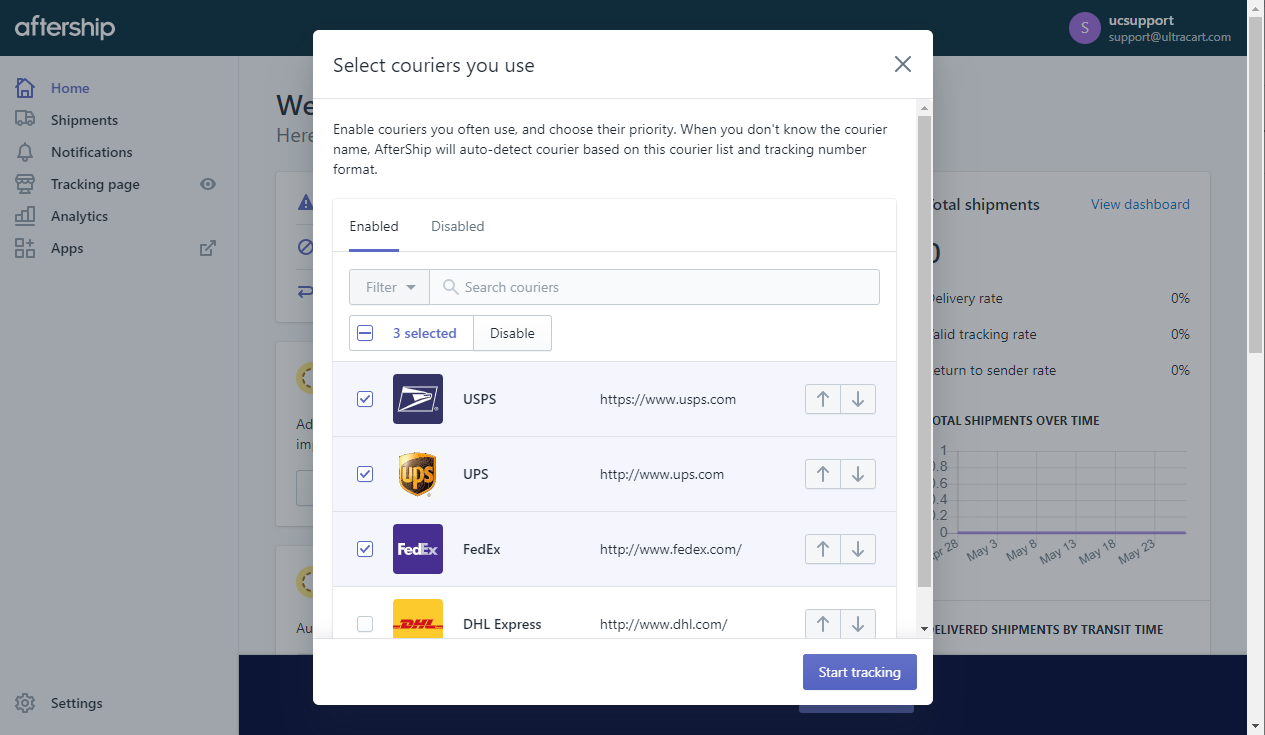
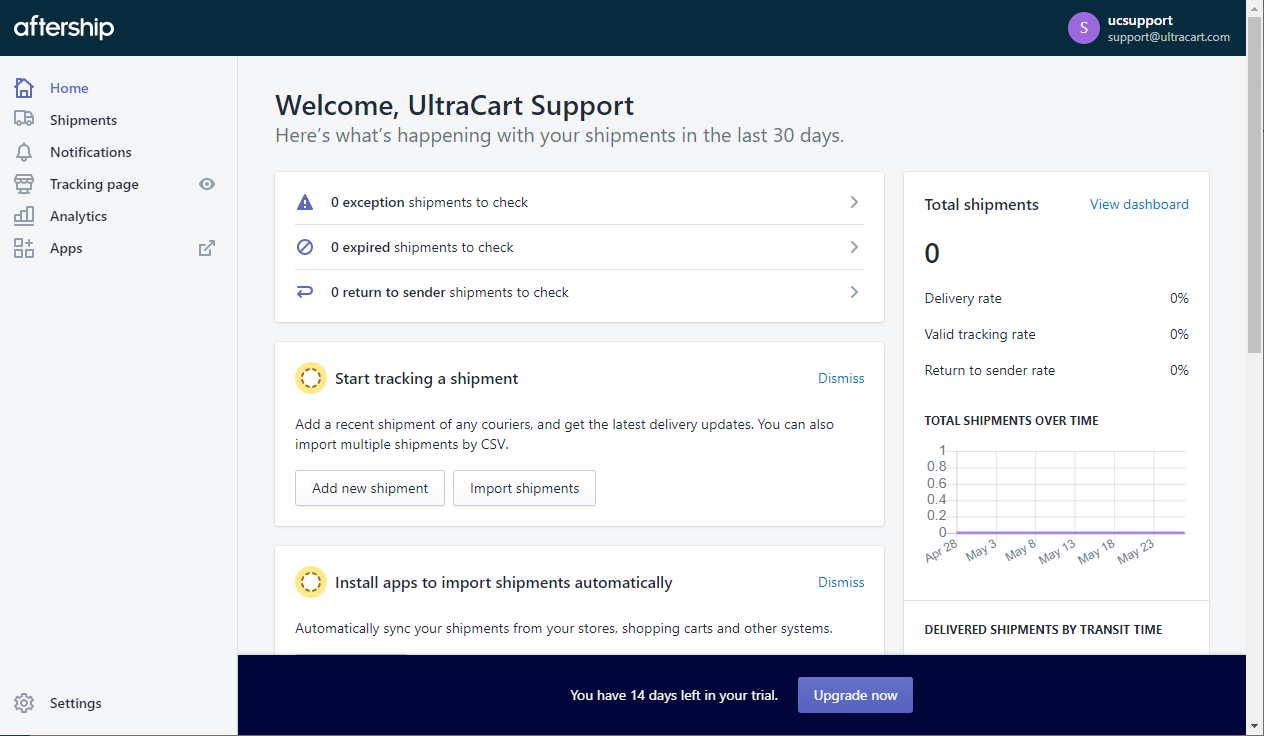
After clicking the "Start Tracking" button, you'll be presented with the Dashboard view for your AfterShip account:
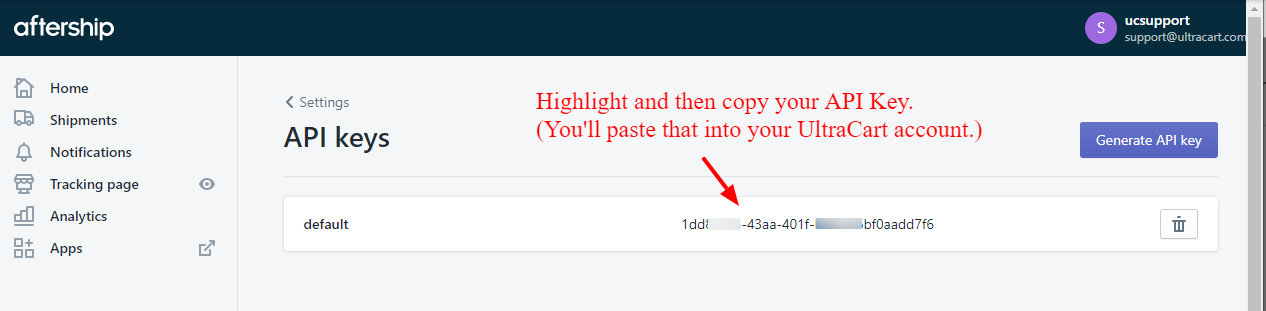
From the Dashboard, click "Settings" at the lower left corner of the page, then click "API heys":
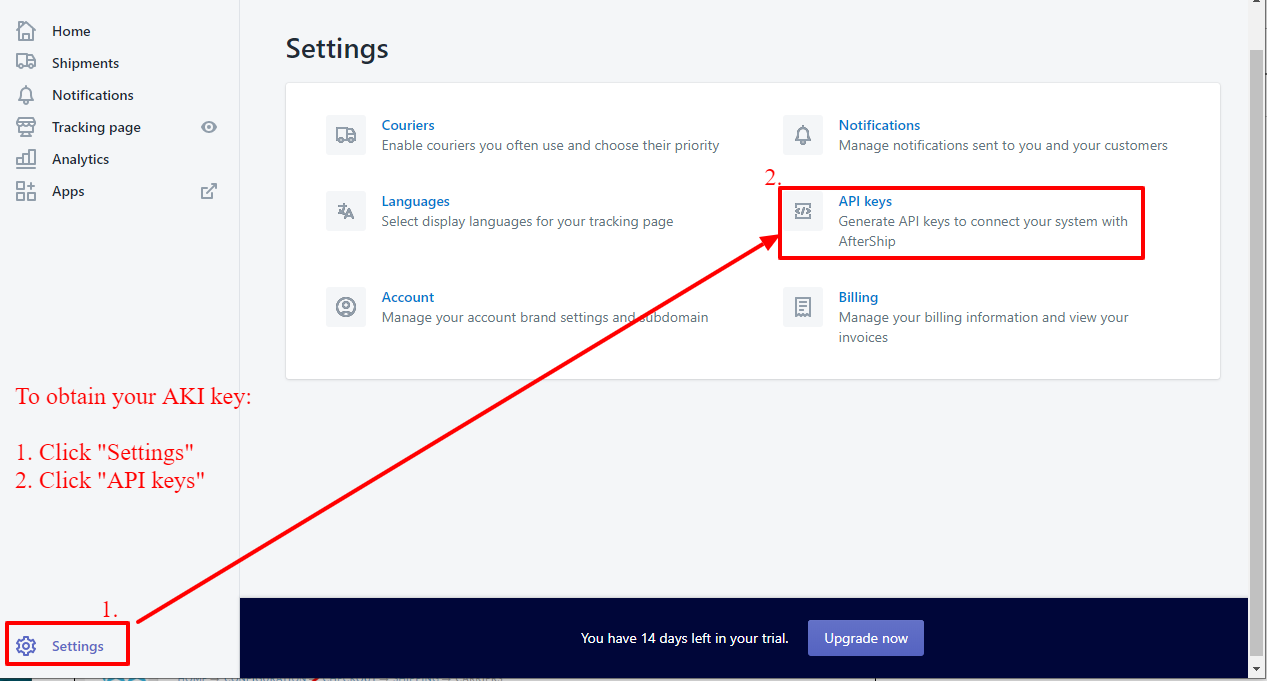
You'll need to copy your API Key, then paste it into Ultracart (see UltraCart configuration below):
Configuring your AfterShip account within you UltraCart Account
After registering with AfterShip.com, log into UltraCart and then navigate to the shipping configuration page:
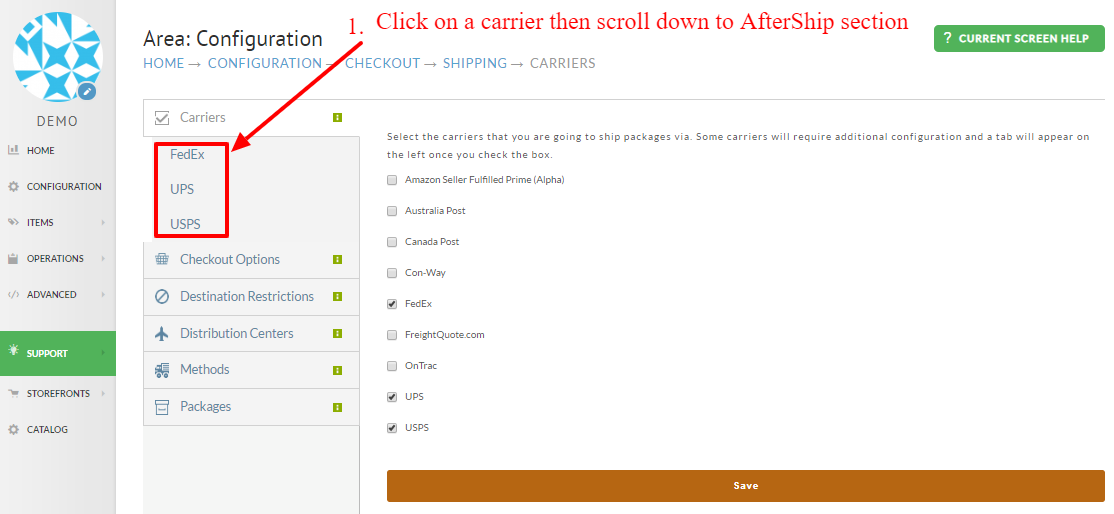
Main Menu > Configuration > (middle menu) Checkout > Shipping
-From the shipping configuration page, click on any of the configured shippers list under "Carriers":
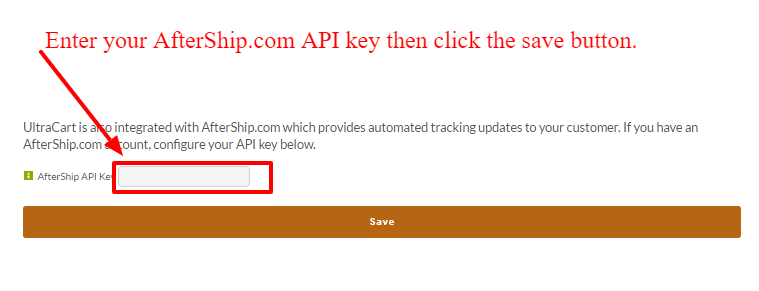
Then on the next page scroll down to the bottom section, and there you'll enter the AfterShip API Key:
Congratulations! You've integrated AfterShip.com with your UltraCart account!