Introduction
United Parcel Service, Inc. (UPS) is an American multinational shipping & receiving and supply chain management company.
Configuration UPS with your UltraCart Account
To add UPS as a shipping carrier, navigate:
Main Menu → Configuration → (Checkout) Shipping
You will be presented with a list of available Shipping Carriers. Select the checkbox for UPS.
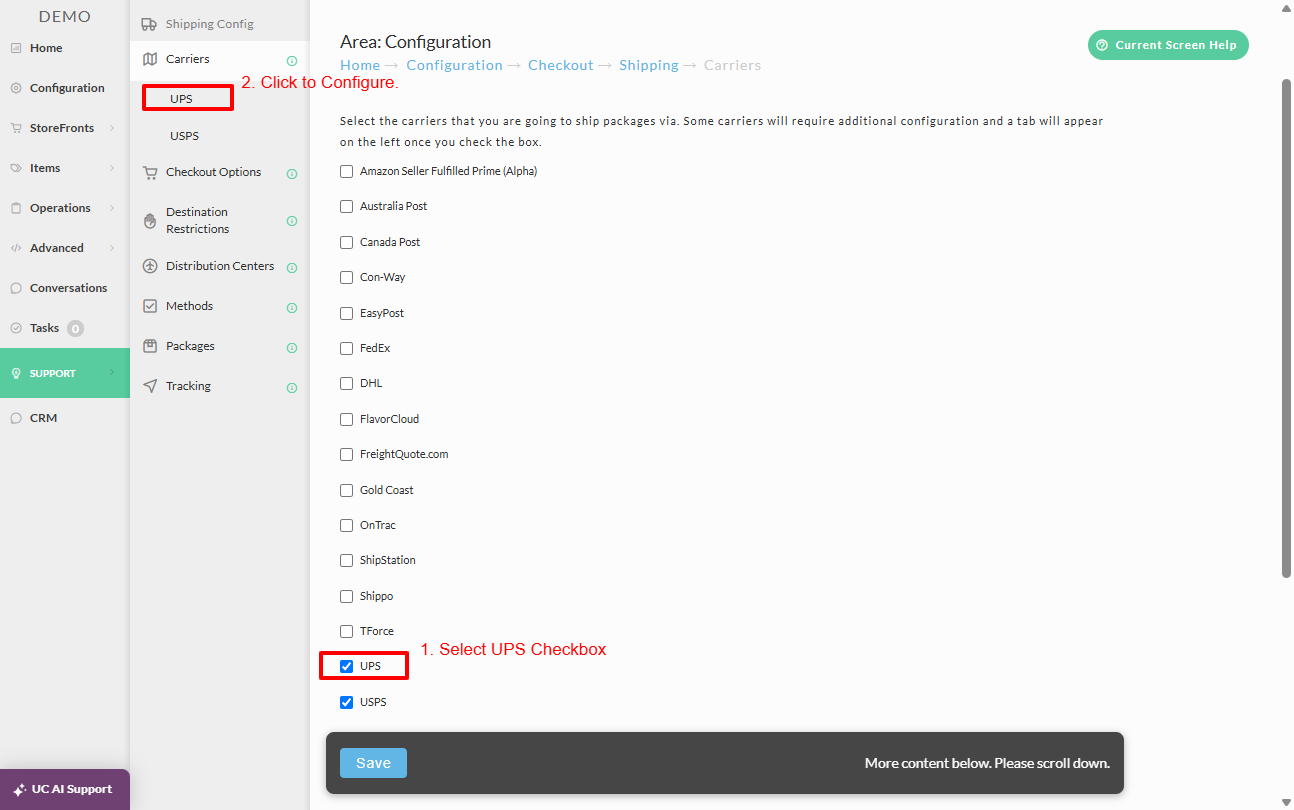
Once the checkbox is selected, UPS will appear in within the ‘Shipping Config’ menu, click on UPS to view the UPS configuration section:
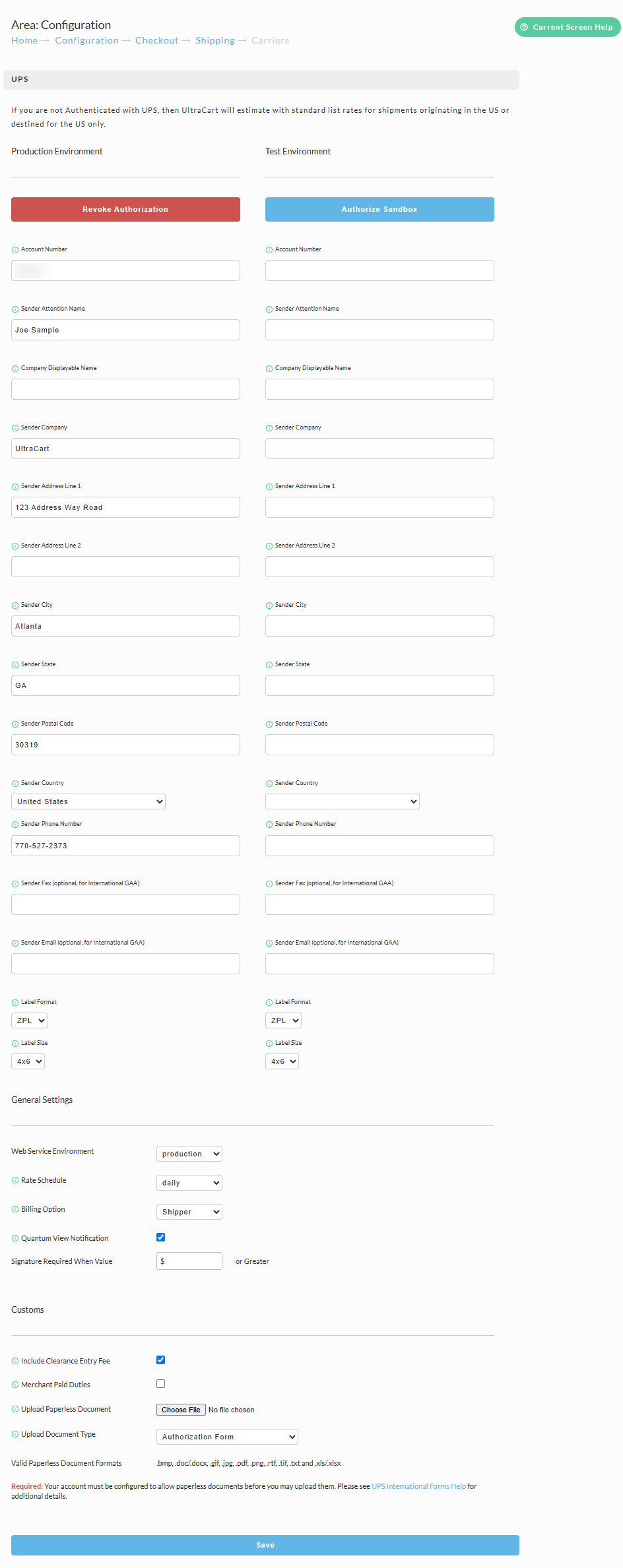
Connecting to UPS via OAuth
You will need to authenticate with UPS by clicking on Authorize Production and Authorize Sandbox buttons that appear in each Column above the Account Number fields.
Authorizing connects UltraCart to your UPS account, but it does not complete the setup. In the Production Environment column, fill in the form below the authorization button:
- Account Number: your UPS shipper account number.
- Sender fields: attention name, company, address, city, state, postal code, country, and phone, exactly as they appear on your UPS account.
Click Save.
UPS requires the account number on every rate request. If it is missing or does not match the authorized UPS account, UPS rejects the request and no UPS shipping methods are offered to customers.
Verifying That UPS Rates Are Returned
After saving, confirm that UPS rates come back. If UPS rejects a request, the reason appears in the packing solution view:
- Back End Order Entry (BEOE): build or clone an order, then use the View Packing Solution link below the shipping methods.
- An existing order: open the order and choose Packing Solution from the Shipping actions menu.
- Your storefront: while logged in to the UltraCart admin in the same browser, add an item to the cart on your storefront and enter a shipping address. A View Packing Solution link appears on the cart page. Only logged-in merchant users see this link; customers never see it.
Look for UPS entries in the No Estimates for Shipping Methods section. For full instructions, see Troubleshooting Shipping.
UPS Shipper Configuration – Field Reference
| Field Name | Section | Notes | Default Value / Example |
|---|---|---|---|
| Account Number | Production Environment | Required UPS account number. | (e.g., 1234567) |
| Sender Attention Name | Production Environment | Contact person’s name. | Joe Sample |
| Company Displayable Name | Production Environment | Name shown on shipping labels. | UltraCart |
| Sender Company | Production Environment | Company name. | UltraCart |
| Sender Address Line 1 | Production Environment | Street address. | 123 Address Way Road |
| Sender Address Line 2 | Production Environment | Additional address line (optional). | (blank) |
| Sender City | Production Environment | City of sender. | Atlanta |
| Sender State | Production Environment | State/province abbreviation. | GA |
| Sender Postal Code | Production Environment | Postal/ZIP code. | 30319 |
| Sender Country | Production Environment | Country selector dropdown. | United States |
| Sender Phone Number | Production Environment | Contact phone number. | 770-527-2373 |
| Sender Fax | Production Environment | Optional, for International GAA shipments. | (blank) |
| Sender Email | Production Environment | Optional, for International GAA shipments. | (blank) |
| Label Format | Production Environment | Dropdown format type. | ZPL |
| Label Size | Production Environment | Dropdown label size. | 4x6 |
| Account Number | Test Environment | Test account number for sandbox authorization. | (blank) |
| Sender Attention Name | Test Environment | Contact person’s name. | (blank) |
| Company Displayable Name | Test Environment | Name shown on test labels. | (blank) |
| Sender Company | Test Environment | Company name. | (blank) |
| Sender Address Line 1 | Test Environment | Street address. | (blank) |
| Sender Address Line 2 | Test Environment | Additional address line (optional). | (blank) |
| Sender City | Test Environment | City of sender. | (blank) |
| Sender State | Test Environment | State/province abbreviation. | (blank) |
| Sender Postal Code | Test Environment | Postal/ZIP code. | (blank) |
| Sender Country | Test Environment | Country selector dropdown. | (blank) |
| Sender Phone Number | Test Environment | Contact phone number. | (blank) |
| Sender Fax | Test Environment | Optional, for International GAA shipments. | (blank) |
| Sender Email | Test Environment | Optional, for International GAA shipments. | (blank) |
| Label Format | Test Environment | Dropdown format type. | ZPL |
| Label Size | Test Environment | Dropdown label size. | 4x6 |
| Web Service Environment | General Settings | Environment selection. | production |
| Rate Schedule | General Settings | Frequency of rate updates. | daily |
| Billing Option | General Settings | Who pays for shipping. | Shipper |
| Quantum View Notification | General Settings | Checkbox to enable UPS Quantum View. | Enabled (checked) |
| Signature Required When Value | General Settings | Dollar value threshold for signature required. | $ ___ (blank by default) |
| Include Clearance Entry Fee | Customs | Adds UPS clearance entry fee. | Checked |
| Merchant Paid Duties | Customs | Shipper pays duties. | Unchecked |
| Upload Paperless Document | Customs | File upload field. | No file chosen |
| Upload Document Type | Customs | Document type for upload. | Authorization Form |
| Valid Paperless Document Formats | Customs | Accepted file formats for upload. | .bmp, .doc/.docx, .gif, .jpg, .pdf, .png, .rtf, .tif, .txt, .xls/.xlsx |
FAQ
Question: The packing solution shows "UPS rejected the rate request. Bad Request: [111580] Missing or Invalid account number for Payment Details." What does this mean?
Answer: UPS did not receive a valid account number with the rate request. This happens when UPS has been authorized but the Account Number field in the Production Environment form was left blank or entered incorrectly. Go to Main Menu → Configuration → (Checkout) Shipping → UPS, enter your UPS account number, and complete the Sender fields in the form below the Authorize Production / Revoke Authorization button, then click Save. You do not need to revoke and re-authorize. Check the packing solution again to confirm UPS methods are returned.
Question: What if I do not have an authorized UPS account connection?
Answer: If you are not Authenticated with UPS, then UltraCart will estimate with standard list rates for shipments originating in the US or destined for the US only.
Question: Can I test UPS shipping rates without affecting my live account?
Answer: Yes. Use the Test Environment section and click Authorize Sandbox. This allows you to validate configuration and test rate responses without charging your live UPS account.
Question: What does the Billing Option field control?
Answer: The Billing Option determines who pays for shipping charges. For example, choosing Shipper means your UPS account will be billed. Other billing options (such as Recipient or Third Party) may be available depending on your UPS account setup.
Question: What is the purpose of the Quantum View Notification checkbox?
Answer: Enabling Quantum View Notifications allows UPS to send shipment status updates directly to your customers, improving visibility and reducing support requests.
Question: How does the Signature Required When Value setting work?
Answer: This setting lets you automatically require a signature if the order’s declared value is greater than or equal to the specified dollar amount. For example, entering $250 ensures that any order over $250 will require a customer signature upon delivery.
Question: Do I need to upload paperless documents for every shipment?
Answer: Paperless document uploads are only required for international shipments where customs clearance forms (such as a Commercial Invoice or Authorization Form) are needed. For domestic shipments, this setting can be left unused.
Question: What file formats are supported for paperless document uploads?
Answer: Supported formats include: .bmp, .doc/.docx, .gif, .jpg, .pdf, .png, .rtf, .tif, .txt, .xls/.xlsx. Make sure your UPS account is enabled for paperless documents before uploading.
Question: How are label format and label size used?
Answer: These settings determine the type and dimensions of the shipping label generated. The most common settings are ZPL format with a 4x6 size, which works with most thermal printers used in fulfillment environments.
Troubleshooting
Problem: Authentication failed with UPS.
Solution: Verify that your UPS account number, username, and password are correct. If you recently changed your UPS account credentials, update them in UltraCart and reauthorize.
Problem: No shipping rates are being returned.
Solution:
-
Confirm that the Web Service Environment is set correctly (production vs. test).
-
Ensure that you are using a valid UPS account for the shipping origin country.
-
If unauthenticated, only shipments originating in or destined to the US will return standard list rates.
-
If the packing solution shows error
[111580], see the FAQ entry above about the missing UPS account number.
Problem: Paperless document upload rejected.
Solution: Make sure the uploaded file is in an accepted format (.pdf, .docx, .jpg, etc.) and that your UPS account is enabled for Paperless Invoice. If unsure, contact UPS to confirm your account permissions.
Problem: Label size or format does not print correctly.
Solution:
-
Ensure your thermal printer supports the selected label format (e.g., ZPL).
-
Verify that the Label Size matches your printer media (commonly 4x6).
-
If printing from PDF, ensure scaling is disabled in your print dialog.
Problem: Signature required not triggering on high-value orders.
Solution: Double-check the value entered in Signature Required When Value. If blank, no threshold is enforced. Enter a numeric value (e.g., 250) to ensure orders above that amount require a signature.
Next Steps
Once you have completed your UPS shipper configuration, you may want to review related shipping setup guides to ensure your store supports all the carriers you need:
Tip: Most merchants configure multiple carriers (UPS, FedEx, USPS) to ensure competitive rates and reliable service options for their customers.