Argo Shipping (formerly Disk.com) Fulfillment Integration
Argo Shipping is a technology-driven shipping and fulfillment company founded by professionals with backgrounds in technology, logistics, and eCommerce. Built as a response to the shortcomings of traditional third-party logistics (3PL) providers, Argo positions itself as a true partner to eCommerce businesses, focusing on transparency, accountability, and cost efficiency.
Argo fulfills from two distribution centers: Lehi, Utah, and McHenry, Illinois. Which center your orders ship from sets the carrier zone most of your customers sit in, so ask Argo which location suits where your orders actually go. Partners also get the Argo Partner Portal, which carries live order, cost, and transit data you can export.
Rates, reimbursement for lost or damaged product, and onboarding terms are set by Argo and sit outside your UltraCart configuration. See Argo’s terms and conditions for what is current before you sign.
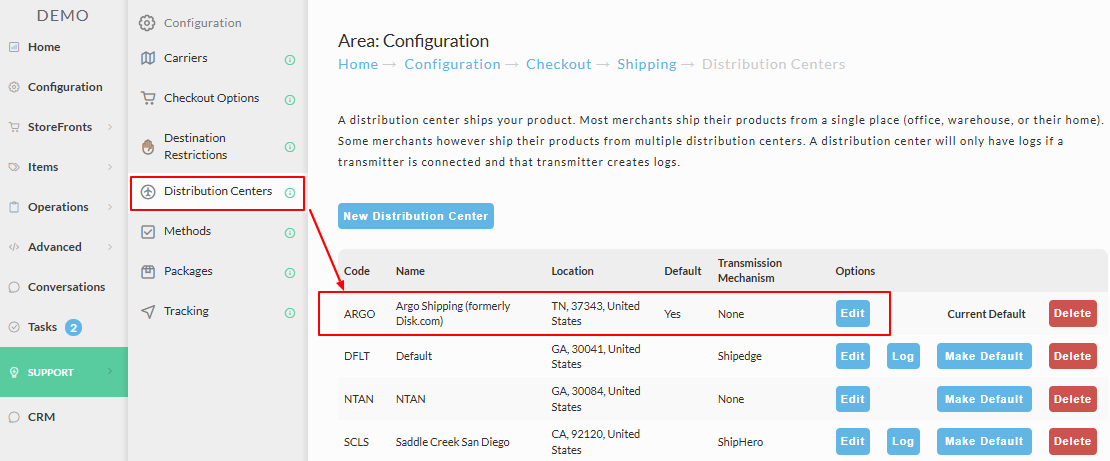
Argo Shipping appears as Disk.com in UltraCart. Argo Shipping acquired Disk.com. The transmission mechanism in UltraCart is still named Disk.com, and it will stay that way. UltraCart does not rename a transmission mechanism when its provider is acquired, so Disk.com is the option you select for Argo Shipping.
Navigation
Main Menu → Configuration → Shipping → (middle menu) Distribution Centers → (edit the Distribution Center) → (middle menu) Transmission Mechanism
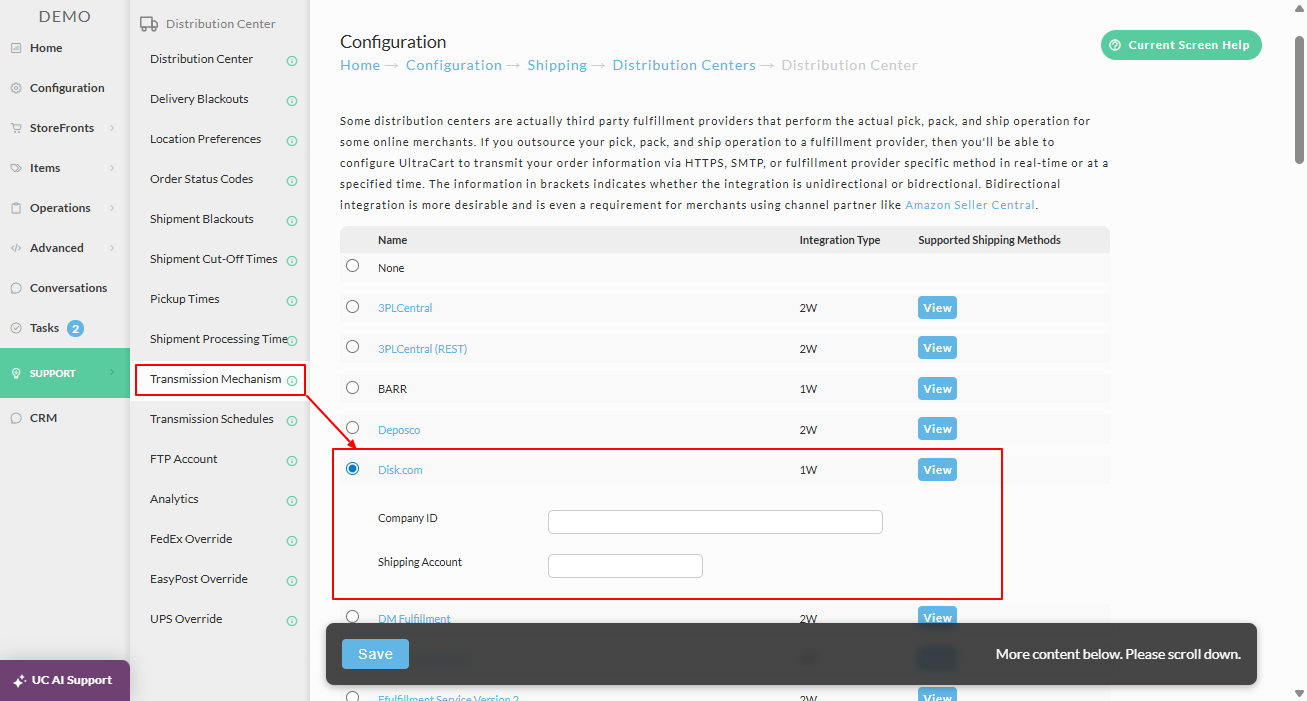
Scroll the list of transmission mechanisms and select the radio button for Disk.com.
Prerequisites
Before you start, have the following ready:
-
An active Argo Shipping account
-
The Company ID and Shipping Account values Argo provides during onboarding
-
Your shipping methods and item SKUs defined in UltraCart
Step-by-step instructions
1. Select the Disk.com transmission mechanism
-
Open your Distribution Center.
-
Configure the first tab of the Distribution Center with the address details for the fulfillment warehouse.
-
Select the Transmission Mechanism tab.
-
Scroll the list and select Disk.com. This is the Argo Shipping integration.
-
Enter the credentials Argo provided:
-
Company ID
-
Shipping Account
-
-
Click the save button at the bottom of the page to save your Distribution Center settings.
2. Configure supported shipping methods
Argo Shipping fulfills a defined list of carrier and service combinations. If UltraCart hands Argo a shipping method they do not support, the order cannot be fulfilled as requested, so line the two lists up before you go live.
To see the supported list in UltraCart, go to Distribution Center → Transmission Mechanism, find the Disk.com row, and click View on the far right.
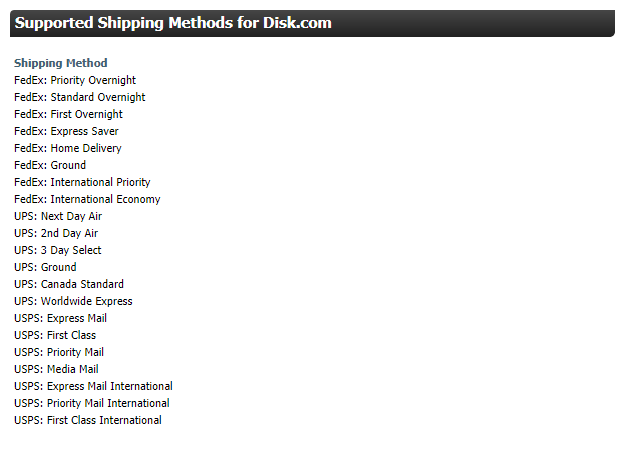
Argo Shipping supports these shipping methods:
| Shipping Method |
|---|
| FedEx: Priority Overnight |
| FedEx: Standard Overnight |
| FedEx: First Overnight |
| FedEx: Express Saver |
| FedEx: Home Delivery |
| FedEx: Ground |
| FedEx: International Priority |
| FedEx: International Economy |
| UPS: Next Day Air |
| UPS: 2nd Day Air |
| UPS: 3 Day Select |
| UPS: Ground |
| UPS: Canada Standard |
| UPS: Worldwide Express |
| USPS: Express Mail |
| USPS: First Class |
| USPS: Priority Mail |
| USPS: Media Mail |
| USPS: Express Mail International |
| USPS: Priority Mail International |
| USPS: First Class International |
Make sure your own shipping methods match, or are mapped to, the services above. To add, remove, or edit shipping methods in UltraCart, go to:
Main Menu → Configuration → Shipping → (middle menu) Methods
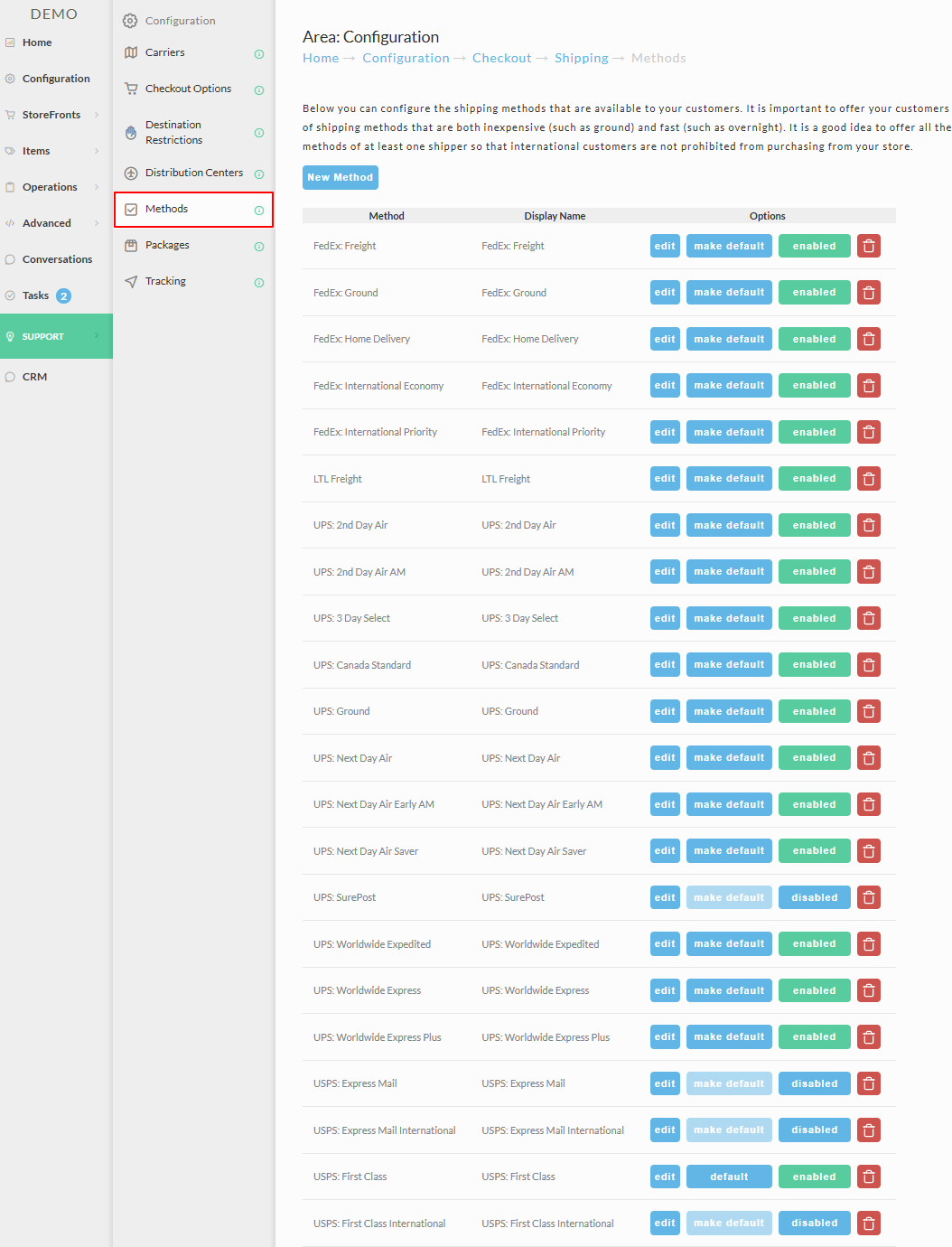
Keep shipping method naming consistent between UltraCart and Argo. Inconsistent names are what cause the wrong carrier or service to be selected during fulfillment.
3. Configure items to map to Argo Shipping SKUs
Argo fulfills against SKUs, so every product you want Argo to ship needs a value they recognize. In most cases you will find it easier to keep your UltraCart Item ID the same as the Argo SKU, which keeps the mapping obvious to anyone looking at an order later.
If your UltraCart Item ID has to differ from the SKU in Argo's system, store the external SKU on the item instead:
-
Go to Item Management and edit the item you need Argo to fulfill.
-
Open the Inventory Control and Distribution sub-tab.
-
Go to the Shipping tab within that area.
-
Enter the Argo Shipping SKU into the SKU field used for fulfillment mapping.
-
Save the item.
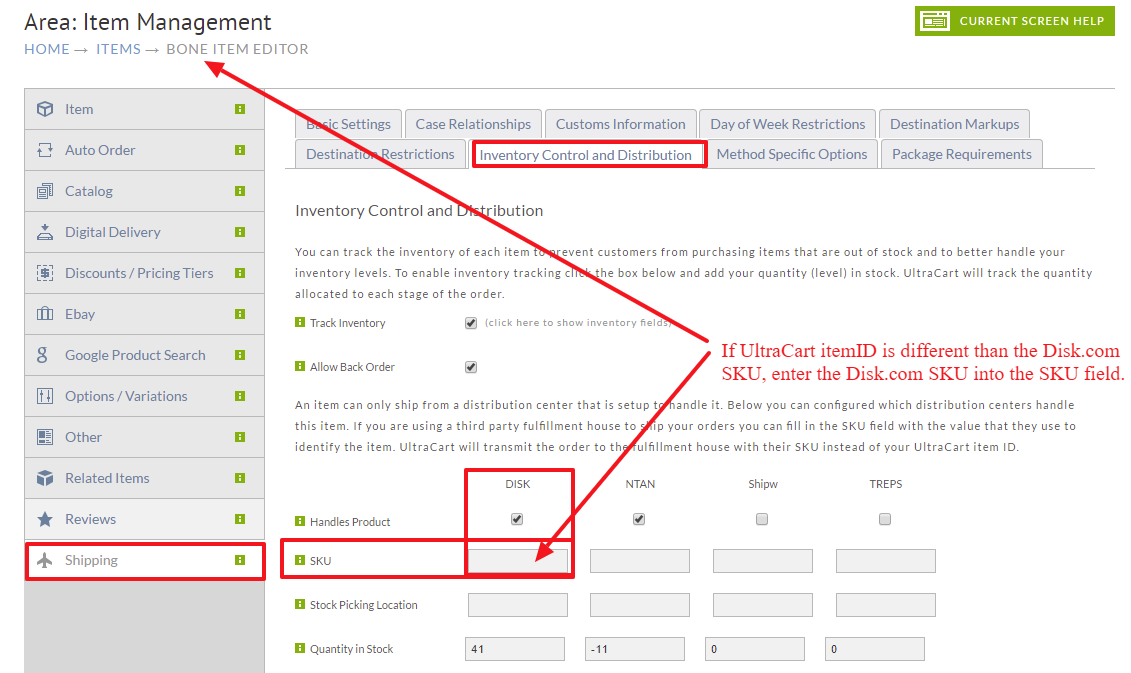
SKU mismatches are the most common cause of fulfillment failures, showing up as errors like "item not found" or "unmapped SKU". If you use variants or options, check that the SKU you send reflects the shippable unit Argo expects.
Conclusion
You have configured UltraCart to transmit orders to Argo Shipping through the Disk.com transmission mechanism, entered the credentials Argo provided, aligned your Shipping Methods, and mapped your Item SKUs.
Next steps
-
Run a small set of test orders and confirm that:
-
Orders transmit successfully to Argo Shipping.
-
Shipping method mapping is correct.
-
SKU mappings match what Argo expects.
-
-
If orders do not transmit, re-check that Disk.com is the selected transmission mechanism, that the Company ID and Shipping Account are correct, and that the shipping method on the order is one Argo supports.
-
For fulfillment and shipping reporting, use UltraCart's AI-Powered Report Builder. For example: "Show orders shipped by distribution center with shipping method over the last 30 days".