Configuring ShipStation (Distribution Center Transport Mechanism)
Last Updated: June 18, 2026
Overview
This document explains how to configure ShipStation as a Distribution Center transport mechanism in UltraCart. This configuration allows a Distribution Center to automatically send orders to ShipStation and receive tracking numbers in return. It also syncs inventory from ShipStation back to UltraCart items.
The credentials configured here are separate from the credentials used for ShipStation shipping rates and label printing, and from the credentials used to configure ShipStation as a channel partner. All three areas (ratings, distribution centers, and channel partners) use separate credentials to allow for different ShipStation stores. See Related Documentation for guides covering the other two areas.
The integration process involves three main steps:
-
Configuring the UltraCart transmission mechanism to connect with ShipStation.
-
Configuring shipping methods, including custom codes for specific shipping options. This step is optional, but it streamlines the workflow on the ShipStation side.
-
Mapping SKUs for items. This step is required only if a ShipStation SKU differs from the UltraCart Item ID.
Prerequisites
-
An active ShipStation account.
-
A separate browser window logged into the ShipStation account. Access to ShipStation screens is required to generate API keys.
Setup
UltraCart requires two sets of API keys from ShipStation. ShipStation's API is in flux, so both versions are currently needed: Version 1 keys for creating orders and receiving tracking numbers, and Version 2 keys for polling ShipStation inventory.
Version 1 Key Generation
-
Within the ShipStation account, navigate to the Settings page (gear icon, top right) → Account → API Settings.
-
Select V1 API for the API version, then click Generate API Key.
-
Set the key expiration as needed. UltraCart recommends 12 months. UltraCart has no knowledge of key age and cannot warn of an upcoming expiration, so monitor the ShipStation configuration directly or set a calendar reminder. Alternatively, monitor the UltraCart Integration Logs for failures that begin when a key expires, though this approach requires regular review to avoid delaying shipments.
-
Verify the account password to proceed with key generation.
-
Enter the verification code sent by email or text message.
-
Copy the Version 1 Key and Secret to a secure location.
Important: ShipStation displays the Version 1 API Key and Secret only once, at the time they are generated. Store them securely before leaving the page.
Version 2 Key Generation
-
Within the ShipStation account, navigate to the Settings page (gear icon, top right) → Account → API Settings.
-
Select V2 API for the API version and follow the on-screen instructions.
-
Copy the Production Key to a secure location. Unlike the Version 1 key, this key remains visible later if needed.
At this point, the following should be on hand:
-
Version 1 API Key
-
Version 1 API Secret
-
Version 2 API Key (there is no secret for Version 2)
Setting Up a Store in ShipStation
If ShipStation does not already have a store configured to receive orders transmitted from UltraCart, create one before continuing.
-
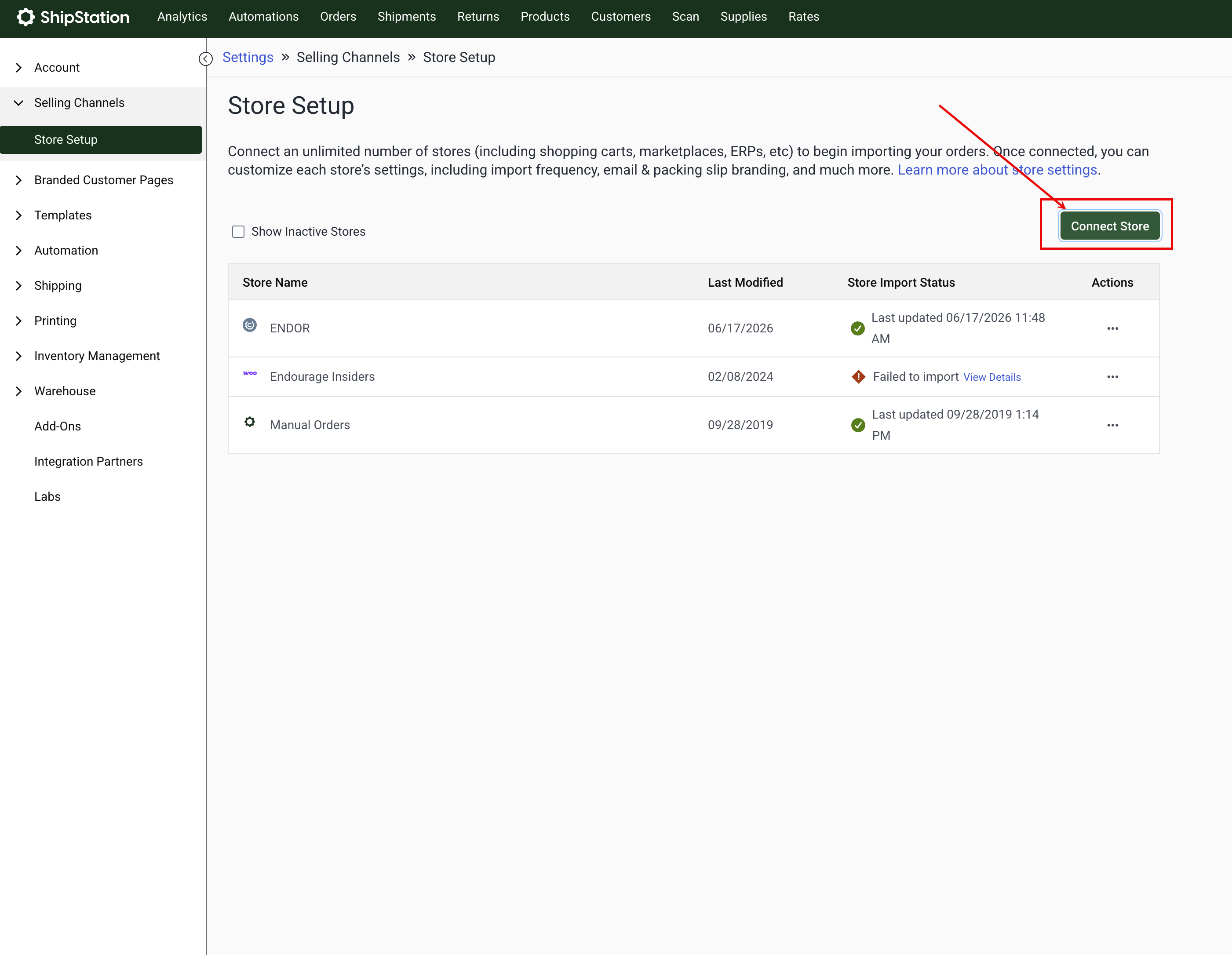
In ShipStation, go to Settings (gear icon, top right) → Selling Channels → Store Setup.
-
Click Connect Store.
-
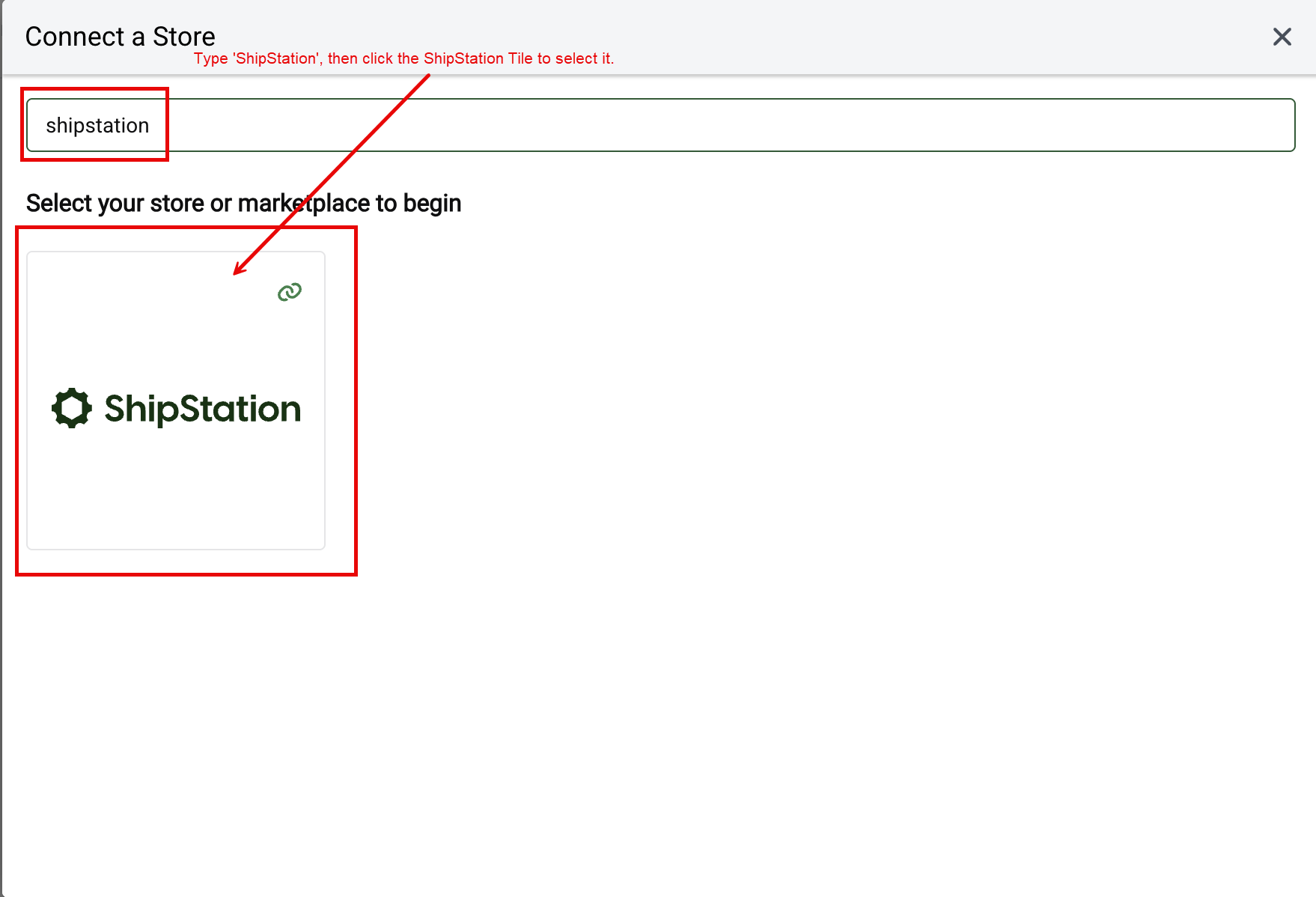
In the Connect a Store wizard, search for "shipstation" and select the ShipStation tile under "Select your store or marketplace to begin."
-
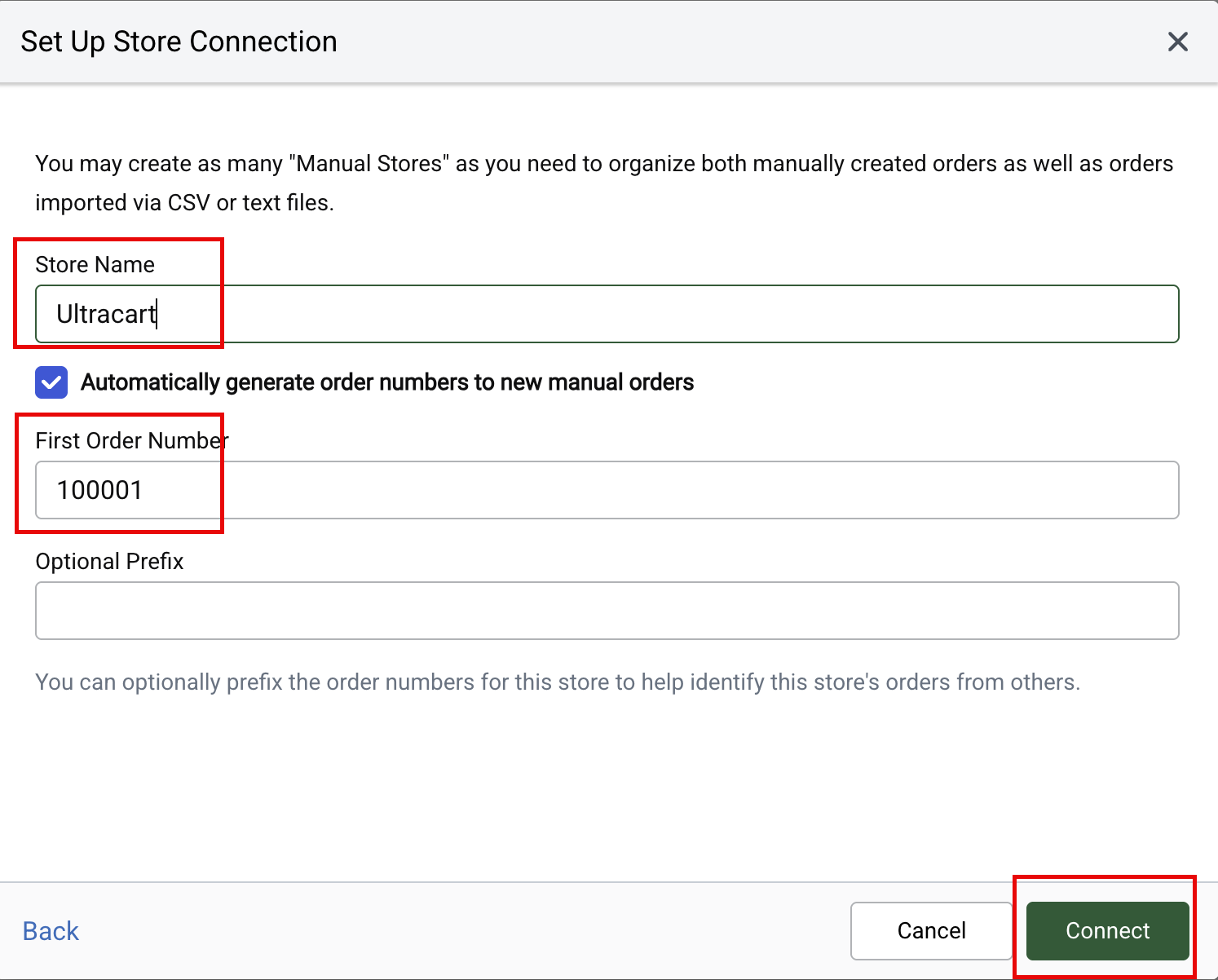
In the Set Up Store Connection dialog, enter a Store Name that identifies this connection, for example the name of the UltraCart store. Leave "Automatically generate order numbers to new manual orders" enabled to have ShipStation assign its own order numbers, and set a First Order Number and an Optional Prefix to help distinguish these orders from others in the ShipStation account.
-
Click Connect.
Note: The Store Name entered here is the name that later appears in the ShipStation Store dropdown within the UltraCart Transmission Mechanism settings.
Entering Credentials in UltraCart
Navigate to: Configuration → Checkout → Shipping → Distribution Centers → Edit Distribution Center → Transmission Mechanism (left menu)
-
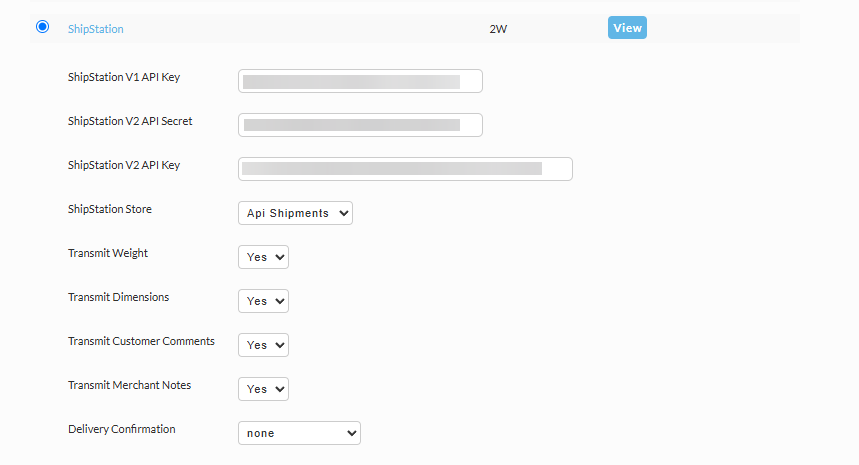
Locate the ShipStation section and enter the three credentials: the Version 1 API Key, Version 1 API Secret, and Version 2 API Key.
-
Click Save.
-
Navigate back to this screen.
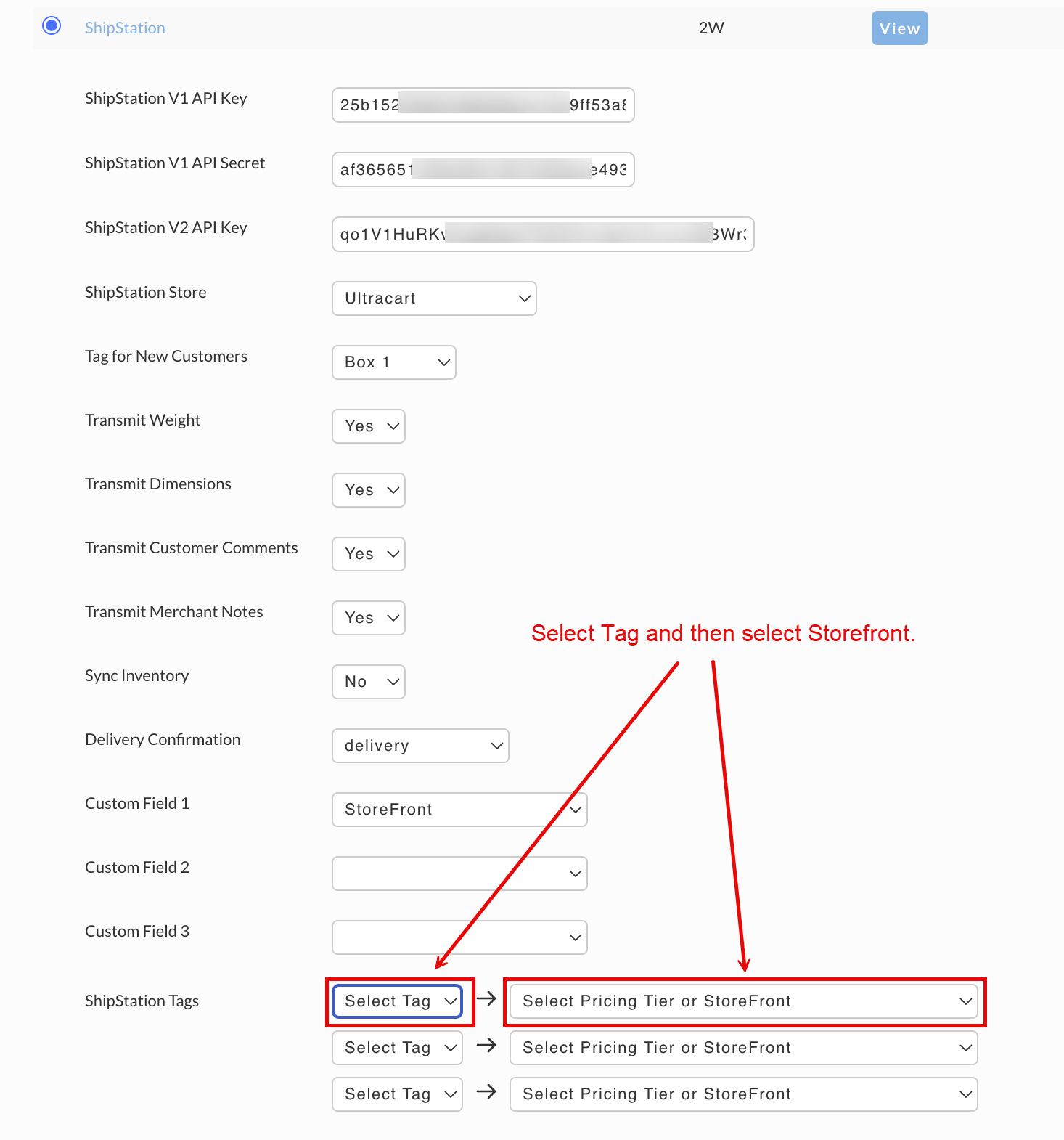
The ShipStation Store dropdown is now populated with the stores available in the ShipStation account, including the store created in Setting Up a Store in ShipStation. Select the store that should receive transmitted orders.
Configuration
The ShipStation Transmission Mechanism settings control what information is sent to ShipStation and how UltraCart orders map to ShipStation stores, tags, and custom fields.
| Field | Description |
|---|---|
ShipStation V1 API Key | Version 1 API key generated during Setup. |
ShipStation V1 API Secret | Version 1 API secret generated alongside the V1 API key. |
ShipStation V2 API Key | Version 2 API key generated during Setup. Version 2 has no corresponding secret. |
ShipStation Store | The ShipStation store that receives transmitted orders. Populated once valid credentials are saved. |
Tag for New Customers | The ShipStation tag applied to orders from customers ShipStation has not seen before. |
Transmit Weight | Whether item weight is included in the transmitted order. |
Transmit Dimensions | Whether item dimensions are included in the transmitted order. |
Transmit Customer Comments | Whether customer comments entered at checkout are included in the transmitted order. |
Transmit Merchant Notes | Whether internal merchant notes are included in the transmitted order. |
Sync Inventory | Whether ShipStation inventory levels are synced back to UltraCart items. |
Delivery Confirmation | The delivery confirmation type requested for the shipment. |
Custom Field 1 / Custom Field 2 / Custom Field 3 | Maps an UltraCart data field, such as Storefront, to one of ShipStation's three custom field slots. |
ShipStation Tags
The ShipStation Tags section maps an UltraCart Pricing Tier or Storefront to a ShipStation tag. Up to three mappings are available. For each row, select a ShipStation tag in the left dropdown labeled "Select Tag," then select the corresponding Pricing Tier or Storefront in the right dropdown labeled "Select Pricing Tier or StoreFront."
Configuring Shipping Methods
After configuring the transmission mechanism, configure shipping methods to ensure proper mapping between UltraCart and ShipStation. This step is optional. Without a shipping mapping, ShipStation orders show as "unmapped," and streamlined label printing is unavailable until a mapping is specified on the ShipStation side.
Warning: If a store uses automatic fulfillment, unmapped shipping methods may cause errors or order rejection.
Navigate to: Home → Configuration (Checkout) → Shipping → Methods → Edit a shipping method
-
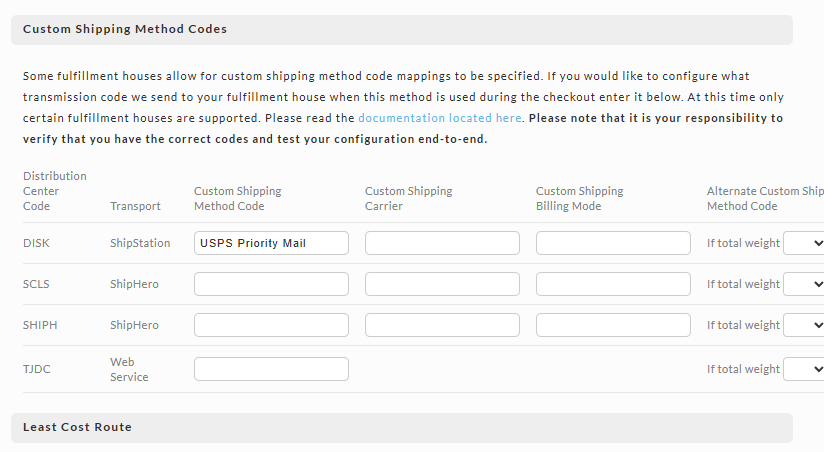
On the Other tab of the shipping method, scroll to the Custom Shipping Method Codes section.
-
Enter the Custom Shipping Method Code for Transport = ShipStation.
-
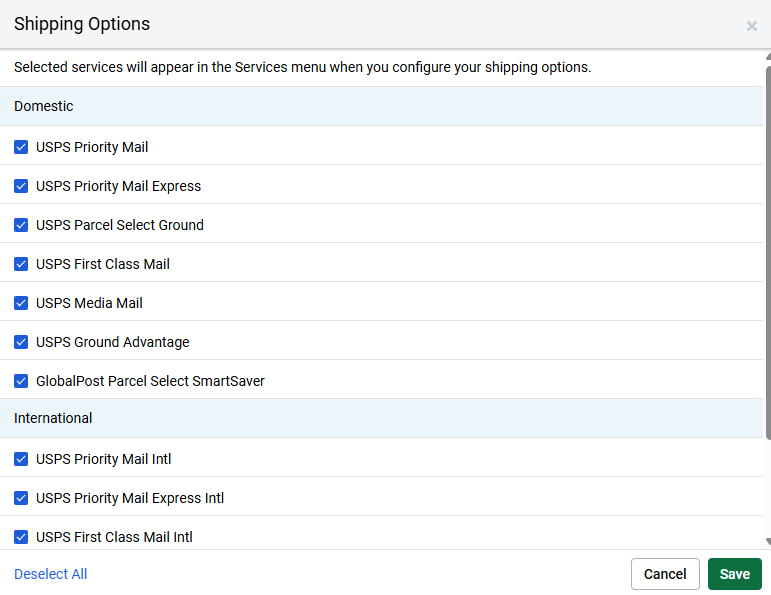
Enter the name exactly as it appears in the ShipStation system.
To find the list of shipping methods in ShipStation, click the gear icon (top right) → Shipping → Carriers. For each carrier, click the Actions ellipsis and choose Manage services.
Item SKU Mapping
If UltraCart Item IDs and ShipStation SKUs are identical (especially if the ShipStation SKUs match the uppercased UltraCart Item IDs), SKU mapping happens automatically and no further action is required. If they differ, SKU mapping must be configured for each item.
Navigate to: Home → Items → Item Management → (edit an item) → Shipping tab → Inventory Control and Distribution button
.png)
For the distribution center connected to ShipStation, enter the SKU for each item where it differs from the actual Merchant Item ID.
Troubleshooting
Test the configuration end to end by placing a test order. Confirm that the order transmits to ShipStation and that shipping methods map as expected. Review the ShipStation item settings for any additional configuration options ShipStation offers on its side.
| Symptom | Cause | Solution |
|---|---|---|
Shipping method shows as unmapped in ShipStation, or automatic fulfillment rejects the order | No Custom Shipping Method Code is configured for the shipping method used at checkout | Add the Custom Shipping Method Code matching the ShipStation service name exactly, under Configuration → Checkout → Shipping → Methods → (shipping method) → Other tab |
Integration Logs show repeated send order errors with a status of Error | The ShipStation Version 1 API key or secret has expired or was revoked | Generate a new Version 1 API key in ShipStation and update the Transmission Mechanism settings in UltraCart |
Review the Integration Logs regularly.
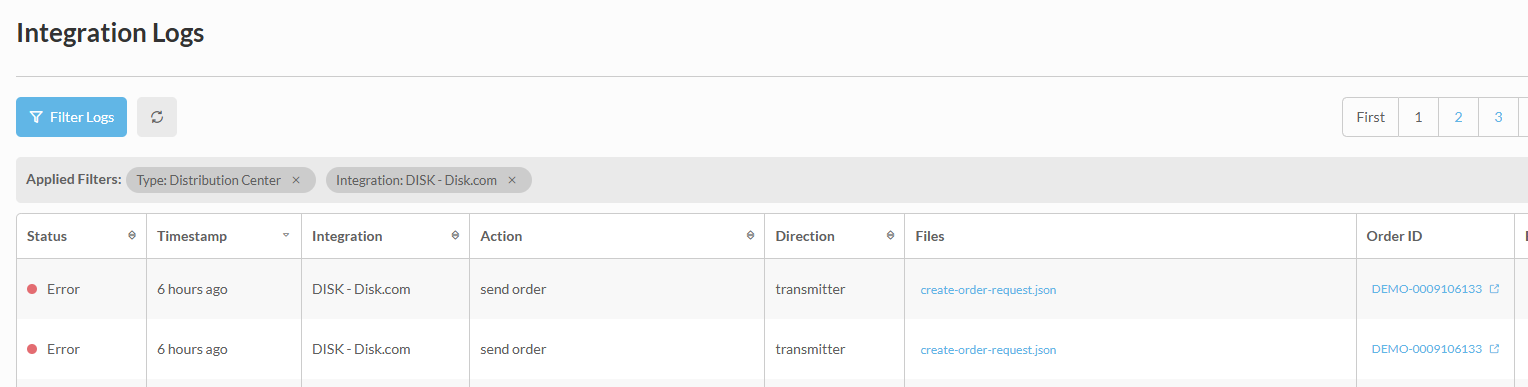
Each entry records the direction, action, and file payload for a transmission attempt, which helps narrow down the cause of a failure.
Conclusion
By following these steps, you will have successfully integrated ShipStation with your UltraCart account, enabling seamless order fulfillment and inventory management between the two systems.
Related Documentation
-
Setting up ShipStation (Rates and Labels) - configuring ShipStation to provide live shipping rates and print labels
-
ShipStation Channel Partner Integration - configuring ShipStation as a channel partner