ShipMonk Fulfillment Integration Guide
Last Updated: June 26, 2026
Overview
ShipMonk is a 3PL (third-party logistics) provider. When integrated with UltraCart, ShipMonk receives orders for fulfillment and sends shipment confirmations (tracking numbers, package details) back to UltraCart.
This guide covers the full integration lifecycle: initial setup and configuration, how UltraCart and ShipMonk communicate after an order is placed, and the correct workflows for modifying or canceling orders after transmission.
Prerequisites
-
An active ShipMonk account with API access enabled
-
A ShipMonk API Store (not a manual/import store)
-
A ShipMonk API Key and Store ID
-
UltraCart access to configure Distribution Centers and item fulfillment settings
Important: In ShipMonk, you must create and authorize an API store before you can generate API keys. See Step 1 below.
Setup
Step 1: Obtain ShipMonk API Credentials
Step 1a: Generate a Store (skip if you already have a ShipMonk API Store)
Within the ShipMonk app, navigate to Account Settings > General Settings > Stores. Click Integrate Another Store and complete the Typeform. A ShipMonk integrations team member will respond within 48 hours to complete the request.
Step 1b: Create an API Key
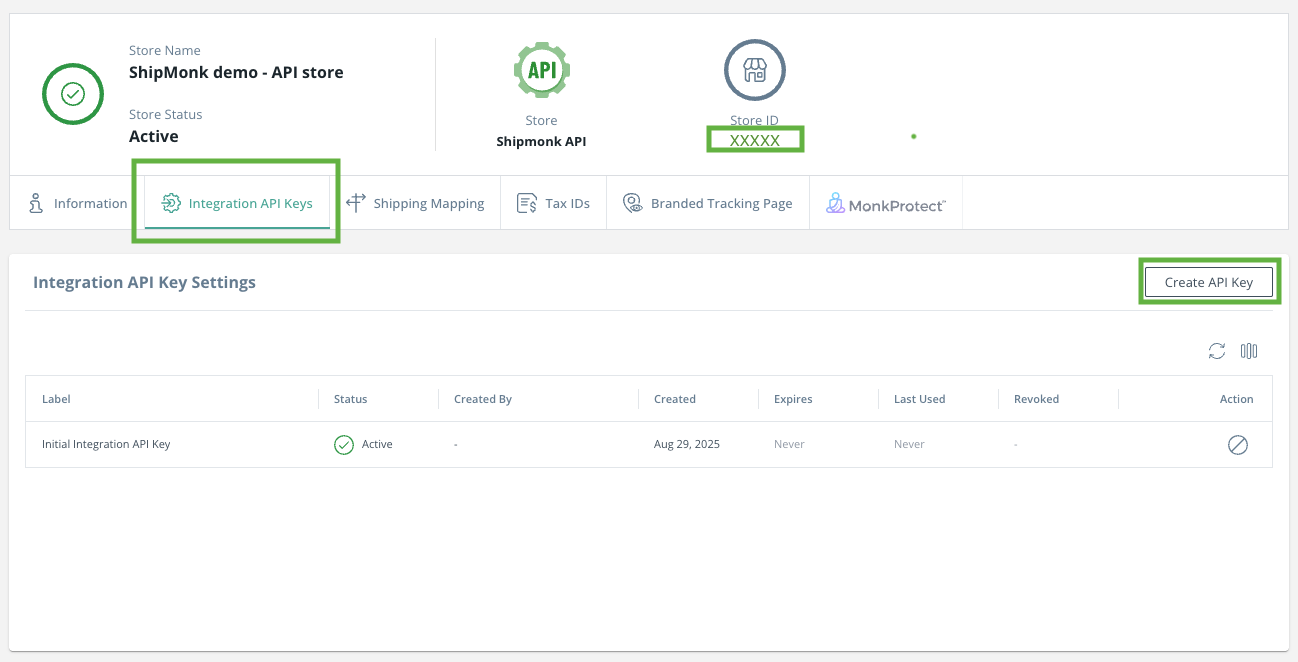
Once your store is authorized, navigate to Integration API Keys and create an API key. Your store's unique ID is also available on this screen.
Note: Save the API key in a secure location. If you lose it, you will need to generate a new one. You can revoke existing keys at any time via Action > Revoke API Key in the Integration API Key settings.
Step 2: Configure the UltraCart Transmission Mechanism
UltraCart requires a fulfillment endpoint to send orders to ShipMonk and receive shipment confirmations back.
-
In UltraCart, navigate to Operations > Fulfillment > Distribution Centers.
-
Create a new Distribution Center or edit an existing one you want ShipMonk to fulfill from.
-
Set the Transmission Mechanism to ShipMonk.
-
Enter the ShipMonk connection details:
-
Base URL:
https://api.shipmonk.com -
Authentication header:
Api-Key: YOUR_API_KEY -
Store ID: (from your ShipMonk Integration API Keys screen)
-
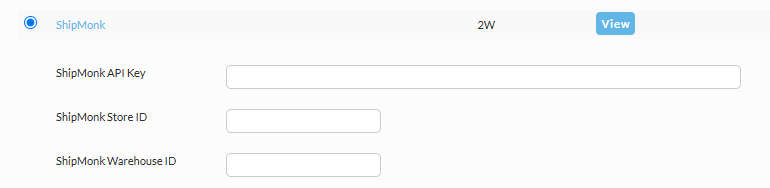
Note: The exact UltraCart field names for URL, headers, and credential storage depend on which fulfillment transmission plugin or mechanism is enabled on your account. The ShipMonk values listed above are consistent regardless of UI variation.
Step 3: Configure ShipMonk Shipping Methods in UltraCart
ShipMonk requires each order to specify a shipping service value that ShipMonk recognizes. You map UltraCart checkout shipping method names to the ShipMonk shipping service values configured in your ShipMonk store.
-
In UltraCart, open the ShipMonk Distribution Center and go to Shipping Methods / Method Mapping.
-
Add a mapping for each shipping method available at checkout.
Use the following table as a template. Fill in the ShipMonk-side values that match your store's carrier and service configuration:
| UltraCart Shipping Method (Checkout) | ShipMonk Shipping Service Value | Notes |
|---|---|---|
| UPS Ground | [ShipMonk value] | Use the exact service configured for your ShipMonk store |
| UPS 2nd Day Air | [ShipMonk value] |
| ShipMonk Fulfillment Status | Can Request Hold? | Can Modify Items? |
|---|---|---|
| Awaiting fulfillment | Yes | Yes |
| Processing | Yes (request immediately) | Usually yes |
| Picking | Urgent request required | May be possible with direct ShipMonk support contact |
| Packed | No | No |
| Shipped | No | No |
UltraCart does not display ShipMonk fulfillment status. To determine where an order is in the fulfillment queue, log in to the ShipMonk portal or contact ShipMonk support directly.
Troubleshooting
Order shows "Shipped" in UltraCart but was expected to be on hold
Symptoms: UltraCart shows a shipped status, but the merchant had requested a hold or modification.
Root Cause: ShipMonk holds are not communicated back to UltraCart. UltraCart shows shipped status once ShipMonk releases and ships the order, regardless of any intermediate hold periods.
Solution: This is expected behavior. Verify actual hold and shipment status in the ShipMonk portal, not in UltraCart.
Refund was issued in UltraCart but ShipMonk shipped the full order
Symptoms: A refund was processed in UltraCart, but ShipMonk fulfilled and shipped the complete original order.
Root Cause: Refunds in UltraCart are payment adjustments and do not send any signal to ShipMonk. Issuing a refund does not hold, modify, or cancel the ShipMonk order.
Solution: For future orders, follow the Pre-Shipment Order Modification workflow above. A ShipMonk hold must be placed and item changes made in ShipMonk before issuing the refund in UltraCart.
ShipMonk holds the order due to SKU mismatch
Symptoms: ShipMonk places the order on hold with a "SKU not found" or "insufficient inventory" error.
Root Cause: The Fulfillment SKU configured on the UltraCart item does not match the SKU ShipMonk has on file.
Solution: In UltraCart, navigate to the item's Fulfillment / Distribution Center settings and update the Fulfillment SKU to match the exact value in ShipMonk. See Step 4.
ShipMonk says the order cannot be modified
Symptoms: ShipMonk declines a modification or hold request.
Root Cause: The order has already been picked, packed, or shipped.
Solution: Accept the fulfilled order. Issue a refund in UltraCart for unwanted items. Coordinate a return with the customer if applicable.
Related Documentation
- ShipMonk Support Center - ShipMonk order management, holds, and API documentation