Introduction
The Fullfillment Lab offers unique marketing fulfillment solutions and software provide expedited shipping, customized packaging, and more to enhance the customer experience.
This document details the steps to integrating The Fulfillment Lab as a fulfillment service.
Step 1 - Configuring Transmission Mechanism
Navigation
Main Menu → Configuration → Shipping → (middle menu) Distribution Centers → (edit the Distribution Center) → (middle menu) Transmission Mechanism → Scroll down and select the radio button for TheFulfillmentlab.com
From the Distribution Center tab of the Shipping Configuration Page, either edit existing Distribution Center or Click new Distribution Center:
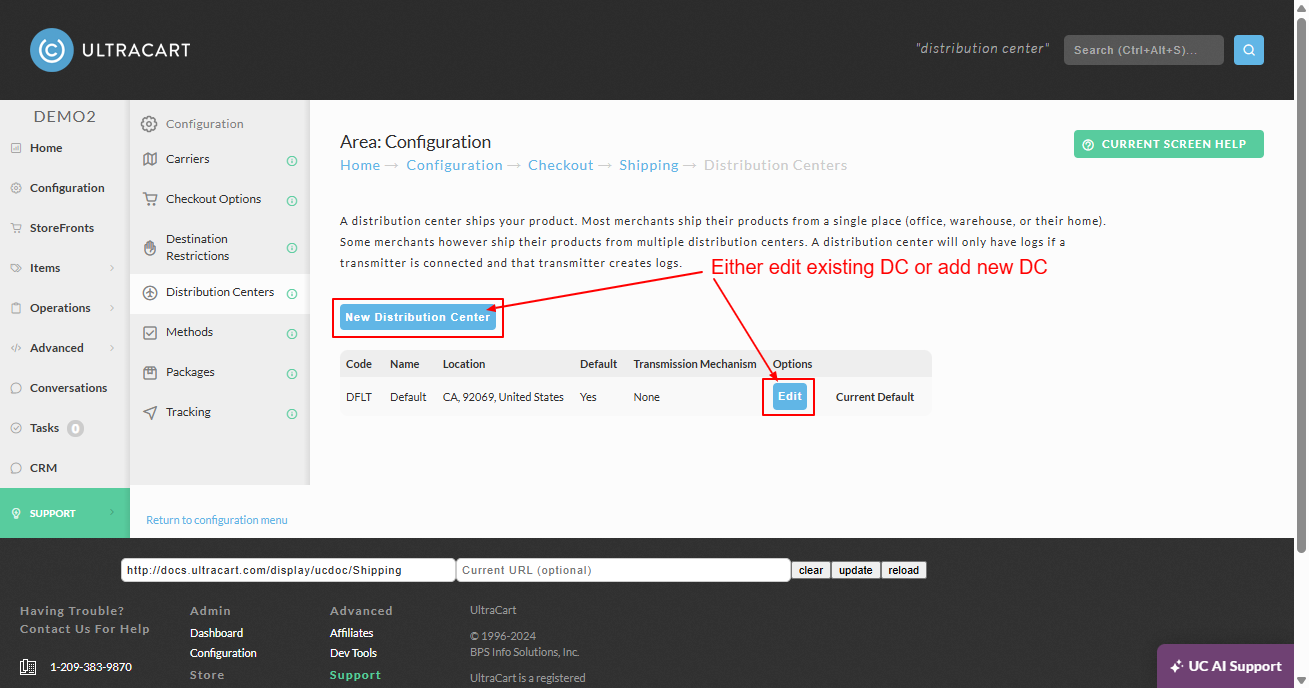
Configure the 'Distribution Center Tab with the warehouse location details. These details are used as the origination address for the shipment method estimate calculations:
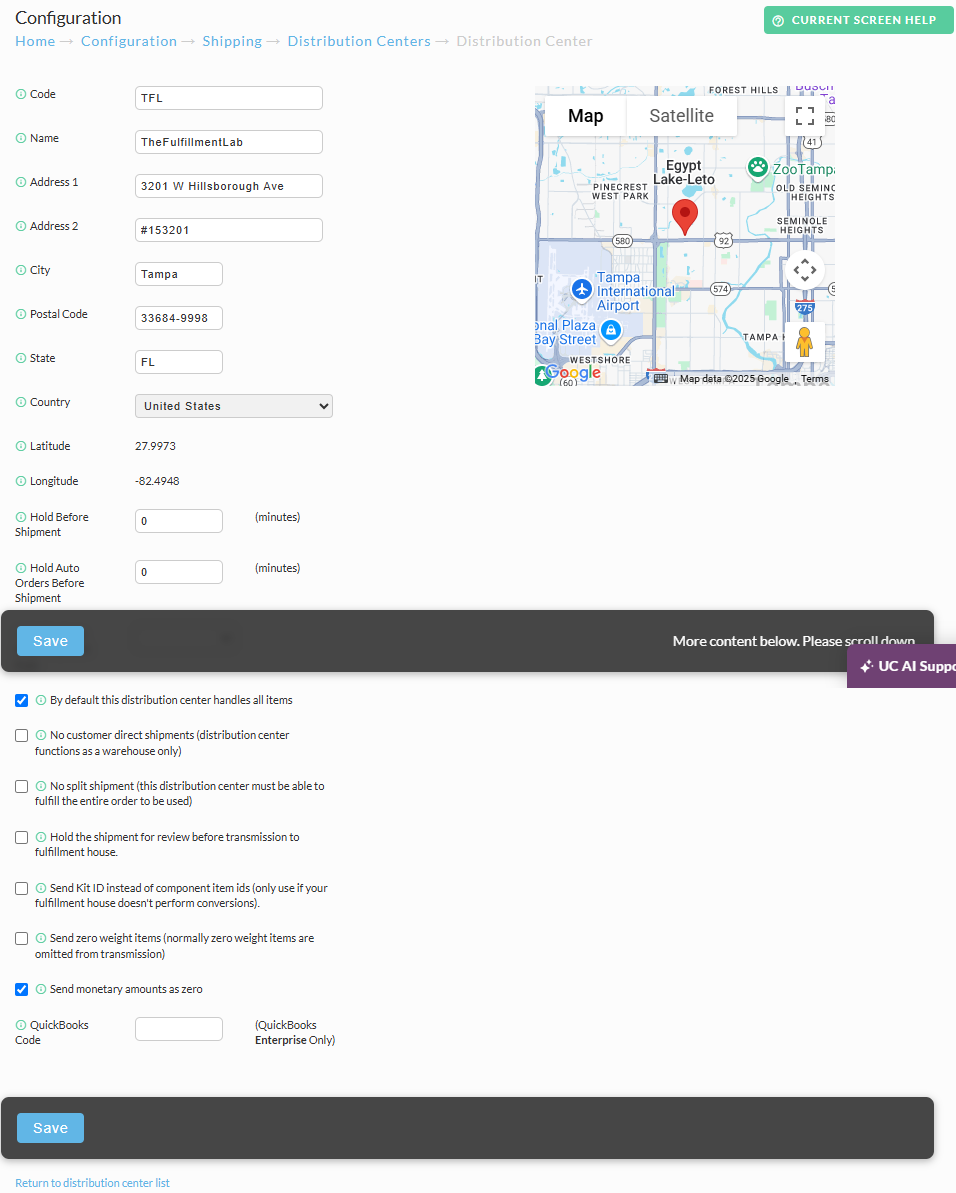
| Field | Description |
|---|---|
| Code | any unique 5 character or less code for this Distribution Center. This is an internal label for the merchant to differentiate each shipping distribution center. Suggested: TFL |
| Name | TheFulfillmentLab |
| Address 1 | 3201 W Hillsborough Ave |
| Address 2 | #153201 |
| City | Tampa |
| Postal Code | 33684-9998 |
| State | FL |
| Country | United States |
Next, click the ‘Transmission Mechanism’ tab of the Distribution Center editor. then scroll down and select the radio button for ‘The Fulfillment Lab’:
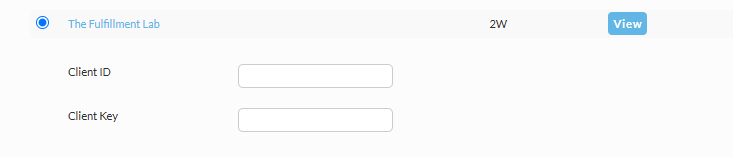
Enter your Client ID and Client Key then scroll down and select the save button.
Step 2 - Configuring the supported shipping methods.
To see all of the supporting shipping methods for the fulfillmentlab.com, click the "View" button that appears along the far right when viewing the TheFulffillmentLab section in the transmission mechanism list.
Supported Shipping Methods for The Fulfillment Lab | ||||||||||||||||||||||||||||||||||||||||||||||||||||||||||||
|
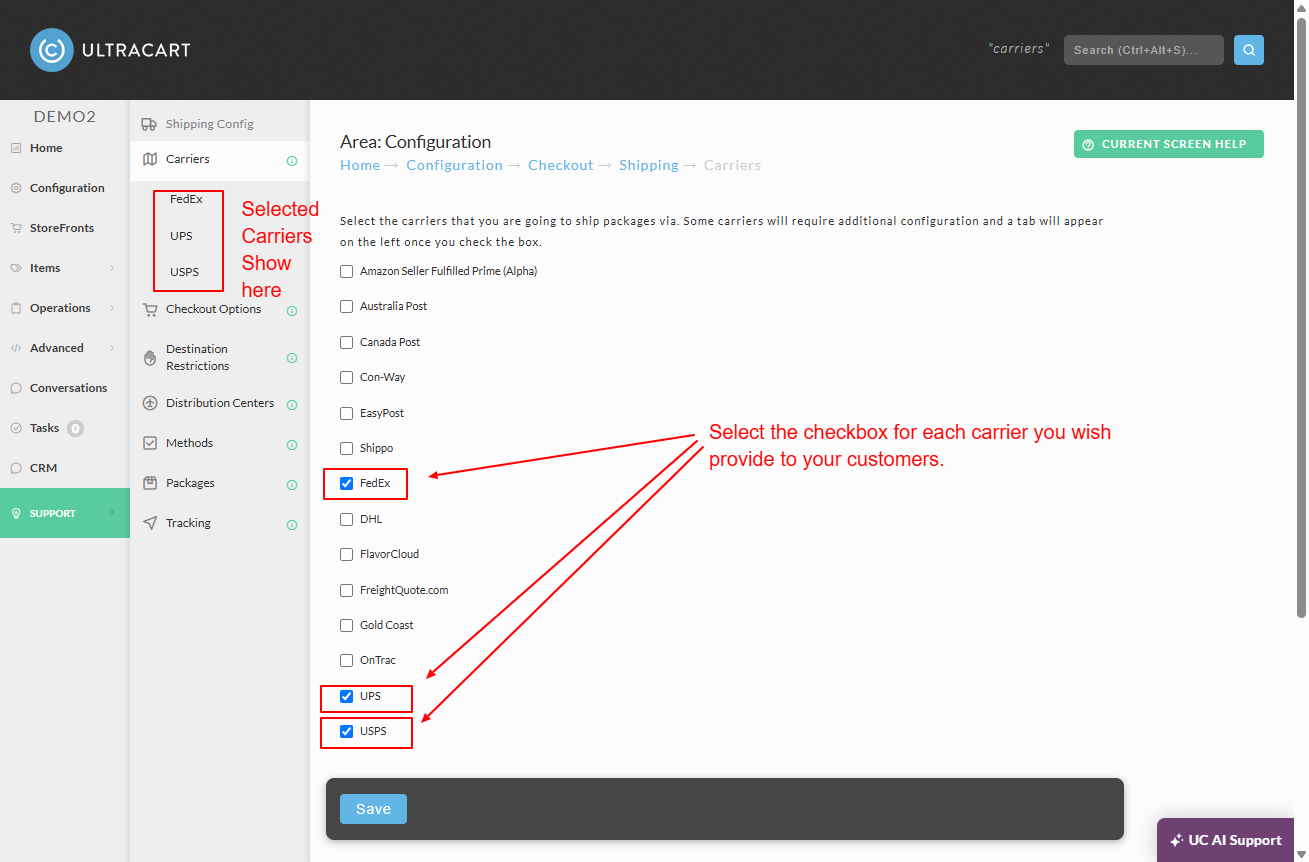
Select Carriers
Navigate:
Main Menu → Configuration → Shipping → Carriers
First thing you’ll do is select the carriers you wish to provide shipping methods for your customers. The Fulfillment Labs supports the following carriers: FedEx, UPS & USPS.
To add/remove/edit your configured shipping methods, navigate
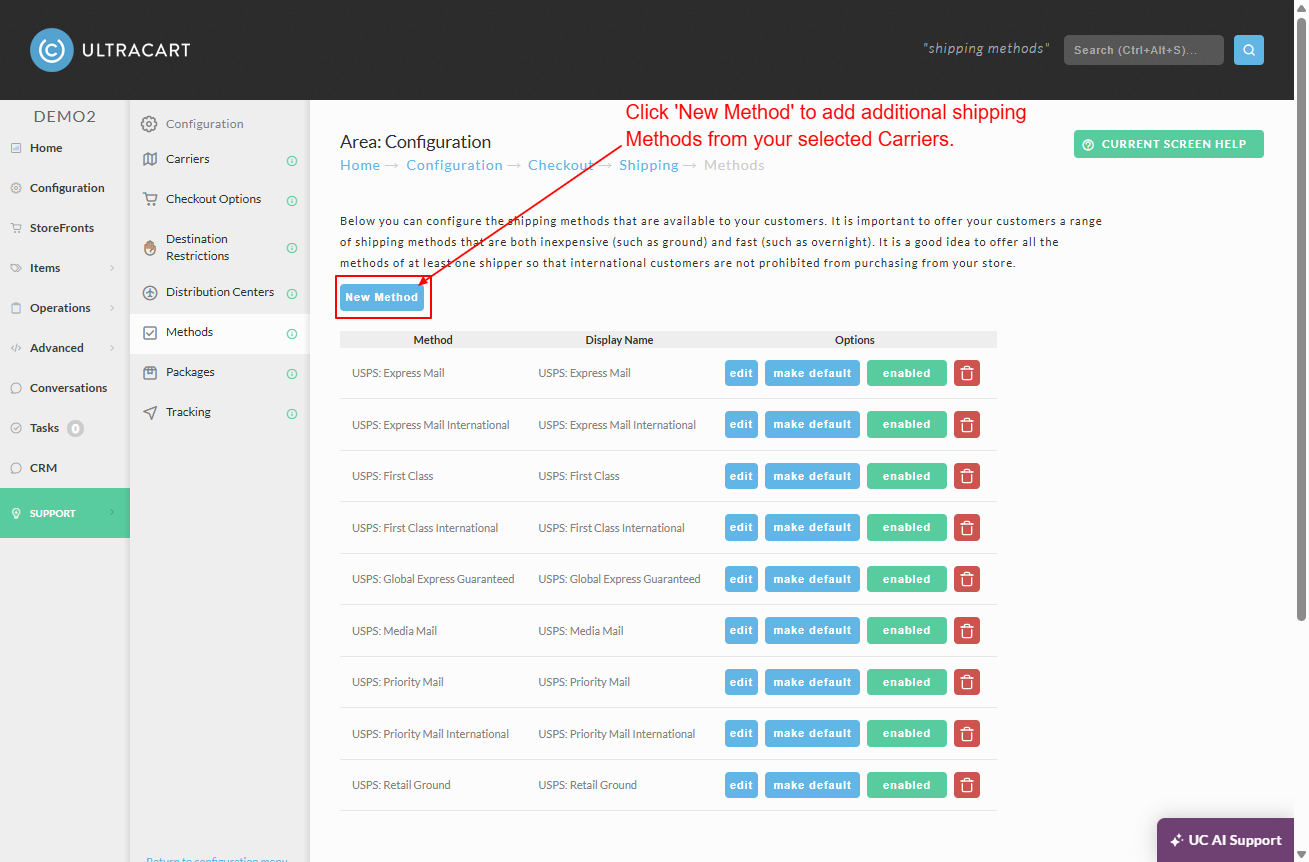
Main Menu → Configuration → Shipping → (middle menu) Methods
Then click the ‘New Method’ button:
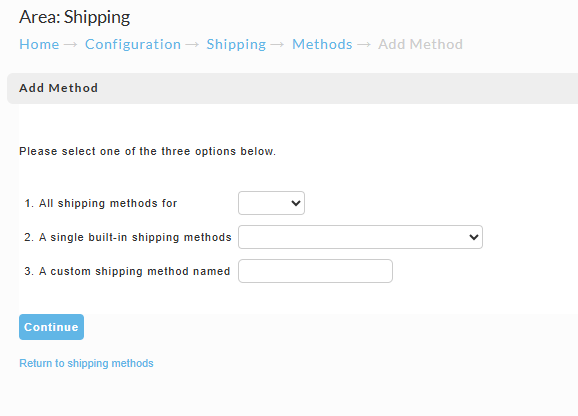
The new method page will give you three prompts.
Choose the #1 to add all the available shipping methods for the selected carrier.
Choose the #2 option to select individual methods from the selected carriers.
(*The third option may not apply, as it is for adding custom shipping methods.)
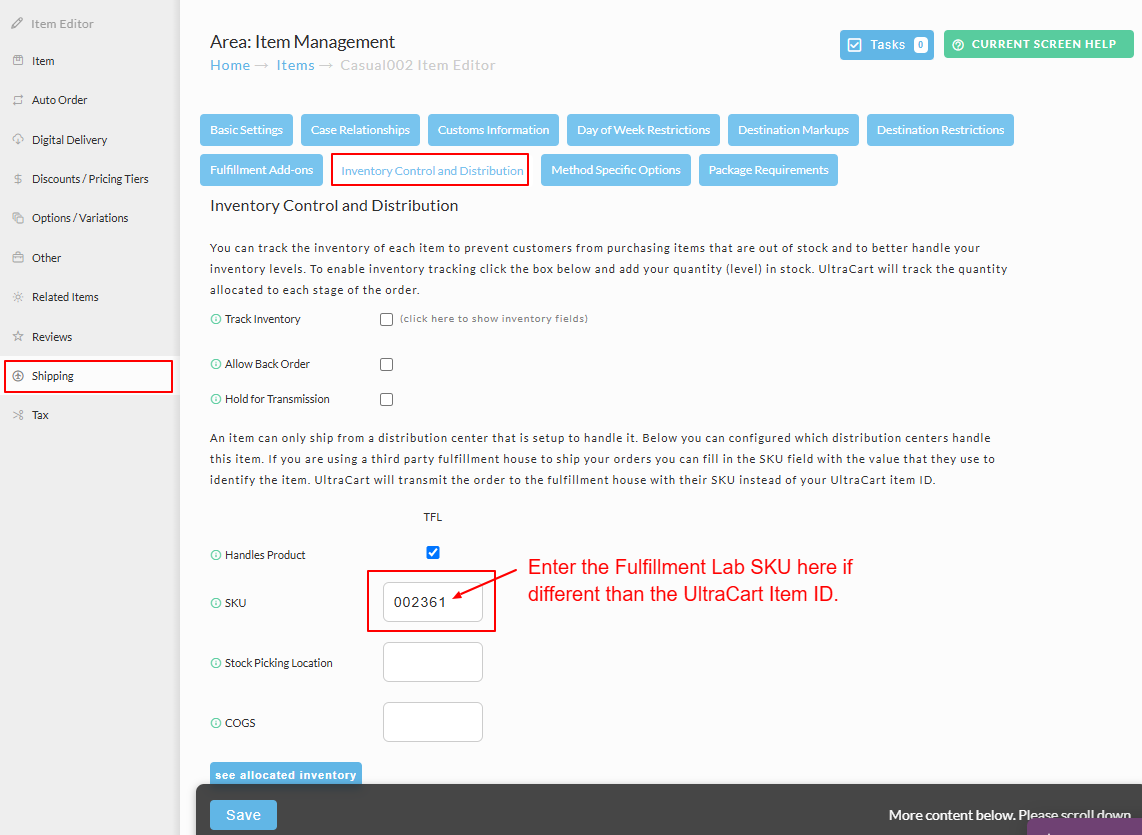
Configuring your items with their SKUs
Ideally, you will likely benefit from giving the UltraCart items the same itemID as The Fulfillment Lab's SKU, so that the mapping between the two systems is transparent. However, there are may be situations where you will need to use different itemsID's in UltraCart than the SKU in The Fulfillment Lab. To configure your Ultracart item that has its own itemID with the The Fulfillment Lab SKU, navigate to the item Management area and edit an item you need to assign theThe Fulfillment Lab's SKU to, then navigate to the "Inventory Control and Distribution" sub-tab to the Shipping tab in the item editor: