Free Shipping
Free shipping is one of the strongest reasons a shopper finishes checking out, and UltraCart lets you offer it in several ways:
- On specific items, so an item always ships free on the methods you choose.
- Through a shipping method, which becomes free when the order meets a rule, such as a subtotal of $99 or more.
- On an upsell offer, so an item added after checkout ships free.
You can also exclude items, such as oversized ones, that should never ship free.
Free shipping is always decided per shipping method. Marking an item as free shipping only makes it free on the methods you allow, so a customer who picks a faster method still pays for it.
For every place in the item editor that affects free shipping, including the Auto Order tab and coupons, see Ways to Make an Item a Free Shipping item.
Navigate:
- Shipping methods: Main Menu → Configuration → Checkout → Shipping → Methods, then edit beside a method
- Items: Main Menu → Items → Item Management, then open the item
Make specific items ship free
This takes two parts: mark the item as free shipping, then choose the methods that ship it free.
1. Mark the item as free shipping
- Open the item in Item Management.
- On the Item tab, in the Shipping section, tick Free Shipping.
- Click Save.
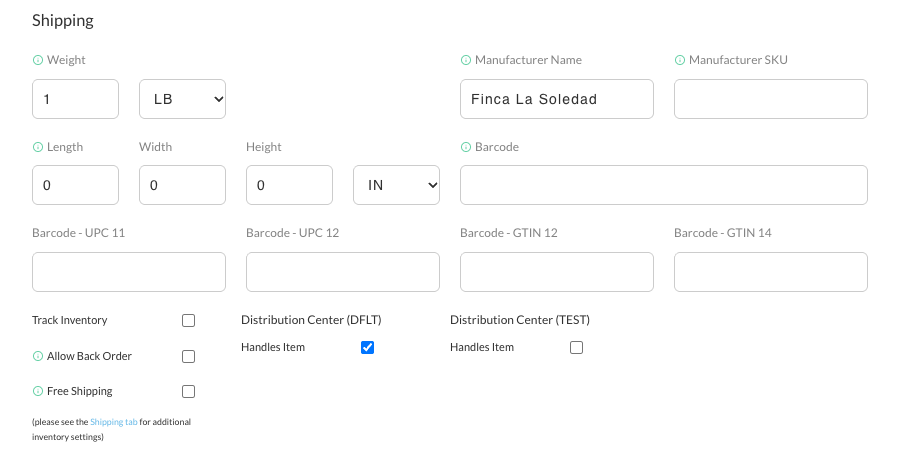
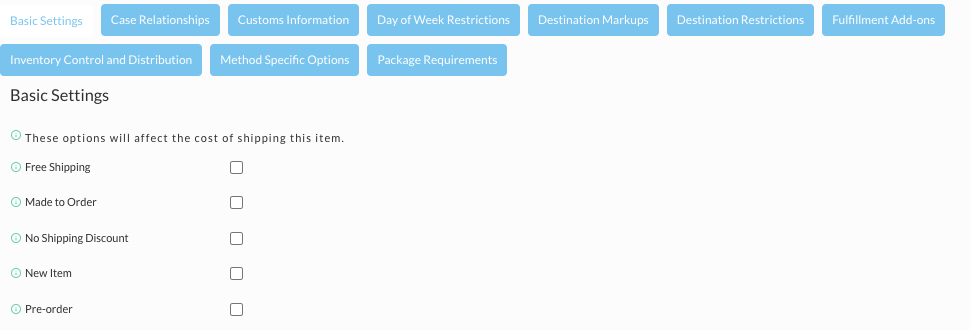
A Free Shipping checkbox also appears under Basic Settings on the item's Shipping tab.
2. Choose the methods that ship it free
The item is not free yet. UltraCart still needs to know which shipping methods are free for it. Do one, or both, of the following.
For every free shipping item at once, mark the method as qualifying:
- Go to Configuration → Checkout → Shipping → Methods and click edit beside the method.
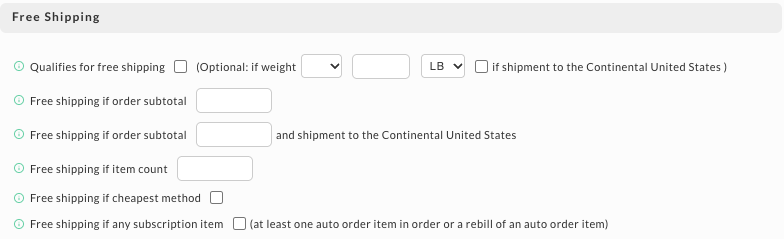
- On the Cost tab, in Free Shipping, tick Qualifies for free shipping.
- Click Save.
Any item marked as free shipping now ships free on that method, and only on methods with this box ticked. The box has optional conditions beside it: it can apply only when the shipment's weight meets a comparison you set, or only for shipments to the continental United States.
For one item on one method, even a method that does not qualify:
- Open the item and go to its Shipping tab.
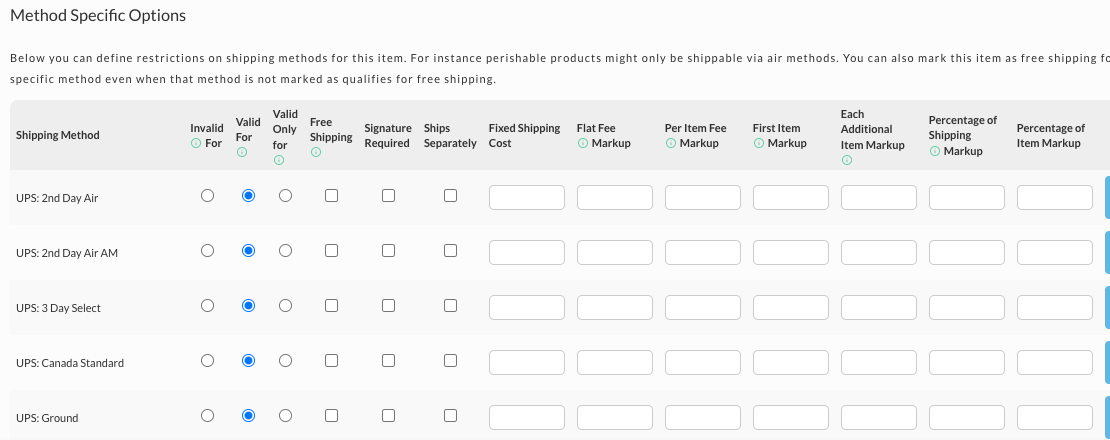
- Open Method Specific Options.
- Tick Free Shipping on the row for each method that should be free for this item.
- Click Save.
Make a shipping method free for qualifying orders
A method can become free for the whole order when the order meets a rule. Open the method, and on its Cost tab, in Free Shipping, set the rule you want:
| Rule | The method is free when |
|---|---|
| Free shipping if order subtotal | The order subtotal reaches the amount you enter, such as 99. |
| Free shipping if order subtotal ... and shipment to the Continental United States | The subtotal reaches the amount and the order ships within the continental United States. Use this to avoid paying for free shipments to Alaska and Hawaii. |
| Free shipping if item count | The shipment contains at least this many items. |
| Free shipping if cheapest method | This method is the lowest-cost method available for the order. |
| Free shipping if any subscription item | The order contains at least one auto order item. It also applies to the rebills of that subscription. |
Click Save when you are done.
Set only one of these rules on a method. If you want different thresholds, such as free ground shipping over $50 and free two-day shipping over $150, set one rule on each method.
Ship an upsell offer free
If you use the legacy Upsell After offers to suggest more items after the customer finalizes their order, you can ship the offer's items free.
- Go to Main Menu → Configuration → Upsell After (Legacy) and click edit beside the offer.
- Under Options, tick Free Shipping.
- Save the offer.
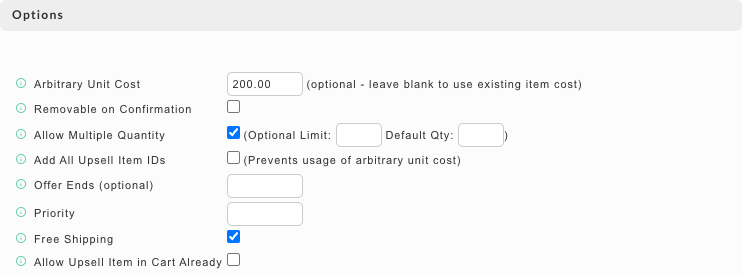
For this to work, at least one of your shipping methods must have Qualifies for free shipping ticked, as described in Choose the methods that ship it free.
Upsell After is a legacy tool. For new upsells, UltraCart recommends StoreFront Upsells.
Exclude an item from free shipping
Say you offer free ground shipping on orders over $99, but a few oversized items cost too much to ship free. Exclude them:
- Open the item and go to its Shipping tab.
- Under Basic Settings, tick No Shipping Discount.
- Click Save.
The item is now left out of the rules in each method's Free Shipping section, such as Free shipping if order subtotal and Free shipping if item count. Those rules no longer make shipping free for it, even when the order meets them.
No Shipping Discount does not undo the item's own Free Shipping box. If you tick both, the item still ships free on methods marked Qualifies for free shipping. To exclude an item, make sure its Free Shipping box is clear.
Related
- Ways to Make an Item a Free Shipping item covers every item editor setting that affects free shipping, including the Auto Order tab and coupons.
- Shipping Methods covers setting up and editing your methods.