Configuring an order Pickup location
If you offer order pickup, UltraCart gives you two separate, independent ways to do it. They don't share configuration, and you can use either one without the other. This page explains both, then walks through setting up each one.
For the end-to-end walkthrough of putting a pickup option at checkout, covering the distribution center, the shipping method, and the theme version it needs, see Local Pickup. This page explains how the two pickup mechanisms differ and configures the Pick Up Times schedule.
Two ways to offer pickup
Pick whichever mechanism fits how you want pickup to appear at checkout. You can also use both if you need them for different scenarios.
-
Pickup shipping method. A shipping method that you mark as a pickup type on its Restrictions tab. It appears as a normal option in the shipping method list at checkout, alongside your other shipping methods. It does not use the distribution center's Pick Up Times schedule described below, and it requires no storefront theme changes. See Setting up a Pickup shipping method.
-
Pickup Order theme element. A storefront theme element that displays in the shipping address section of checkout. The customer switches on a toggle to request pickup, then chooses from Pickup Date and Pickup Time fields sourced from the distribution center's Pick Up Times schedule. This is the mechanism the rest of this page configures. See Configuration of Pickup Times and Adding the Pickup Order element to your theme.
Setting up a Pickup shipping method
- Go to Configuration → Checkout → Shipping → Methods.
- Create a new method, or open an existing one.
- Open the Restrictions tab and use the Local Delivery / Pickup section to mark the method as a pickup type. See Local Delivery / Pickup in the Shipping Method Configuration reference for the full Restrictions tab.
- Save the method. It now appears in the shipping method list at checkout like any other shipping method, with no theme changes required.
Configuration of Pickup Times
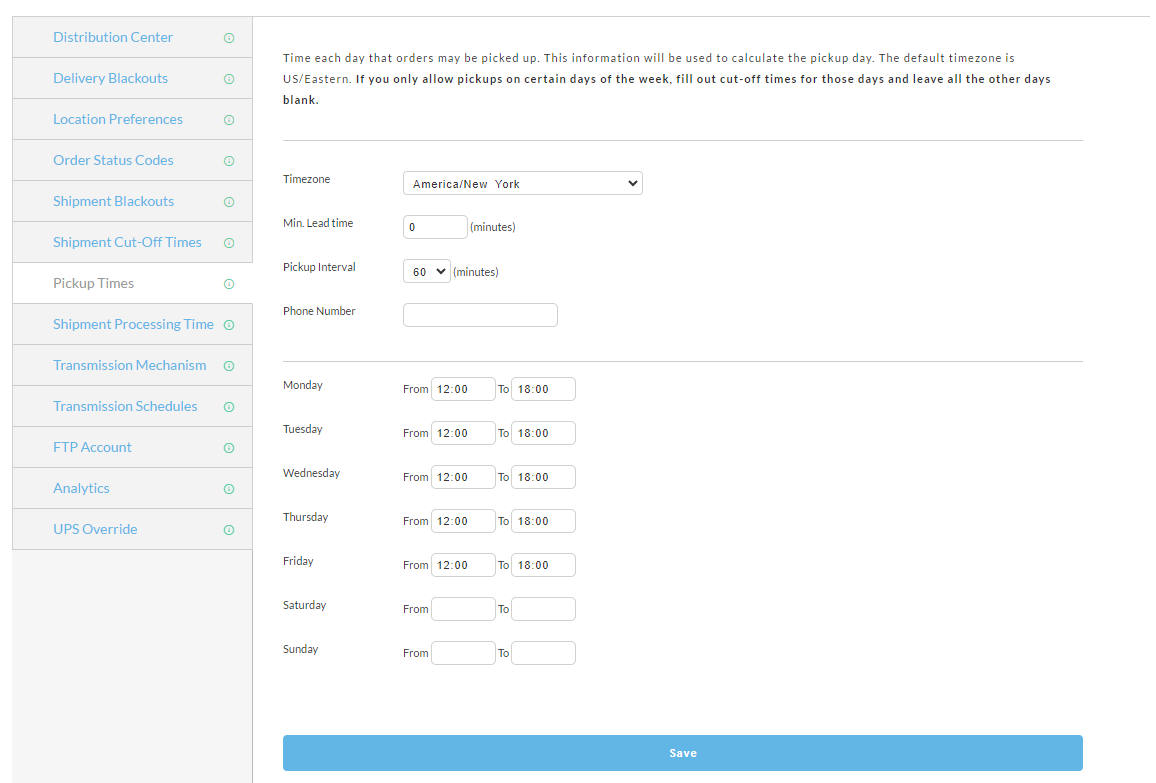
The Pick Up Times schedule feeds the Pickup Order theme element (see Adding the Pickup Order element to your theme below). You configure it in the shipping Distribution Center Editor.
You'll configure the following details for the pickup location:
-
Timezone - Set the timezone.
-
Min. of lead time - Determines how much time is required to fulfill the pickup request.
-
Pickup Interval (Minutes) - This determine presentation of selectable pickup times.
-
Phone Number - Provided to the customer for calling ahead to arrange their pickup.
-
Schedule days and hours of pickup - Define the available days of pickup and the hours pickup is available. About Schedule: Time each day that orders may be picked up. This information will be used to calculate the pickup day/time. The default timezone is US/Eastern. If you only allow pickups on certain days of the week, fill out cut-off times for those days and leave all the other days blank.
Adding the Pickup Order element to your theme
The Pickup Order element lives in the shipping address section of checkout. Add it to your storefront theme to let customers request pickup using the schedule configured above.
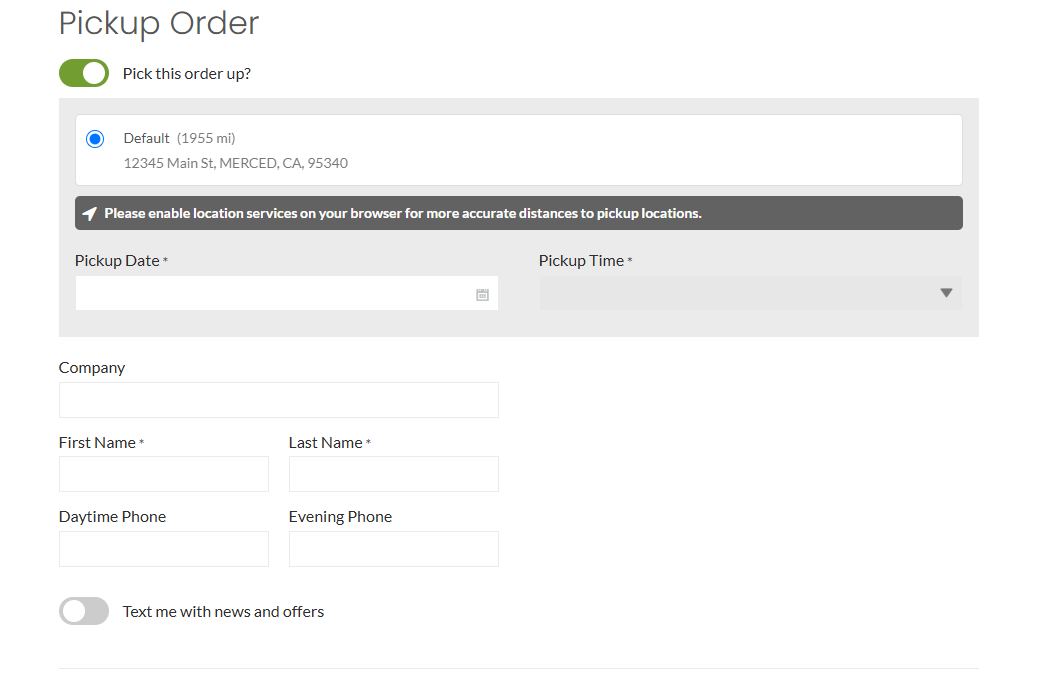
To the customer, the element shows:
- A Pick this order up? toggle that switches pickup on for the order.
- The pickup location, with its distance from the customer and its address.
- A Pickup Date field and a Pickup Time field, both sourced from the Pick Up Times schedule you configured above.
- Contact fields: Company, First Name, Last Name, Daytime Phone, and Evening Phone.
- A Text me with news and offers toggle.
Adding the element to a theme is storefront theme work. If you need help placing it, contact UltraCart support.
Frequently Asked Questions
Question: Can I have multiple pickup locations? Answer: Yes, you can add additional shipping distribution centers and then configure the Pick Up Times tab in the distribution center editor.
Question: Do I need both pickup mechanisms? Answer: No. Use the Pickup shipping method if you want pickup to behave like any other shipping method with no theme work. Use the Pickup Order theme element if you want customers to pick a specific date and time from your Pick Up Times schedule.
Related Documentation
- Local Pickup - the complete pickup setup, end to end
- Distribution Center
- Shipping Method Configuration