Giving an Auto Order Customer One Free Item
Sometimes merchants will give their auto order customers a "Free of Charge" order. Sometimes that will encourage the customer to continue with the Auto Order program. If you want to do the same, here's how:
First: locate their order by navigating to:
Main Menu → Operations → Order Management → Auto Orders
That will place you at the AUTO ORDER SEARCH screen. Enter your search criteria (Last Name, First Name, Order ID, etc.) to search for the customer's order. Then click the Search button at the bottom.
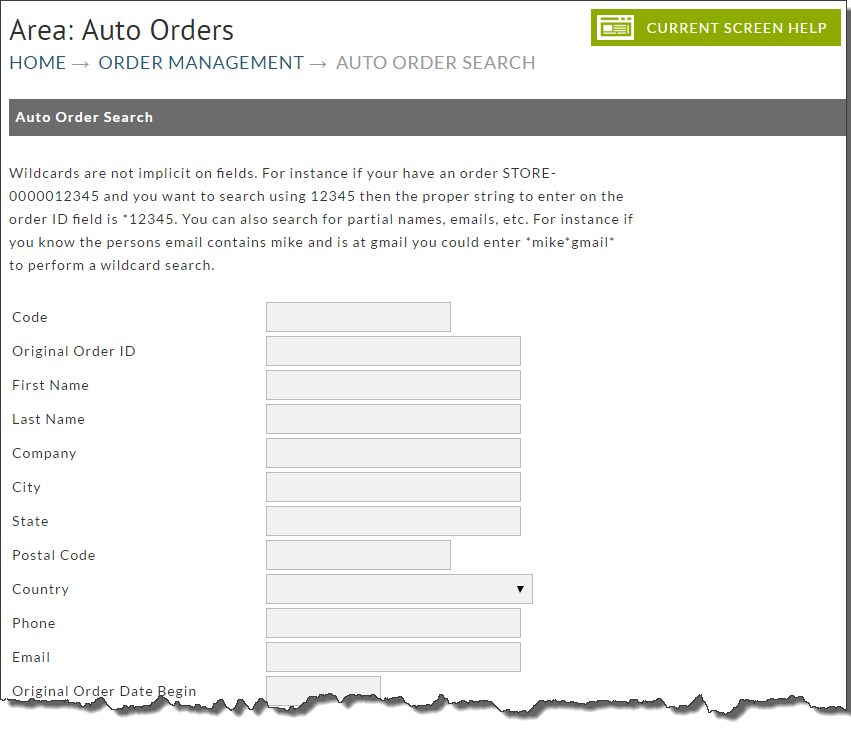
Hopefully you have entered correct search criteria which will present your order like the following:
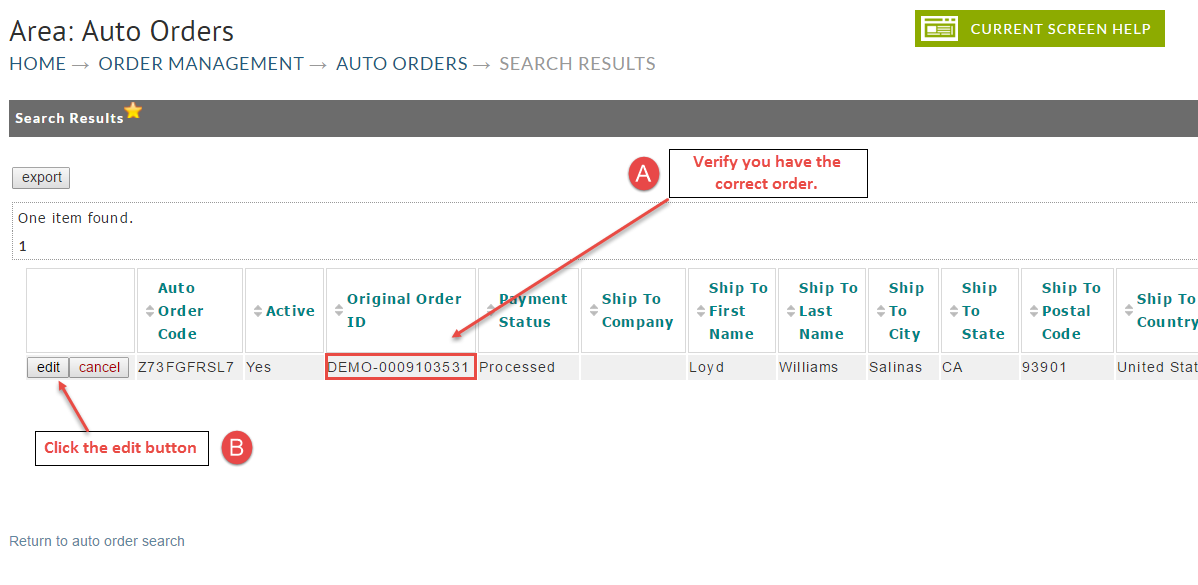
Clicking the "edit" button (above) will take you to the Auto Order Editor (original order). Scroll down the screen to the "Items" section as shown below.
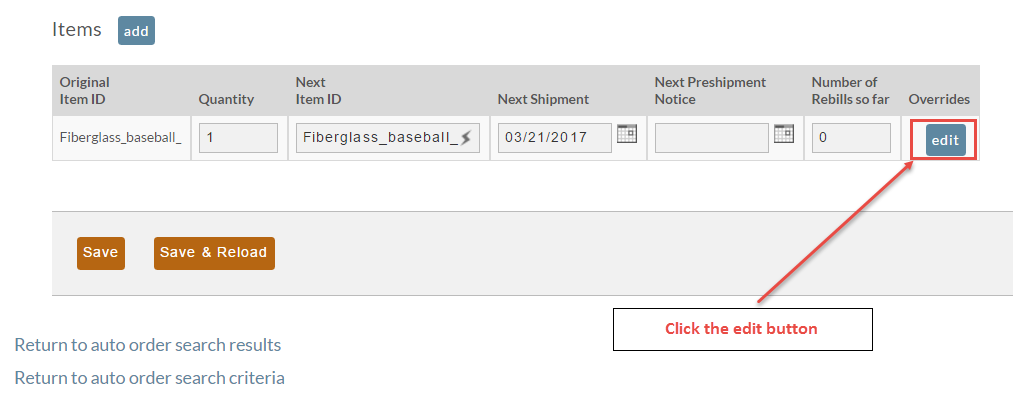
Our example above is a new Auto Order that has no Rebills as of yet. You can edit Overrides on any recurring order.
Click the Overrides "edit" button. A separate overrides screen will appear (overlaid). See below.
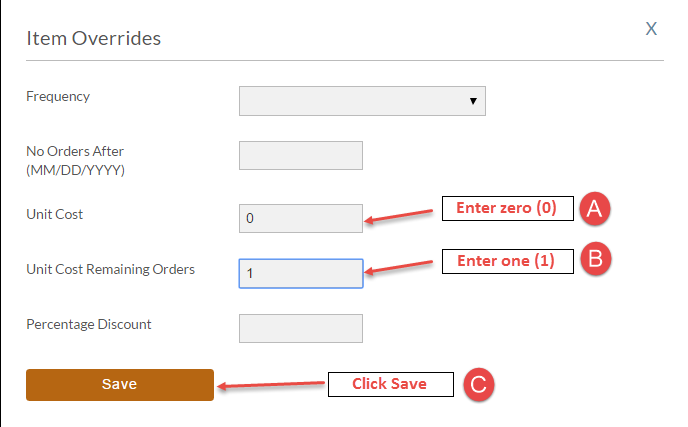
To set the next recurring order as FREE, we have entered zero for "Unit Cost" and we also entered the numeral "1" for "Unit Cost Remaining Orders" as shown above. Yes, you can apply this Override Cost to unlimited number of recurring orders.
Click the Save button at the bottom when finished. The Item Overrides screen will close allowing full view of the Auto Order editor screen. You will now see your configuration under the Overrides column (shown below).
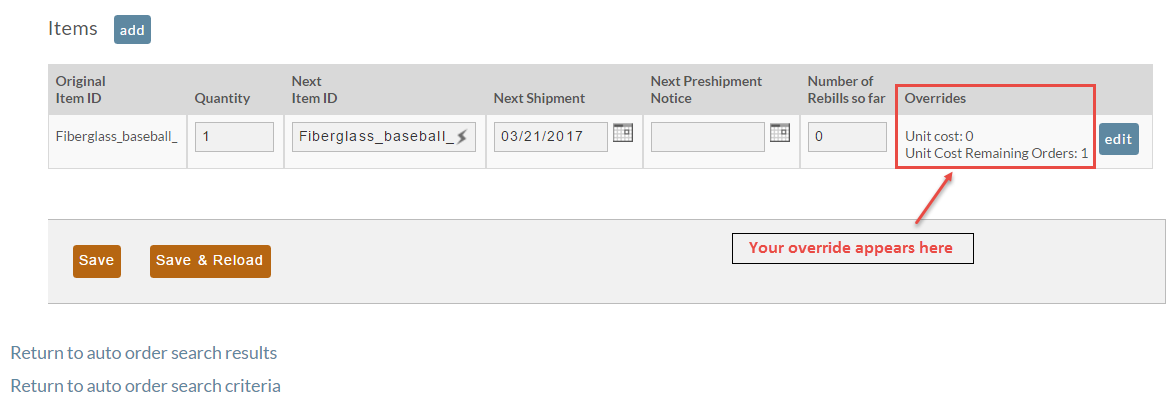
Check for accuracy. You can click the "edit" button if you need to return to make changes.
Click the "Save & Reload" button when finished. You'll be returned to the top of the Auto Order Search screen as shown below.
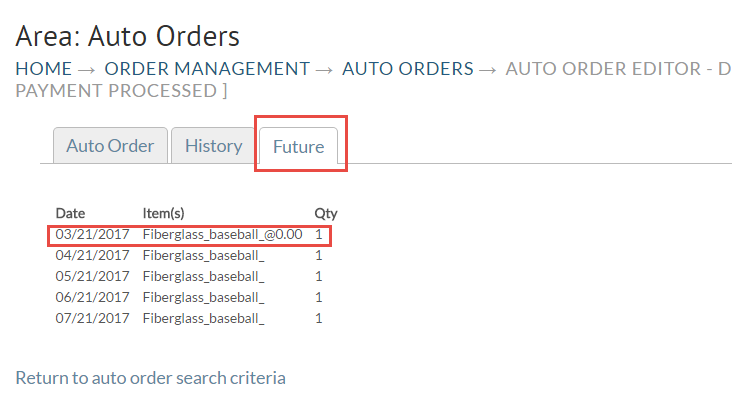
To verify your future orders schedule, click the Future tab as shown below. In our example Auto Order a zero cost is shown for ONLY the next recurring order.
 .
.
The same technique works for giving them a discounted price on any number of future orders.