Overview
Build a wholesale order entry page on my StoreFront using the Elements theme (version 0.98)
Navigation
Main Menu > Storefronts > Storefronts host > (Storefronts menu) > Pages
Steps
Create New Page
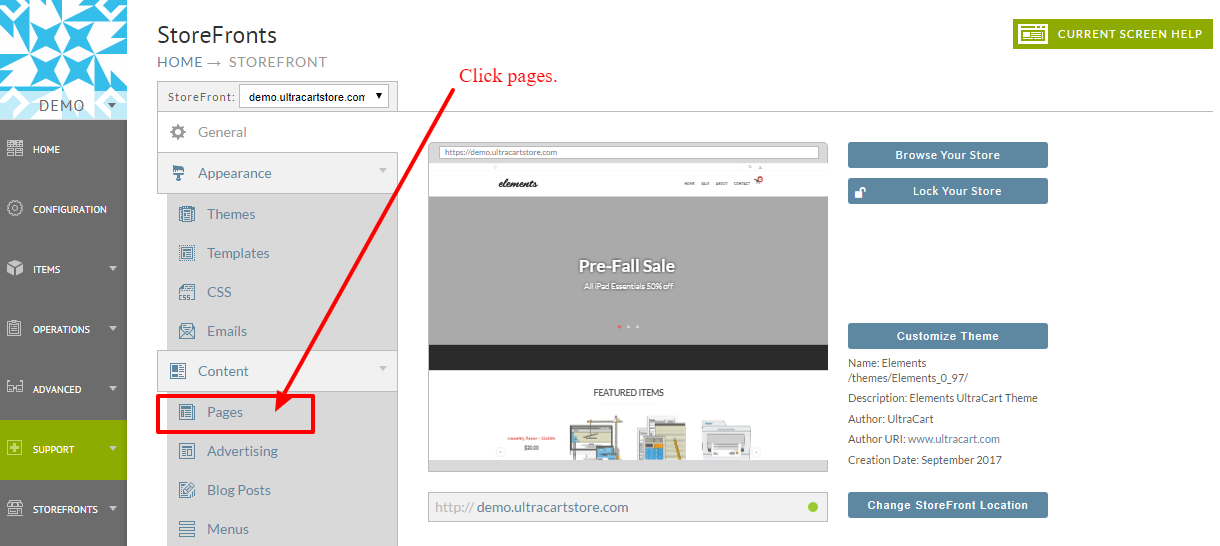
Let's begin by navigating your storefront menu, then clicking on Pages Tab.
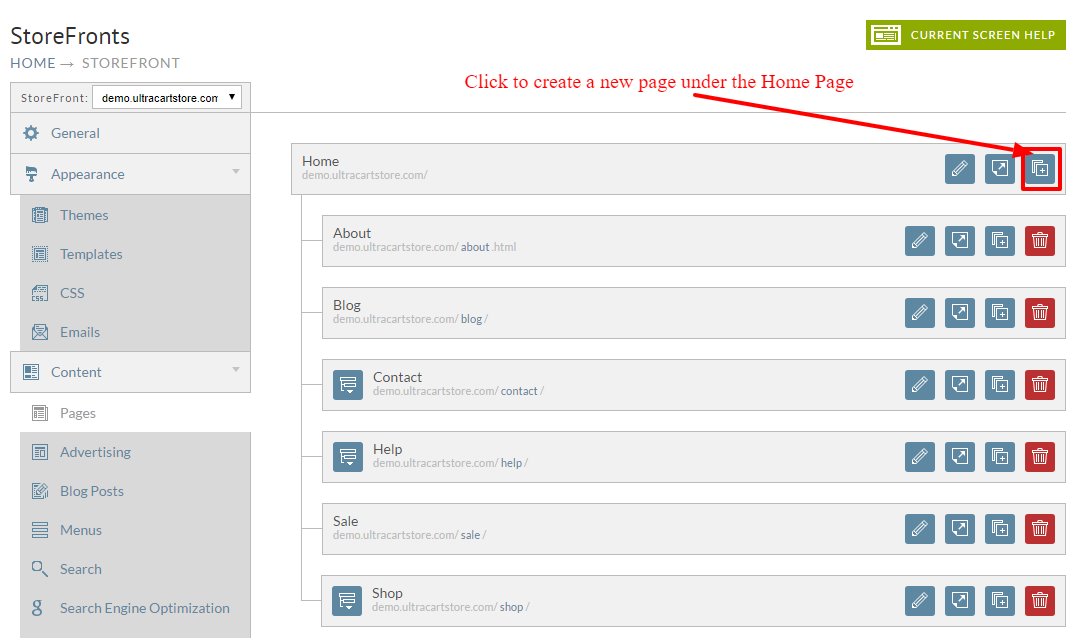
Next, click the Create page button from the home page:
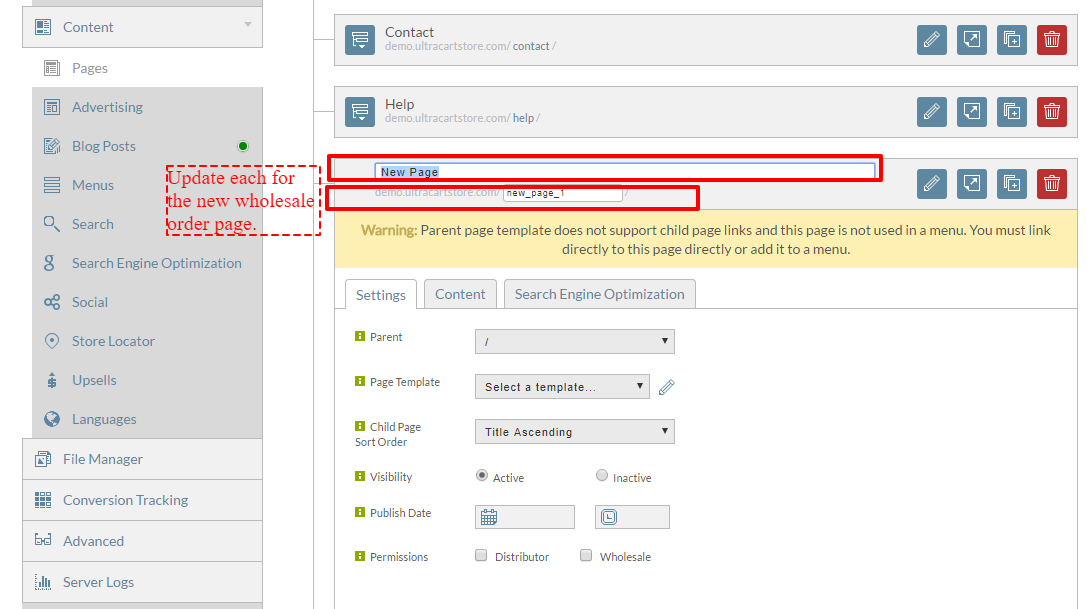
Let's name our Wholesale order page "Wholesale Orders", with a page URI of "wholesale_orders"
Like this:

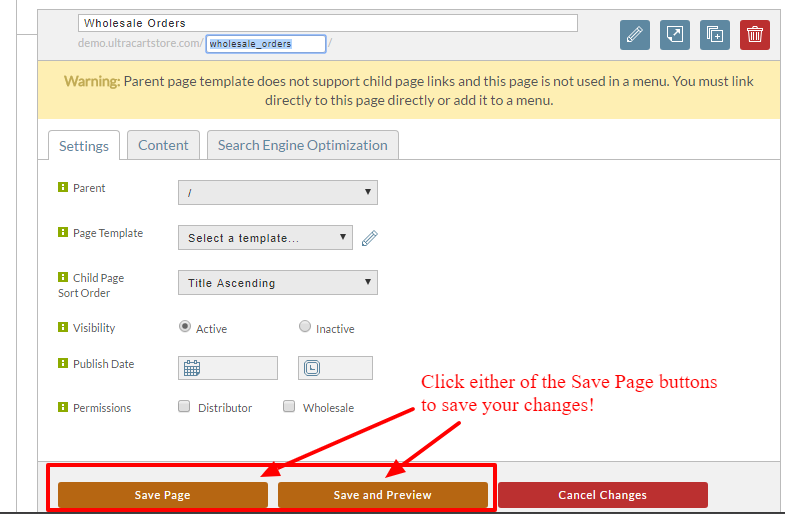
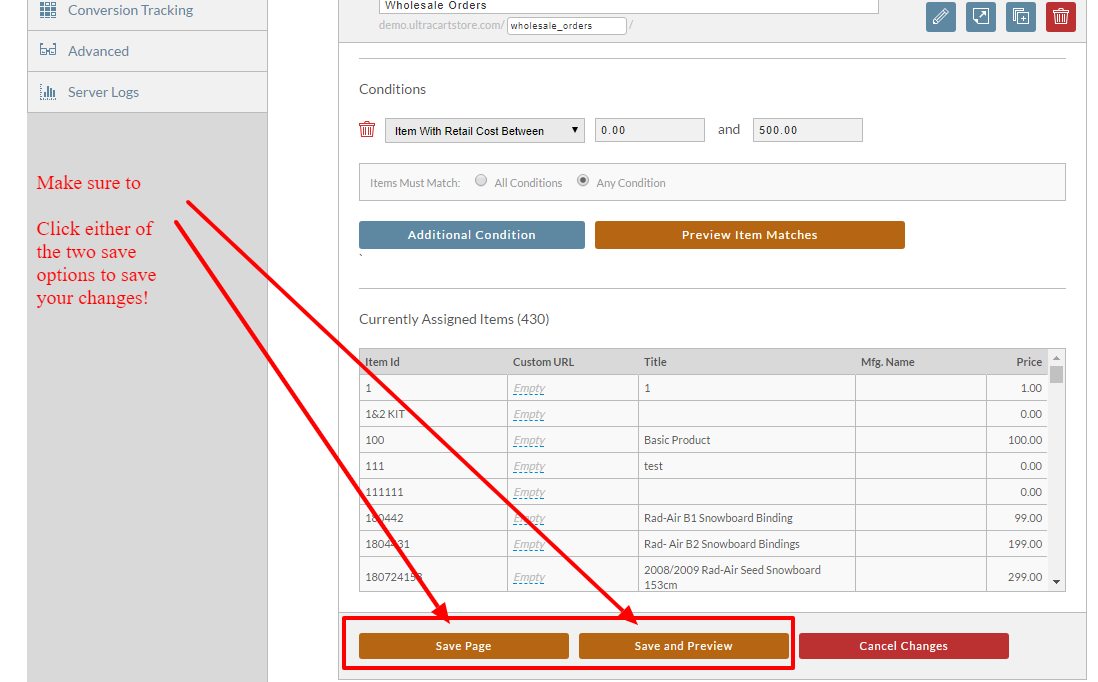
Make sure to click the "save page" or "save and preview"buttons.
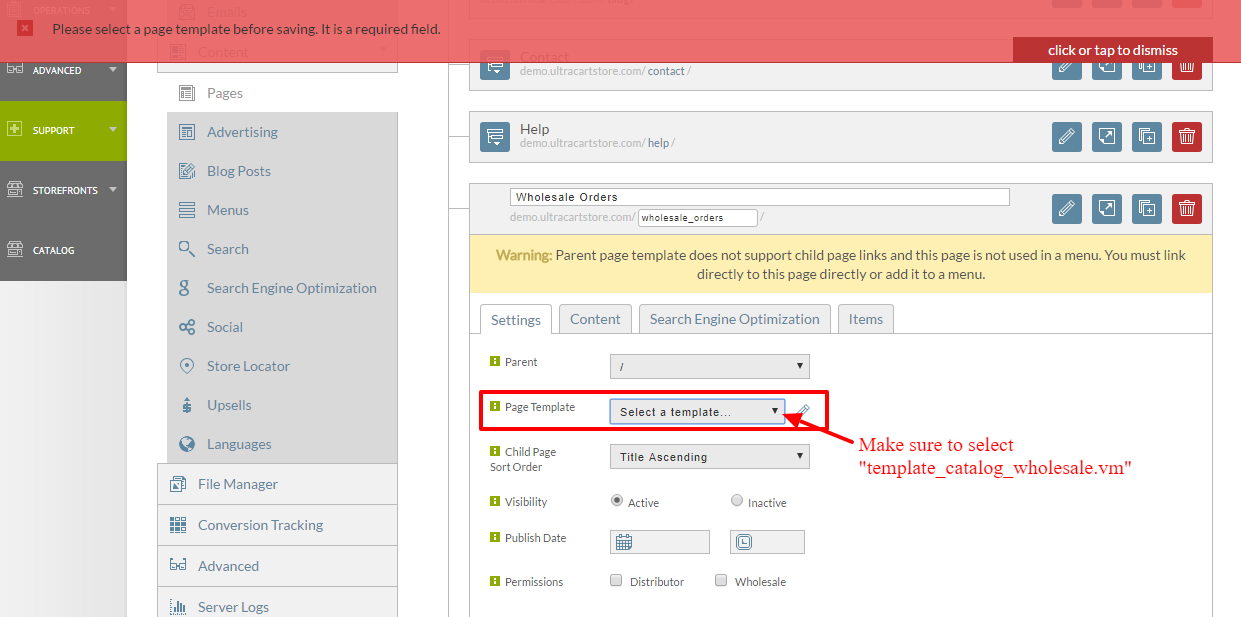
Making sure to select the "template_catalog_wholesale.vm" template for the "Page Template" drop-down list, otherwise your'll encounter the validation error message below:
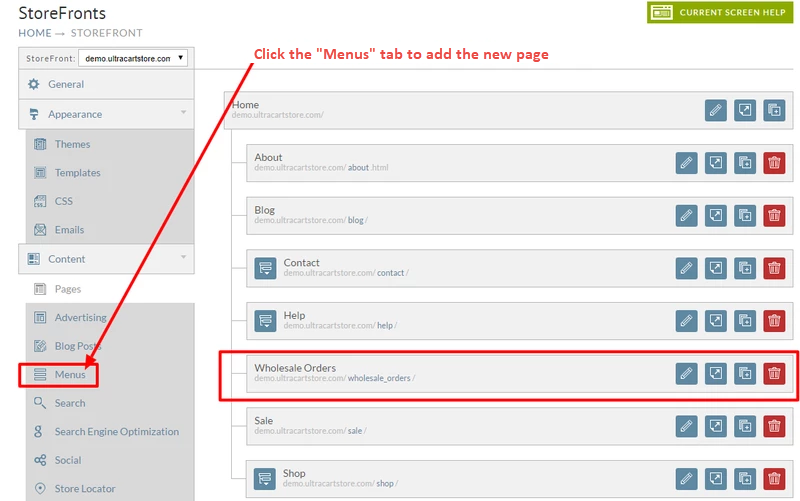
Upon successfuly saving the wholesale orders page, we can then navigate to the menus page to update the menu to include our new page:
Create Menu Item
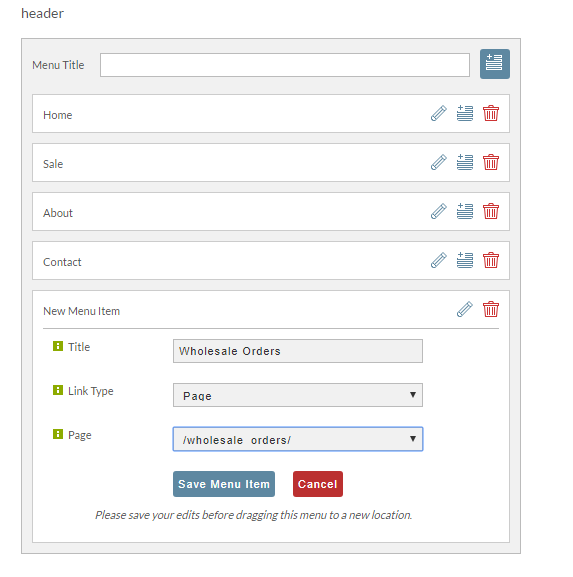
From the menu's page we scroll down to the "header" menu then we click the on the Add page icon " " then configure the new menu item like so:
| Field | Configured as |
|---|---|
| Title | Wholesale Orders |
| Link Type | Page |
| Page | "/wholesale_orders/" from dowp-down list |
Click the "Save Menu Item" button to save your changes.
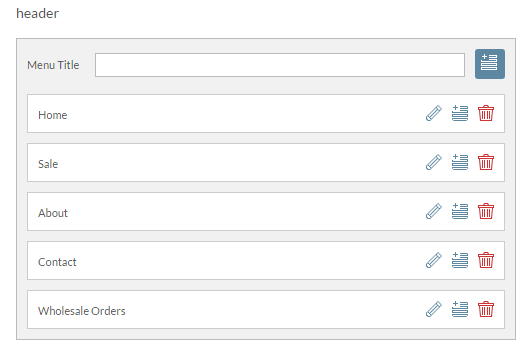
If we browse to our storefront we see our new wholesale orders page appearing in our header menu:

Assign Items
Now that we have the "Wholesale Order" page we need to assign items to the page. Navigate back to the pages menu option from the storefronts menu. Then after editing the "Wholesale Orders" page, click the "Items" tab. From there you can either add items manually or, in this case we'll use the "Automatically Based on Conditions", Item Assignment option.
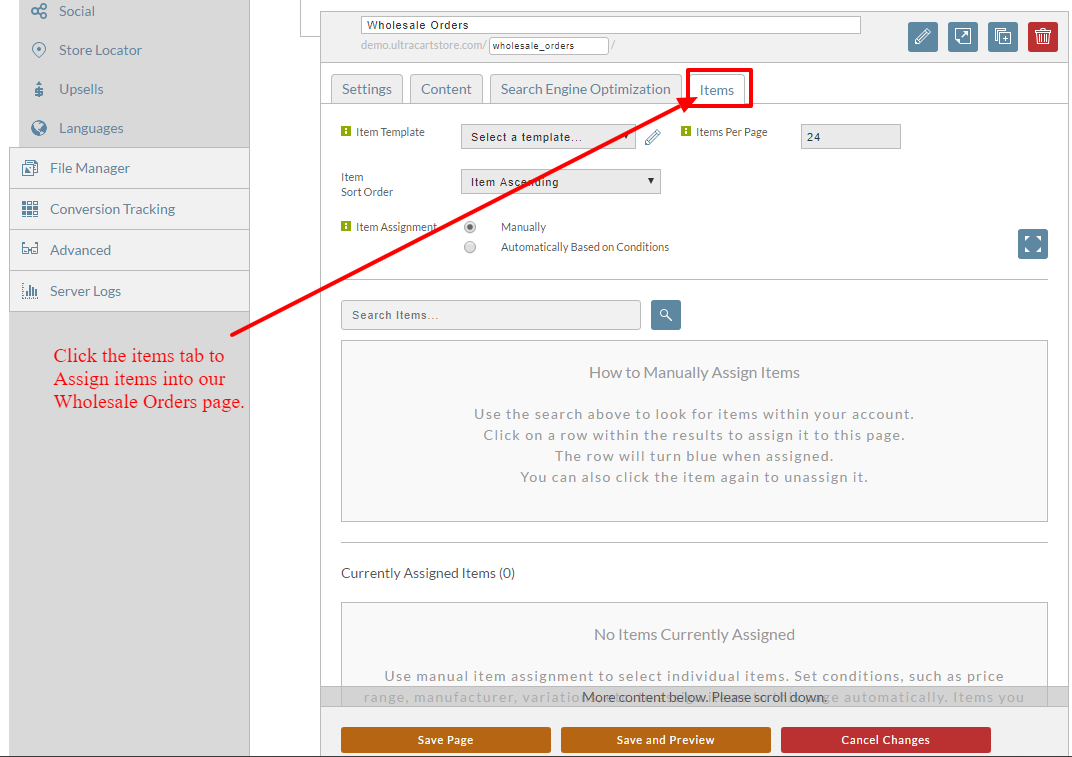
Automatically Based on Conditions:

Let's add the following condition:
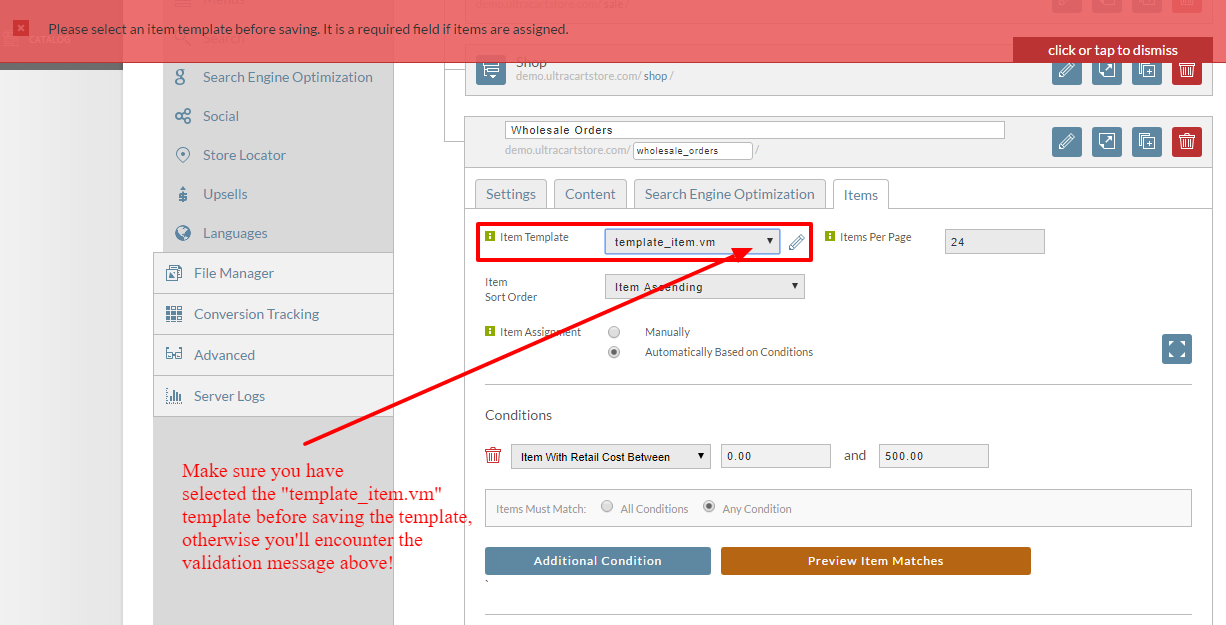
Be sure to select the "template_item.vm" from the Item Template drop-down list:
Adding Wholesale Pricing Tier Restriction
Finally, let's apply the Pricing Tier restriction to the Wholesale Orders page to make sure its only available to the Wholesale Customers.
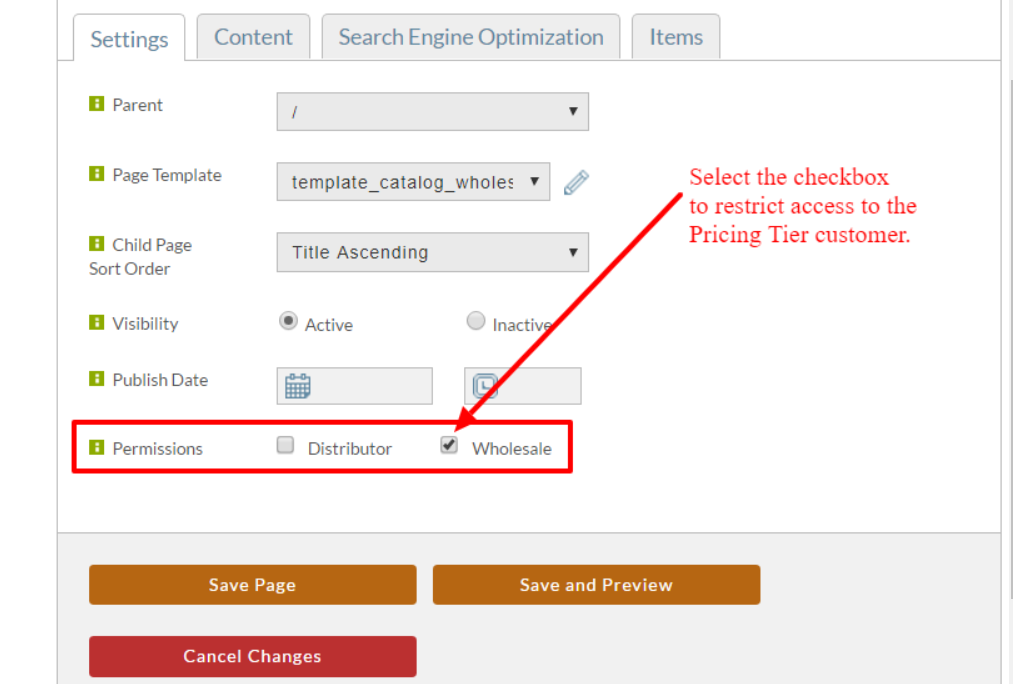
Edit the page then from the "Settings" tab, select the checkbox for "Wholesale" in the restrictions section.
View Finished Page
Upon saving and previewing we see how the wholesale orders page provides a list of items to order!