Overview
This document will show how to integrate OrderMotion (ordermotion.com) into your shipping configuration for shipping fulfillment.
Navigation
info
Main Menu → Configuration → (middle menu) Checkout → Shipping → (middle menu) Distribution Centers → ("Edit" or "New" button) → Transmission Mechanism > Select "OrderMotion"
Steps
Step 1 - Navigate to the Transmission Mechanism list
To configure OrderMotion;
- Navigate to the Shipping configuration area (Configuration → Checkout → Shipping)
- Click the Distribution Center Tab
- Click the "edit" button for your Distribution Center or click "New Distribution Center" button.
- Click the "Transmission Mechanism" tab.
- Scroll down (way down) and select the radio button for "OrderMotion" (Image below has a truncated version of the radio button list).
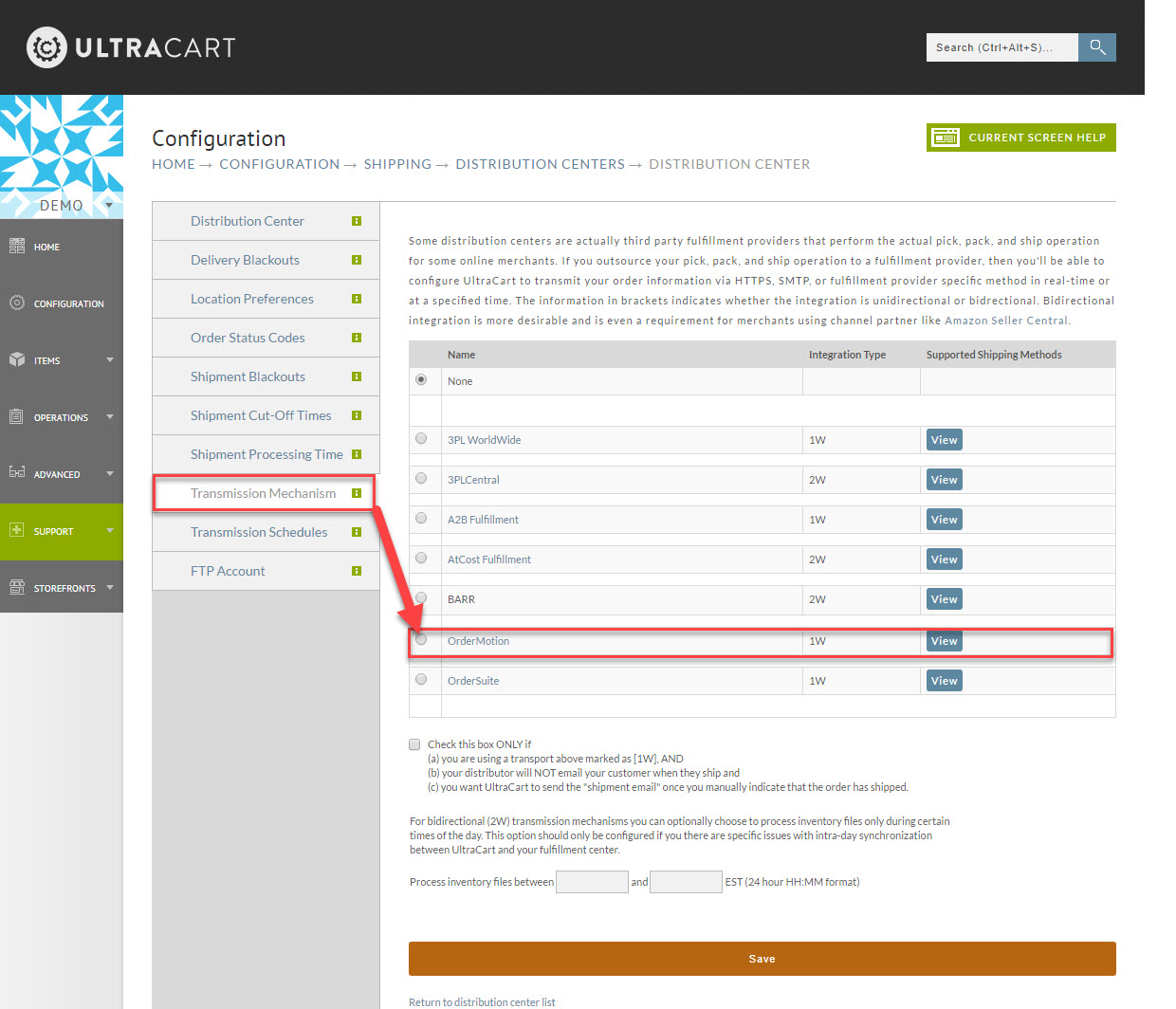
Step 2 - Configuring the OrderMotion section
Thee are four fields that require completion.
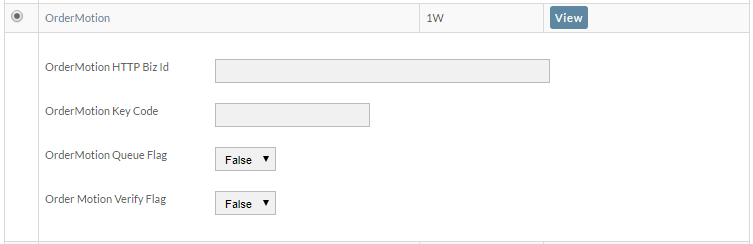
| Field | Description |
|---|---|
| OrderMotion HTTP Bix Id | This credential will be provided to you by OrderMotion |
| OrderMotion Key Control | This credential will be provided to you by OrderMotion |
| OrderMotion Queue Flag | Select "True" or "False" as instructed by OrderMotion |
| OrderMotion Verify Flag | Select "True" or "False" as instructed by OrderMotion |
After configuring these fields as instructed by OrderMotion, scroll down the page and click the save button.
Frequently Asked Question
If we authorize the credit card at the order will ordermotion be able charge card on shipment and manage the multipay?
Yes, UltraCart can handle a scenario where the credit card is authorized during checkout and then feed the transaction reference number to OrderMotion so they can perform the capture after shipment of the order.
Was this page helpful?