Report Pick-up
If a report that you've created covers a large date range you can expect some wait time. You'll be notified if there is a delay and will be told that you can obtain the report in the Report Pickup area.
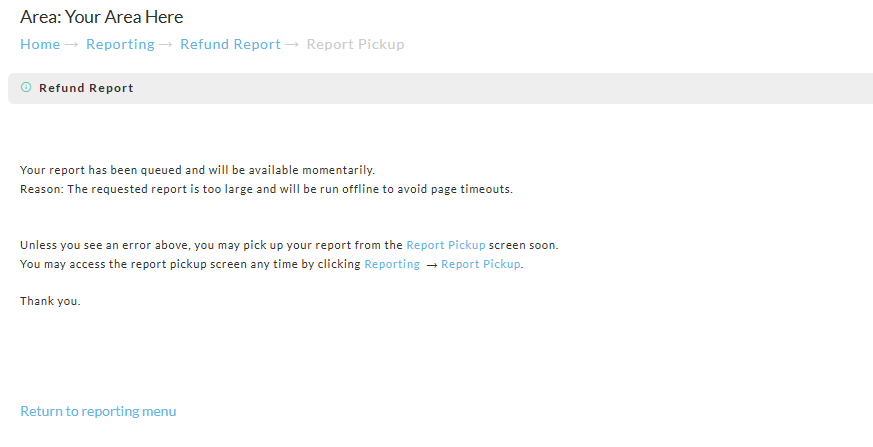
The following is a sample Report Pickup notice you'll see on the screen once you've configured the report. This not only tells you there's a delay but also provides the link to the pick up area.
The following is a sample of the email notification you'll receive when the report is available for pickup. Knowing this notification is coming allows you to continue working elsewhere.

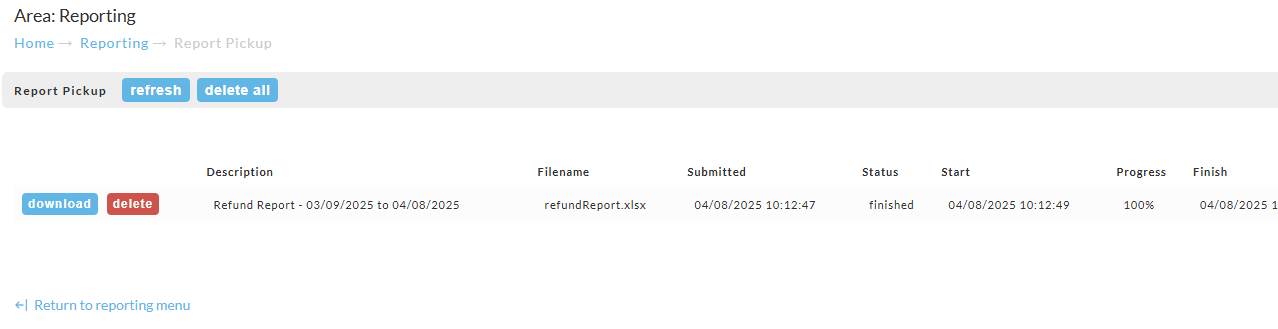
Once you are at the pickup screen and see your report listed, simply click the download button to obtain the report. You may be prompted to Save or Open the file depending on how you configured the report. Click the Delete button when the report is no longer needed. If you don't see your report, a click of the refresh button may bring it up (only if it's completed).
Report Pickup is specific to each user. A report appears only for the user who generated it. If another user on the account needs the file, either the original user downloads it and shares it, or the other user runs the report again under their own login.
Reports stay in Report Pickup for 14 days after they are submitted. The Expiration column shows when each report will be removed. Download the file before then, or run the report again.
The "available for download" email is a pickup notice, not a scheduled report. Forwarding it does not give the recipient access to the file. To send a report to several people automatically, use a scheduled report instead (see Scheduling Reports): scheduled reports are emailed with the report attached to every address listed, regardless of which user set up the schedule.