Data Warehouse (BigQuery)
Introduction
UltraCart’s Data Warehouse (BigQuery) feature allows for a business to quickly setup a data warehouse of their customers, items, orders and auto order information with Google’s BigQuery database service. UltraCart will handle the data transfer into BigQuery on an automated base. Businesses can then use the information to feed support systems, write reports, and join up with other data systems for operational analysis.
Additional Benefits:
-
easy reporting in Google Data Studio / Microsoft Power BI
-
connect data to Microsoft Excel or Google Sheets
-
extract querying using the BigQuery CLI or SDK to extract the data set
Pricing
UltraCart covers the first $1.00 of expense associated with the BigQuery project hosting the account data. That is enough to cover all of the data storage expense and bandwidth associated with the updates that occur over time. The actual cost of BigQuery depends solely on the amount of queries that you execute against the environment. For most merchants they will only spend a few dollars a month on their data warehouse environment. UltraCart will once a month apply the previous month’s data warehouse usage to your bill.
The full pricing for BigQuery is located here. BigQuery is basically:
$0.02/GB of storage with the first 10GB free.
$5.00/TB of data processed during queries.
There are no hourly fees for having a BigQuery data set which makes it incredibly economical for more businesses.
Providing Users Access to the Data Warehouse
ATTENTION:
The OWNER USER is the only user that can grant access to the Data Warehouse (BigQuery) integration.
In order for a user to access your data warehouse, the owner of the UltraCart account must grant the individual user permissions. The email associated with the user must be a Google account email. User management is done under Configuration → Account & Users → Users. The permissions that can be granted to the user are:
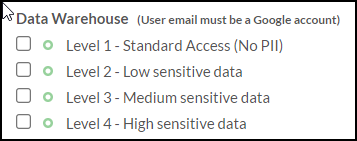
We recommend that you grant the minimum level of data access that is absolutely necessary for the individual user.
Google Project Location
For the location of your Data Warehouse (BigQuery) project in the Google Cloud navigate to:
Navigate to Configuration → Developer → Data Warehouse (BigQuery)
This page will provide you with the project URL, data set descriptions, etc.
Data Security
UltraCart utilizes Google Cloud IAM to limit access to the BigQuery project to only those users on the account that have been granted access to it. UltraCart also utilizes BigQuery column level security to restrict access to certain columns within various tables to specific levels of users. Whenever data is restricted, a SHA-256 hash of the value will be available in another column to be used in queries instead of the underlying PII data. Having this fine grained data access allows a business owner to provide limited access to the valuable corporate data without exposing customer lists, etc. We encourage owners to only grant the lowest level of access possible to achieve the necessary business result.
Data Sets & Streaming
Data warehouses rarely want to see data deleted, BigQuery is no exception, so a traditional strategy of inserts/deletes is not applicable with BigQuery. UltraCart streams the changes into BigQuery tables located in the ultracart_dw_streaming data set. Streaming allows for changes to appear within the data warehouse typically within less than 2 minutes.
Merchant’s should never attempt to query against the tables in the streaming data set. Streaming data sets contain one row per mutation of the object and will lead to unexpected results.
The other data sets are actually views that turn the streaming tables into a consistent snapshot of the data and also remove columns that are inaccessible due to data security at the column level.
| Data Set | Description | Security Level |
|---|---|---|
| ultracart_dw_linked | All the tables without any sensitive information. | Level 1 - Standard Access |
| ultracart_dw_linked_low | Affiliate information except tax id and software activation codes | Level 2 - Low |
| ultracart_dw_linked_medium | PII information for customers | Level 3 - Medium |
| ultracart_dw_linked_high | Tax IDs for affiliates and wholesale customers | Level 4 - High |
Accounts with the Zoho Desk integration connected also receive their support tickets in these data sets, in the uc_zoho_desk_tickets view. Ticket data behaves differently from the rest of the warehouse, particularly around custom fields and partitioning, so it has its own Zoho Desk Ticket Data Reference.
Custom Reports
If your business does not have the technical knowledge to work with SQL or report builder tools, UltraCart Professional Services is available to write custom reports and publish them into your UltraCart account. Please contact support@ultracart.com with your report inquiries.
If you would rather build them yourself and keep them in version control, AI Reporting with Claude Code covers the uc-bq command-line tool. It designs a report from a plain-language question, then replays it on a schedule with no AI cost.
Google BigQuery tutorials
To learn more about using Google BigQuery, please see the following:
FAQ
What is a data warehouse?
A data warehouse is an enterprise grade system that is used for reporting and data analysis and is a core component of business intelligence. Data warehouses are the central repositories where data from one or more different sources are brought together for analysis. Often times these data stores contain both current and historical copies of data.
What is a BigQuery?
BigQuery is an enterprise data warehouse that solves the problem of operating the data warehouse by enabling super-fast SQL queries using the processing power of Google's infrastructure. Simply move your data into BigQuery and let Google handle the hard work. You can control access to both the project and your data based on your business needs, such as giving others the ability to view or query your data.
How does this data warehouse work?
UltraCart tracks what changes are happening to your data and streams updates into different tables within BigQuery using secure communication with your Google cloud project.
What UltraCart plans support it?
All pricing plans have access to the data warehouse.
How often does data update?
The updates stream into the data warehouse with a 1-2 minute delay.
What data sets are supported?
Your data warehouse holds the following objects. Each one is a view with the same name in every
access level dataset (ultracart_dw, ultracart_dw_low, ultracart_dw_medium, and ultracart_dw_high).
- affiliate clicks (
uc_affiliate_clicks) - affiliate commission groups (
uc_affiliate_commission_groups) - affiliate ledgers (
uc_affiliate_ledgers) - affiliate network pixel postback logs (
uc_affiliate_network_pixel_postback_logs) - affiliate network pixels (
uc_affiliate_network_pixels) - affiliate payments (
uc_affiliate_payments) - affiliate postback logs (
uc_affiliate_postback_logs) - affiliates (
uc_affiliates) - analytics sessions (
uc_analytics_sessions) - auto orders (
uc_auto_orders) - cart abandons (
uc_cart_abandons) - conversation PBX calls (
uc_conversation_pbx_calls) - conversations (
uc_conversations) - coupons (
uc_coupons) - customers (
uc_customers) - fraud rules (
uc_fraud_rules) - gift certificates (
uc_gift_certificates) - integration logs (
uc_integration_logs) - item inventory history (
uc_item_inventory_history) - items (
uc_items) - orders (
uc_orders) - rotating transaction gateway history (
uc_rotating_transaction_gateway_history) - rotating transaction gateways (
uc_rotating_transaction_gateways) - screen recording heatmap data (
uc_screen_recording_heatmap_data) - screen recordings (
uc_screen_recordings) - shipping methods (
uc_shipping_methods) - smart attributions (
uc_smart_attributions) - Soraco QLM customers (
uc_soraco_qlm_customers) - Soraco QLM licenses (
uc_soraco_qlm_licenses) - storefront blog posts (
uc_storefront_blog_posts) - storefront customer emails (
uc_storefront_customer_emails) - storefront customer lists (
uc_storefront_customer_lists) - storefront customer segments (
uc_storefront_customer_segments) - storefront customer sessions (
uc_storefront_customer_sessions) - storefront customers (
uc_storefront_customers) - storefront experiments (
uc_storefront_experiments) - storefront pages (
uc_storefront_pages) - storefront traffic logs (
uc_storefront_traffic_logs) - storefront upsell offer events (
uc_storefront_upsell_offer_events) - storefront upsell offers (
uc_storefront_upsell_offers) - storefront upsell paths (
uc_storefront_upsell_paths) - storefronts (
uc_storefronts) - surveys (
uc_surveys) - TowerData email intelligence (
uc_towerdata_email_intelligence) - workflow tasks (
uc_workflow_tasks) - Zoho Desk tickets (
uc_zoho_desk_tickets)
What is the data model?
Each record within the BigQuery table is a hierarchy object that is provided to BigQuery as JSON data. It is almost identical to the REST API object model with a few difference covered below.
How does the data model different from the REST API?
All of the date time values on the records stored in BigQuery are in UTC. This differs from the typical EST that UltraCart runs in. The other change is that String[] type values have to be further nested to accommodate the way BigQuery loads data in.
What tools can connect to BigQuery?
There are a large variety of tools that can talk to BigQuery including:
-
SDKs in almost every popular language
-
Google Sheets
-
Google Data Studio
-
Microsoft PowerBI
-
Tableau
-
Qlik
-
Looker
Almost every popular analysis tool out there will have a connection to BigQuery.
What query language does BigQuery support?
BigQuery works with SQL as it’s query language. Documentation on their syntax is located here.
How does this data format differ from a traditional SQL database?
Traditional SQL databases do not operate on nested data within each row of the database. BigQuery fully supports nested hierarchical data within the table schema. If you’re used to SQL, but new to BigQuery make sure to look at the UNNEST function.
What use cases can a business solve with a data warehouse?
-
Build complex custom reports based upon your order data.
-
Aggregation of order data from linked accounts into a single database table.
-
Scheduled reports (using Google Data Studio)
-
Company dashboards (using Google Data Studio)
-
and more…
Are linked accounts supported?
Yes, the parent account will contain separate data sets which encompass all the data across all the linked accounts.
Can I join data within the UltraCart BigQuery project with another BigQuery project?
As long as your user has permission to the data within both projects, you can write a query that references the UltraCart hosted tables along side of your own project’s data. This authentication schema and capability is what makes BigQuery incredibly powerful!
This works no matter who runs the query, but what you grant differs. When you run the query — in the BigQuery console, Looker, or the Claude Code uc-bq skill — your own Google account only needs access to both projects. When you want UltraCart’s in-app AI Report Builder to reach your external data, the query runs on UltraCart’s servers under UltraCart’s service accounts, so you grant those accounts read access to your project instead. See Joining UltraCart Data with Your Own External BigQuery Datasets for both paths.
What other data sets can you put in BigQuery to join up?
Common data sets that people drive into their BigQuery databases are:
-
Google Adwords spend
-
Facebook spend
What happens as the data model evolves?
If we add new fields to the data model which would change the schema, UltraCart will automatically recreate your BigQuery table instead of just performing an update.
What about other data warehouse software other than BigQuery?
At this time the data warehouse functionality is limited to BigQuery. If in the future another popular cloud native data warehouse software comes along we will consider an integration with it.
Enhancing Tables with Views
One of the powerful mechanisms of BigQuery is the ability to create a view. A view is a query of an existing table that then acts like a new table for the purposes of querying data. This is a powerful concept and one that everyone should learn. Views are not copies of your data so they are as live and reactive to changes as the base table.
There are two scenarios that you want to use a view for:
-
Flatten down the complex data into a simpler form for the purposes of reporting on in tools like Google Data Studio of Power BI.
-
Adding additional calculations into the base table for further analysis.
A view recalculates every time it is queried. When many reports or a semantic layer read the same flattened order data, Flatten Order Data into Your Own BigQuery Tables shows how to keep flat tables in your own Google Cloud project, refreshed on a schedule that reloads only the orders that changed.
What 3rd Party Tools Are Merchants Using with BigQuery
These are some of the tools that we know merchants are using with BigQuery:
-
Google Data Studio - reporting
-
Microsoft Power BI - reporting
-
DBT - modeling
-
Make.com - ETL/integration
-
Hightouch - ETL/integration
-
Funnel - bring data into BigQuery
-
Looker - reporting
We find that almost all tools in the data warehouse / CDP / reporting space will talk to BigQuery.
Configuring a User to Run Queries Programmatically
In order to run queries programmatically:
-
Create your own Google project
-
Create a service account user within that project
-
Take the email for the service account user and add a user to UltraCart with that email, and select the appropriate data warehouse permissions in the user editor.
Once you have completed those steps. within 5 minutes the system should provision the new user with access to the UC hosted BigQuery project.
If your developers work in Node.js, the @ultracart/bigquery-sdk package runs these queries and returns the same UltraCart SDK objects the REST API produces, such as Order and Customer. See BigQuery Data Warehouse SDK in the developer documentation.
Joining UltraCart Data with Your Own External BigQuery Datasets
You can join your UltraCart data warehouse tables with data you keep in your own BigQuery project — advertising spend, a DBT warehouse, marketing data from Funnel.io, or any other dataset. What you need to grant depends on who runs the query:
| How you query | Runs as | What to grant |
|---|---|---|
| BigQuery console, Looker, Power BI, or another tool you sign into | Your own Google account | Your account needs access to both projects. The account owner grants your UltraCart data access on the User Configuration Screen; access to your own external project is yours to manage in Google Cloud. |
The local Claude Code uc-bq skill | Your own Google account | Register the external project with uc-bq config. See Join UltraCart Data with External BigQuery Projects. |
| UltraCart’s in-app AI-Powered Report Builder | UltraCart’s service accounts | Grant those service accounts read access to your project (below). |
Granting the AI Report Builder access to your external data
The in-app AI Report Builder runs on UltraCart’s servers under a set of Google Cloud service accounts provisioned for your account. For it to read a dataset in your own BigQuery project, grant those service accounts read access:
-
Find your data warehouse project. Navigate to Configuration → Developer → Data Warehouse (BigQuery). Your project ID follows the pattern
ultracart-dw-{merchantid}, where{merchantid}is your UltraCart merchant ID in lowercase. -
In the Google Cloud console, open IAM & Admin → IAM on the project (or the specific dataset) that holds your external data, and grant the role BigQuery Data Viewer (
roles/bigquery.dataViewer) to the UltraCart service accounts listed below. -
Reference the external tables by their fully-qualified name (
`project.dataset.table`) in your report prompt or SQL. The AI Report Builder can then join them against your UltraCart tables in a single query.
Grant all four service accounts. Each one corresponds to one of the data-warehouse access levels (Level 1 – Standard through Level 4 – High), so granting all four lets the report builder read your external data at whatever level a given report runs:
| Service account | Data-warehouse level |
|---|---|
ultracart-dw-{merchantid}-sa-high@ultracart-dw-{merchantid}.iam.gserviceaccount.com | Level 4 – High |
ultracart-dw-{merchantid}-sa-medium@ultracart-dw-{merchantid}.iam.gserviceaccount.com | Level 3 – Medium |
ultracart-dw-{merchantid}-sa-low@ultracart-dw-{merchantid}.iam.gserviceaccount.com | Level 2 – Low |
ultracart-dw-{merchantid}-sa@ultracart-dw-{merchantid}.iam.gserviceaccount.com | Level 1 – Standard |
Note: Grant BigQuery Data Viewer only — the service accounts need read access, not write. Google bills the cost of any query against your external data to whichever project runs the job, the same as your existing UltraCart data warehouse usage.
Sample Queries
The BigQuery sample query library holds 55 ready-to-run queries for your data warehouse, grouped into nine pages by subject:
| Page | What it covers |
|---|---|
| Order and Revenue Queries | Revenue per item, coupon usage, wallet payments, custom field lookups, time zone conversion, replacement shipments |
| Auto Order Queries | Rebill schedules, pre-shipment notice problems, future shipment projections, lifetime value, credit card versus PayPal |
| Cohort and Churn Queries | Weekly and monthly cohorts, churn overall and by item, cohort revenue and retention pivots |
| Combined Auto Order Cohort Analysis | One query that produces six cohort reports, by primary item or by rebill interval |
| Customer, LTV, and Loyalty Queries | Lifetime value, new and repeat customer rates, wholesale LTV, loyalty and store credit balances |
| Affiliate, UTM, and Analytics Queries | Affiliate metrics, click-to-order conversion, UTM revenue, weighted attribution, session funnels |
| StoreFront and Upsell Queries | Upsell path and offer inventories, upsell performance, experiment statistics |
| Item and Inventory Queries | Monthly inventory value, the SKU each warehouse receives, item-to-StoreFront assignments |
| Project Administration Queries | Table sizes, and the queries costing you the most |
All 55 are listed by name on the library index, which also explains the project and dataset placeholders the examples use and how the dataset you query decides what data you can see.
If you would rather not write SQL at all, the AI-Powered Report Builder builds custom reports from plain English questions.