Introduction
This tutorial will walk you through the process of creating a Google Sheet which extracts data from BigQuery in an automated way.
Pre-requisites
Before you get started, this tutorial requires that your Google Workspace be Enterprise level or higher in order to access the connected sheets functionality.
Connecting to BigQuery
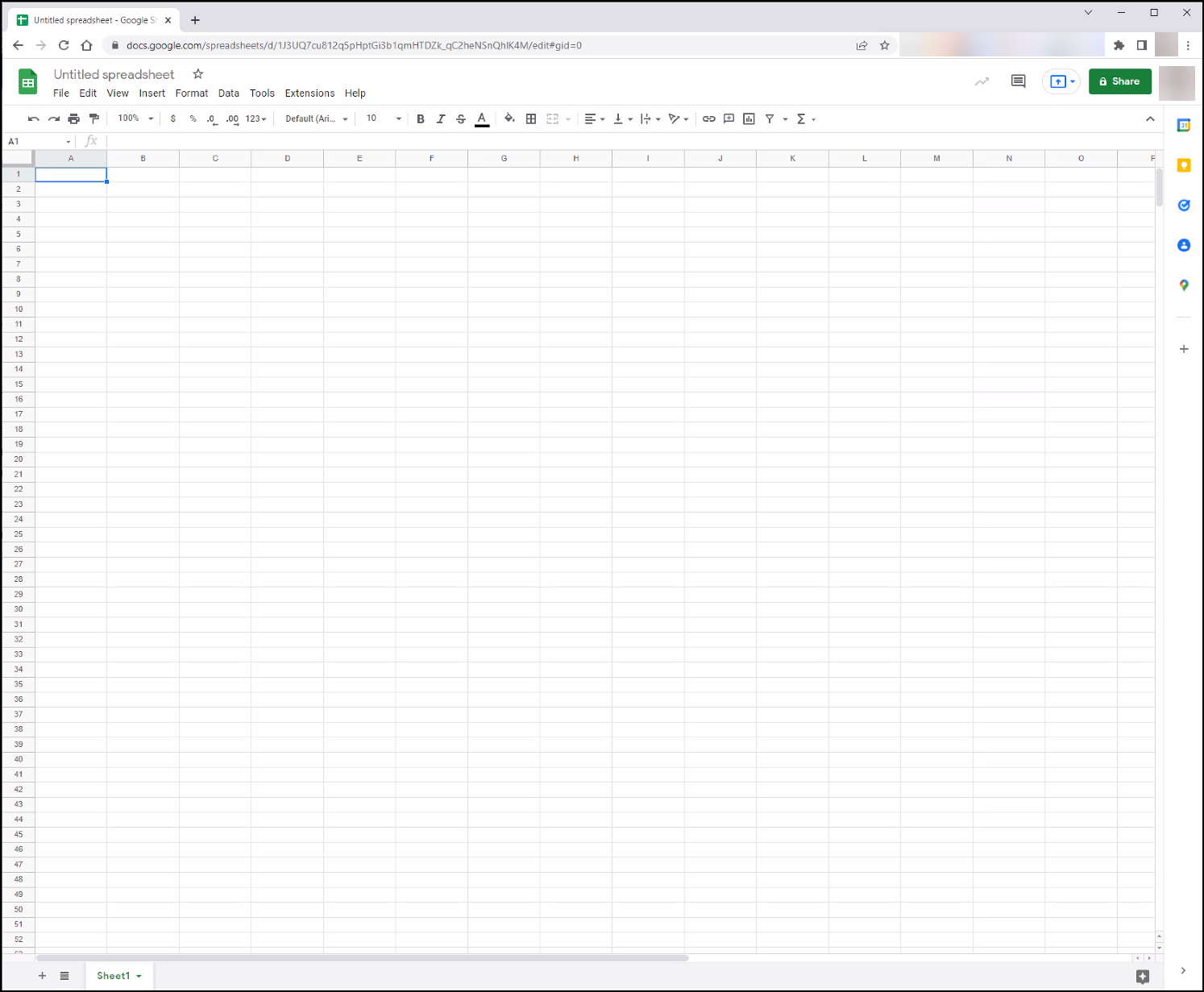
Open your new google sheet.
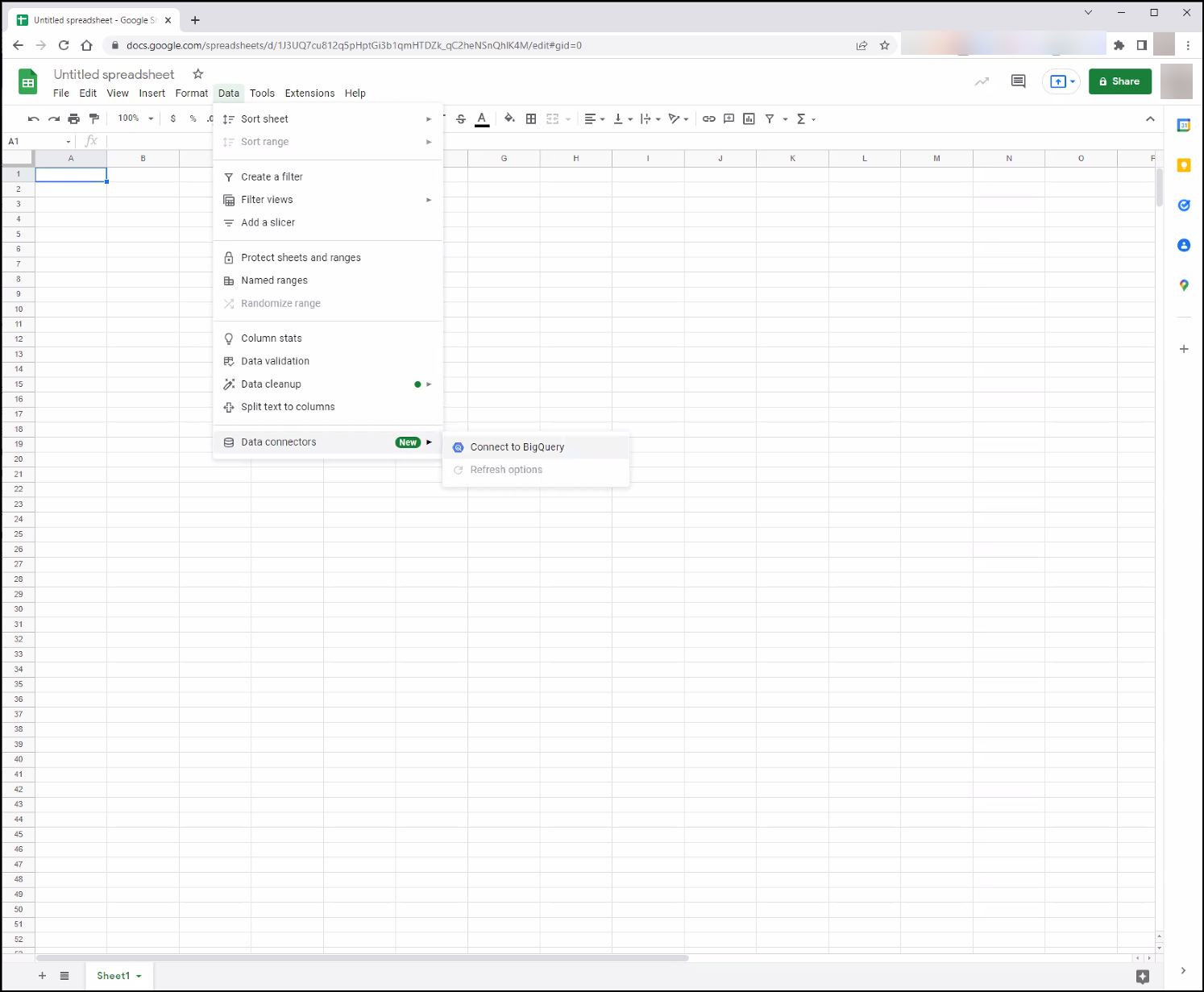
On the menu navigate to Data → Data connectors → Connect to BigQuery
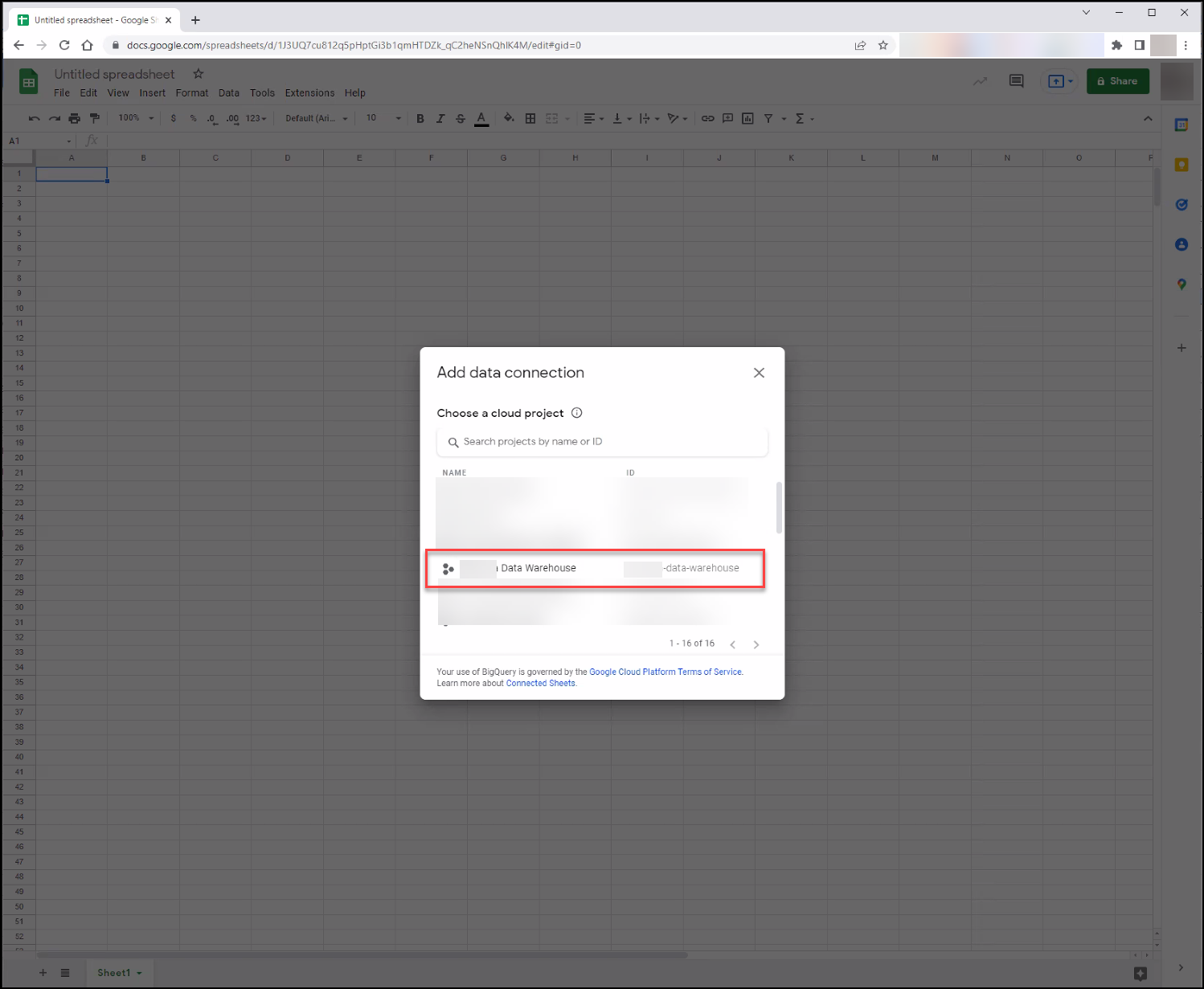
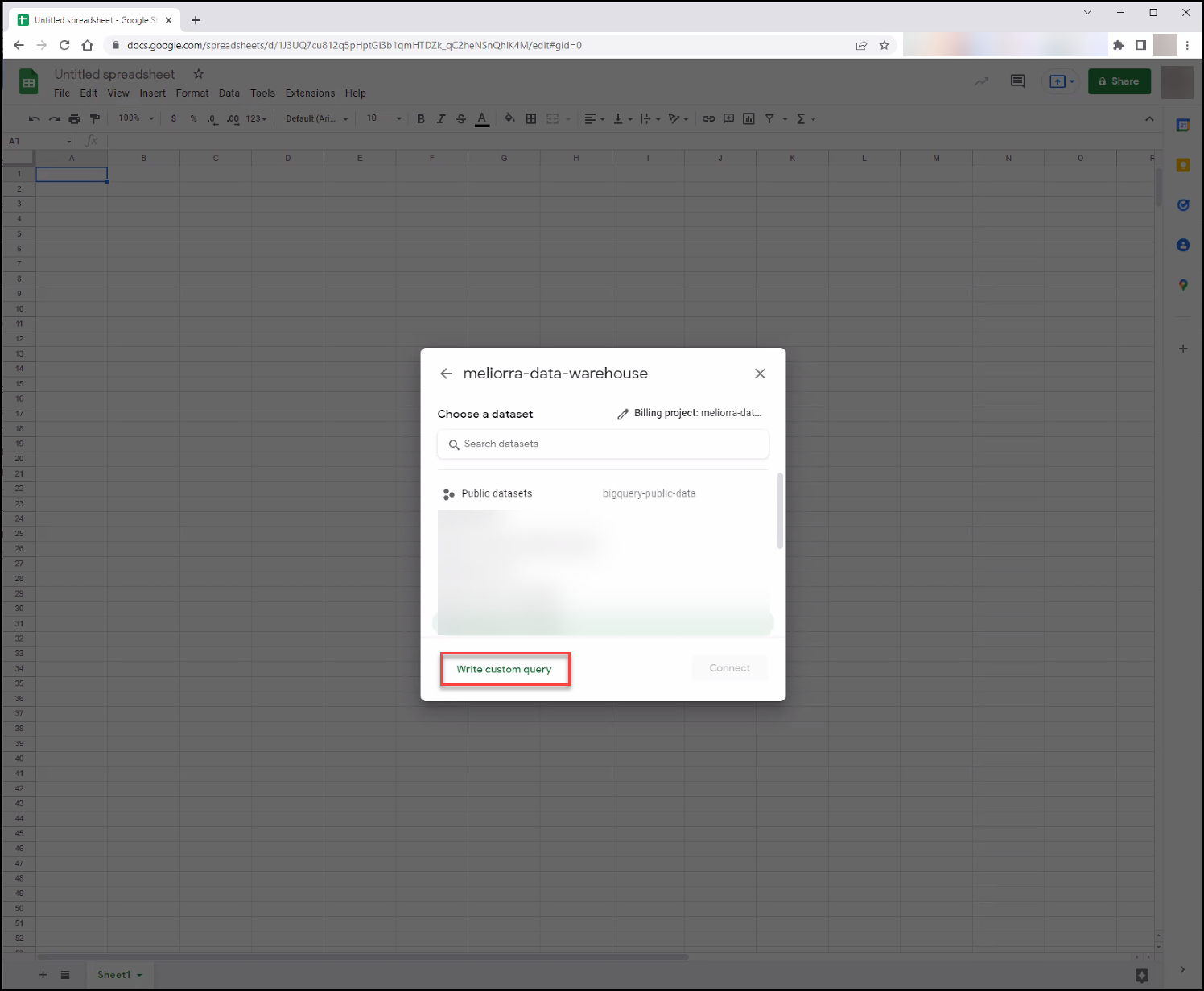
Select one of the Google Cloud projects that you have access to which contains BigQuery data.
Click on “Write custom query”
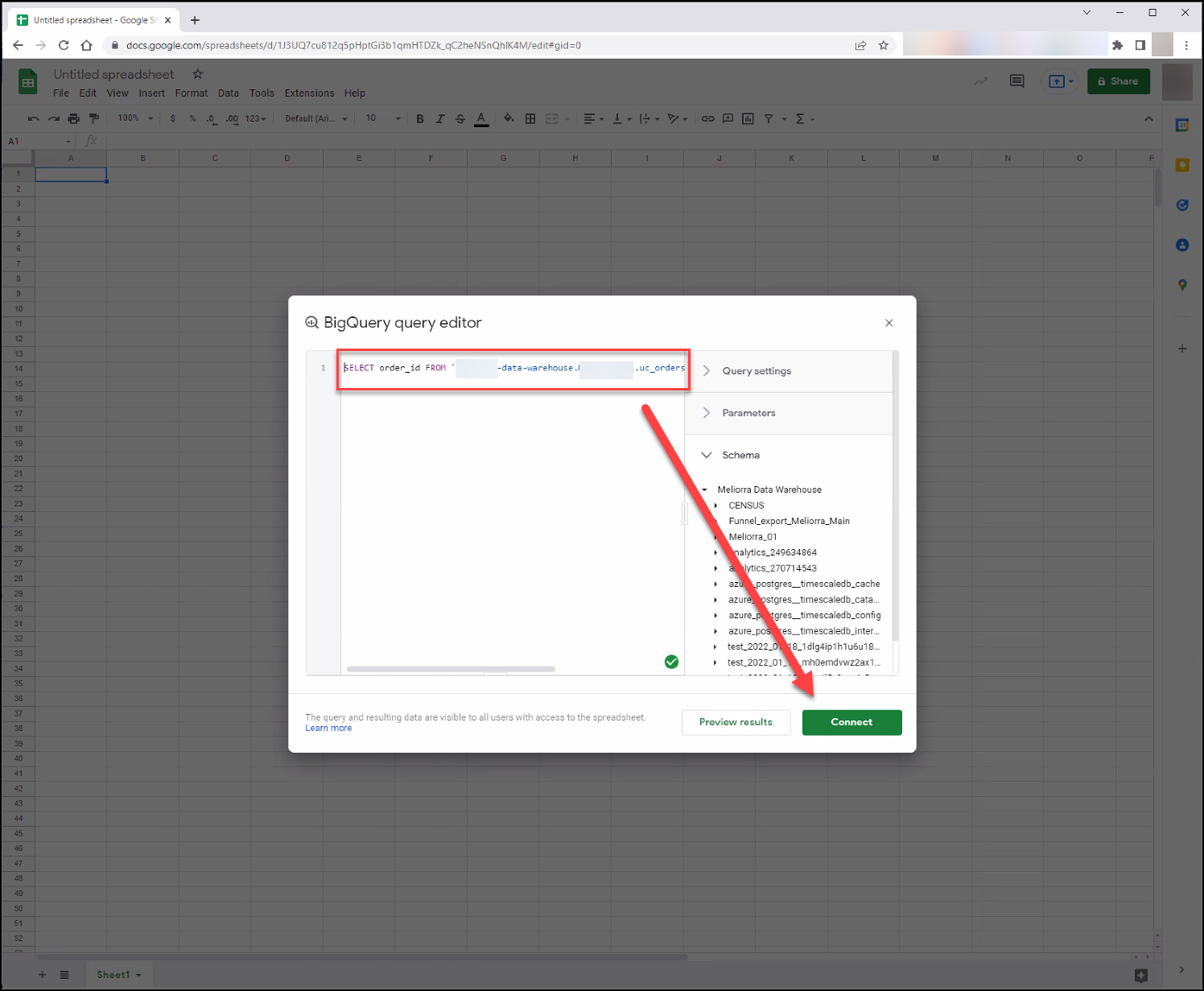
Paste the SQL that you want to run into the window then click on Connect.
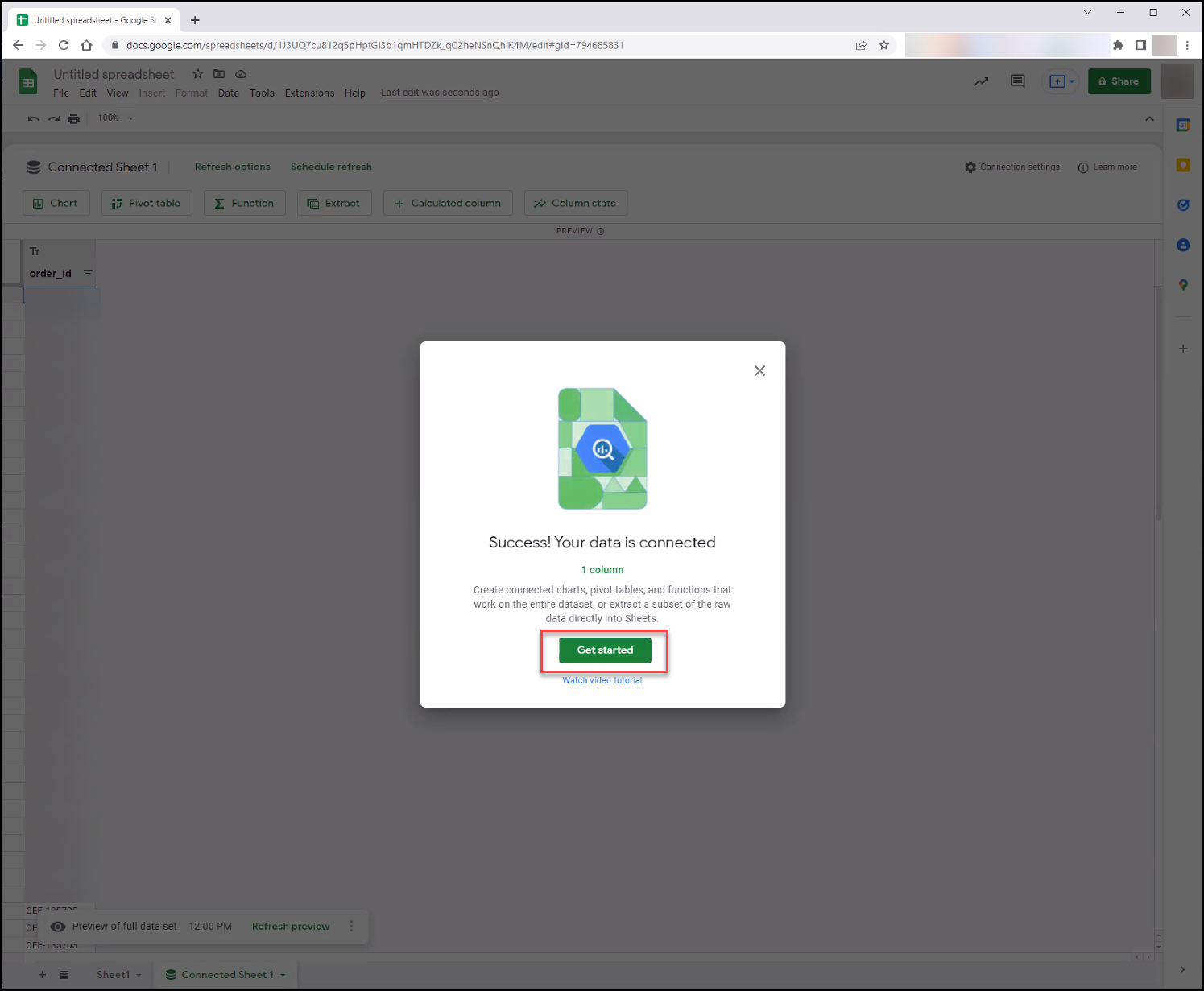
After the connection is successful, click on Get Started.
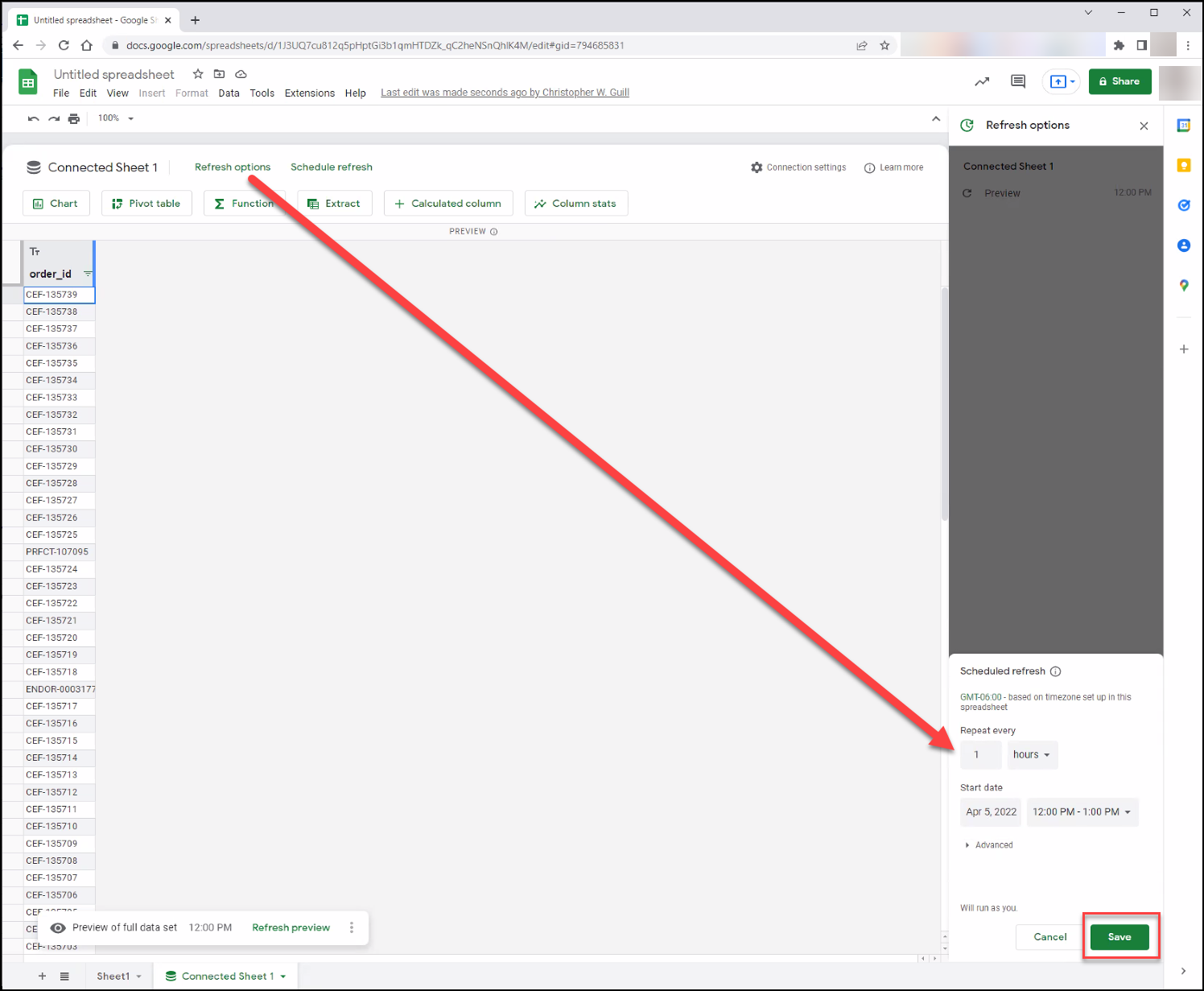
Next click on Refresh options, select the frequency, and then click on Save.
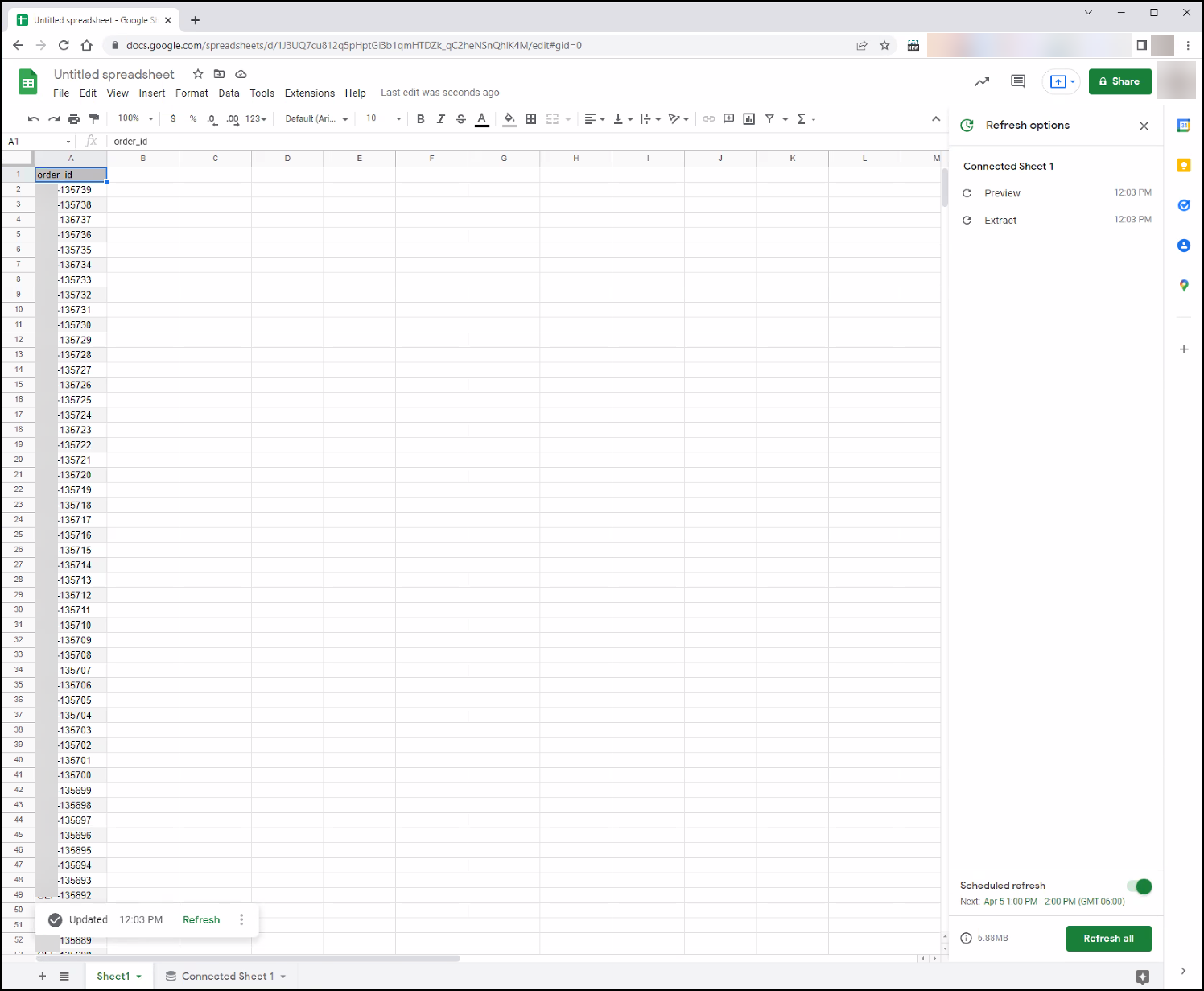
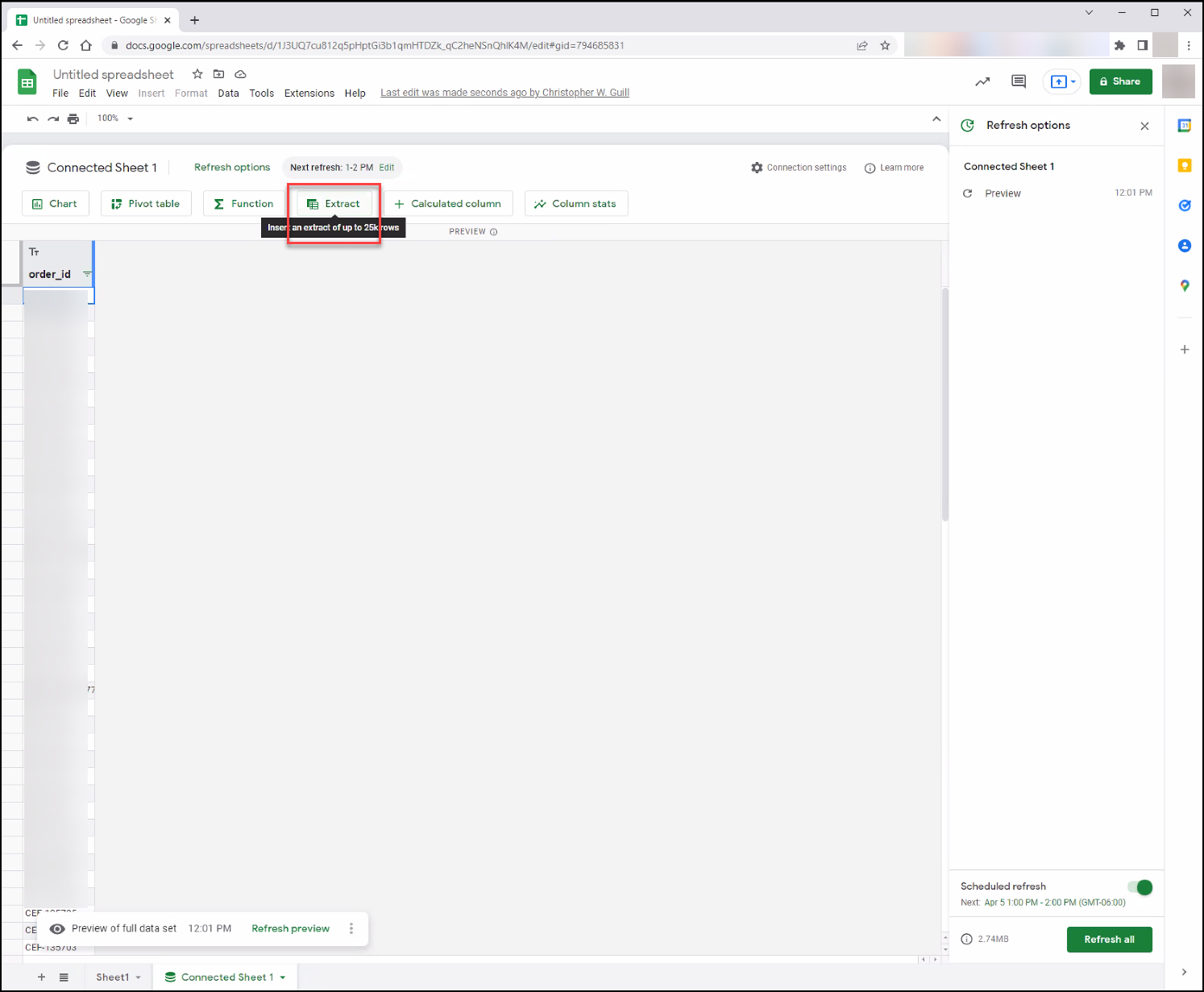
The data will load on the sheet. Next let’s extract this data into another sheet. Click on the Extract button.
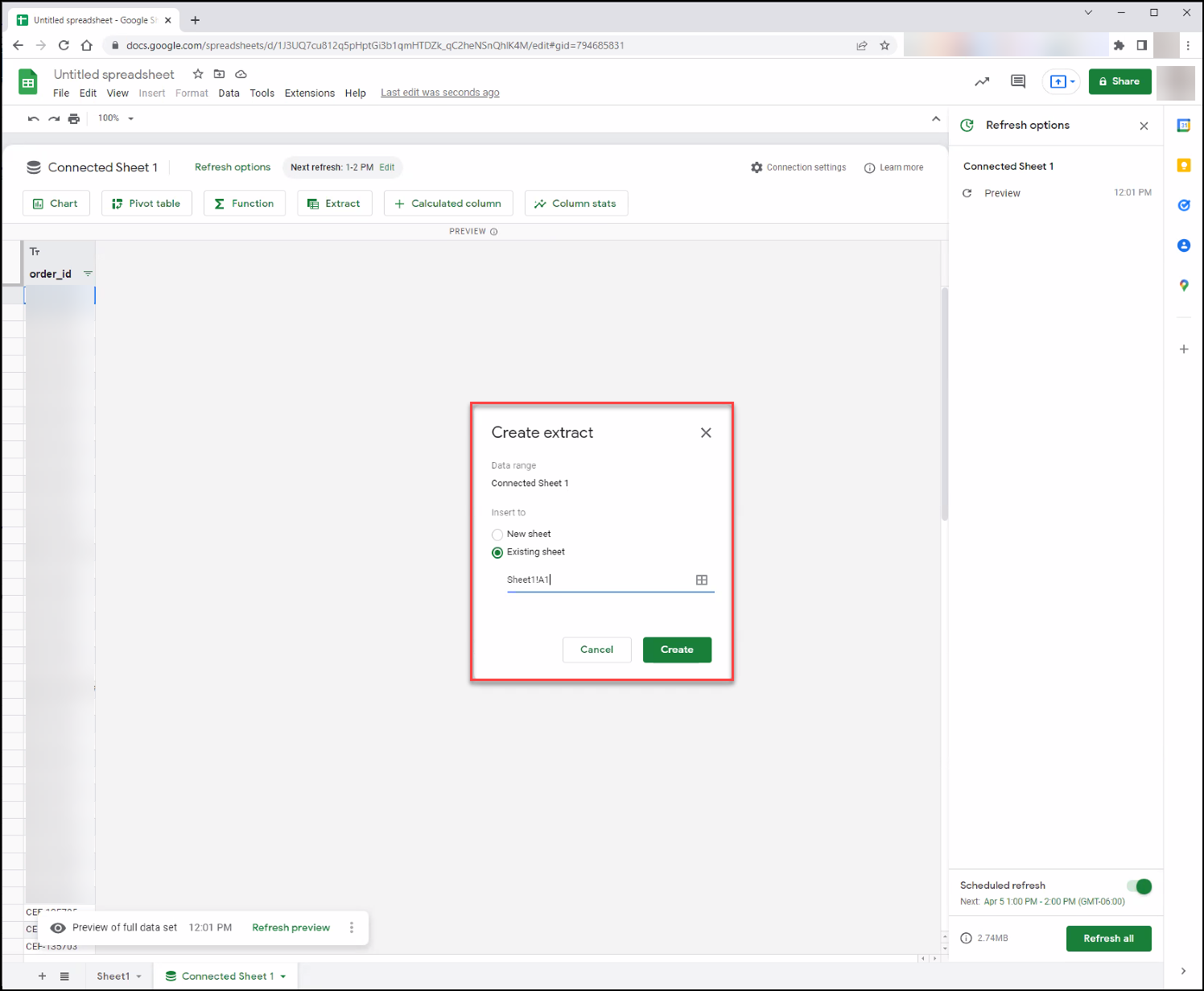
Type in the location of the other sheet that you want to extract to. In this example we’re using Sheet1!A1
Now on that sheet hit the Apply button.
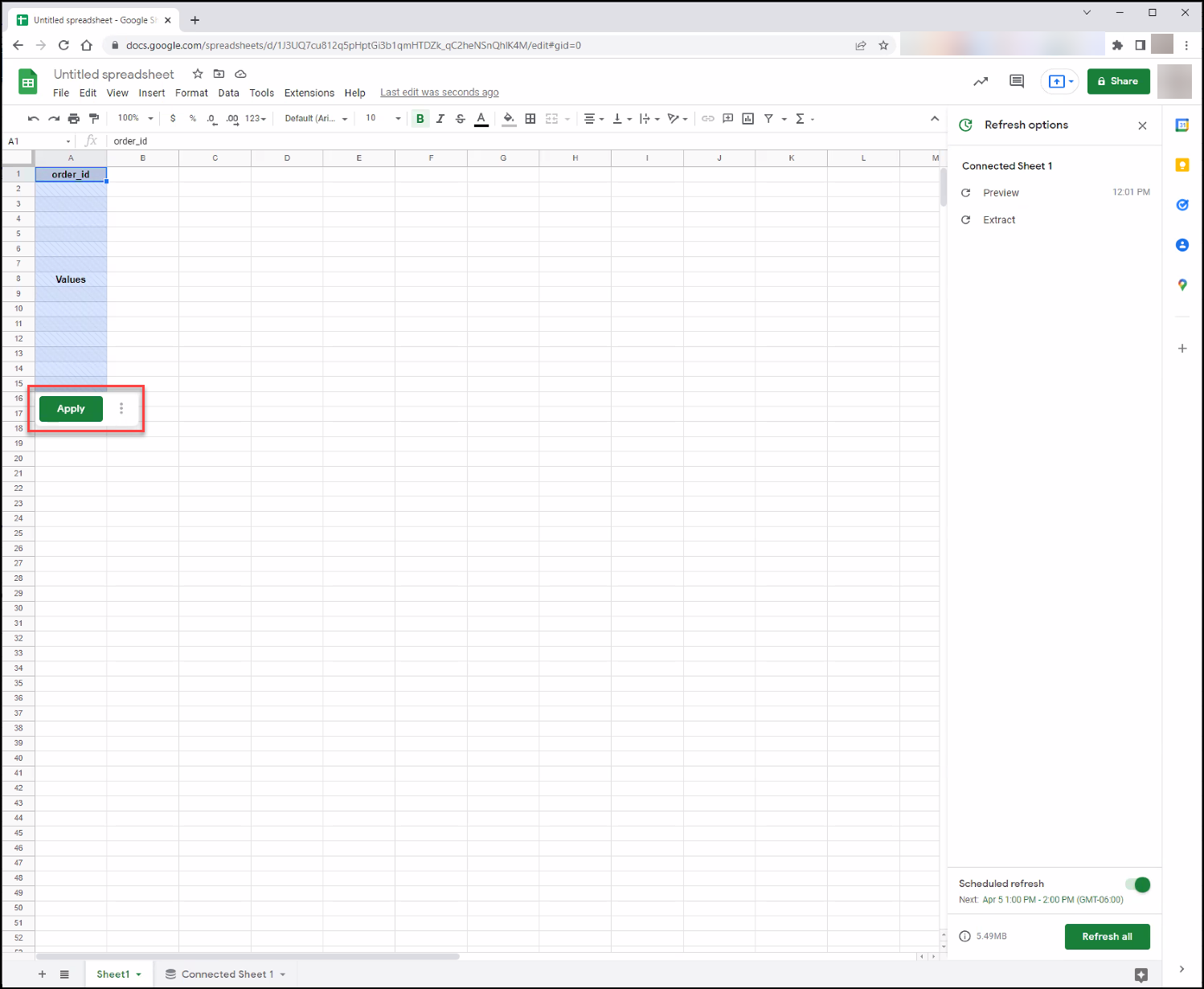
The data will now display on the sheet. You can force a manual refresh by clicking the refresh button.