Data Warehouse (BigQuery) to Google Sheets
Overview
This tutorial builds a Google Sheet that runs a SQL query against your UltraCart Data Warehouse (BigQuery), refreshes itself on a schedule, and drops the results into a sheet you can chart, pivot, and share.
The feature that makes this work is Connected Sheets, Google's built-in BigQuery connector for Google Sheets. A connected sheet holds a live link to BigQuery rather than a copy of the data: Google runs your query against the warehouse when you refresh it, so the numbers stay current without anyone exporting a CSV.
You will:
- Point a new sheet at your UltraCart data warehouse project
- Run a custom SQL query against your order data
- Set the sheet to refresh on a schedule
- Extract the query results into a normal sheet for charts and formulas
What you need
Three things: a Google account, data warehouse access on that account, and your data warehouse project ID. No particular Google Workspace plan is required.
- A Google account. Any Google Workspace edition works, and so does a personal Google account (
@gmail.com). - Data warehouse access granted to that same Google account. The owner of the UltraCart account grants it under Configuration → Account & Users → Users, and the email on the UltraCart user must be the Google account email you sign into Sheets with. See Providing Users Access to the Data Warehouse for the permission levels. Access takes up to about 5 minutes to provision.
- Your data warehouse project ID. Navigate to Configuration → Developer → Data Warehouse (BigQuery) in UltraCart. The project ID follows the pattern
ultracart-dw-{merchantid}, where{merchantid}is your merchant ID in lowercase.
Connected Sheets required a G Suite / Google Workspace Enterprise edition when it launched in 2020, and earlier versions of this tutorial said so. Google removed that restriction: Connected Sheets for BigQuery is available to all Google Workspace customers and to users with personal Google accounts. Everything in this tutorial works on any plan.
Two edition-related caveats remain, and neither blocks the steps below:
- A Google Workspace administrator can turn Connected Sheets off for an organization (admin documentation). If the menu item is missing, this is the first thing to check.
- Delegated access — letting collaborators refresh a sheet using your BigQuery credentials instead of their own — is still limited to Enterprise Standard and Enterprise Plus, Education Standard and Education Plus, and Enterprise Essentials and Enterprise Essentials Plus. See Sharing the sheet with your team.
Connect the sheet to BigQuery
Open a new Google Sheet.
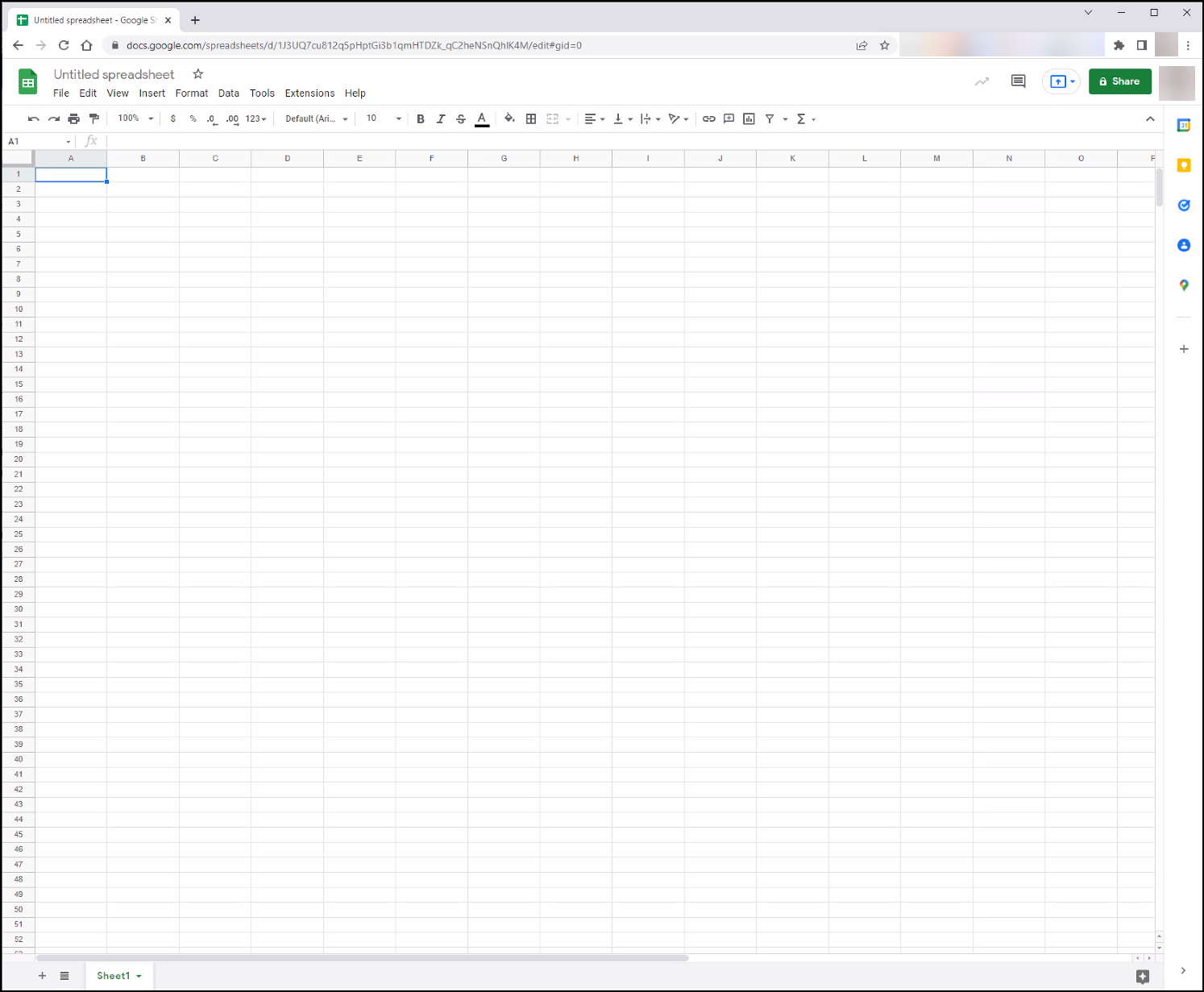
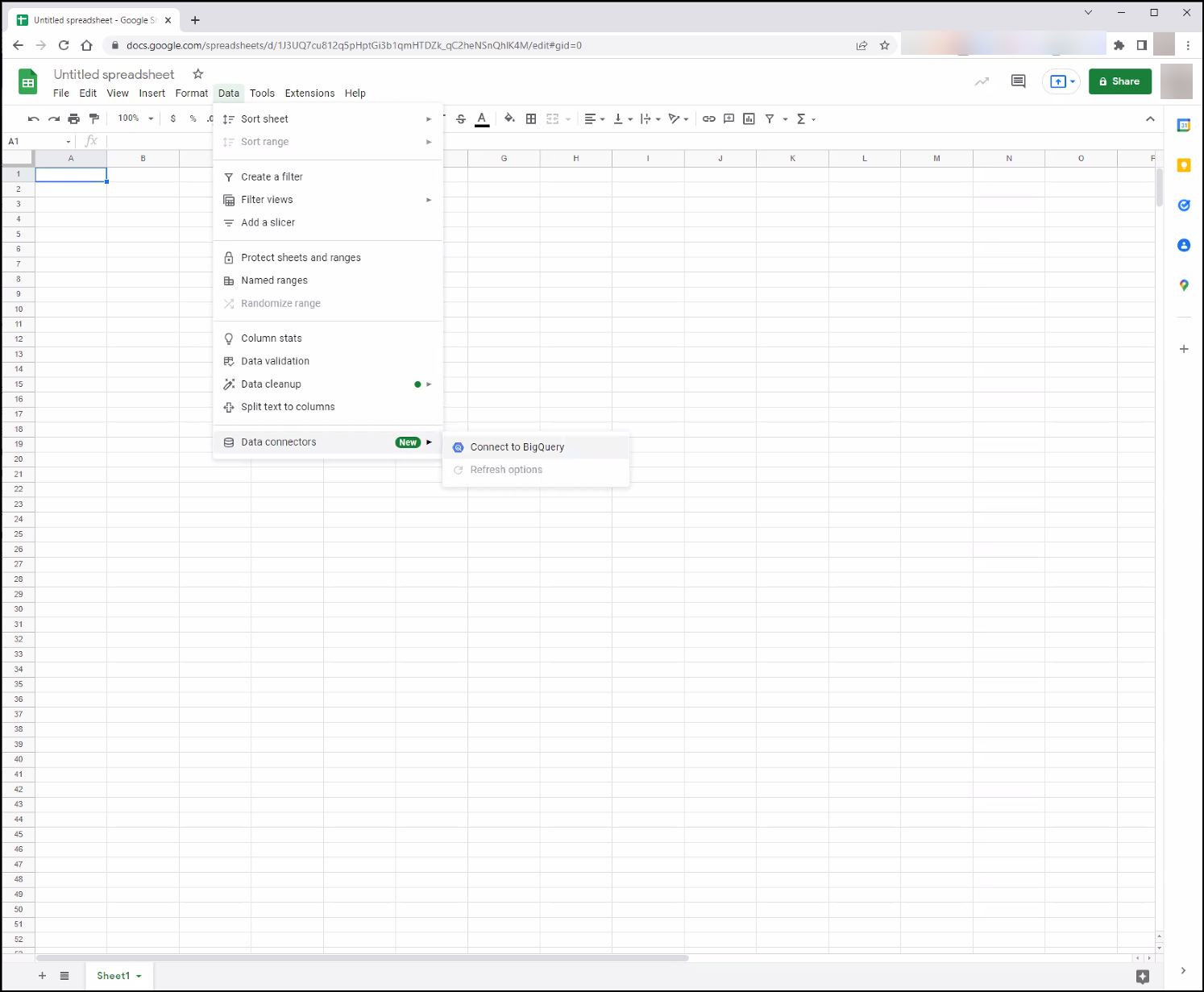
On the menu navigate to Data → Data connectors → Connect to BigQuery.
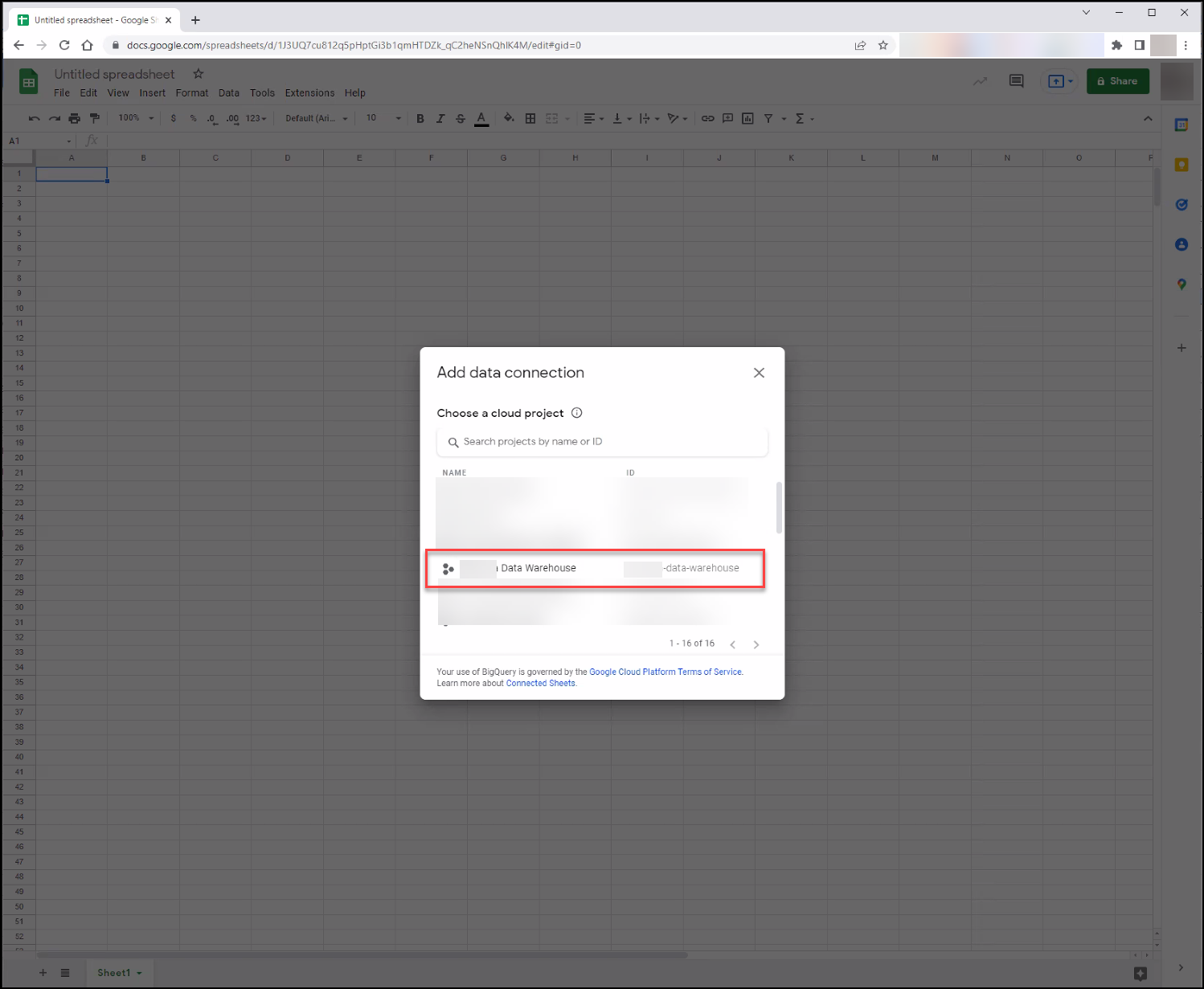
Select the Google Cloud project that holds your UltraCart data warehouse — ultracart-dw-{merchantid}. If you do not see it, your Google account has not been granted data warehouse access yet.
You can now either pick a table or view directly, or write your own SQL. Choosing a table pulls that whole table into the connection, which is rarely what you want for orders; a custom query lets you filter and aggregate in BigQuery so the sheet only handles the summarized rows.
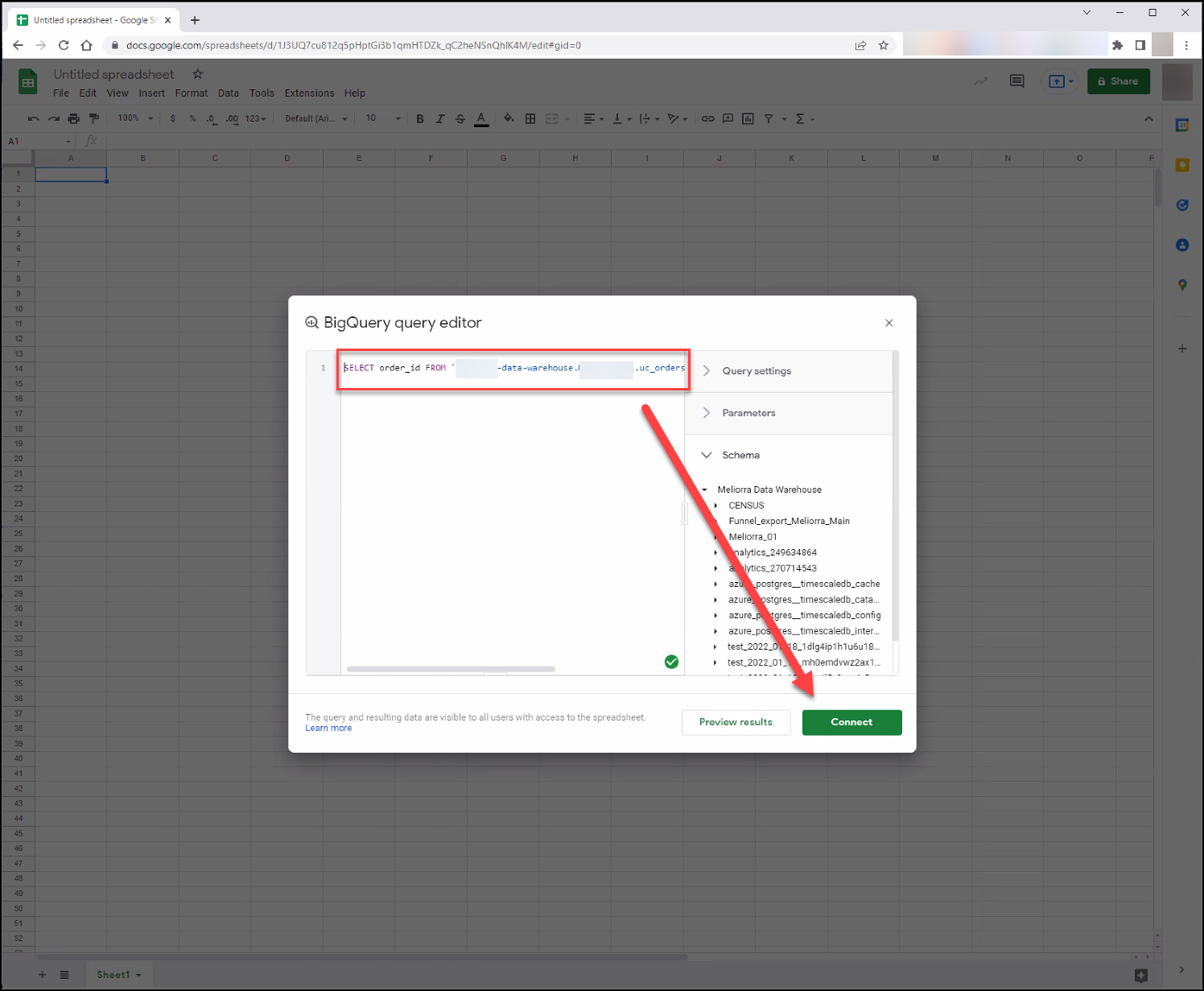
To write SQL, click Saved queries and query editor.
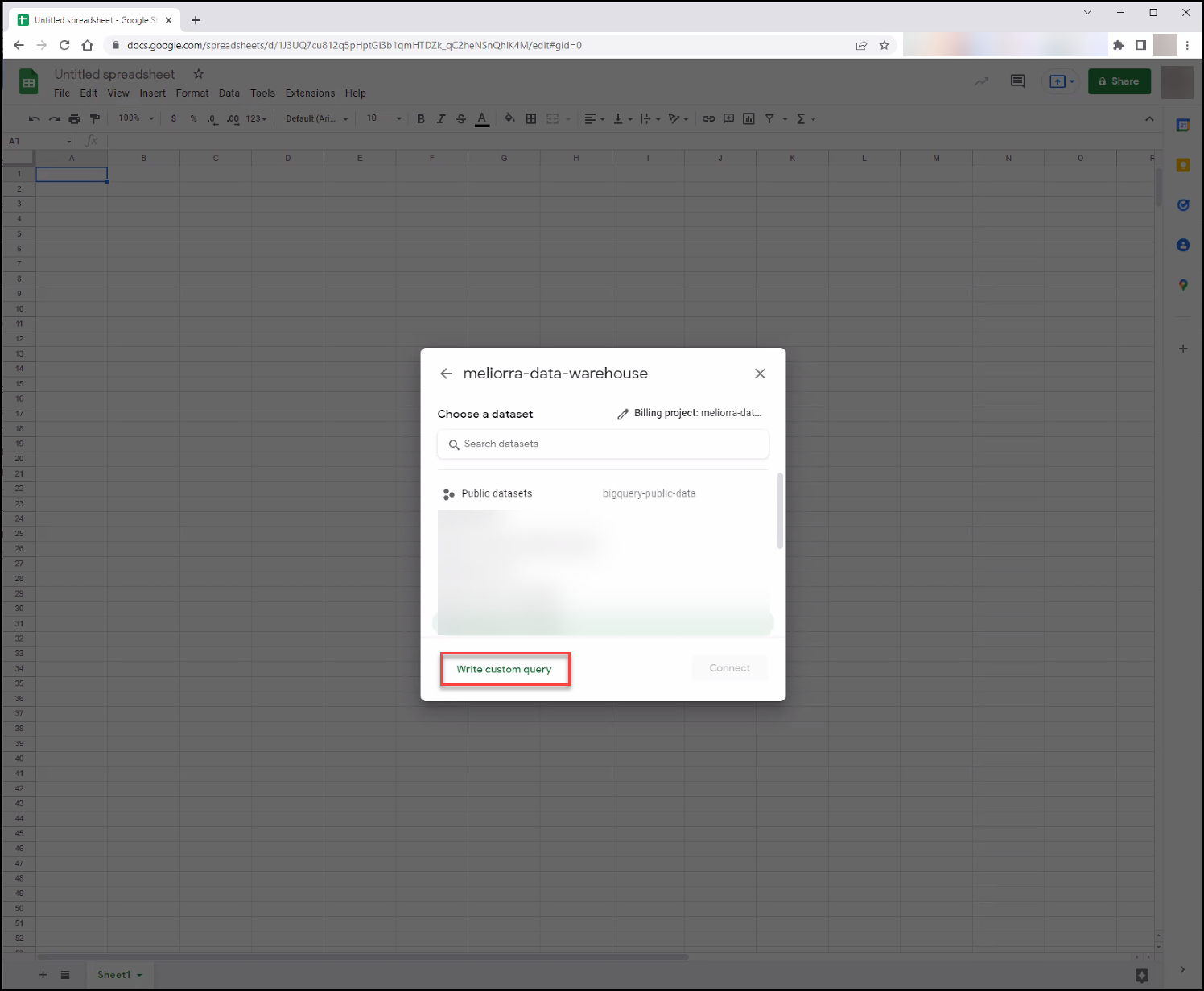
Google renamed this button. Older UI — including the screenshot above — labels it Write custom query; current UI labels it Saved queries and query editor, and the same screen also lists queries you have saved in BigQuery.
Paste the SQL you want to run, then insert the results. The query below returns the last 30 days of orders grouped by date; replace {merchantid} with your merchant ID, and confirm the dataset name on the Configuration → Developer → Data Warehouse (BigQuery) page.
SELECT
  DATE(TIMESTAMP(creation_dts), "America/New_York") AS order_date,
  COUNT(*) AS order_count,
  ROUND(SUM(summary.total.value), 2) AS revenue
FROM `ultracart-dw-{merchantid}.ultracart_dw.uc_orders`
WHERE creation_dts >= DATETIME_SUB(CURRENT_DATETIME(), INTERVAL 30 DAY)
GROUP BY order_date
ORDER BY order_date DESC
Which dataset you query depends on the columns you need: ultracart_dw holds everything without sensitive information, and ultracart_dw_low, ultracart_dw_medium, and ultracart_dw_high add data at each higher permission level. A parent account that aggregates linked accounts also gets ultracart_dw_linked variants covering every child account. See Data Sets & Streaming.
Before you insert, click Preview results at the bottom right of the editor to see how much data the query scans — that number is what you are billed on. Then insert the results into the sheet.
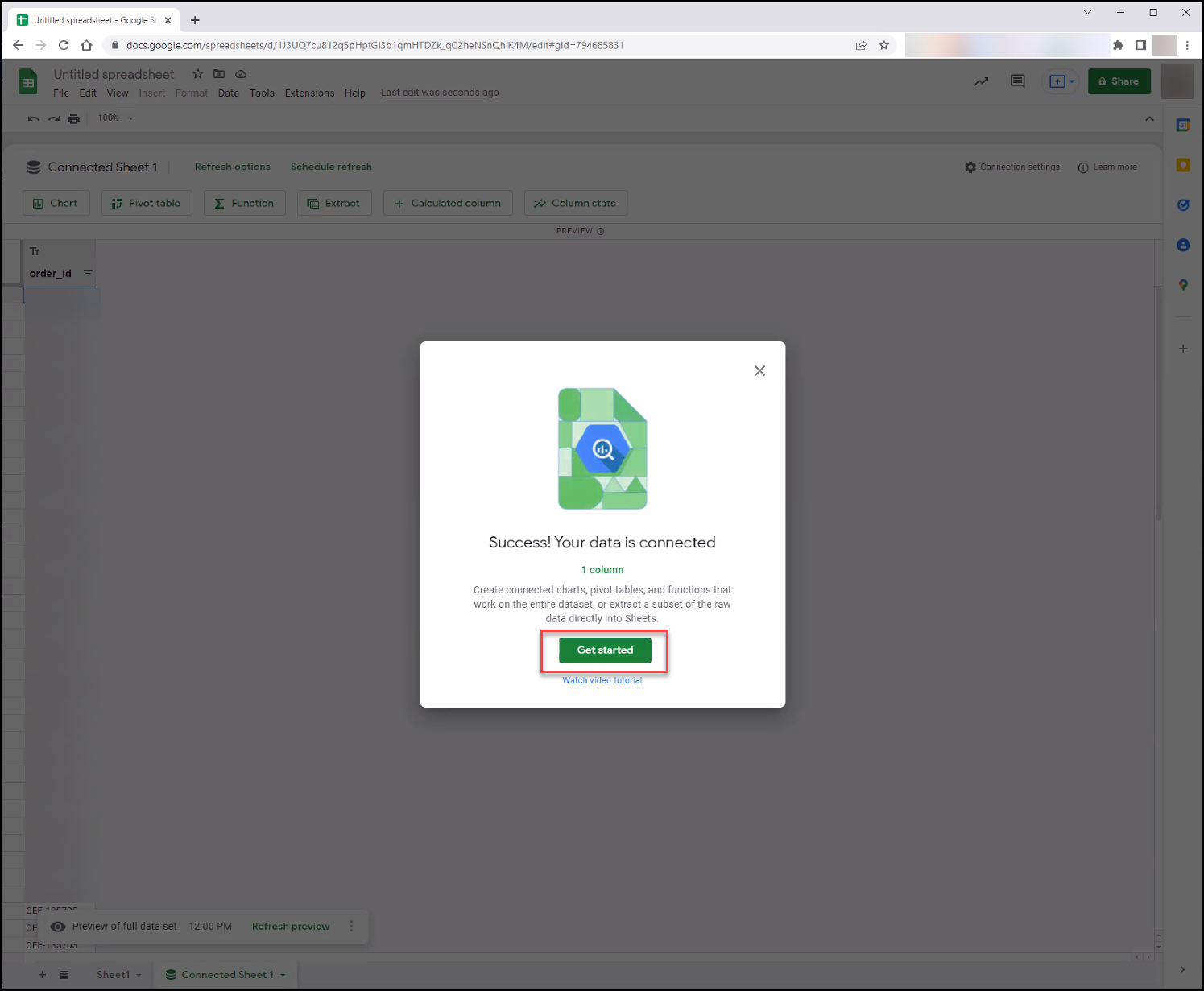
After the connection succeeds, click Get started.
The sheet now shows a preview of the first 500 rows. That is a display limit, not a data limit — pivot tables, charts, and formulas built on the connection run against the full result set in BigQuery.
Query the ultracart_dw datasets, never the ultracart_dw_streaming dataset. Streaming tables contain one row per change to an object, so they produce duplicated and misleading results. See Data Sets & Streaming.
Schedule automatic refreshes
Click Refresh options, select a frequency under Scheduled refresh, and click Save. Google then re-runs the query on that schedule and updates the sheet, whether or not anyone has it open.
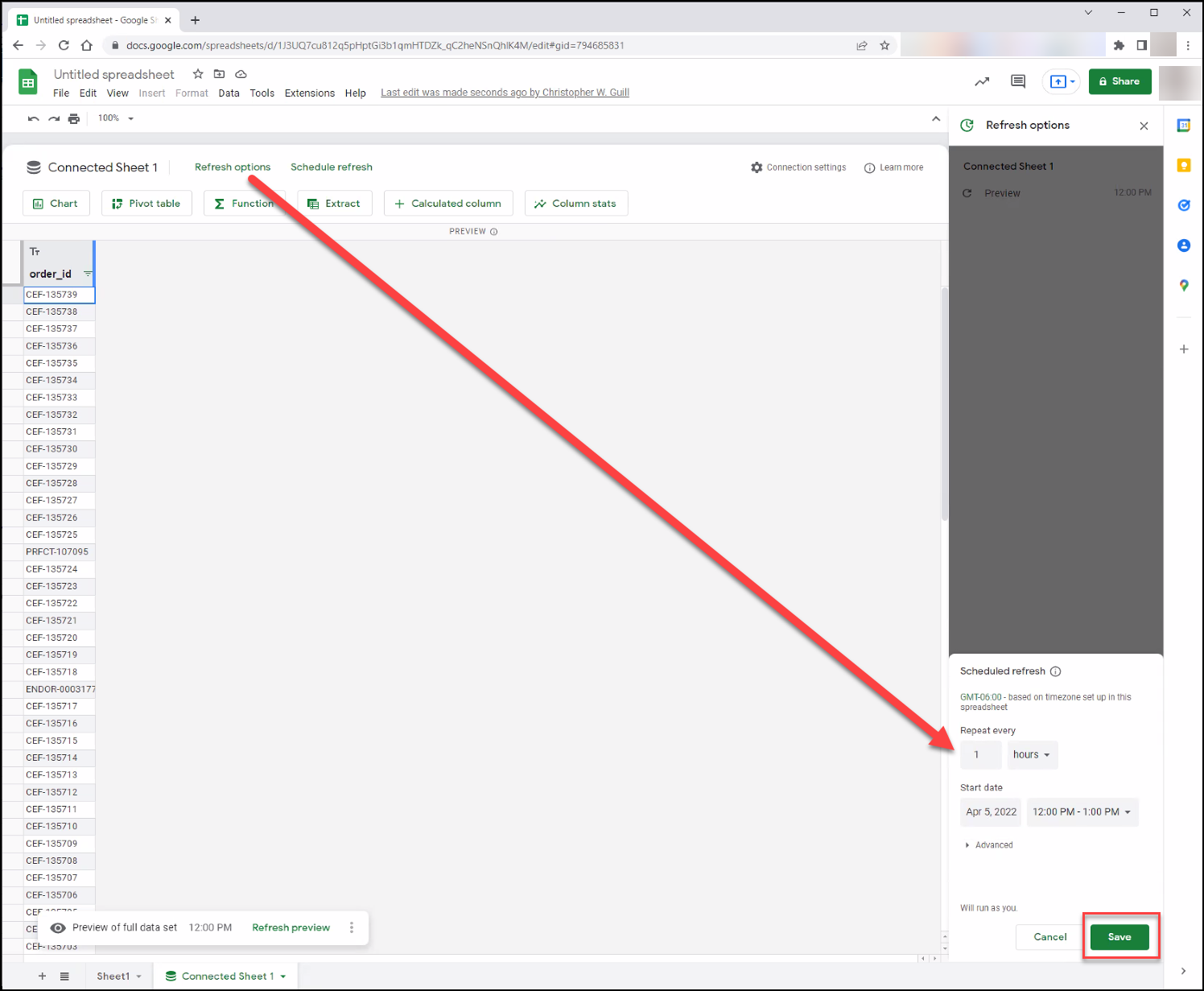
Pick the slowest schedule that still answers your question. UltraCart streams changes into the warehouse within 1–2 minutes, so the data is always fresh — but every refresh is a billed BigQuery query, and an hourly schedule costs roughly 24 times what a daily one does. You can always refresh manually in between.
Extract the results into a working sheet
An extract copies the current results into an ordinary sheet, where they behave like typed-in values: no BigQuery round trip when you sort, filter, or reference cells. This is what you want for charts, dashboards, and anything you hand to someone without warehouse access.
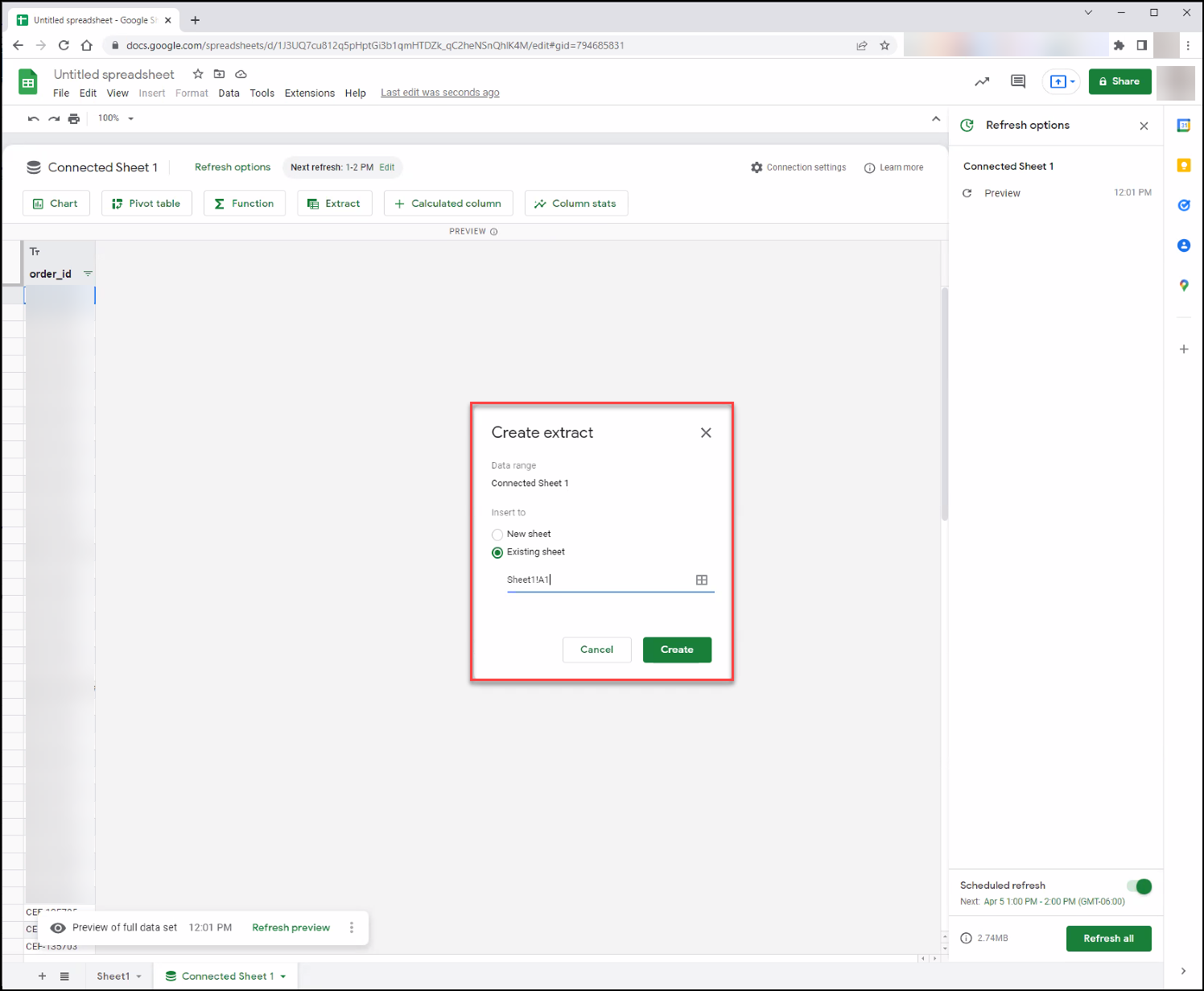
Click the Extract button.
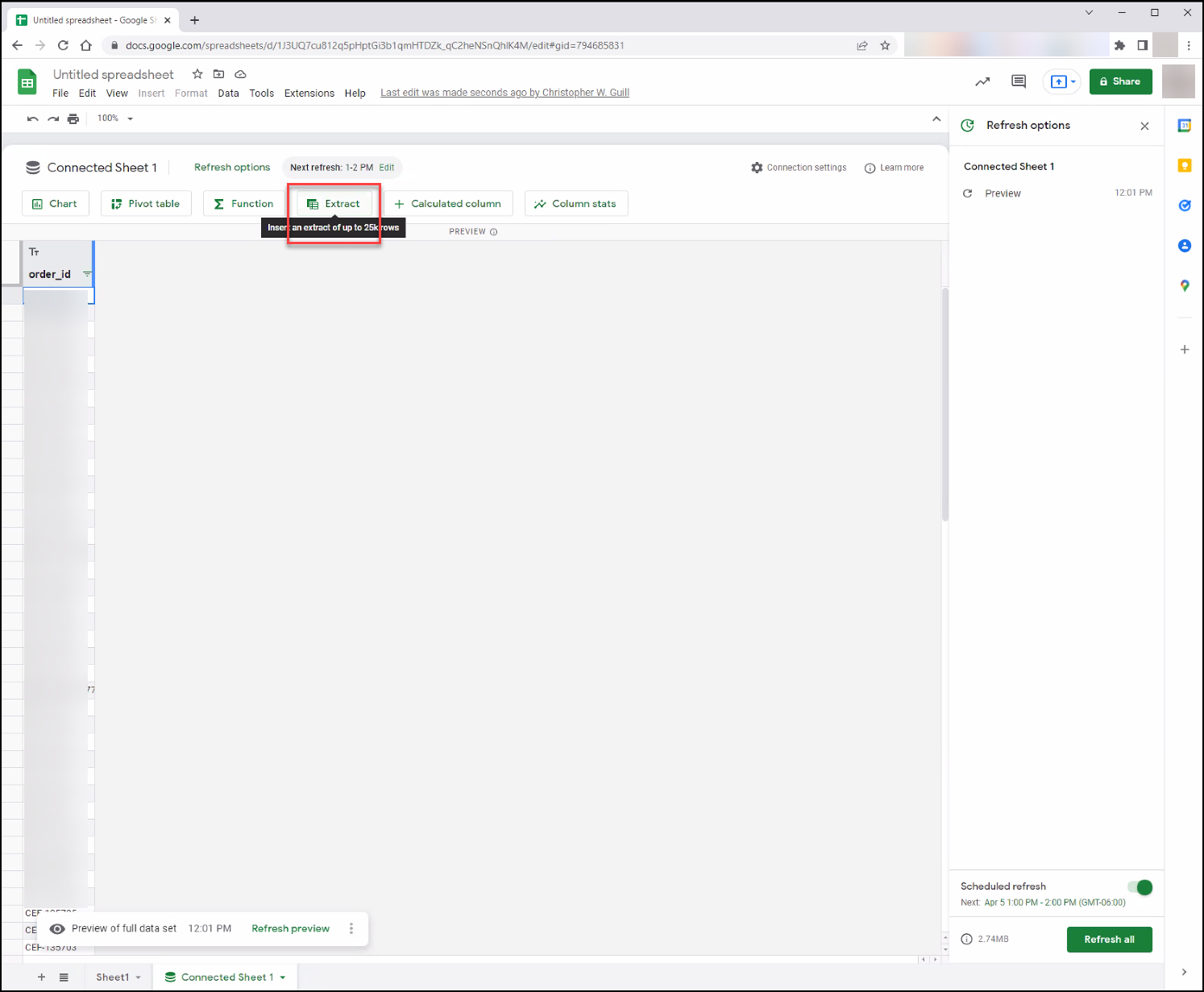
Type the location you want to extract to. This example uses Sheet1!A1.
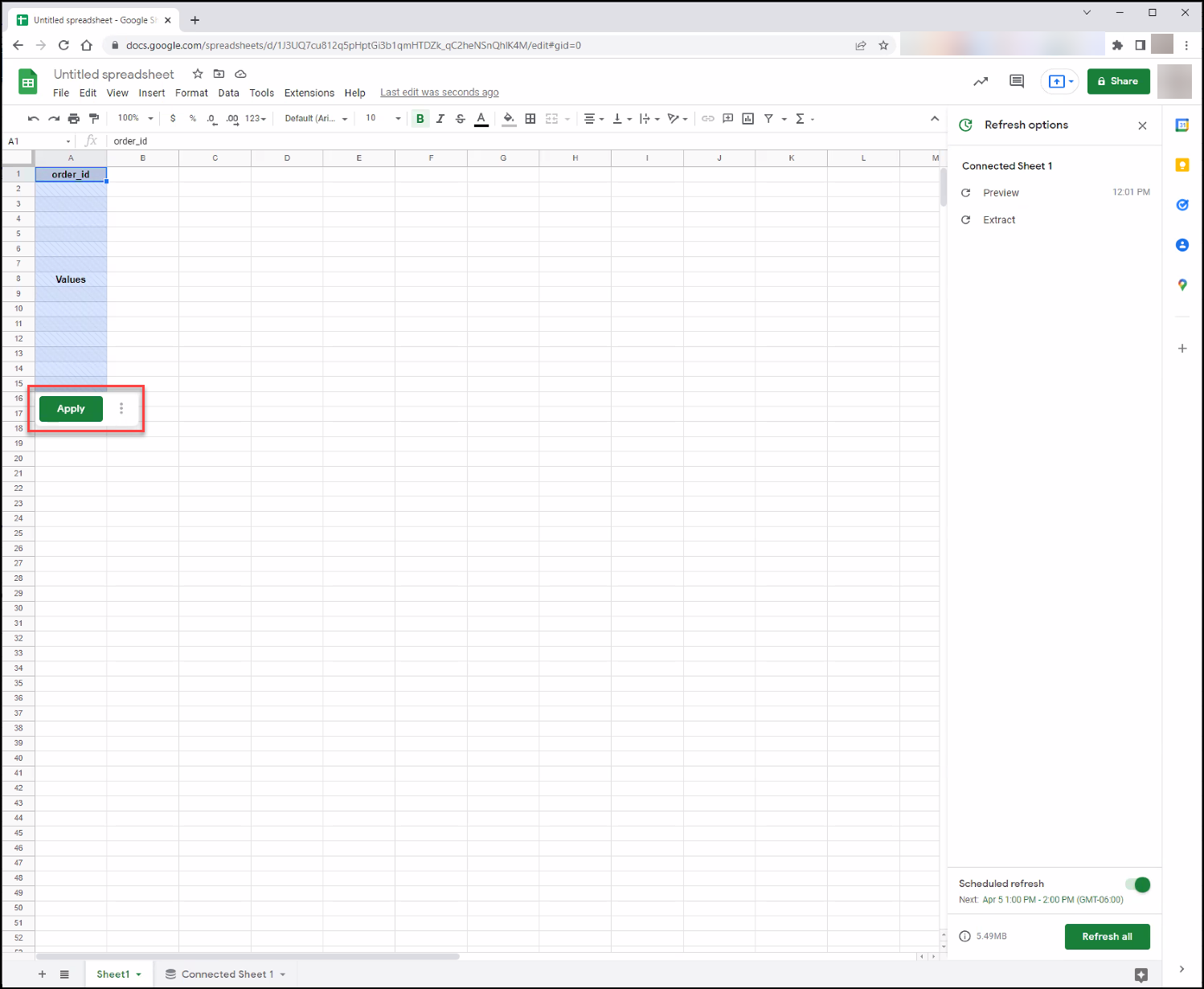
On that sheet, click Apply.
The data now displays on the sheet. Click the refresh button to force a manual refresh at any time.
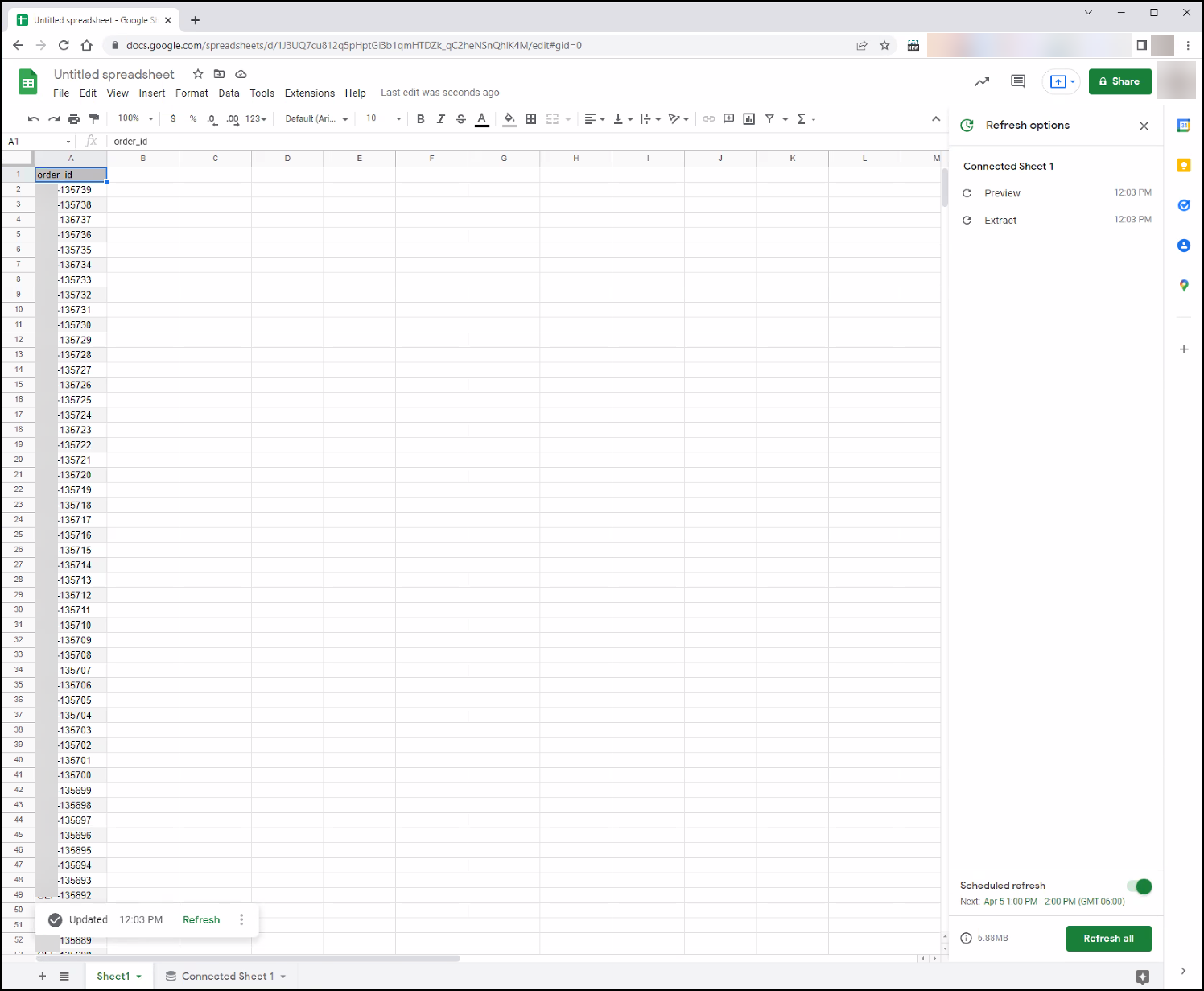
Extracts have their own size limits, which Google documents in Using Connected Sheets: up to 50,000 rows with no cell limit, 50,000–500,000 rows subject to a 5 million cell ceiling, and no extracts above 500,000 rows. If you hit them, aggregate more of the work in SQL rather than extracting raw rows.
What this costs
Every refresh — manual, scheduled, or triggered by editing the query — runs a BigQuery query billed to your data warehouse project, which UltraCart passes through on your monthly invoice. Storage and streaming are already covered by the credit described in Pricing.
The practical levers are the same as any BigQuery workload: select only the columns you need, filter by date, aggregate in SQL instead of pulling raw rows into the sheet, and keep scheduled refreshes as infrequent as the report allows. The Preview results estimate in the query editor tells you the cost of a refresh before you commit to one.
Sharing the sheet with your team
Anyone you share the sheet with can read whatever is already on it, including extracted data. Refreshing the BigQuery connection is a different matter: by default each person needs their own data warehouse access, granted on their own Google account by the UltraCart account owner.
Two ways around that:
- Extract the results and share the extracted sheet. The values are static until someone with access refreshes them, which is usually the right answer for stakeholders who just need the numbers.
- Delegated access, if your organization is on Enterprise Standard or Plus, Education Standard or Plus, or Enterprise Essentials or Essentials Plus. It lets editors of the sheet refresh the connection using your credentials, and it cannot be used on a sheet shared publicly by link.
Data warehouse permission levels exist to keep PII out of the wrong hands. A sheet built at Level 3 – Medium contains customer PII, and sharing it shares that PII regardless of the recipient's UltraCart permissions. Build shared reports from the lowest level that answers the question.
Troubleshooting
| Symptom | Cause and fix |
|---|---|
| Connect to BigQuery is missing from the Data connectors menu | Your Google Workspace administrator has turned Connected Sheets off, or you are signed into a Google account other than the one with warehouse access. Check the account in the top-right corner first. |
Your ultracart-dw-{merchantid} project is not in the project list | Data warehouse access has not been granted to this Google account, or was granted in the last few minutes — provisioning takes up to about 5 minutes. The account owner grants it under Configuration → Account & Users → Users. |
| Access denied when the query runs | Your permission level does not cover a column or dataset the query touches. Column-level security hides PII from lower levels; query the hashed column instead, or ask the owner for a higher level. |
| Only 500 rows appear | That is the preview limit. Pivot tables, charts, and formulas on the connection use the entire result set. |
| A collaborator cannot refresh the sheet | They need their own data warehouse access, or the sheet needs delegated access. See Sharing the sheet with your team. |
| A scheduled refresh fails but manual refresh works | Scheduled refreshes run without end-user context, so VPC Service Controls perimeters that rely on it will block them. |
Next steps
Two worked examples build directly on this page — each supplies the SQL, and everything above stays the same:
- Survey Data to Google Sheets — turn SurveyJS responses into one row per response with one column per question.
- Scheduling AI Report Builder SQL in Google Sheets — take the SQL the AI Report Builder writes and put it on a schedule, including what to do about its date parameters.
Beyond that:
- Start from a query you already ran: in the BigQuery console, use Export → Open in → Connected Sheets on a table or query result instead of building the connection from scratch.
- Skip SQL entirely with the AI-Powered Report Builder, which answers plain-English questions against the same warehouse.
- Build version-controlled, replayable reports with AI Reporting with Claude Code.
Related documentation
- Data Warehouse (BigQuery) — pricing, permission levels, datasets, and sample queries
- User Configuration Screen — where the account owner grants data warehouse access
- Get started with BigQuery data in Google Sheets — Google's Connected Sheets documentation