Duplicate a StoreFront
Overview
Duplicating a StoreFront copies everything: pages, menus, and every configuration option down to conversion tracking. That is different from copying a theme, which carries only the look and feel.
Duplicating destroys whatever exists in the target StoreFront. It is a complete wipe and replace, and UltraCart keeps no backups of entire StoreFronts. Make sure the destination is one you are willing to lose.
There are two ways to do it. The Duplicate StoreFront button is the direct route. The sample file archive is the older path, and it is still the one to use when you are copying a theme and its content together between hosts in the same account.
Duplicate to another host or account
-
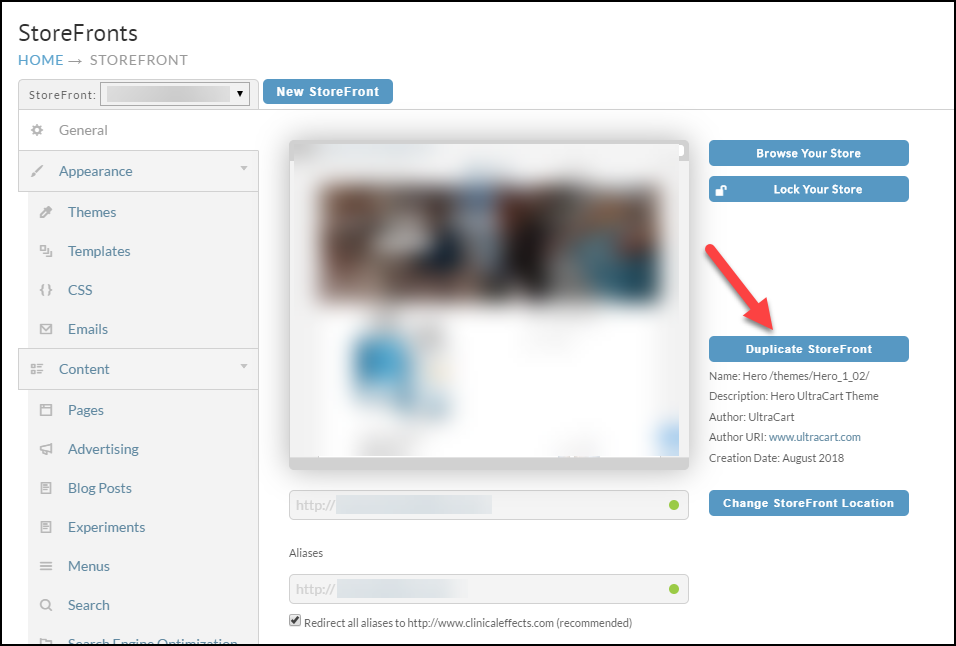
On the StoreFront's General tab, click Duplicate StoreFront.
-
Choose where to duplicate to.
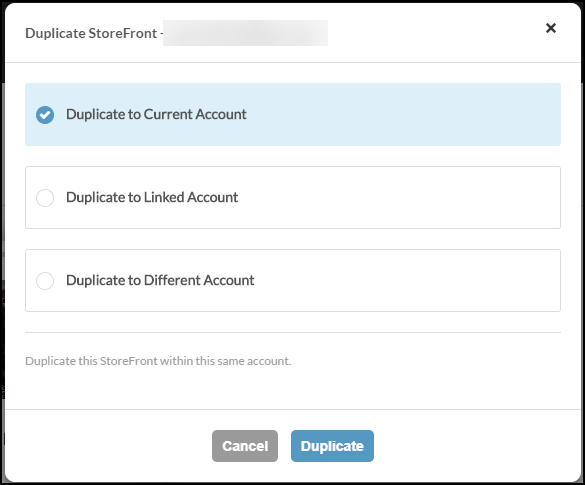
You can duplicate to:
- The account you are currently logged into
- A linked account, if you have any
- A completely different account, which needs credentials for a user with StoreFront permissions
Clicking Duplicate launches a job. It usually takes a few minutes, depending on how large
the StoreFront is. The new StoreFront gets an automatically assigned domain of
MID-#.ultracartstore.com, where MID is the account's merchant ID and # is a sequence
number.
Copy a StoreFront with a sample file archive
This route copies a theme between hosts and brings the site content with it. Use it when you
are moving between the two hosts in one account, for example building on
merchantid.ultracartdev.com and pushing to merchantid.ultracartstore.com.
This requires the Create Sample File option at the bottom of the Themes tab. If you have
changed your host away from the default merchantid.ultracartstore.com or
merchantid.ultracartdev.com, that option does not appear, and you can only copy the theme
and reconfigure the rest by hand.
1. Create the archive in the source StoreFront
Do this before you duplicate the theme. The archive is called a sample file, but it contains the entire site.
-
Open the source StoreFront and go to Themes.
-
Scroll to the very bottom of the Themes tab, past everything, to the Theme Developers section.
-
Click Create a Sample File Archive.

-
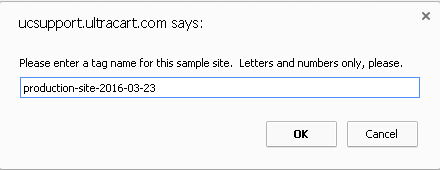
Enter a tag name for the file. Including a timestamp makes it far easier to identify later.
-
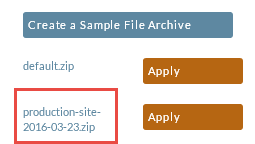
When the archive is created, stop. Do not click Apply inside the source StoreFront.
2. Duplicate the theme to the destination
Hover over the active theme, click the duplicate icon, and select the destination StoreFront from the dropdown. Name the theme and click duplicate. See Copy a theme to another StoreFront for the detail.
The archive you created travels with the theme.
3. Apply the archive in the destination
-
Activate the newly copied theme in the destination StoreFront.
-
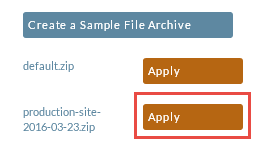
Scroll to the bottom of that theme and click Apply next to the sample site you created.
-
When Site Import Settings appears, select everything.
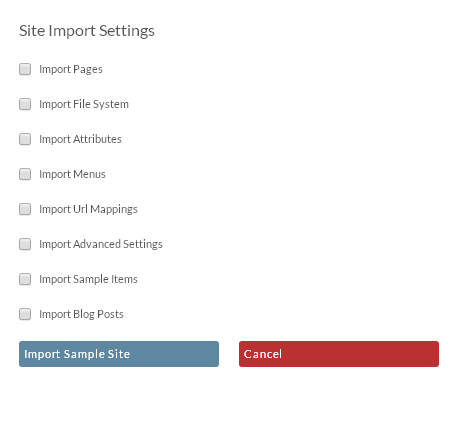
This step is the wipe and replace. Everything that existed in the destination StoreFront is destroyed and replaced with the source.
The StoreFront is now fully copied.
The Trial theme
The Trial theme requires the sample file installation step, and that step overwrites the existing StoreFront configuration. Install it into a new StoreFront host unless you intend to overwrite what is already there.
Next steps
- Copying a theme when you want the look and feel alone.
- Hosts and aliases to lock the StoreFront you copied away from.