Hosts and aliases
Overview
A StoreFront host is one address your store answers on. This page covers running a second address against the same StoreFront, and retiring a host you no longer want public.
Add a domain alias
An alias points a second domain at a StoreFront that already exists. Suppose your StoreFront
runs at www.domain1.com and you want www.domain2.com to reach it too.
First, get a certificate for the additional domain under Main Menu → Configuration → Checkout → SSL Certificate (Custom). Go through the whole process:
- Request the certificate
- Complete domain control validation, which is how the certificate authority confirms you control the domain
- Configure the DNS records to point the domain at UltraCart
See SSL certificates and DNS at your registrar for both halves.
Once the additional certificate is issued:
-
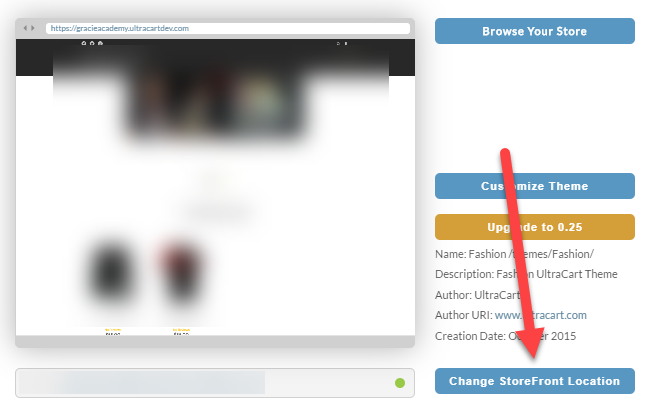
Go to your StoreFront and click Change Store Location.
-
Select the new domain from the dropdown and click Add Alias.
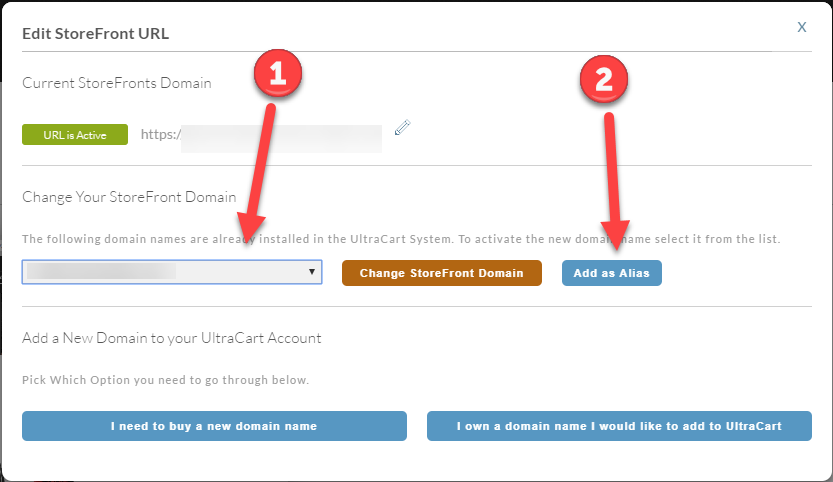
No Add Alias button? The middle section of that dialog only appears when a host slot is
free. Either free up one of the two provided hosts, mid.ultracartdev.com or
mid.ultracartstore.com, or add another custom SSL host address.
Decide whether to redirect the alias
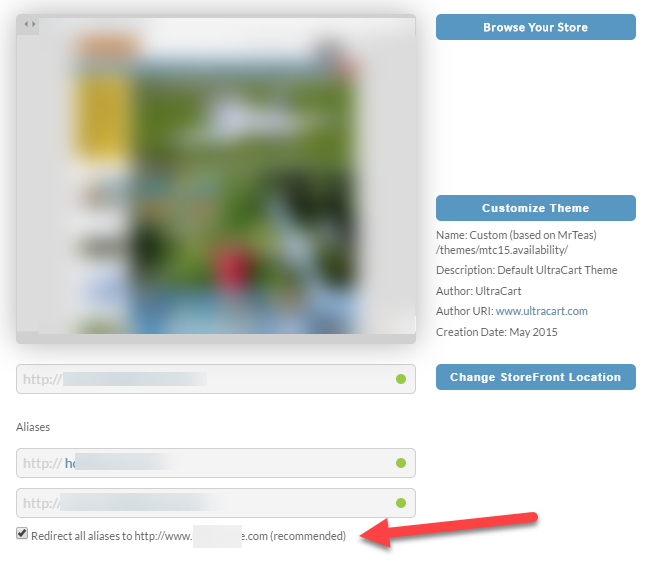
With the alias configured, choose whether traffic to it redirects to your main domain.
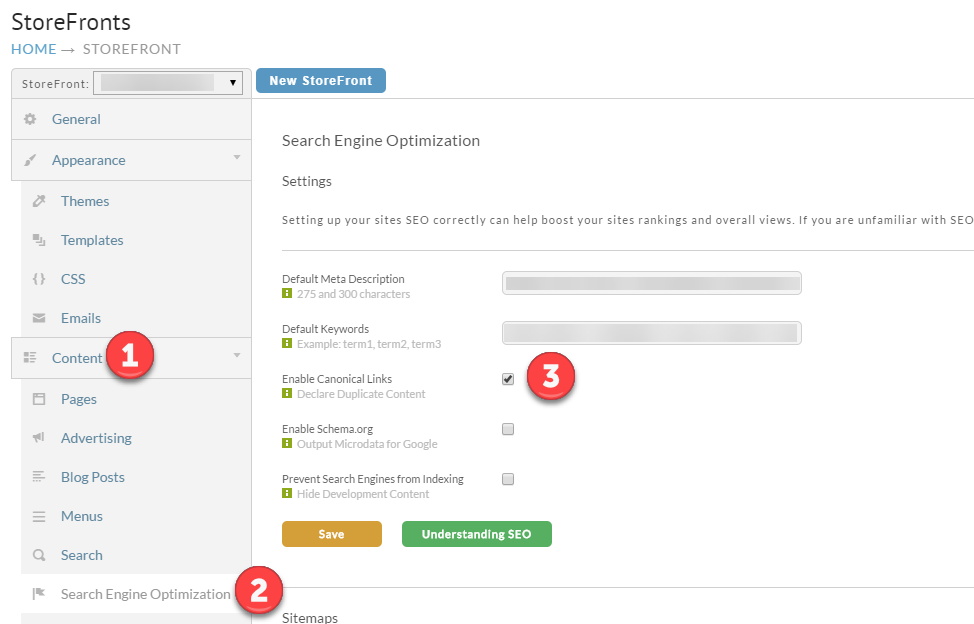
If you do not redirect, enable Canonical Links under Search Engine Optimization. Serving identical content on two domains without a canonical link tells search engines you have duplicate content, which will cost you ranking on both.
Lock a StoreFront instead of deleting it
A StoreFront host cannot be deleted. Locking one is the equivalent: it stays private and inaccessible to the public while its configuration, theme, and data are preserved.
Locking removes the host from your StoreFront count, so it no longer affects your service plan.
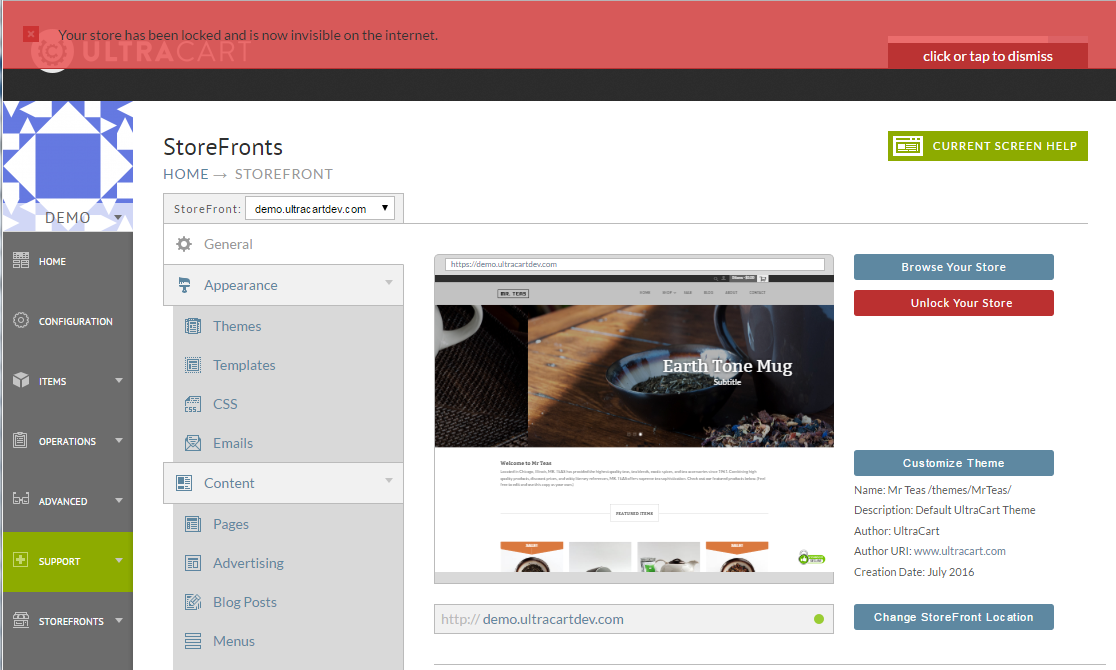
- Go to Main Menu → StoreFronts → (select your StoreFront host).
- Click Lock Your Store.
- Confirm the dialogs that appear.
A red bar along the top of the page indicates the StoreFront is locked.
Reach a locked StoreFront
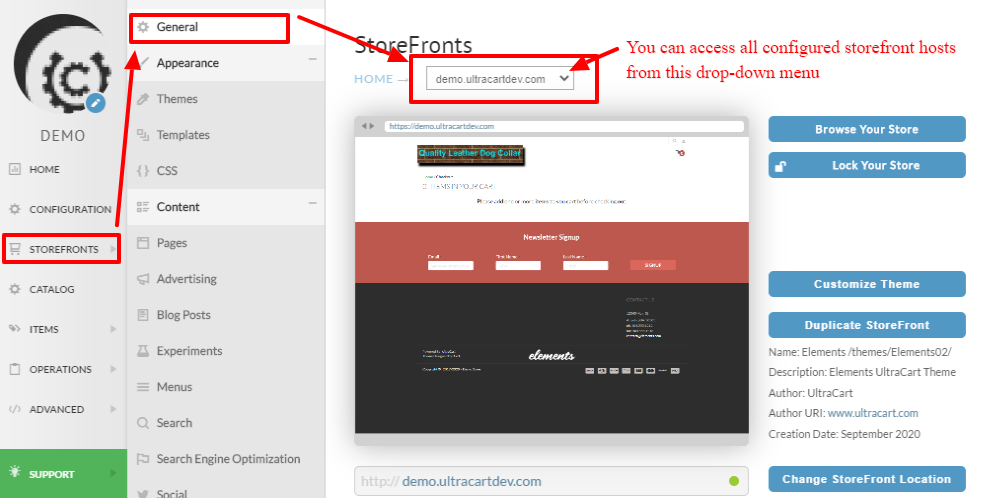
Locked StoreFronts do not appear in the Main Menu → StoreFronts pop-out menu. To get to one, open an active StoreFront and use the dropdown at the top of its General tab, which lists every StoreFront, locked or not.
Let someone view a locked StoreFront
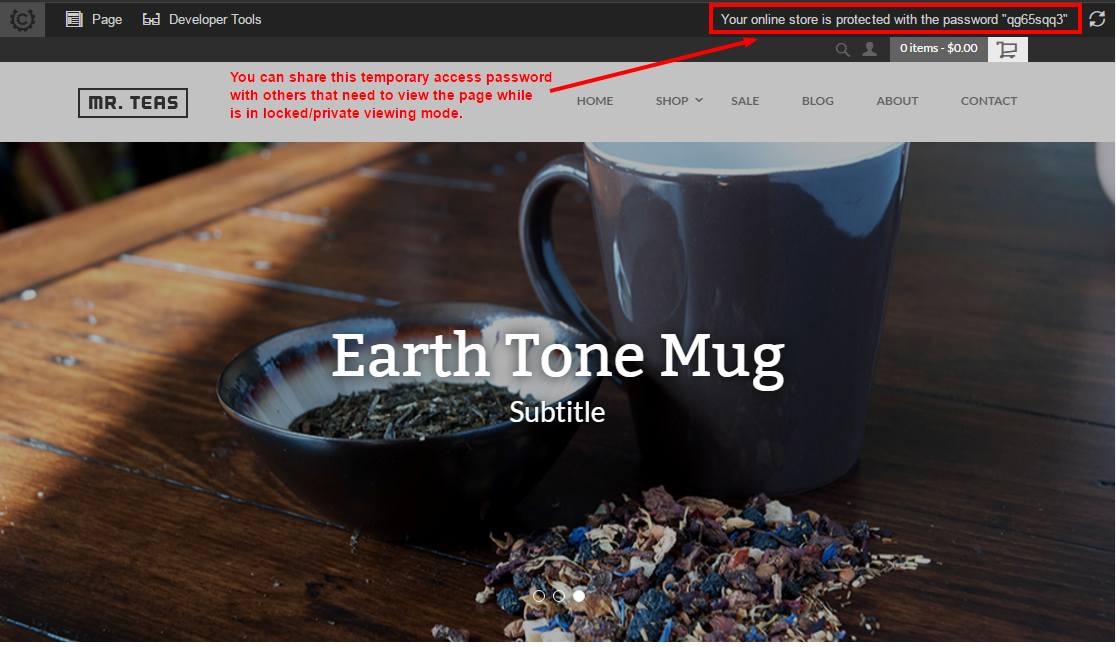
Browsing a locked StoreFront while logged into the UltraCart backend shows a note in the top-right corner containing a temporary password.

Anyone not logged in sees a lock screen instead of your content.
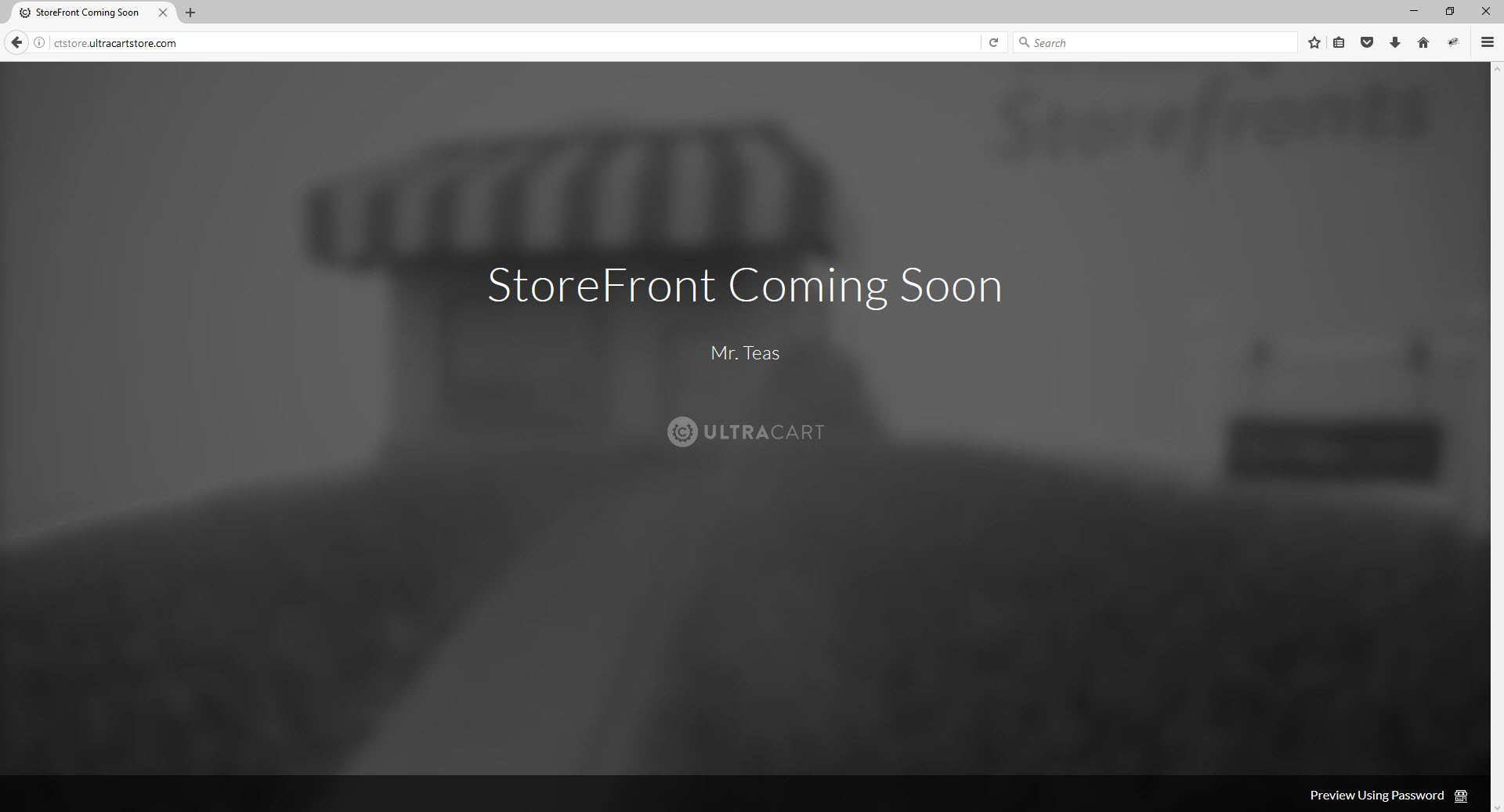
To give someone access, share that password along with the StoreFront address. They enter it in the Preview Using Password field at the bottom right of the lock screen and click Go.
Hide locked StoreFronts from the menu
- Go to Your Preferences.
- In the Menu Navigation section, click the Storefronts menu item.
- In the sub-menu, click the eye icon for each StoreFront you want hidden.
- Click Save at the bottom of the page.
Watch a video of reordering and hiding StoreFronts in the menu
Does UltraCart host my email?
No. UltraCart does not host email with StoreFronts, so keep your email with your current hosting provider. Pointing your domain at UltraCart changes where your website resolves, not where your mail is delivered, so leave your MX records alone.
Next steps
- Duplicate a StoreFront to copy one to another host or account.
- Delete a theme, which is a separate operation from retiring a host.