SSL certificates
Overview
A custom SSL certificate is what lets your checkout run on your own domain instead of UltraCart's. You can buy one through UltraCart, or buy one anywhere else and import it.
The shared MERCHANTID.ultracartstore.com host is fine while you are setting up. Once you are
taking production traffic, or putting buy links into email marketing, a certificate on your own
domain is what puts your brand in the checkout URL, keeps your SEO value on your own domain,
and gives you a domain reputation that no other merchant shares. See
Domains & Hosting for the full picture.
Everything on this page happens on one screen: Main Menu → Configuration → Checkout → SSL Certificate (Custom).

Trial accounts see a prompt to add billing details first. Once your Service Plan has a credit card on file, the screen offers three options: Yes, sign me up!, No Thanks, and Configure 3rd Party SSL Certificate.
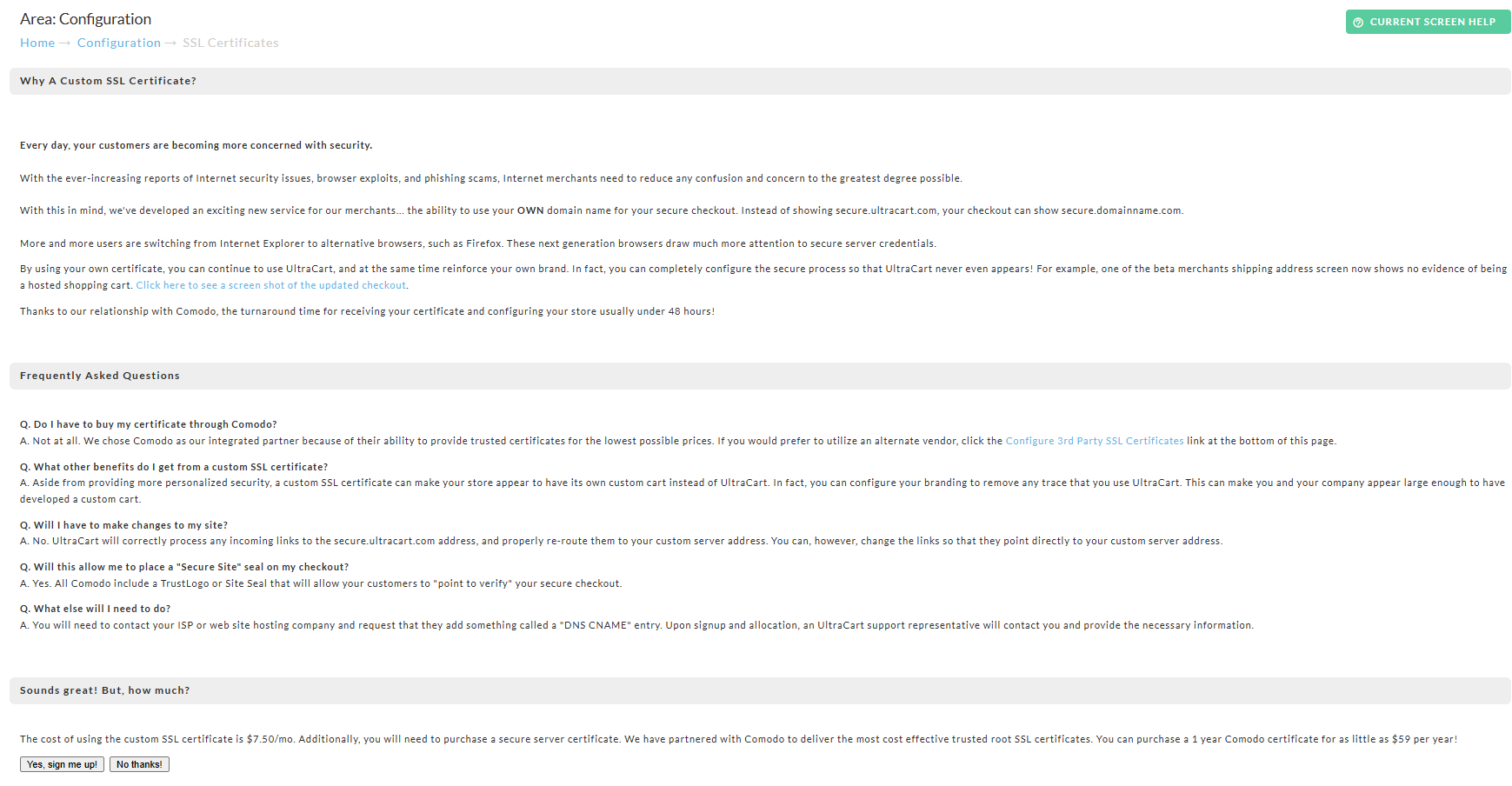
The custom SSL certificate costs $7.50 per month, which covers the dedicated IP allocation, plus the price of the certificate itself. UltraCart resells Sectigo certificates starting at $59 per year. Sectigo was called Comodo CA until 2018, so you may still see the Comodo name on older paperwork and in some of the screens below.
Buy a certificate through UltraCart
Choose Yes, sign me up! to reach the purchase form.
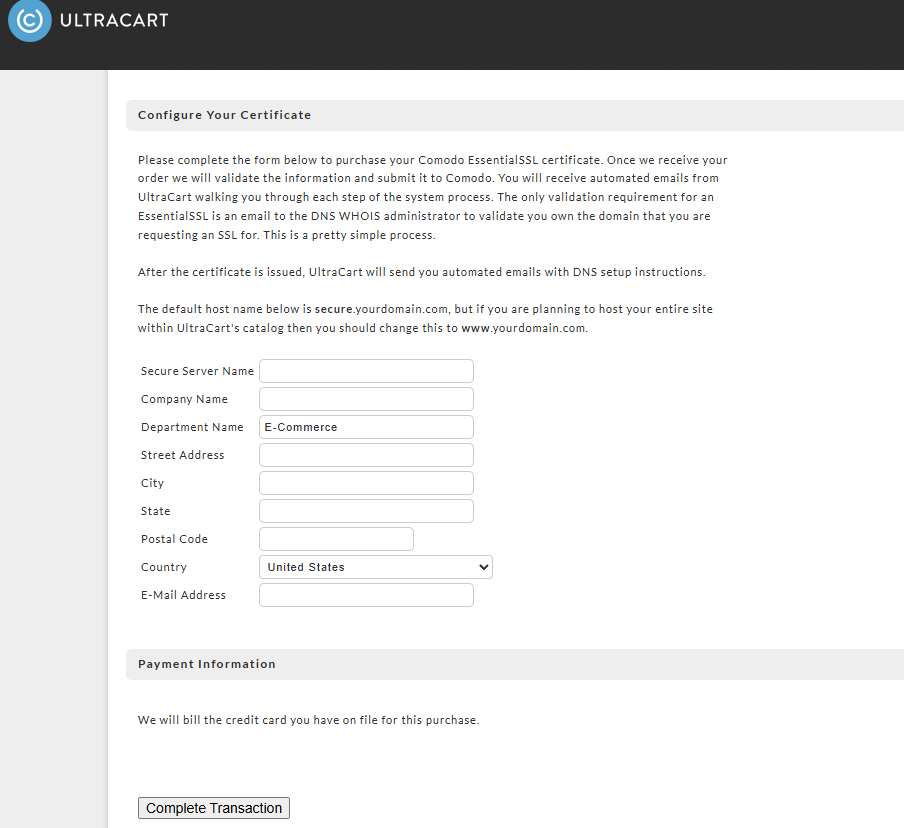
Complete the form with your Secure Server Name and your company name and address, then choose a certificate length. A 3 year certificate costs less per year and cuts down on renewal work.
Secure Server Name is the custom SSL address. A secure prefix
(secure.mydomain.com) is the usual choice because it reads as secure to shoppers, but
store.mydomain.com or checkout.mydomain.com work equally well.
You cannot use your main website address, www.mydomain.com, if your website is hosted
outside UltraCart. A domain resolves to one place, and that one is already taken by your web
host. See the FAQ below.
Enter your company details accurately. They are checked during validation, and a mismatch delays or rejects the order.
Order status
The screen reports where your order has reached.
| Status | What it means | Roughly how long |
|---|---|---|
| Order Received | UltraCart has your order and will process it shortly | 1 business day |
| Validation Documentation Required | Upload the requested documents with the upload validation documents button, which appears only at this step | Waiting on you |
Domain control validation
UltraCart sells the Sectigo EssentialSSL, a domain validated certificate. The only check is that you control the domain, which makes it the fastest to obtain and the easiest to renew.
Set up one of the five approved mailboxes before you order. Validation email can only be sent to a constructed address at your own domain:
admin@yourdomain.comadministrator@yourdomain.comhostmaster@yourdomain.compostmaster@yourdomain.comwebmaster@yourdomain.com
If none of these exists and can receive mail, the certificate cannot be issued. Create one, or add it as an alias to a mailbox you already read, before starting the purchase.
Addresses taken from your domain's WHOIS record are no longer accepted. CA/Browser Forum ballot SC-80v3 removed WHOIS from domain validation in two stages during 2025, and since 15 July 2025 no public certificate authority may rely on it. One practical upshot: domain privacy services no longer interfere with validation, because the WHOIS contact is not consulted at all.
The verification email contains a secret validation code to paste into a web page before the certificate is issued. Organization validated certificates additionally require a phone callback, where you press call me now and are read a callback code.
Every other Sectigo certificate type is organization validated and additionally requires documentation of your address such as a utility bill, and a public telephone listing with a callback. Those take substantially longer. If your business is new, start with EssentialSSL and upgrade in a later year once that paperwork exists.
Use a certificate you bought elsewhere
Importing a third party certificate goes through a certificate signing request, or CSR, which UltraCart generates for you.
- Click Download CSR and give the CSR to the certificate authority you are buying from.
- If asked for a server type during purchase, choose Apache (Apache/Mod_ssl).
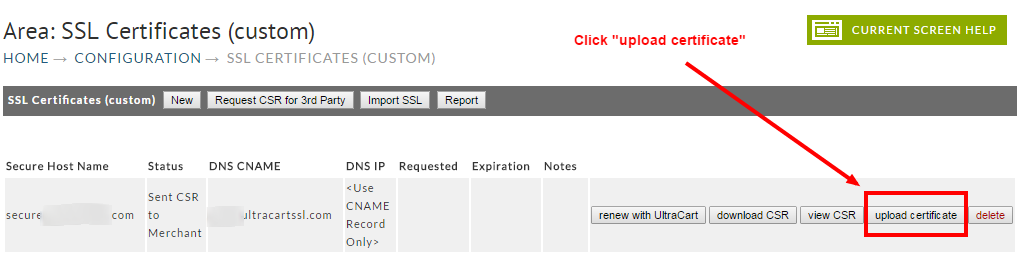
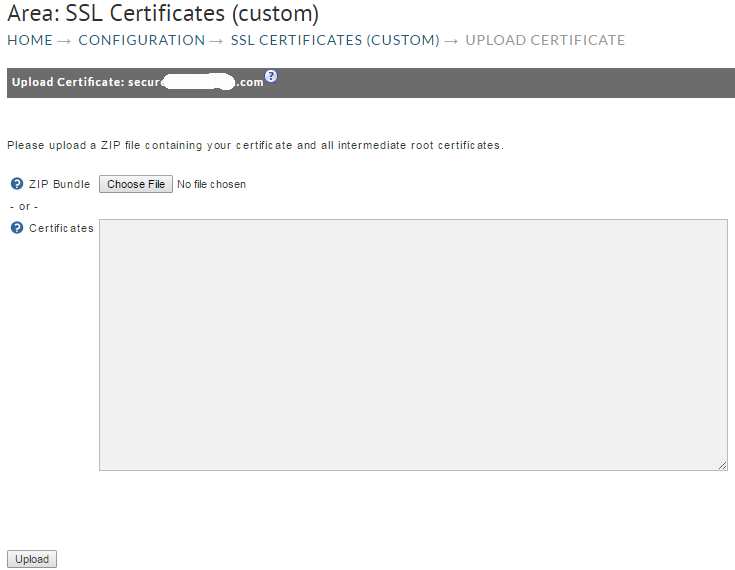
- When the certificate is issued, click upload certificate and either choose the ZIP file from your computer or paste the certificate into the Certificates field, then click Upload.
Include the entire block when copying a CSR or a certificate, header and footer lines included. They are part of the file and it will not validate without them. Include all intermediate root certificates too.
If the upload fails validation, you may need to request the CSR again and reissue the certificate from your certificate authority.
Renew with a third party, using GoDaddy as the example
-
Buy a credit for an SSL certificate with GoDaddy and start the purchase.
-
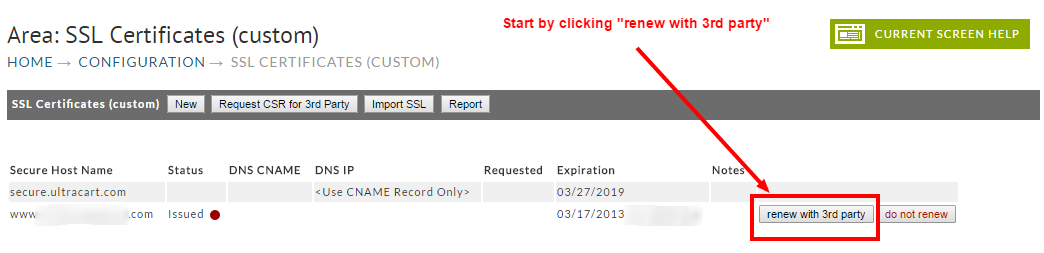
When GoDaddy asks for a CSR, generate one in UltraCart: on the SSL Certificate (Custom) screen, click Renew with 3rd Party and fill out the form.
-
View or download the CSR. Download CSR saves a file named after your secure host name with a
.csrextension.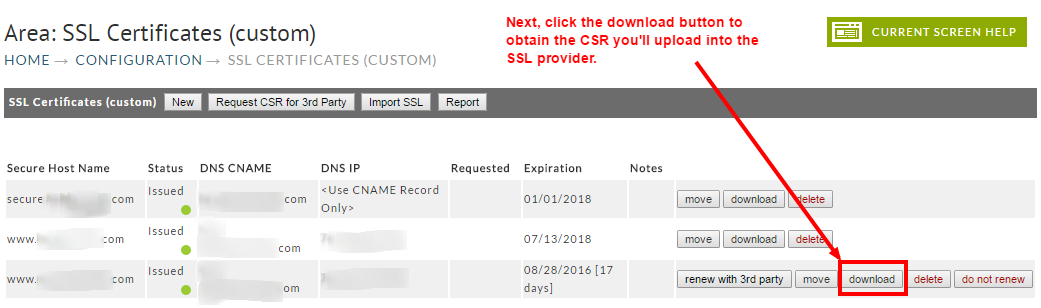
-
Upload the CSR into GoDaddy. Choose Apache (Apache/Mod-SSL) if asked for a server type.
-
GoDaddy issues the certificate as a ZIP named after your secure host name.
-
Back on the SSL Certificate (Custom) screen, click Upload Certificate.
-
Browse to the ZIP you saved and click upload.
Installation
Once a certificate reaches the installation stage, UltraCart installs it automatically Monday through Friday at 9 AM, 12 PM, and 3 PM Eastern.
Certificate actions
Each certificate on the screen carries these buttons.
| Button | What it does |
|---|---|
| Renew with 3rd party | Generates a CSR so you can buy the renewal elsewhere |
| Do Not Renew | Tells UltraCart not to renew this certificate |
| Re-key | Reissues the certificate to obtain the newest one |
| Move | Moves the certificate to another UltraCart account |
| Download | Downloads the certificate |
| Delete | Removes the certificate from the account |
Use the certificate on a checkout-only StoreFront
Once a certificate exists, you can assign it to a StoreFront running in checkout-only mode.
-
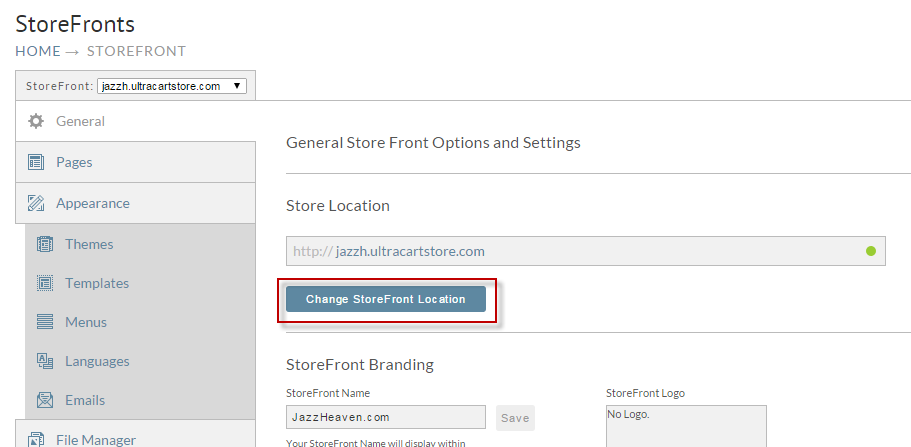
On the StoreFront's General tab, click Change StoreFront Location.
-
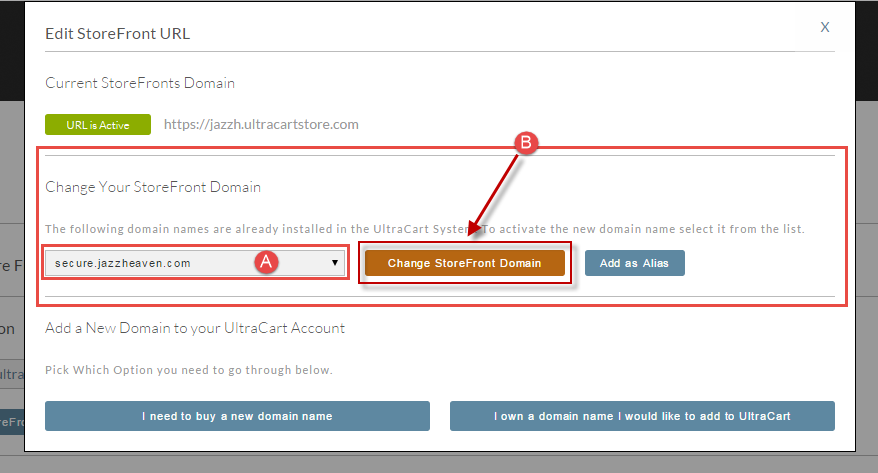
Select the domain from the dropdown in the second section of the dialog, then click Change StoreFront Domain.
Every buy link that pointed at the legacy checkout now points at the StoreFront.
Use secure.ultracart.com by default
The advanced settings carry a checkbox, Use secure.ultracart.com by default.
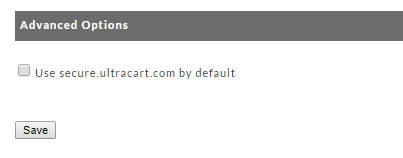
With it checked, buy links coded against secure.ultracart.com stay there. With it unchecked,
such a link redirects to the first certificate issued on the account. If you use several
certificates, assign the right one to each buy link.
Move a certificate to another account
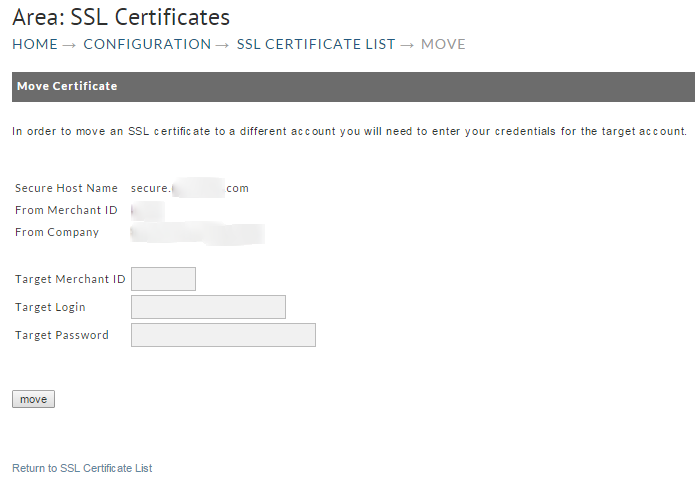
Merchants with more than one UltraCart account can move a certificate between them. Click the move button next to the certificate, then sign in to the destination account.
Remove a certificate
If the certificate is currently used by a StoreFront, detach it first: open that StoreFront's menu, click Change Location, and pick one of the built-in hosts or another certificate from the dropdown.
Once nothing is using it, go to Main Menu → Configuration → Checkout → SSL Certificate (Custom) and click the delete button next to it.
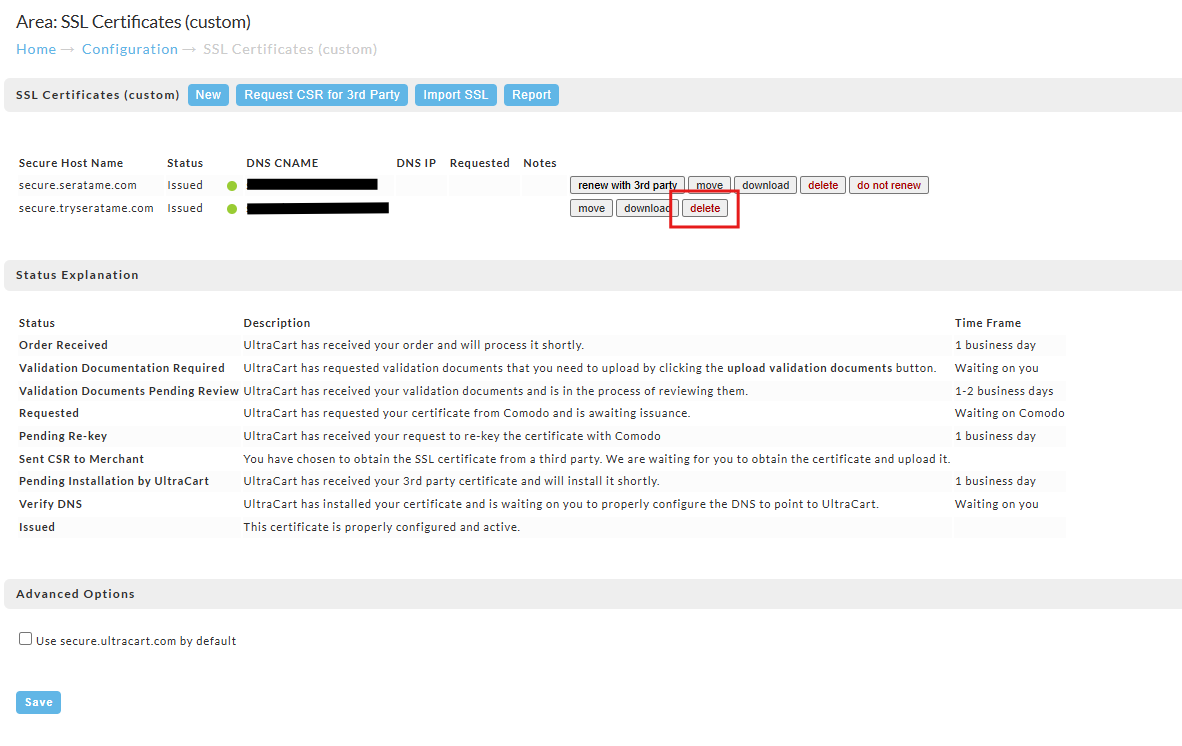
Once you remove a certificate it is gone. There is no undo and no backup.
Frequently asked questions
Why does my SSL URL go to the UltraCart login page?
That is the default unless a catalog is associated with the same host name as the certificate. Go to Main Menu → Catalog, click new host, and enter the same domain name as your certificate. Contact UltraCart support to have the catalog activated afterward. You typically do not need a catalog host unless you are hosting everything on UltraCart.
Can I use the same certificate on my website and on UltraCart?
No. A certificate is tied to one domain name, and a domain name resolves to one IP address.
You need one certificate for www.mysite.com on your web server and another for
secure.mysite.com on UltraCart.
Where do I configure the DNS for my certificate?
At whoever manages DNS for the domain, usually your registrar. See DNS at your registrar.
The certificate is live but I get a certificate mismatch error.
Your browser or your computer cached the old DNS answer. Flush the DNS cache, close every
window of the browser, reopen it, and try again. On Windows, open a command prompt and run
ipconfig /flushdns.
Can I have several custom certificates on one account?
Yes. One is the default, and each additional one is used by updating the buy link URL or mbuy form to that certificate's address.
My TrustLogo says "IdAuthority Credentials are not available for this site".
That happens when you have an EssentialSSL but are displaying the trust logo that only works with InstantSSL. EssentialSSL is validated by domain control email alone, while InstantSSL goes through the fuller organization validation. EssentialSSL does have its own site seal, configurable on the Conversion and Tracking tab of the Screen Branding Themes editor.
Cloudflare shows my CNAME as correct, but UltraCart says the DNS is wrong.
UltraCart does not support proxying through Cloudflare. Turn the proxy off and point the CNAME directly at UltraCart, using the values from your setup email.