How to translate Page, Item or Blog Post text
Once you enable more than one language on your StoreFront, UltraCart translates your content automatically, so shoppers can read your pages, product descriptions, and blog posts in their own language without you writing a word of it. When a machine translation reads badly, or a phrase needs to say something different in one market, you can open that field's translations in the admin and change them yourself.
This page covers text you edit on the Pages and Blog Posts screens of a StoreFront, and in the Item editor. For pages built in the Visual Builder, see Multi-Language Content in the Visual Builder.
Navigate: Main Menu → StoreFronts → [select your StoreFront] → Pages, or → Blog Posts. For items: Main Menu → Items → Item Management → [select your item].
Before you begin
- Enable the languages you want on the Languages screen. See StoreFront Languages. The globe icon only appears once a language other than English is enabled.
- For items, the item must be assigned to a StoreFront that has those languages enabled.
- Your theme must support internationalization. If the Languages screen lists only English and offers no languages to enable, your theme predates multi-language support and you will need to move to a current theme.
How translations are created
Translations are made on demand, not all at once. The first time anyone views a page, item, or blog post in a given language, UltraCart translates the text into that language and saves the result. From then on, the saved translation is reused.
That means a language nobody has viewed yet has no translation to show you. When you open the translations for a field, expect some languages to be filled in and others to be empty. An empty box does not mean anything is broken. It means that piece of text has not been viewed in that language yet.
To fill in a language before you review it, either:
- view the page or item on your StoreFront in that language, using the StoreFront's language picker, then give it a moment and reopen the field in the admin, or
- click auto translate in the translation dialog, described below.
Translation is billed per character translated, and the Languages screen shows the estimated cost for your StoreFront.
Find the fields you can translate
A field you can translate has a small globe icon at its right edge.
-
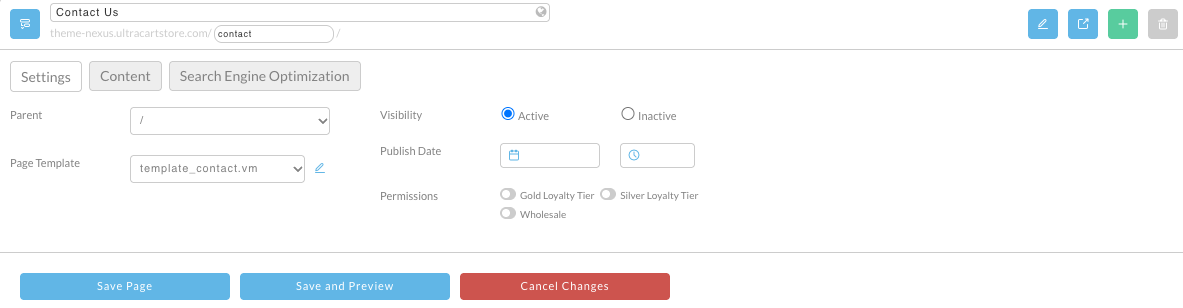
Page title. On the Pages screen, the title box of every page you open for editing carries a globe.
-
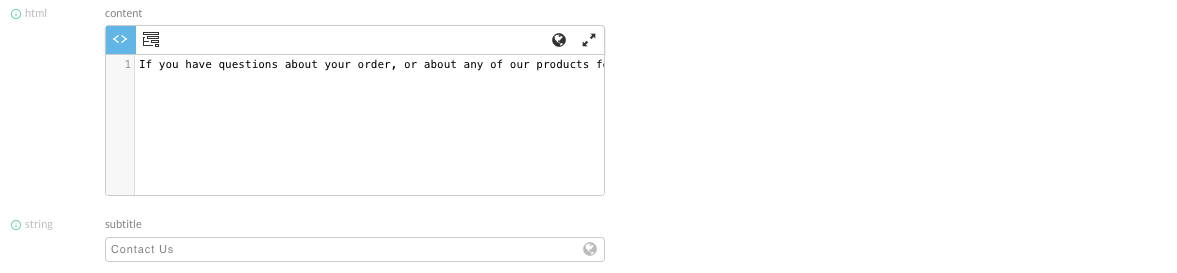
Page content. On a page's Content tab, text settings carry a globe in the box, and HTML settings carry one in the editor's toolbar, next to the full-screen button.
-
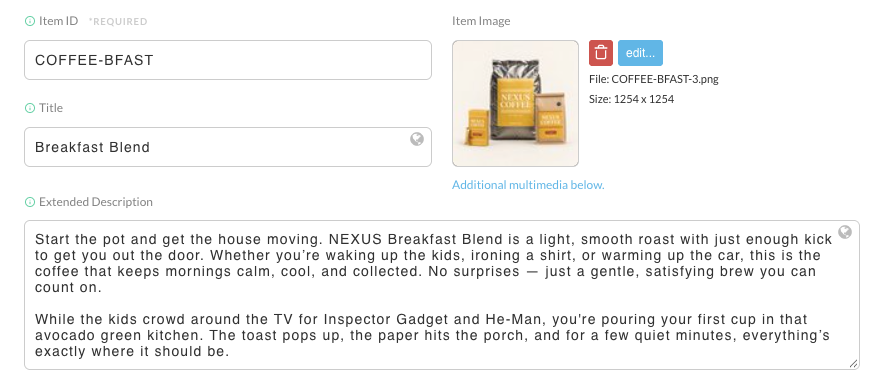
Item title and description. In the Item editor, the Title and Extended Description boxes each carry a globe.
-
Blog post title. On the Blog Posts screen, open a post and look for the globe in the Title box. The Main Body and Excerpt editors do not have one, so their translations are automatic only.
Edit a translation
-
Open the page, item, or blog post that holds the text.
-
Click the globe icon in the field you want to translate. The Translation dialog opens.
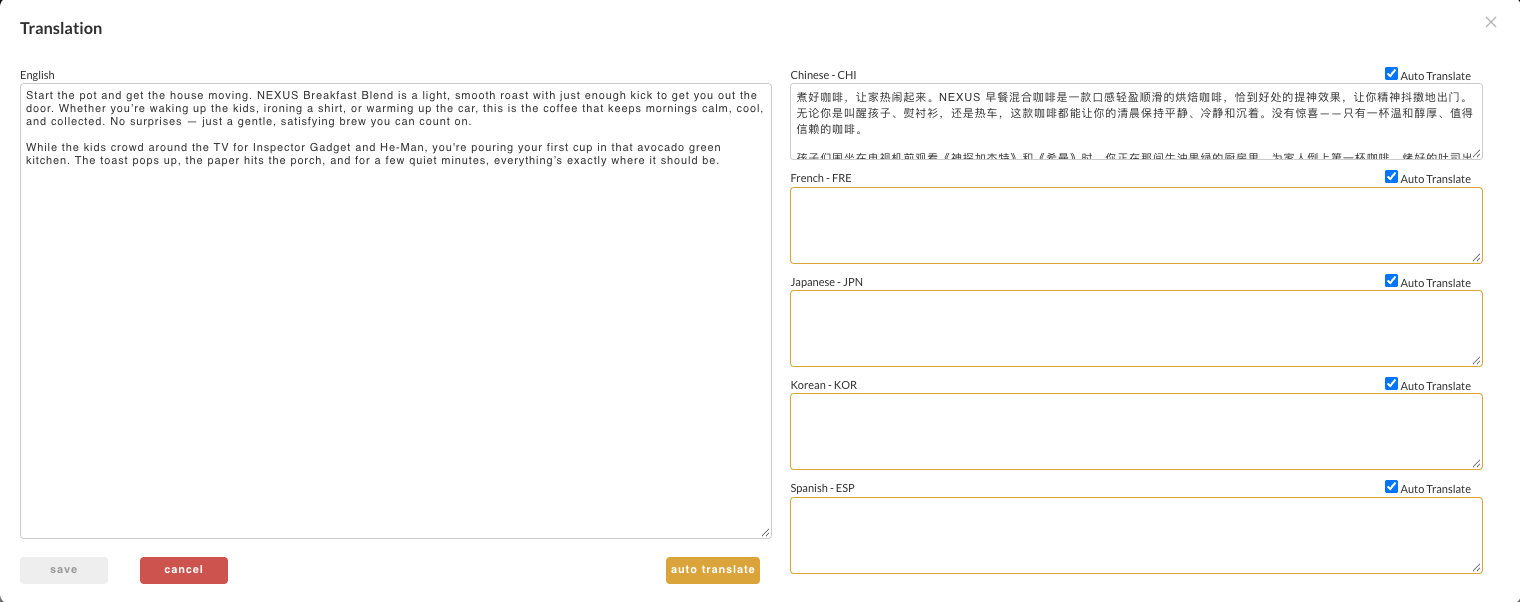
The English source is on the left. Every language enabled on your StoreFront is listed on the right, by name and three-letter code, with its own Auto Translate checkbox. In the example above, the item has only been viewed in Chinese so far, so Chinese is the only language with a translation. An empty box with an orange border is a language still waiting to be translated. For an HTML setting, each box is a small code editor rather than plain text.
-
Change the wording you want:
- Type in any language's box to replace its translation with your own wording. As soon as you type, that language's Auto Translate checkbox clears, which marks the wording as yours.
- Edit the English box to change the source text itself.
-
To fill in the empty languages now rather than waiting for a shopper to view them, click auto translate. UltraCart translates the English source into every empty language that has Auto Translate checked and shows the results in the dialog. It skips any language with the box cleared, so your own wording is never overwritten, and it leaves languages that already have a translation alone. The button is greyed out when there is nothing left to fill in.
-
Click save. The translations are stored as soon as you do, without saving the page, item, or blog post as well. The button stays greyed out until something has changed.
cancel closes the dialog and discards everything since you opened it, including the results of auto translate. To keep those, you have to click save.
To hand a language back to automatic translation, check its Auto Translate box again and save.
Get the English wording final before you hand-edit translations. auto translate skips the languages you have reworded by hand, so if you change the English later, update those languages yourself.
Keep specific text untranslated
To keep a brand name or model number in its original language everywhere, wrap it in the
notranslate class instead of fixing each language by hand. See
Preventing Content from Being Translated.
Related
- StoreFront Languages covers enabling the languages you can translate into and the cost of translation.
- Multi-Language Content in the Visual Builder covers content built in the Visual Builder rather than on the Pages or Blog Posts screens.
- Preventing Content from Being Translated covers keeping brand names and model numbers in their original language.
- Create and manage a blog covers writing and publishing blog posts.