StoreFront Search
Overview
Search lets shoppers find products on your StoreFront by typing a query instead of browsing your menus. You configure all of it from one screen, Main Menu → StoreFronts → (select your StoreFront host) → Search, which carries a tab for each part covered on this page: the primary search engine, up to three backup engines, faceted filters, and the advanced word handling that sits underneath them all.
Most stores need only the primary search settings. The rest of this page is there for stores whose catalog or vocabulary needs more tuning.
Configure search settings
The Search Settings tab controls the primary search engine: what it matches, how strictly, and which item fields carry the most weight.
| Field | Default | Valid Values | Comments |
|---|---|---|---|
| Enabled | On | On/Off | Master switch for search. Uncheck to hide the search |
| Search Type | full text | full text, phrase | If full text, the entire text is searched for as a block. If phrase, then the individual words are searched for |
| Search Operator | or | or, and | Determines if the search returns back hits for any of the words found, or (if and is set), only returns back searches that contain all words |
| Search Mode | Normal, Fuzzy, Wildcard(Both) | These checkboxes are additive. If both normal and fuzzy are selected, results from both searchs are included. Normal: includes a normal search. Normal means an exact match. Fuzzy: includes a fuzzy search. Fuzzy means a close match. Wildcard (Leading): The search is done with a wildcard in the front, so it would match words ending in the search string. Wildcard (Trailing): The search is done with a wildcard in the rear, so it would match words starting with the search string. Wildcard (Both): The search is done finding the search string anywhere within the searched fields. | |
| Word Delimiter | On | On/Off | If set to on, spaces act as word delimiters |
| Fields | Fields contains a table of all the searchable fields. This includes item fields and item attributes. Next to each field is a boost value to give a field a greater weight. |
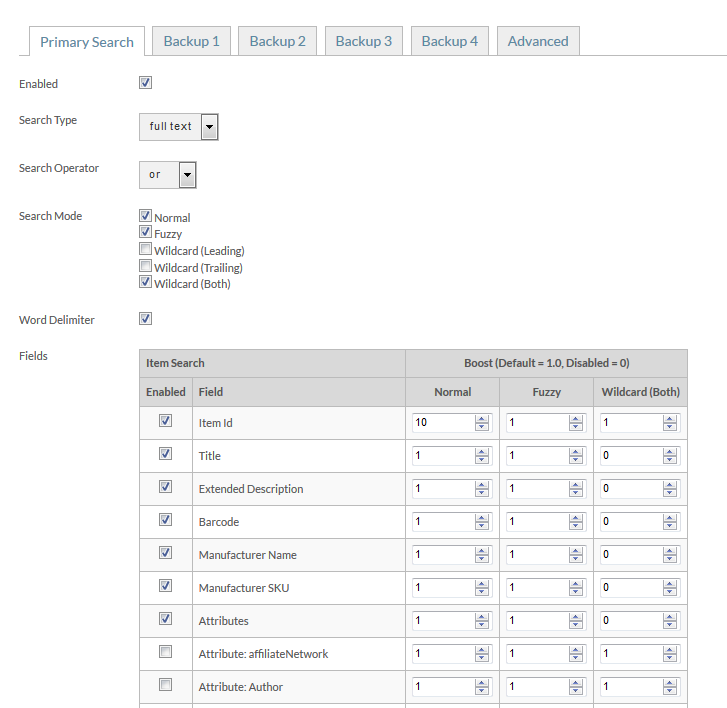
Test out your boost setting thoroughly. The defaults may give good results, or they may need tweaking. For reference, the highest boost the UltraCart staff has ever used is 1,000. For most stores, you will not need such high boosts to tweak your search properly.
Backup search
The search settings screen carries four tabs with identical fields: Primary Search, Backup 1, Backup 2, and Backup 3. Each one is a separate search engine, and they run in order. If the primary search returns zero hits, Backup 1 runs, and so on down the chain. That lets each engine emphasize different criteria.
The primary search is almost always focused on store product, so it boosts fields such as item ID and is tuned to return the best product results. Backup 1 might instead be tuned to return the best company result, so a shopper searching for something about your company still gets useful results.
Most merchants use only the Primary Search. The backups fill a real need for merchants with diverse searching needs.
Example of a backup search configuration
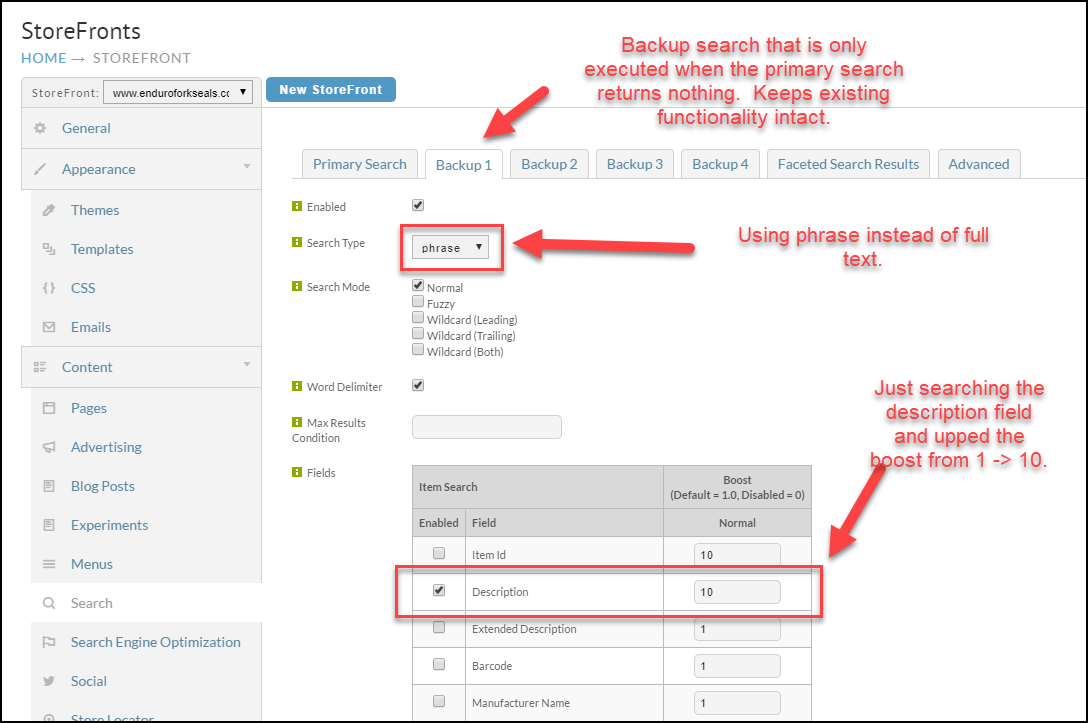
In this example, a set of items containing a string in the item description was not being returned by the primary search, which emphasized the item ID. The backup search sets the search type to phrase and assigns the search field to Description with a full boost of 10.
Faceted search
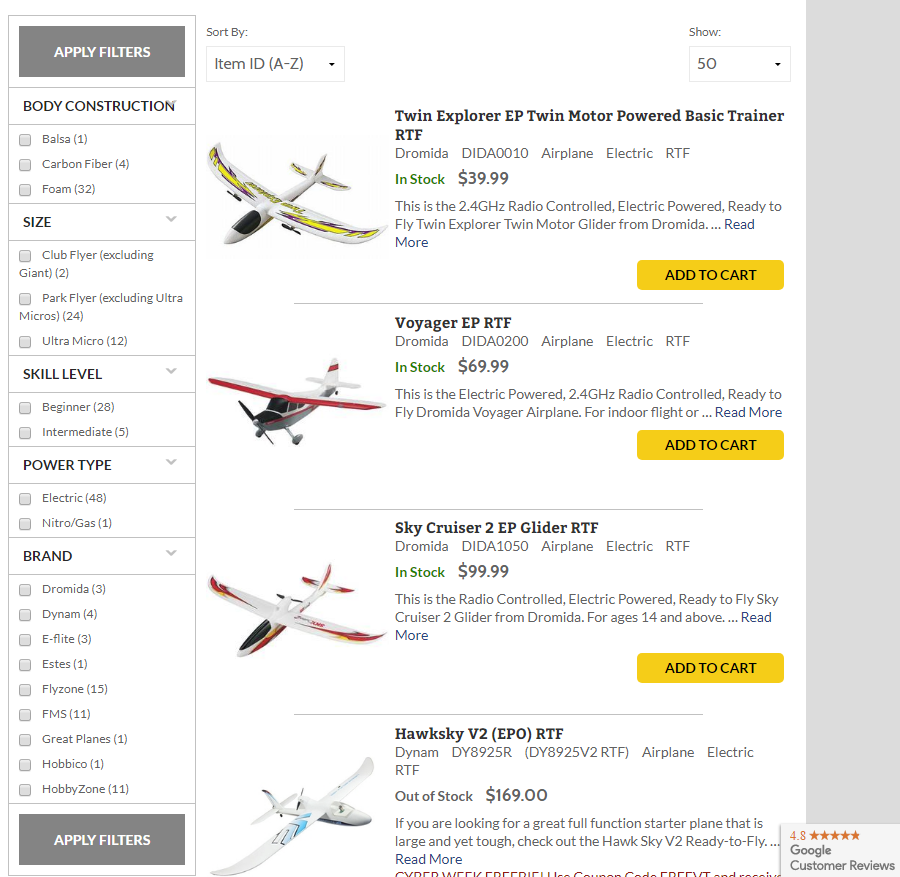
Faceted search lets shoppers narrow results by applying several filters at once, rather than working through a single fixed ordering. Each item is classified along multiple dimensions, called facets, so a shopper can combine them to reach the exact set of products they want.
This matters most for large catalogs of similar products. A store selling tens of thousands of remote controlled vehicles and accessories can offer filters that let a shopper land on the handful of items meeting all of their criteria.
To turn it on, go to Main Menu → StoreFronts → (select your StoreFront host) → Search, then open the Faceted Search Results tab and enable the filters you want to offer.
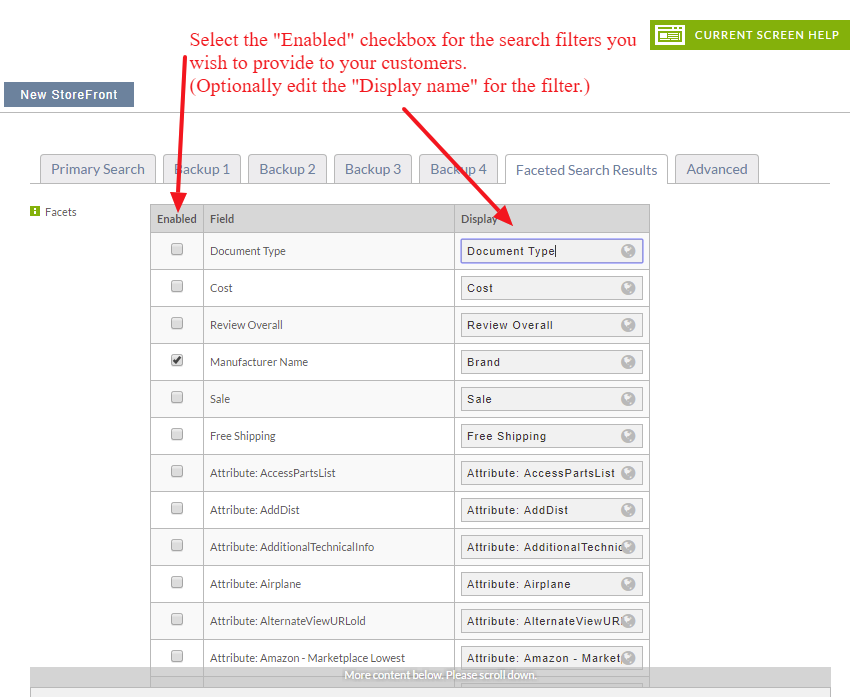
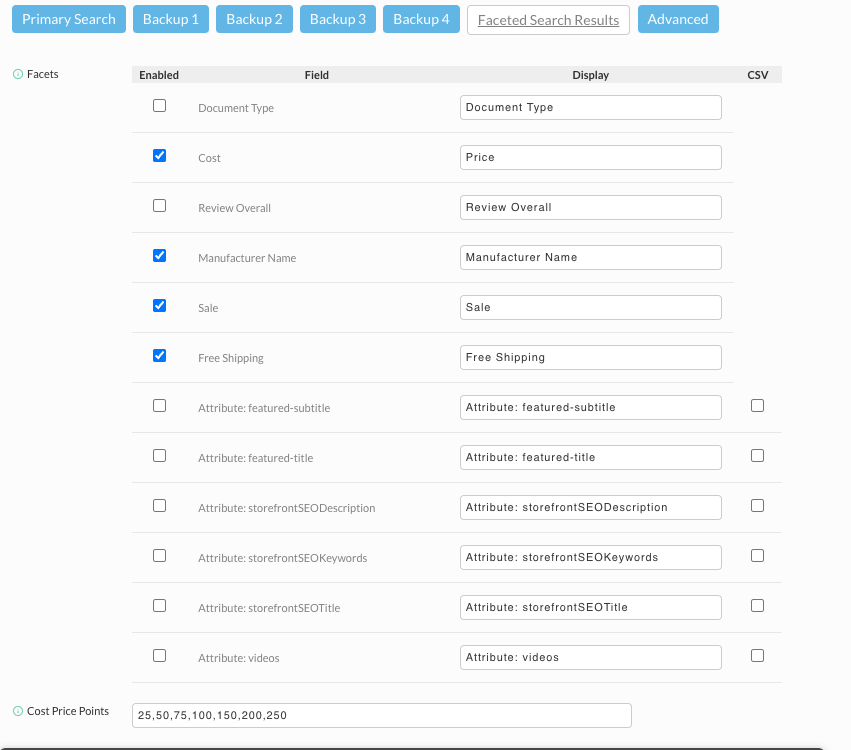
Click the save button after making your configuration changes. Enabled filters are not applied to your StoreFront until you save.
Which fields can be faceted
The list combines the fixed item fields, Document Type, Cost, Review Overall, Manufacturer Name, Sale, and Free Shipping, with one row for every item attribute in your catalog. Each row has an editable Display label, so you can show a field under a friendlier name to shoppers, for example showing Cost as "Price".
Attribute rows carry a second checkbox column, CSV, that the fixed item fields do not have.
Item options and variations cannot be used as facets. Size and color are usually the first filters a merchant reaches for, but if they are configured as options or variations on your items, they never appear in this list. To filter on a property like that, store it as an item attribute instead.
Setting Cost Price Points
If you enable the Cost facet, the Cost Price Points field on the same tab sets the price
bands shoppers filter by. Enter a comma separated list of prices, for example
25,50,75,100, which produces the bands 0-25, 25-50, 50-75, 75-100, and 100 and up,
the same bare numeric ranges the StoreFront itself displays, each followed by a count of
matching items. A fresh StoreFront comes with this field prefilled to
100,200,300,400,500,1000, which does not fit most catalogs and is worth replacing with bands
sized to your own products.
Cost Price Points applies to the whole StoreFront, not to a single category, so choose bands that suit your entire catalog. A list tuned to one category can produce no useful filter on another.
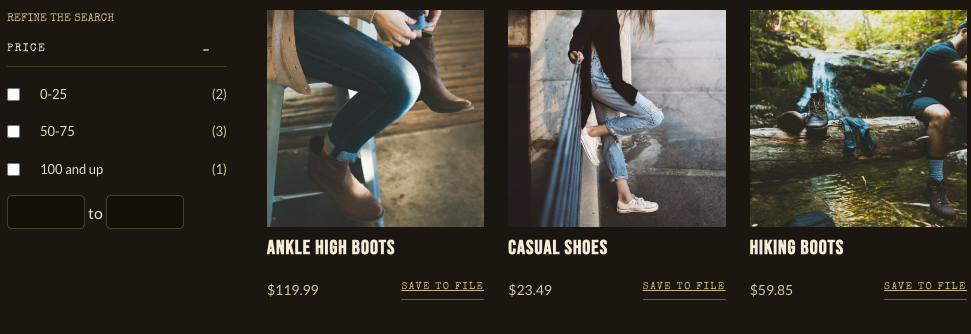
A price band only appears when it narrows the current results. A band with no items in it is
hidden, and so is a band that contains every item in the category. A Footwear category holding
items at $119.99, $23.49, $59.85, $55.63, $14.87, and $54.95 shows only the 0-25, 50-75,
and 100 and up bands; the empty 25-50 and 75-100 bands are hidden:
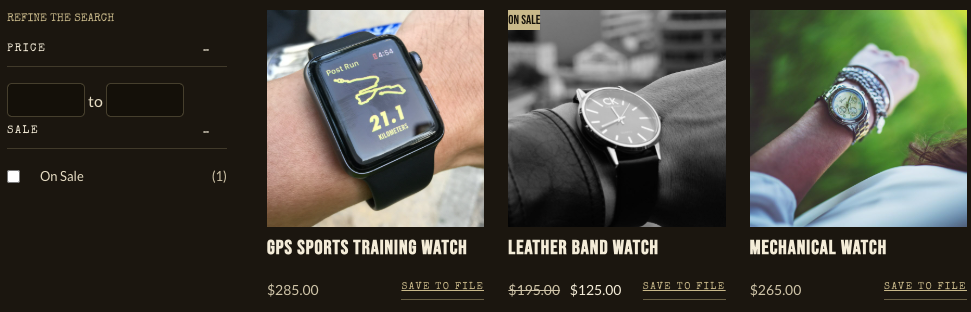
If every item in a category falls inside a single band, the checkboxes disappear entirely and only the free min and max inputs remain, as in this Watches category where every item is priced at $100 and up:
How long changes take to appear
The admin's save banner states two propagation windows: enabling or disabling a facet reaches your StoreFront within about five minutes, and changes to the Advanced search features settings take up to an hour, because they change how items are indexed rather than just toggling a filter.
Cost Price Points changes how items are indexed rather than simply toggling a filter, so expect it to follow the slower path rather than the five minute one. Get the price points right the first time rather than tuning them in short cycles.
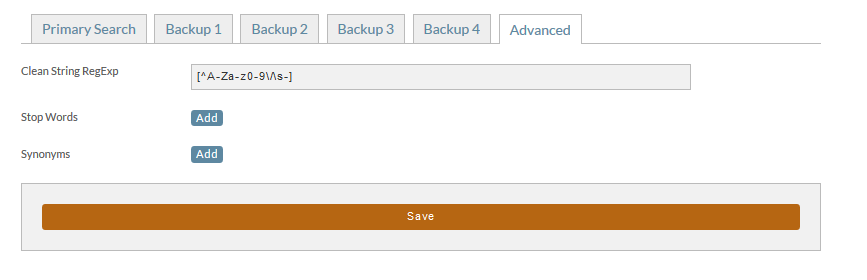
Advanced search features
The advanced features give finer control over how a query is interpreted before it is matched:
- Scrub incoming search terms using a regular expression filter to restrict what words are allowed. The syntax follows the Java programming language.
- Add stop words. Encountering these words in the search algorithm will cause a stop in that search path.
- Add synonyms. These are used to replace one word with another to help search results.
How blogs appear in Page Search
Blog posts are included in Page Search results alongside your other StoreFront pages. How that indexing works is not currently documented.
Related
- StoreFront Menus covers the navigation shoppers use when they browse instead of search.
- Sitemaps and crawling covers submitting your pages to external search engines, which is separate from the search box on your own StoreFront.