Web Accessibility
The Americans with Disabilities Act (ADA) requires public-facing websites, including online stores, to be usable by people with disabilities. In practice that means aligning your StoreFront with the Web Content Accessibility Guidelines (WCAG) 2.1 Level AA, the benchmark most auditors and most legal complaints use.
This page covers what that involves on a StoreFront, the problems that most often fail an audit, and how to install a third-party accessibility widget if you would rather buy the capability than build it.
Before you begin
- You need administrative access to your UltraCart account.
- Your StoreFront should be on a Visual Builder enabled theme.
- Familiarity with basic HTML and CSS editing helps, because several fixes are theme edits.
These free testing tools cover most of what an audit looks at: WAVE, Google Lighthouse (built into Chrome DevTools), and a screen reader such as NVDA on Windows or VoiceOver on macOS.
What ADA compliance means for a StoreFront
The ADA requires businesses to make their goods and services available to everyone, including people with visual, auditory, cognitive, and motor impairments. For an online store that covers the storefront pages, the checkout flow, and any other customer-facing content you publish.
WCAG 2.1 organizes its criteria under four principles: content must be perceivable, operable, understandable, and robust. Level AA is the conformance level referenced by most regulations and settlements.
Common issues and how to fix them
| Issue | Cause | Fix |
|---|---|---|
| Screen reader skips elements | Missing ARIA labels or heading structure | Review the markup and add descriptive aria-label or role attributes. |
| Tab navigation skips a section | Hidden focusable elements, or z-index problems | Adjust custom CSS so every focusable element is visible and in a sensible order. |
| Color contrast fails | Text and background are too close in luminance | Update the CSS colors using the ratios WAVE or Lighthouse reports. |
| Form errors are not announced | Missing field labels or ARIA attributes | Give every input an associated <label> or an aria-describedby. |
Re-test after each theme update. A theme upgrade can reintroduce a problem you already fixed.
Installing a third-party accessibility widget
Third-party accessibility products add an overlay to your storefront. Whether one is worth having depends on the size, revenue, and location of your business, and on what your legal counsel advises. They are not required: UltraCart's Visual Builder themes include core accessibility features natively, and an overlay can sometimes conflict with a customer's own assistive technology.
To install accessiBe:
-
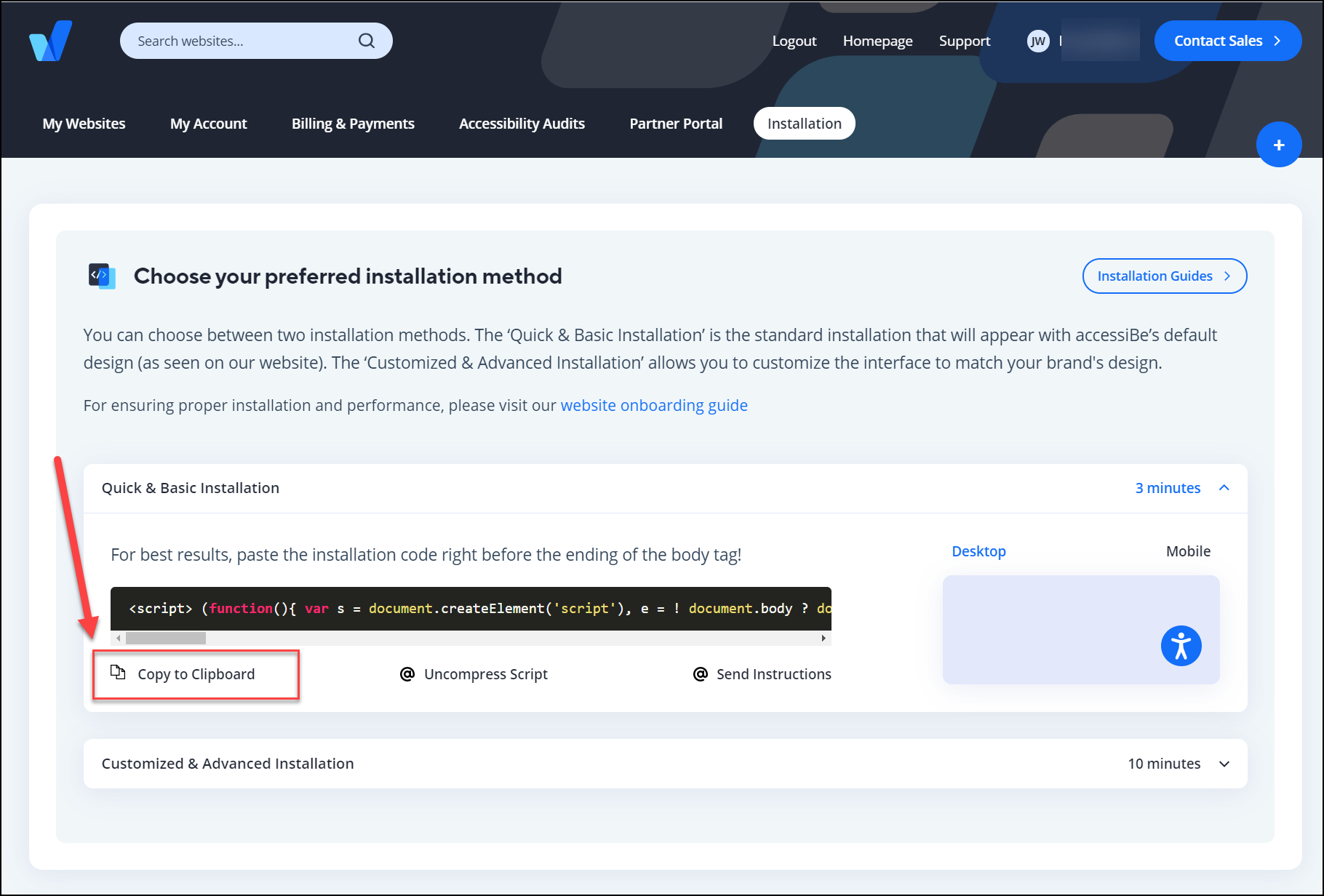
Sign up for an account at accessibe.com.
-
Open the Installation tab and click Copy to Clipboard.
-
In UltraCart, go to StoreFront → Privacy and Tracking → Custom and paste the script into both the tracking block and the conversion block.
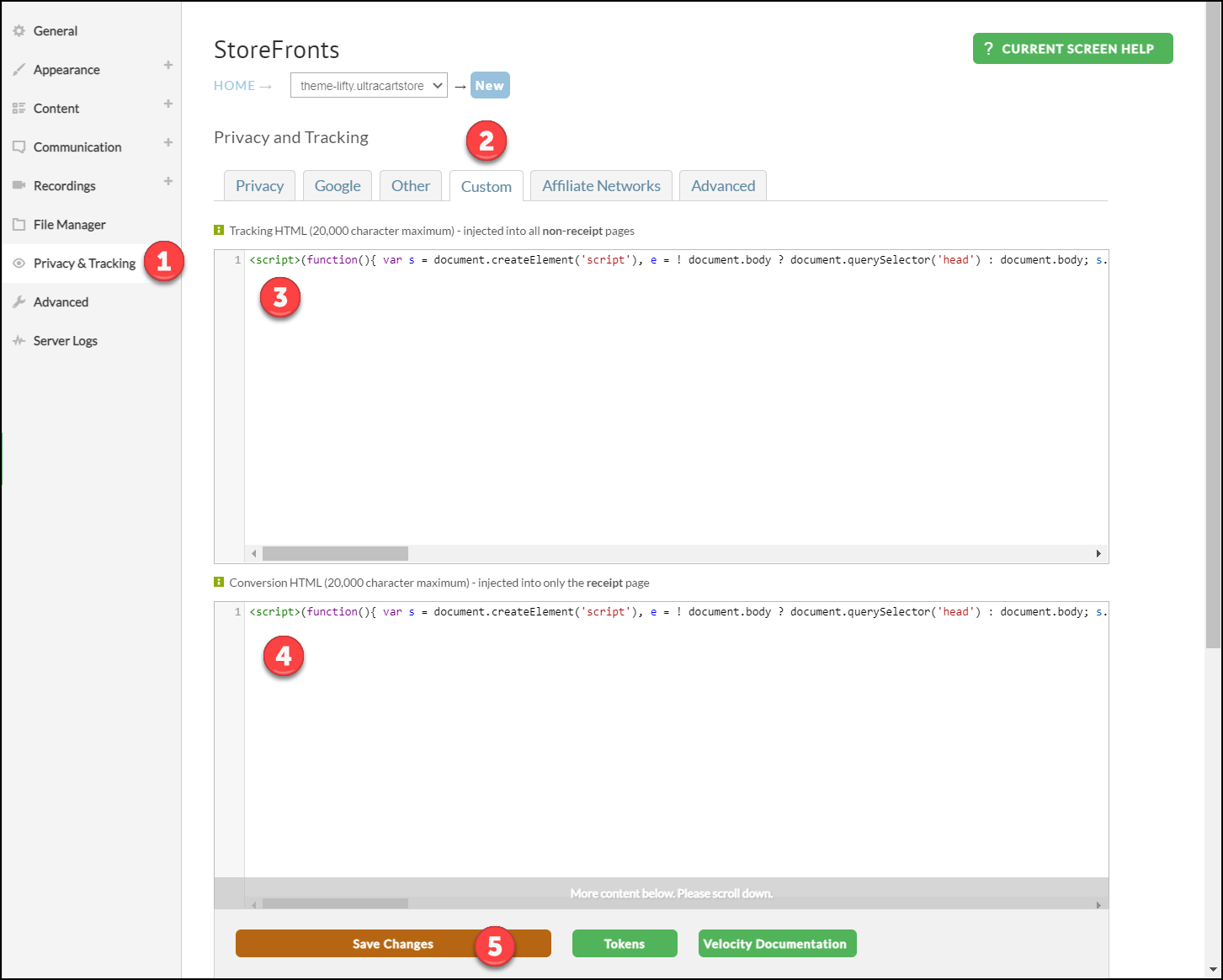
The same procedure works for other vendors that install through a script tag. See Custom tracking and scripts for what those two blocks do and when each one runs.
Frequently asked questions
Does UltraCart provide an ADA compliance certification?
No. UltraCart provides tools that support accessibility best practices. Certification has to come from a third-party auditor or an accessibility specialist.
Are all UltraCart themes ADA compliant by default?
Current Visual Builder themes are designed with accessibility in mind, but compliance depends on what you put in them. Image alt text, color contrast, and content labeling are yours to maintain.
Do I need an accessibility plugin or overlay?
No. The themes include core accessibility features natively, and overlays can conflict with assistive technologies.
How often should I review the storefront?
Run a full audit at least every six months, and again after any major theme update.