File Manager
The File Manager is the file system behind your StoreFront: theme templates, snippets, stylesheets, JavaScript, and images. It works the way a file browser on your computer works, with folders, a recycling bin, and search.
Open it from Main Menu → StoreFronts, choose your host, then select File Manager.
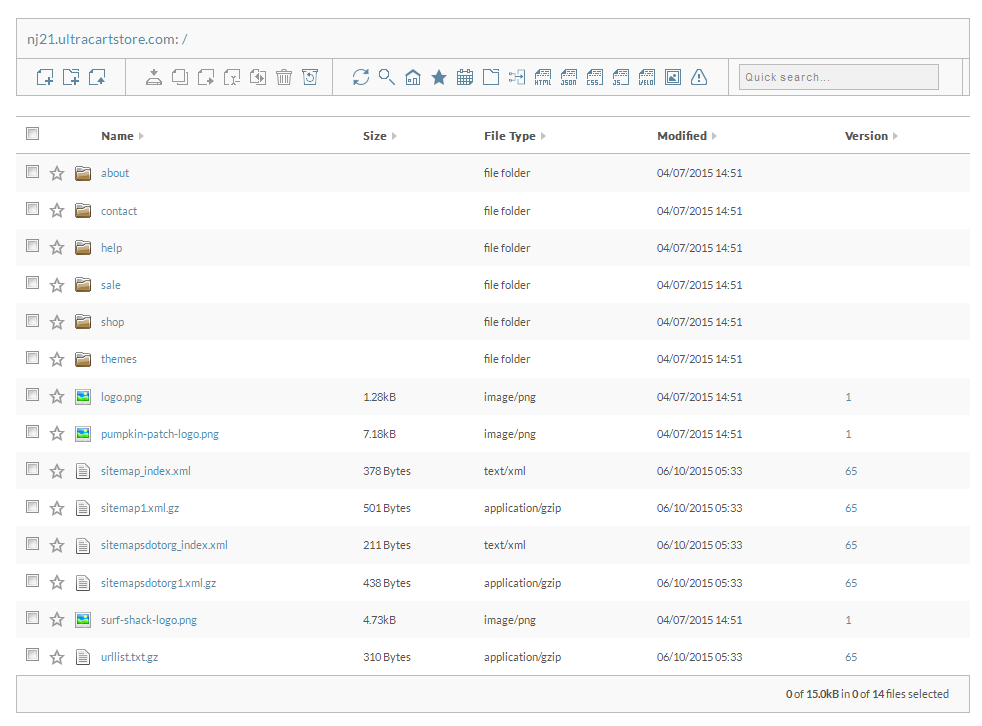
The toolbar
Everything you do here starts in the toolbar across the top, which has five parts:
| Part | What it does |
|---|---|
| Current location | Shows which StoreFront and folder you are in, as a breadcrumb |
| New file and directory | New file, new directory, and upload |
| Selected file operations | Acts on whatever you have checked: move, delete, compare |
| Search and filters | Detailed search, including the merge conflict search |
| Quick search | Filters the current view as you type |
Avoid spaces and other non-alphanumeric characters in file and folder names. These names end up in your StoreFront's URLs, where those characters cause problems.
Create a folder
- Select the New Folder icon.
- Enter the folder name and select OK.
If the new folder does not appear, select Refresh to reload the directory.
Create a file
- Select the New File icon.
- Enter the file name, including its extension, then select OK.
The extension matters. UltraCart and the browser both use it to work out what kind of content the file holds.
The File Editor opens with your new file. Enter your content and select Save, or select Close to go back without saving.
Move a file
- Check the box next to the file you want to move.
- Select the Move icon in the toolbar.
- Choose the destination directory, then select Next.
UltraCart checks the destination for conflicts before completing the move.
Delete a file
- Check the box next to the file.
- The trash can icon turns red once a file is selected. Select it.
- Confirm in the prompt.
Deleted files go to the recycling bin rather than disappearing.
Restore a deleted file
- Select the Recycling Bin icon in the toolbar.
- A panel lists every file you can still restore.
- Restore the one you want.
The recycling bin holds files for 30 days. After that a deleted file cannot be restored from here.
Search for a file
There are two ways, depending on how much you need to narrow things down.
Quick search filters as you type. Enter the first few characters of a file name and matches appear straight away.
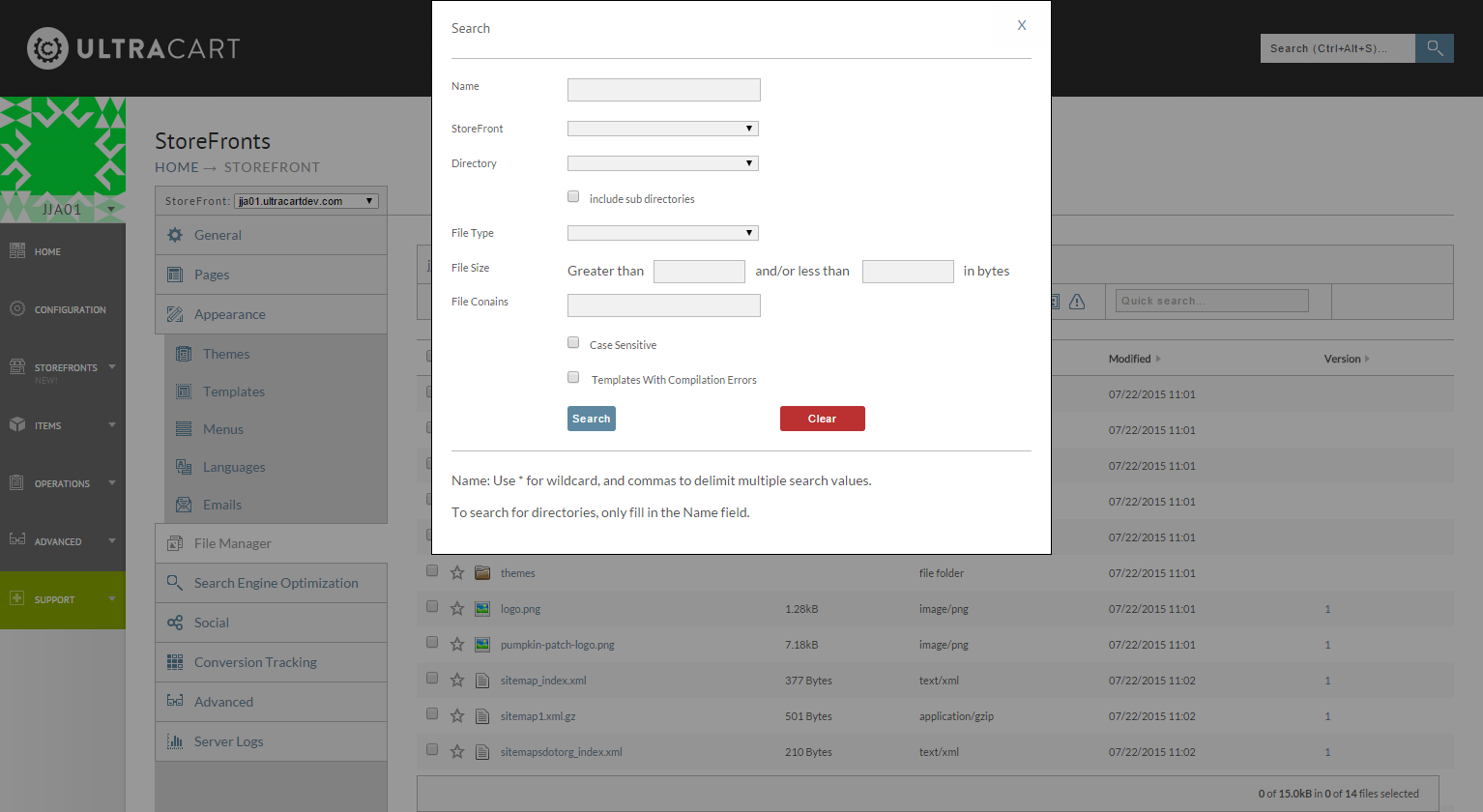
Detailed search opens from the magnifying glass icon. Use it to restrict results by file type and other criteria.
Search for text inside templates
To find where a phrase is used rather than a file name, use the Templates screen instead. It reaches the same files and is the faster route for this.
- Select Templates from the StoreFront menu.
- Enter your search term in the search field.
Results are grouped by template, so you can see which one uses the term. Selecting a template name opens the editor, where Ctrl + F searches within that file.
Compare two files
- Navigate to the folder holding both files.
- Check the box next to each of the two files.
- Select Compare in the toolbar.
Both files appear side by side. This is the fastest way to see what differs between a theme file and your modified copy of it.
To compare a single file against its own earlier versions instead, use its version history. See Review what changed in a template.
Mark favorites
Once a StoreFront accumulates a lot of files, favorites keep the ones you edit often within reach.
- Select the star icon next to a file. It darkens to show the file is a favorite. Selecting it again removes it. There is no save step.
- To see only favorites, select the star icon at the top of the screen.
- To go back to every file, select the home icon to its left.
Connect over FTP
You can reach the same files over FTP, which is useful for bulk edits or working in a local editor. Set up your credentials first, following the FTP Configuration User Guide.
Once connected, the path follows the same shape as the File Manager:
- Open the
storefrontsfolder on the remote site. - Open the folder for your StoreFront host.
- Open
themes, then your theme.
Inside a theme you will find assets, snippets, and templates, which is where you download
and upload the files that make up the StoreFront.
Uploading large files
The Upload button in the toolbar sends a file over HTTP, and like any browser upload it
struggles once a file gets large, generally somewhere north of 100 MB. If an upload stalls or
errors out on a large file, connect over FTP instead (see Connect over FTP)
and upload directly into the StoreFront's file tree, for example
storefronts/<host>/themes/<theme>/assets. FTP reaches the same files as the Upload button, so
the result is identical: an ordinary file in your StoreFront, public at its own URL with no
login required.
This is different from the digital delivery library under Checkout & Payments → Digital Delivery. Files there are tied to a specific order and customer, and a customer who has not purchased cannot reach them. If you want a file anyone can download without buying anything, such as a demo, a trial version, or an installer, put it in the StoreFront's file system through File Manager or FTP rather than digital delivery. See Digital Delivery for how that library works.
Next steps
- StoreFront Pages for the pages themselves, rather than the files behind them.
- Upgrading a theme, where the File Manager's merge conflict search and version history do the real work.