Customer Surveys
How surveys work
StoreFront surveys run on SurveyJS, so a survey is a JSON file rather than something you build in a form editor. You write the JSON, save it to your StoreFront file system, and point a Visual Builder Survey element at it. Responses land in the uc_surveys table in your BigQuery data warehouse.
Nothing is installed and no third-party account is needed. The JSON format and the free editor are SurveyJS; the hosting, the element, and the response storage are UltraCart.
Building a survey
Build the survey definition in the free SurveyJS editor, which generates the JSON as you add questions, set conditional logic, and adjust the appearance. When the survey looks right, copy the JSON from the editor's JSON Editor tab and save it to your StoreFront file system.
Because the definition is a plain JSON file, you can also edit it directly in the File Manager, and it is versioned along with the rest of your StoreFront files.
An Example Survey to the File System
The following example survey is a post checkout questionnaire to gain additional insight into how the customer was marketed to.
{
  "title": "Post Checkout Questionnaire",
  "logoPosition": "right",
  "pages": [
    {
      "name": "page1",
      "title": "Page 1",
      "elements": [
        {
          "type": "radiogroup",
          "name": "whereDidYouHearAboutUs",
          "title": "Before you go... How did you first hear about us?",
          "hideNumber": true,
          "isRequired": true,
          "requiredErrorText": "At least ONE answer must be selected",
          "choices": [
            "Facebook",
            "From a friend, family member, or coworker",
            "Podcast/Radio",
            "Pinterest",
            "TikTok",
            "Snapchat",
            "Instagram",
            "TV",
            "Press or other article",
            "From an influencer",
            "In a retail store",
            "Google or other search engine"
          ],
          "showOtherItem": true
        },
        {
          "type": "radiogroup",
          "name": "whoPostedAboutUs",
          "visibleIf": "{whereDidYouHearAboutUs} anyof ['Facebook', 'Pinterest', 'TikTok', 'Instagram']",
          "title": "Who posted about us?",
          "hideNumber": true,
          "isRequired": true,
          "requiredErrorText": "At least ONE answer must be selected",
          "choices": [
            "You did!",
            "I saw an ad",
            "Someone I know",
            "An influencer I follow"
          ],
          "showOtherItem": true
        }
      ]
    },
    {
      "name": "page3",
      "title": "Page 3",
      "elements": [
        {
          "type": "checkbox",
          "name": "whatBroughtYouToOurSiteToday",
          "title": "And what brought you to our site today?",
          "hideNumber": true,
          "isRequired": true,
          "requiredErrorText": "At least ONE answer must be selected",
          "commentPlaceholder": "What Areas?",
          "choices": [
            "I received a text message",
            "I remember you from the past",
            "I saw an ad",
            "I received an email",
            "Someone told me about you",
            "I was searching something"
          ],
          "showOtherItem": true,
          "otherPlaceholder": "Other",
          "otherText": "Other"
        }
      ]
    },
    {
      "name": "page4",
      "title": "Page 4",
      "elements": [
        {
          "type": "radiogroup",
          "name": "howLongDidYouKnowAboutUs",
          "title": "How long did you know about us before making your first purchase?",
          "hideNumber": true,
          "isRequired": true,
          "requiredErrorText": "At least ONE answer must be selected",
          "choices": [
            "< 1 day",
            "< 1 week",
            "< 1 month",
            "1 - 3 months",
            "3 - 12 months",
            "> 12 months"
          ]
        }
      ]
    },
    {
      "name": "page5",
      "title": "Page 5",
      "elements": [
        {
          "type": "text",
          "name": "email",
          "title": "Your email address",
          "inputType": "email",
          "isRequired": true
        },
        {
          "type": "text",
          "name": "birthdate",
          "title": "One last thing, can we send you something on your birthday?",
          "inputType": "date"
        }
      ]
    }
  ],
  "showTitle": false,
  "showPageTitles": false,
  "goNextPageAutomatic": true,
  "startSurveyText": "Next",
  "pagePrevText": "Back",
  "completeText": "Finish",
  "questionTitlePattern": "numTitle",
  "firstPageIsStarted": true
}
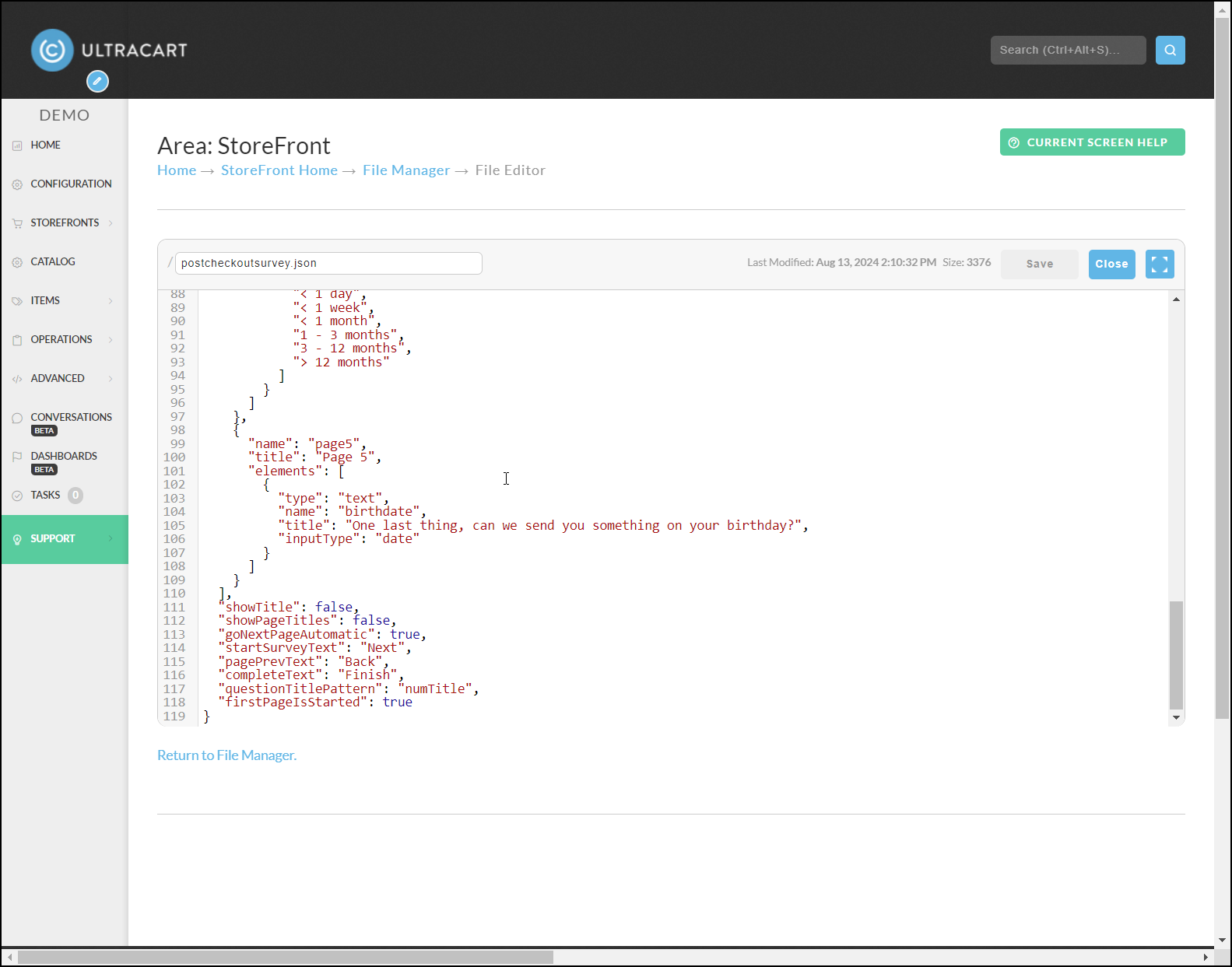
Take the example JSON contents and place them on your StoreFront file system as a file named /postcheckoutsurvey.json in the root of the file system as shown below.
Embedding the Survey on the Page
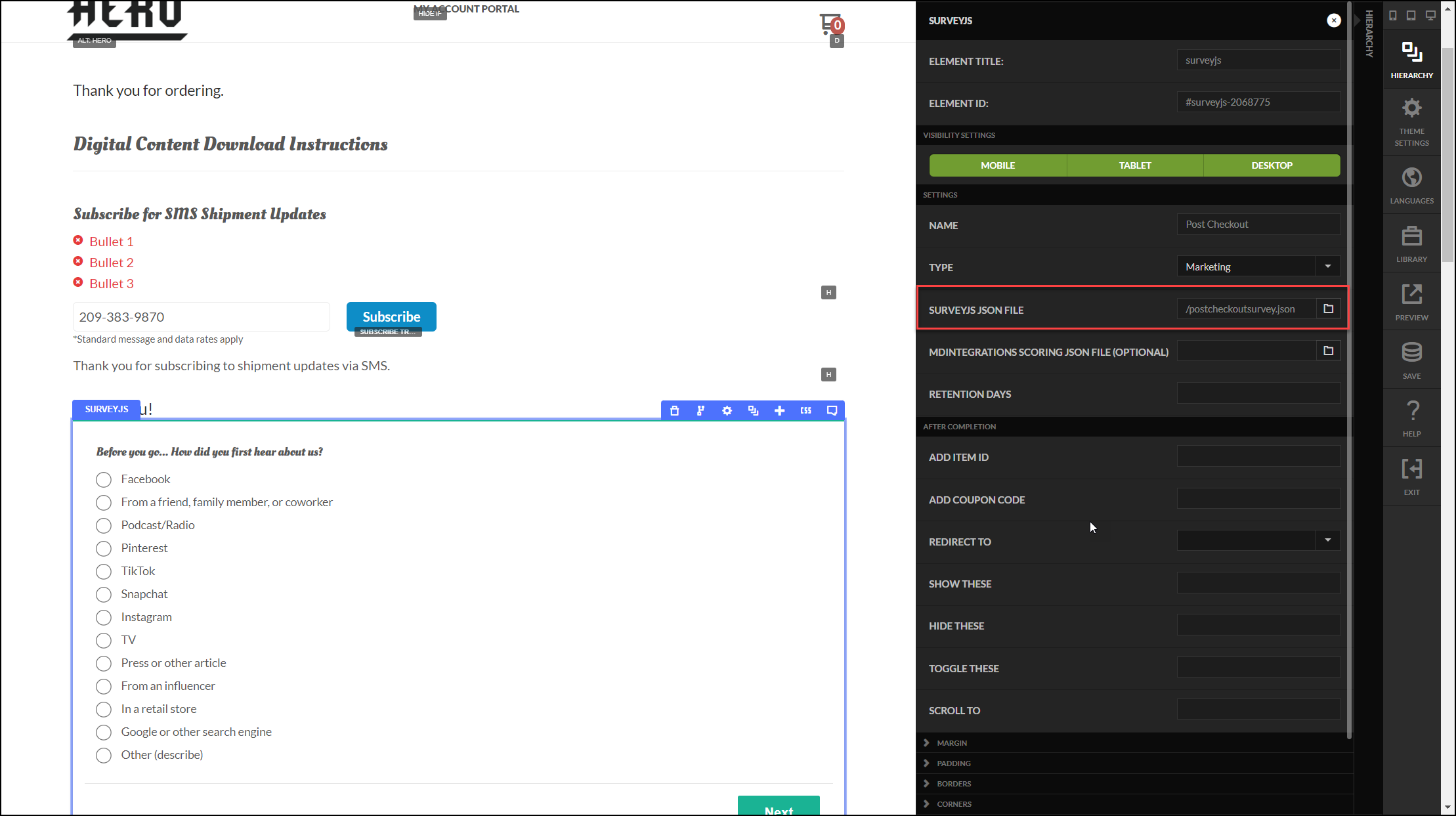
Within the StoreFront visual builder, add a SurveyJS element to the page. Within the settings of the SurveyJS element you will need to select the location of the JSON file on the file system.
Reserved Question Names
Most SurveyJS question name values you choose are stored verbatim in the raw JSON column of the uc_surveys table in BigQuery, so you can name them whatever is most descriptive for your reporting.
A small set of question names are reserved: if you use one of these names, UltraCart will additionally copy the answer into a dedicated column on uc_surveys and, in some cases, wire it into other systems like the real-time analytics identify event.
Reserved name | Column populated | Additional behavior |
|---|---|---|
email (lowercase) | uc_surveys.email | Fires real-time identify event to the analytics bus as soon as it is filled in; writes the value to the shopper's cart so it is available to abandoned-cart flows and downstream integrations (Northbeam, Klaviyo, GA4). |
firstName | uc_surveys.first_name | Available to a StoreFront Communications email step as {{firstName}}. |
lastName | uc_surveys.last_name | Available to a StoreFront Communications email step as {{lastName}}. |
Both name fields differ from email in two ways that matter once you build on them:
-
The question name and the column name are spelled differently. You write the question as
firstNamein the SurveyJS JSON and query it asfirst_namein BigQuery.emailis the same word in both places, so the change in spelling is easy to miss. -
Neither fires the identify event or writes to the shopper's cart. They fill their columns and supply the email variables, and nothing beyond that. Identity work still belongs to
email, so keep an email question in the survey when you want abandoned-cart flows or the downstream integrations to recognize the shopper.
Requirements when using a reserved name
-
The
namefield must be an exact case-sensitive match:email, notEmailorcustomer_email, andfirstName, notfirstname,first_name, orFirstName. If thenamedoes not match, the value is still captured as a normal survey answer insideraw, but the dedicated column stays empty. -
The reserved question must be declared at the top level of a page. Nesting it inside a
paneldynamic,matrixdynamic, or other container changes the key SurveyJS emits, and the reserved-name match will not fire. -
The
titleof the question is the visible label, and you can set it to anything. Thetitlehas no effect on column mapping. Onlynamematters.
Example: name and email capture questions
All three sit directly in a page's elements array, which is where a reserved name has to be declared. The titles are yours to reword; only name drives the column mapping.
{
  "name": "page1",
  "elements": [
    {
      "type": "text",
      "name": "firstName",
      "title": "First name",
      "isRequired": true
    },
    {
      "type": "text",
      "name": "lastName",
      "title": "Last name"
    },
    {
      "type": "text",
      "name": "email",
      "title": "Your email address",
      "inputType": "email",
      "isRequired": true
    }
  ]
}
Using the captured name in a Communications email
A StoreFront Communications email step can address the shopper by the name the survey collected. Reference the answers as {{firstName}} and {{lastName}}:
Hi {{firstName}},

Thanks for taking a moment to fill out our survey.
Use the camel case spelling here, matching the question name rather than the first_name BigQuery column. Mark the question isRequired when the wording of an email depends on having a value, since an optional question the shopper skips gives the variable nothing to render.
Survey Type: Marketing vs PII
The SurveyJS element settings include a Type dropdown with two options:
-
Marketing: the default. The survey is treated as standard marketing/feedback content. Session-recording tools capture the survey form and its contents as they would any other page element.
-
PII: use when the survey collects personally identifiable information (email, phone number, date of birth, health information, etc.). UltraCart adds the
rr-blockclass to the survey element so session-recording tools will not capture its contents.
If a survey contains any of the reserved question names, or any free-text field that a shopper might use to enter personal information, set the Type to PII.
How are the Surveys Stored?
UltraCart stores the completed Surveys into the BigQuery Data Warehouse. If the Survey is configured to add an item ID to the cart at completion then an item level property named "survey_uuid" is added which references the Survey and allows the tie together between the individual survey and the item on the order. This is useful for surveys involved with buying specific products.
If the Survey is embedded in the context of an order element (for example on the receipt) then the survey will be tied to the order using a property named "survey_uuid" at the order level.
If the Survey is embedded in the context of an order item list element on the receipt, then the survey will be tied to the order item using a property named "survey_uuid" at the order item level.
The only way to access the survey data is through the BigQuery Data Warehouse. Within the data warehouse you can write SQL queries to aggregate the survey information and the include that within your custom Google Looker reports.
The uc_surveys Table
Each survey submission becomes one row in the uc_surveys table in BigQuery. The table has the following columns:
-
survey_uuid: unique identifier for the survey submission. Used as thesurvey_uuidproperty on cart items / orders / order items to link a submission back to its context. -
survey_name: the name configured in the SurveyJS element settings. -
survey_type:MarketingorPII.PIImarks the survey for exclusion from screen recording. -
uri: page path on which the survey was submitted. -
widget_id: the ID of the SurveyJS page-builder element, if set. -
email: populated only when the survey contains a question withname: "email"(see Reserved Question Names). -
first_name/last_name: populated only when the survey contains questions namedfirstNameandlastName. Mind the spelling change between the question name and the column. -
raw: the full SurveyJS answer payload as JSON. Keys are questionnamevalues. -
question_definitions: array of metadata for each question (type, title, page number, position, visible choices). -
ucacid: UltraCart anonymous customer id cookie value at time of submission; lets you join against identify/activity data. -
order_id_token/order_item_token: set when the survey element is nested under an order or order-item element (for example on a receipt). -
add_item_id/add_coupon_code: populated when the survey is configured to add an item or coupon on completion. -
correct_answer_count/incorrect_answer_count/correctly_answered/incorrectly_answered: populated when the survey uses SurveyJScorrectAnswervalues (quiz-style surveys).
Example: Contact Form with All Question Types
The following worked example demonstrates a two-page contact/inquiry form that covers all five core SurveyJS question types: text, radiogroup, checkbox, dropdown, and comment. A live version is available at demo4.ultracartstore.com/survey-demo.html.
Step 1: Create the JSON template
In the StoreFront File Manager, create a new file named /contact-form.json at the root of the file system and paste the following content:
{
  "title": "Contact & Meeting Request Form",
  "logoPosition": "right",
  "pages": [
    {
      "name": "page1",
      "title": "Contact Information",
      "elements": [
        {"type": "text", "name": "firstName", "title": "First Name", "isRequired": true},
        {"type": "text", "name": "lastName", "title": "Last Name", "isRequired": true},
        {"type": "text", "name": "email", "title": "Email Address", "inputType": "email", "isRequired": true},
        {"type": "text", "name": "phone", "title": "Phone Number", "inputType": "tel"},
        {"type": "text", "name": "company", "title": "Company / Organization"}
      ]
    },
    {
      "name": "page2",
      "title": "Your Inquiry",
      "elements": [
        {
          "type": "radiogroup",
          "name": "inquiryType",
          "title": "What best describes your inquiry? (choose one)",
          "isRequired": true,
          "choices": ["Product information", "Pricing / purchasing", "Schedule a meeting", "General question"],
          "showOtherItem": true,
          "otherText": "Other"
        },
        {
          "type": "checkbox",
          "name": "areasOfInterest",
          "title": "Which areas are you interested in? (select all that apply)",
          "choices": ["Leadership development", "Team training", "Executive coaching", "Online programs", "In-person events"],
          "showOtherItem": true,
          "otherText": "Other"
        },
        {
          "type": "dropdown",
          "name": "preferredContact",
          "title": "Preferred contact method",
          "choices": ["Email", "Phone", "Either"]
        },
        {
          "type": "comment",
          "name": "message",
          "title": "Additional comments or questions",
          "rows": 4
        }
      ]
    }
  ],
  "showTitle": false,
  "showPageTitles": false,
  "goNextPageAutomatic": false,
  "pagePrevText": "Back",
  "completeText": "Submit",
  "firstPageIsStarted": false
}
Page 1 uses three reserved question names. email is written to uc_surveys.email and fires a real-time identify event that makes the address available to Conversations flows and abandoned-cart integrations. firstName and lastName are written to uc_surveys.first_name and uc_surveys.last_name, and a follow-up email can greet the shopper with {{firstName}} and {{lastName}}. See Reserved question names for details.
Step 2: Add the Survey element to your page
In the StoreFront Visual Builder, open the page where the form should appear. Select the body container, click ADD NEW ELEMENT, type survey in the search box, and click the Survey tile to insert it.
Step 3: Configure the Survey element settings
Click the gear icon on the Survey element to open its settings panel. Fill in the following fields:
| Field | Value | Notes |
|---|---|---|
| Name | contact-form | Becomes survey_name in the uc_surveys BigQuery table. |
| Type | PII | Required when the form collects name, email, or other personal data. |
| SurveyJS JSON File | /contact-form.json | Path to the JSON file on the StoreFront file system. |
Step 4: Save and preview
Click Save in the visual builder toolbar. The survey renders immediately. Page 1 collects contact information (five text inputs, three required). Page 2 collects inquiry details using radiogroup, checkbox, dropdown, and comment question types, with Back and Submit navigation.
Connecting completions to a Conversations flow
Once the survey is live, you can automate follow-up using UltraCart Conversations:
-
In Conversations, create a new Segment for survey respondents.
-
Create a Flow and select the trigger Survey - When someone has completed a survey. Filter by survey name (
contact-form) to target only this form. -
Add flow steps to send a follow-up email, assign a tag, or add the contact to a list.
note
The Conversations survey trigger and Segment creation require a minimum account age and activity level. If these options are not yet available in your account, contact UltraCart support to confirm eligibility.
The Conversations survey trigger and Segment creation require a minimum account age and activity level. If these options are not yet available in your account, contact UltraCart support to confirm eligibility.
Troubleshooting
The email, first_name, or last_name column in uc_surveys is empty
The question's name field is probably not the reserved one. Open the SurveyJS JSON and check the name, not the title, of that question. It must be exactly email, firstName, or lastName, and it must not be nested inside a panel or matrix. The title is only the label shown to the shopper.
The name columns have a trap of their own: the column is snake case, while the question name is camel case. A survey written with name: "first_name" leaves the first_name column empty. Rename the question to firstName.
The {{firstName}} variable is empty in a Communications email
Check the survey JSON for a question named exactly firstName, and confirm the Flow is triggered by that survey's completion. If the question is optional, any shopper who skips it leaves the variable with nothing to render, so mark it isRequired when the email depends on it.
The answers appear in raw but not in the columns I expected
Only the reserved question names listed above get their own column. Everything else lives in the raw JSON payload, where you can still query it with BigQuery's JSON functions (for example JSON_VALUE(raw, "$.whereDidYouHearAboutUs")).
The survey submits, but nothing appears in BigQuery at all
The data warehouse is loaded on a delay. Give it a few minutes, then query again. If rows still do not appear, check the browser devtools Network tab for the PUT /rest/site/survey request. A non-200 response there indicates the submission itself failed before it reached the warehouse.
I want the survey excluded from session recording
Set the survey Type to PII in the SurveyJS element settings. This adds the rr-block class to the survey element so session-recording tools will not capture its contents.