Search Engine Optimization
Search Engine Optimization (SEO) is how you tell search engines what each part of your store is about. UltraCart lets you set it at three levels: once for the whole storefront, again for an individual page, and again for an individual item. The narrower setting wins, so the storefront-wide values act as a fallback for anything you have not filled in.
StoreFront themes already generate clean URLs, which are short, descriptive, and free of query strings. You do not have to configure that.
Storefront SEO settings
Go to Main Menu → StoreFronts → [select your storefront] → Search Engine Optimization.
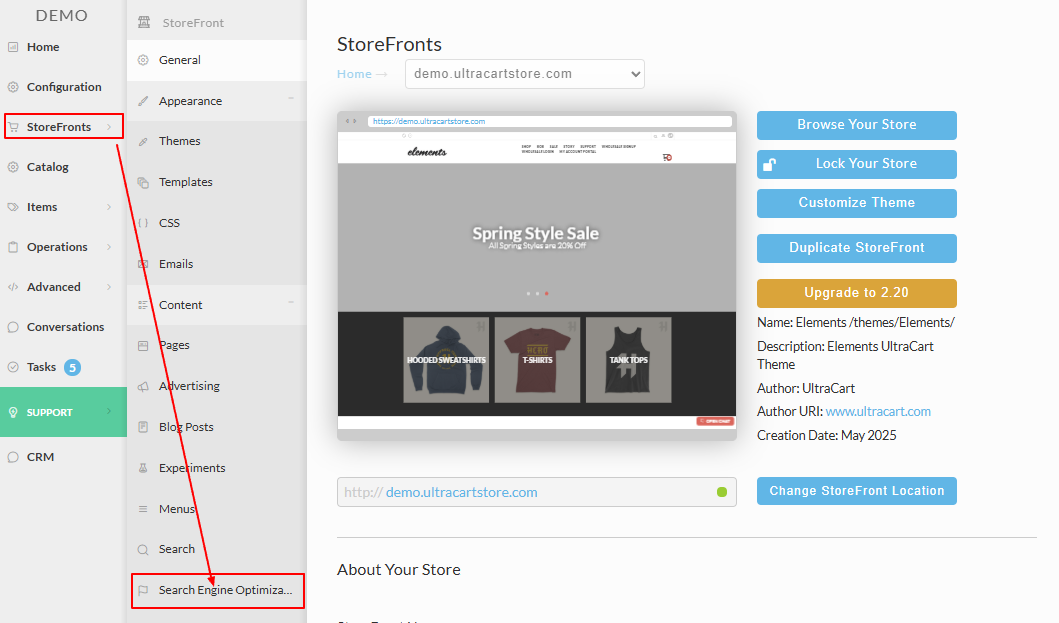
| Field | What it does |
|---|---|
| Default Meta Description | A description of your store, 275 to 300 characters. Search engines may show it under your listing. Pages and items without their own description fall back to this one. |
| Default Keywords | Keywords that apply across the storefront. |
| Enable Canonical Links | Tells search engines which URL is the definitive one for an item that appears in more than one place. See Canonical links. |
| Enable Schema.org | Outputs structured data so search engines can identify prices, availability, and ratings. See Structured data with schema.org. |
| Prevent Search Engines from Indexing | Hides the whole storefront from search engines. Use it while you are building the site, and turn it off before you launch. |
Prevent Search Engines from Indexing applies to the entire storefront. If it is still on after launch, none of your pages will appear in search results.
Page-level SEO
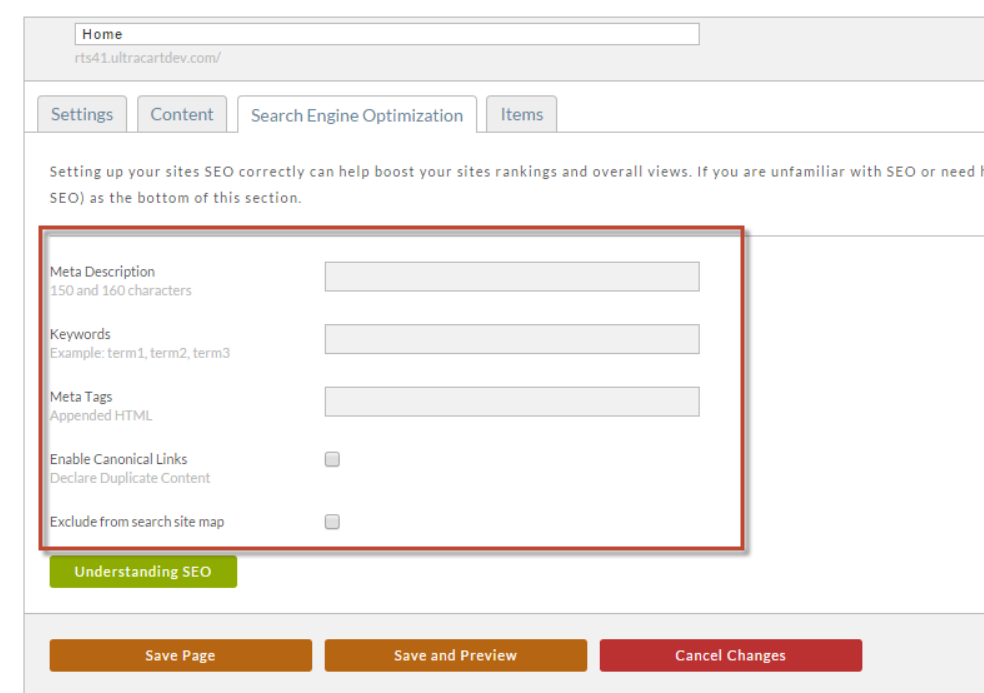
Each StoreFront page carries its own SEO fields, which override the storefront defaults for that page.
-
Go to Main Menu → StoreFronts → [select your storefront] → Pages.
-
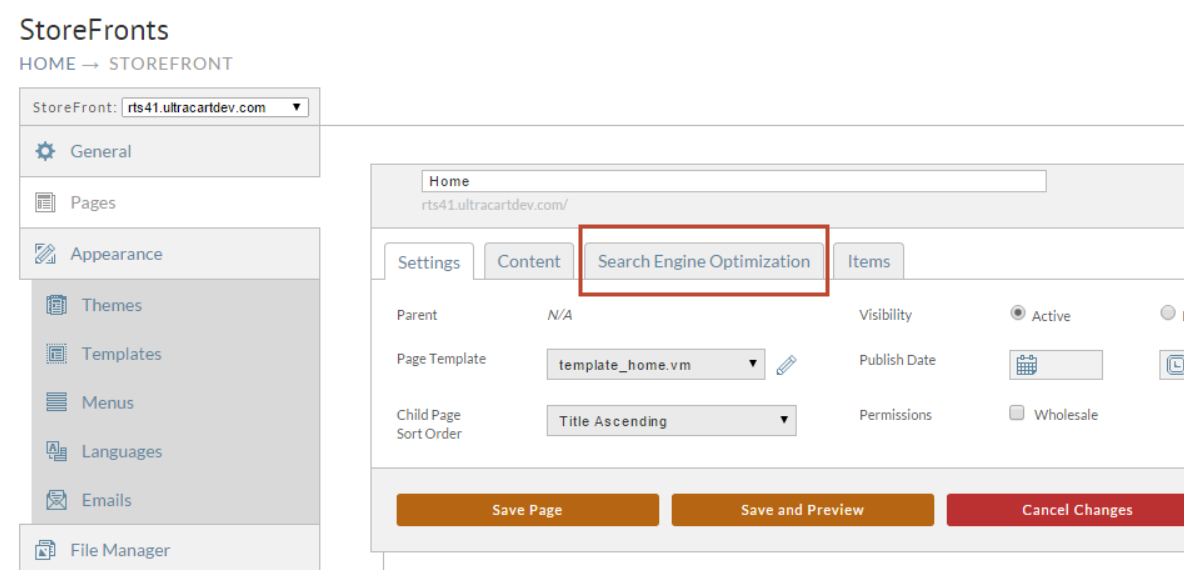
Open the page and select the Search Engine Optimization tab.
-
Fill in the fields for this page.
-
Select Save Page or Save and Preview before you navigate away.
Item-level SEO
Items carry SEO fields too, which is what search engines read for a product page.
-
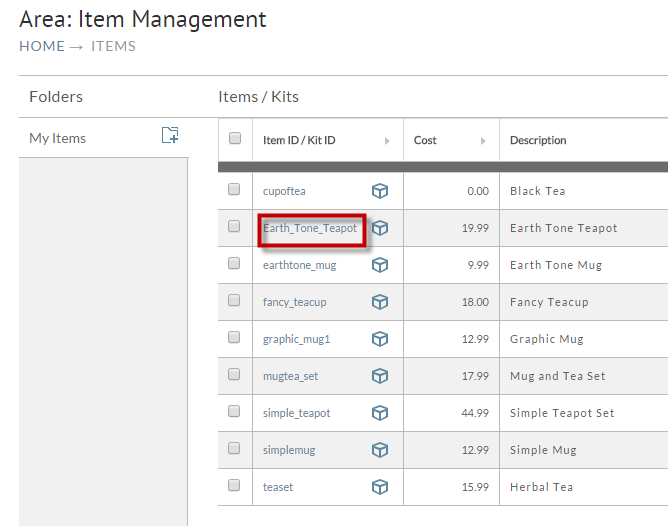
Go to Main Menu → Items → Item Management and select the item ID to open the item.
-
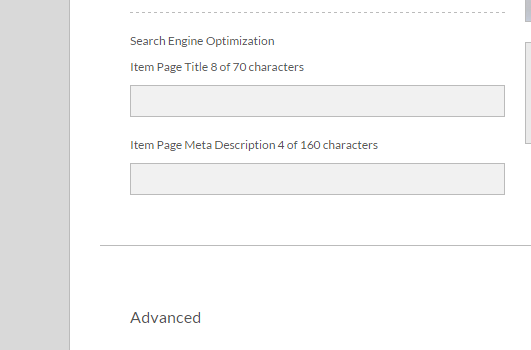
Scroll to the Search Engine Optimization section and fill in the fields.
-
Select Save before you navigate away.
Item-level SEO fields only appear on items that are assigned to a storefront.
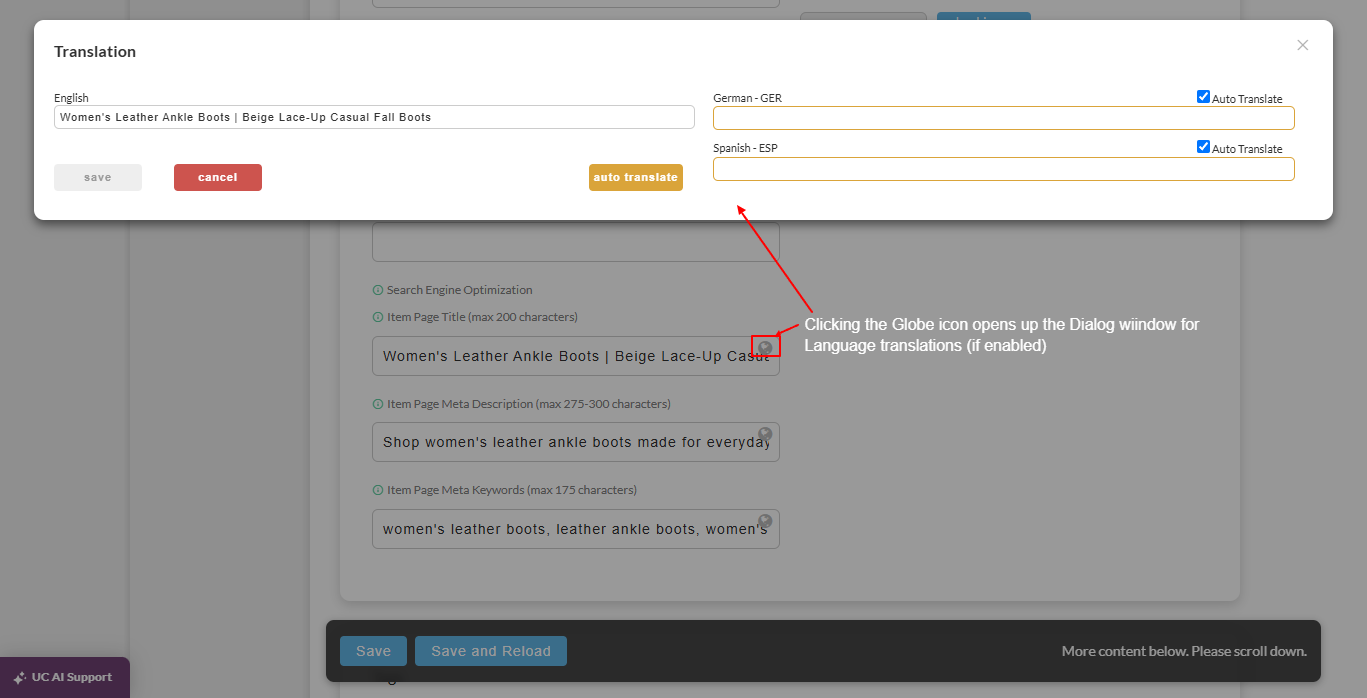
If the StoreFront's theme has multiple languages enabled, a globe icon appears beside the SEO text fields that support translation, including Item Page Title, Item Page Meta Description, and Item Page Meta Keywords. Select it to open a dialog where you can enter a translated value for each enabled language, with an optional Auto Translate toggle per language.
Canonical links
A canonical link tells a search engine which URL is the definitive one for a piece of content. It exists to solve duplicate content, which is the same content served at two different addresses. Search engines treat unexplained duplication as an attempt to game rankings.
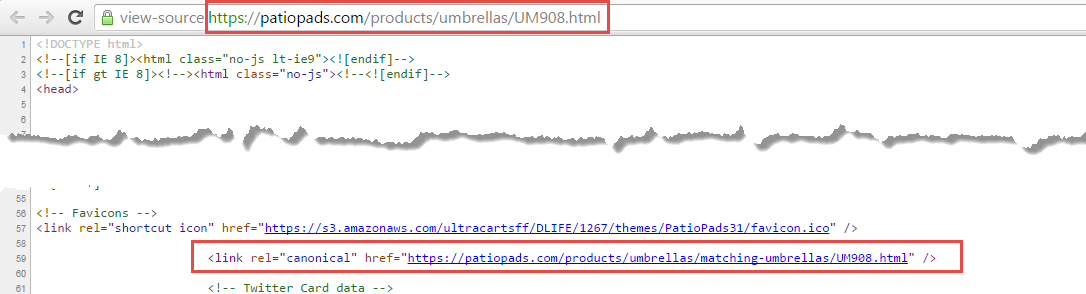
Duplication is often deliberate and reasonable. Say you sell a battery that suits both radio controlled planes and radio controlled cars, so you assign it to both category pages. That is a legitimate reason for one item to live at two URLs, and the canonical tag is how you say so. The served page carries a tag like this:
<link rel="canonical" href="https://demo4.ultracartstore.com/shop/footwear/Boots002.html" />
Turn canonical links on
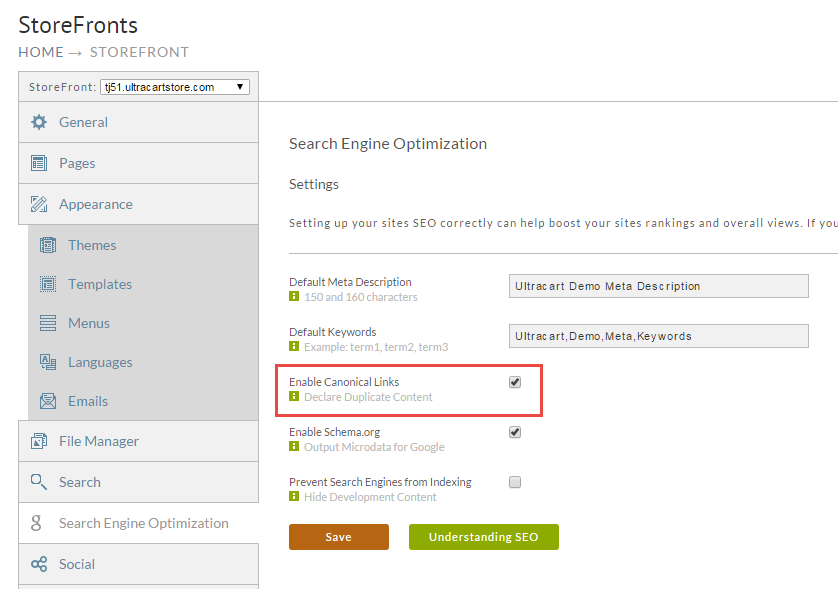
On the Search Engine Optimization tab, select Enable Canonical Links.
How UltraCart picks the canonical URL
UltraCart chooses the deepest and longest assignment, so the search engine gets the most semantic meaning from the URL. Take an item assigned in five places:
https://store.fakecoffeeshop.com/AwesomeCoffee.html
https://store.fakecoffeeshop.com/shop/AwesomeCoffee.html
https://store.fakecoffeeshop.com/roast/organic-medium-roast-coffee/AwesomeCoffee.html
https://store.fakecoffeeshop.com/shop/organic-ground-coffee/AwesomeCoffee.html
https://store.fakecoffeeshop.com/shop/organic-whole-bean-coffee/AwesomeCoffee.html
The canonical URL is:
https://store.fakecoffeeshop.com/roast/organic-medium-roast-coffee/AwesomeCoffee.html
It won because it is two pages deep, and because its URL is the longest of the two-page-deep options.
You can also choose the canonical assignment yourself. When an item is assigned to more than one page, the item editor shows a checkbox on each assignment that marks it canonical.
If you leave canonical links off
You are fine as long as you never assign an item to more than one location on your storefront. The setting is a choice so that you can tune the site the way you want.
Where to go next
- Sitemaps and crawling: where your sitemap lives, how to submit
it to Google Search Console, and how to control crawlers with
robots.txt. - Google Search Console verification: prove you control the store so Search Console will show you its reports.
- Structured data with schema.org: enable structured data and add the
ITEMSTRUCTUREDDATAelement to item pages. - Optimizing for AI search: what changes when an AI assistant cites your store instead of linking to it.
- Migrating to StoreFronts: custom URLs and 301 redirects when you move an existing store onto StoreFronts.