Sitemaps and crawling
Two files govern how search engines discover your store. Your sitemap lists the URLs you want
crawled, and robots.txt says which parts of the site a crawler may read. UltraCart generates
and updates the sitemap for you every night. The robots.txt file has a working default that
you can override.
Find your sitemap URLs
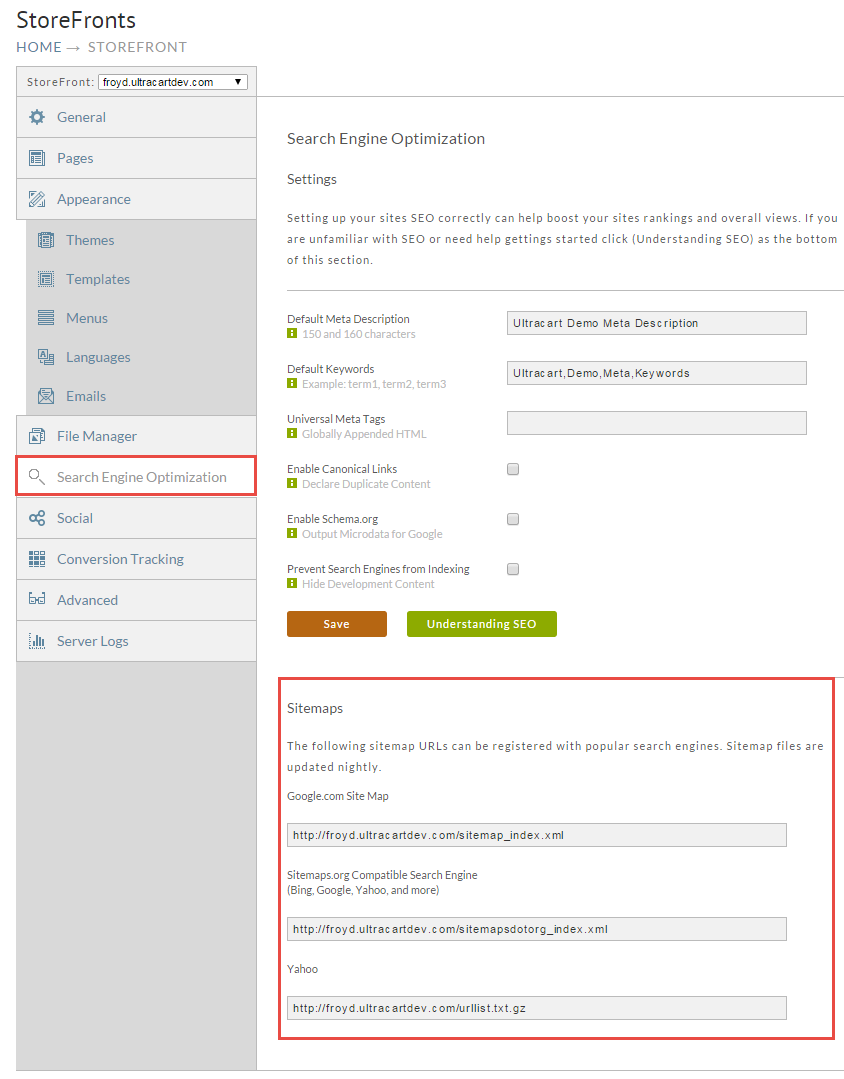
Go to Main Menu → StoreFronts → [select your storefront] → Search Engine Optimization and scroll to the Sitemaps section. You will find three URLs, one each in the formats Google, Yahoo, and Sitemaps.org expect.
Your sitemap URL changes when you change your storefront's web address. Register the sitemap with search engines after you make that change, not before.
Google Search Console
Google Search Console is a free Google service that reports how Google crawls and indexes your store, which queries bring you traffic, and what is broken. Connect every storefront to it.
Verify your store first
Search Console shows you nothing until you prove that you control the site. Verify with a DNS
TXT record or with a verification file in the File Manager, then come back here to submit
your sitemap. See
Google Search Console verification.
Submit your sitemap
UltraCart publishes a standards-compliant sitemap at https://yourstore.com/sitemap.xml and
refreshes it daily.
- In Search Console, go to Sitemaps under Index.
- Enter
sitemap.xmland select Submit.
That is a one-time step. UltraCart keeps the file current from then on.
If your pages are not indexing
When Search Console reports "Crawled, currently not indexed", check the following:
- The page is published, and No Index is off in its StoreFront page settings.
- The page has unique, substantial content. Thin or duplicated pages get skipped.
- Index → Pages lists the specific reason under the excluded URLs.
Keep your visibility healthy
- Watch Core Web Vitals. Hosted StoreFront pages are fast by default, but large unoptimized images and third-party scripts undo that. Fix anything the report marks "Poor".
- Check mobile usability. StoreFront themes are responsive, though custom CSS and embedded widgets can break that.
- Request indexing after big changes. When you add a collection, a run of products, or a blog post, run the important URLs through URL Inspection and select Request Indexing so Google picks them up sooner.
Google's own guidance is worth reading: Help Google crawl the right content.
Other search engines
Yahoo documents how to submit a sitemap to Yahoo, Bing, and Google in one place: Submit your site to Yahoo, Bing, and Google.
Control crawlers with robots.txt
The robots.txt file tells crawlers which parts of your site to leave alone. UltraCart serves
a working default for every storefront, and you can replace it with your own through the File
Manager.
Here is a starting point. It blocks the internal paths that should never be indexed, and it points crawlers at your sitemap:
# robots.txt for UltraCart Production StoreFront

User-agent: *

# Sensitive paths to block for all crawlers
Disallow: /cgi-bin/UCEditor
Disallow: /cgi-bin/UCSearch
Disallow: /merchant/signup/signup2Save.do
Disallow: /merchant/signup/signupSave.do

# Replace the host with your own storefront
Sitemap: https://www.yourstore.com/sitemapsdotorg_index.xml
Download it here: robots.txt.
Naming your sitemap in robots.txt is what makes crawlers reliably find every page, so update
the Sitemap: line to your own host before you upload the file.
Allow or block AI crawlers
AI assistants use their own named crawlers. This version lists the common ones explicitly, all
set to Allow. Change Allow to Disallow for any you want to keep out:
# robots.txt for UltraCart Production StoreFront
# Grants AI bots access while protecting sensitive areas

User-agent: *
Allow: /

# AI and LLM crawlers
# Change Allow to Disallow for any you wish to restrict
User-agent: GPTBot
Allow: /

User-agent: ChatGPT-User
Allow: /

User-agent: PerplexityBot
Allow: /

User-agent: ClaudeBot
Allow: /

User-agent: Google-Extended
Allow: /

User-agent: Amazonbot
Allow: /

User-agent: anthropic-ai
Allow: /

User-agent: CCBot
Allow: /

User-agent: YouBot
Allow: /

User-agent: Sogou
Allow: /

# Optional: crawl delay to limit load
# Crawl-delay: 10

# Sensitive paths to block for all crawlers
Disallow: /cgi-bin/UCEditor
Disallow: /cgi-bin/UCSearch
Disallow: /merchant/signup/signup2Save.do
Disallow: /merchant/signup/signupSave.do

# Replace the host with your own storefront
Sitemap: https://www.yourstore.com/sitemapsdotorg_index.xml
Not every AI crawler honours robots.txt, even when its operator says it does. Treat these
rules as a stated preference rather than an enforced block, and check each provider's
documentation for current crawler names.
If you want your store to appear in AI-generated answers, see Optimizing for AI search.
Block crawlers on a development storefront
While you are building a site, keep it out of the index entirely. The cleaner option is to
lock the storefront.
If you would rather leave it reachable, upload a robots.txt that turns everything away:
# robots.txt for UltraCart Staging StoreFront
# Blocks all crawlers by default to avoid indexing

User-agent: *
Disallow: /
Upload robots.txt to your storefront
-
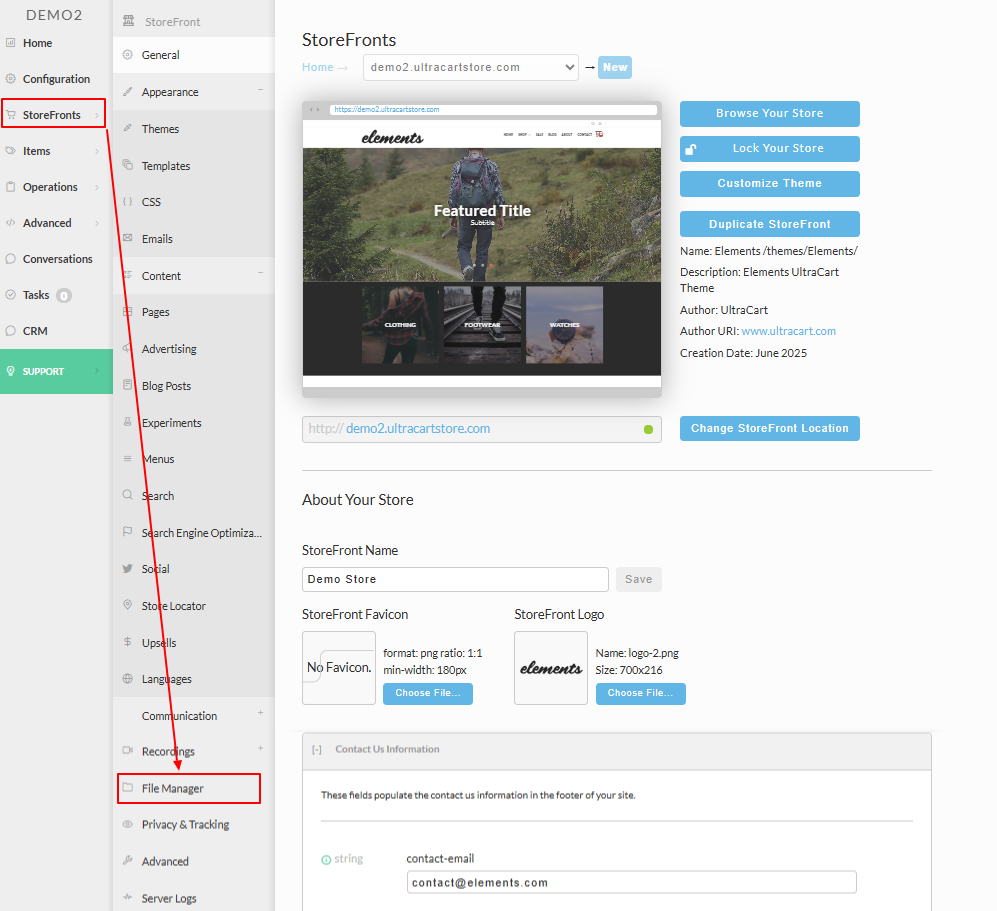
Go to Main Menu → StoreFronts → [select your storefront host] → File Manager.
-
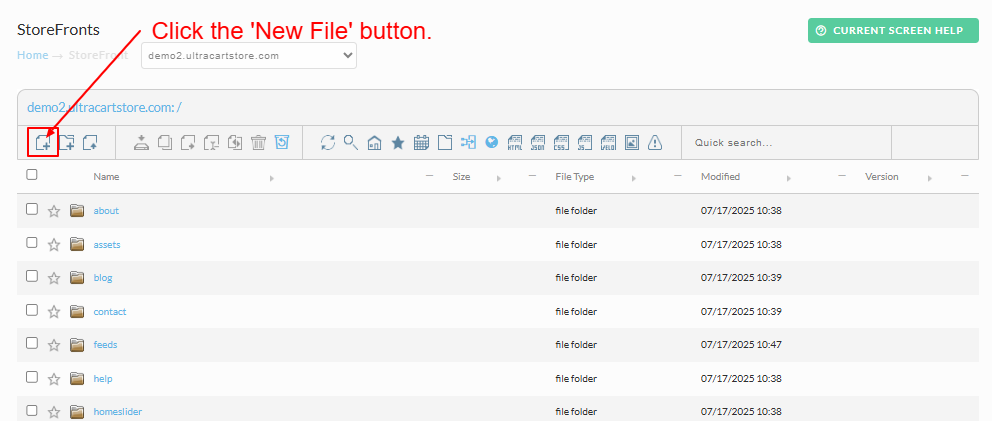
Select the new file button.
-
Enter
robots.txtas the filename and select OK.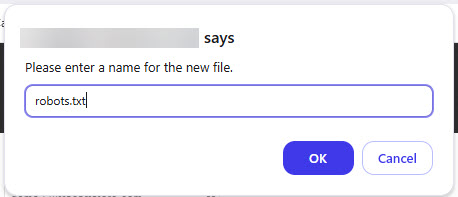
-
Paste in the file contents and select OK.
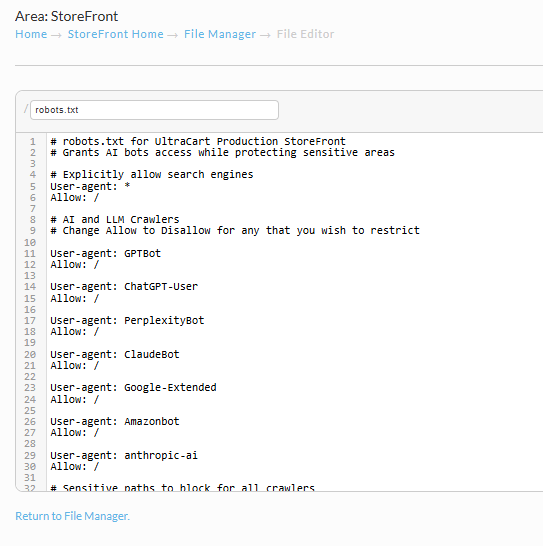
Upload the file to the root folder, not a subfolder. Crawlers only look for it at
/robots.txt.
robots.txt practices worth keeping
- Use
User-agent: *for rules that apply to everyone, and name individual crawlers only when you want to treat one differently. - Block admin and internal paths that should never surface in search results.
- Always include a
Sitemap:directive. - Never block the CSS or JavaScript a page needs to render. A crawler that cannot render your page cannot judge it.
- Test the file with Google Search Console's robots.txt report.
Review robots.txt whenever your site structure changes. A rule written for a page layout you
have since replaced can quietly keep a whole section out of search results.