StoreFront Social
The Social screen does two separate jobs. It holds the addresses of your own social accounts, which your theme turns into icons in the header or footer, and it controls the sharing buttons customers use to post your items to their own accounts.
Go to Main Menu → StoreFronts → [select your storefront host] → Social.
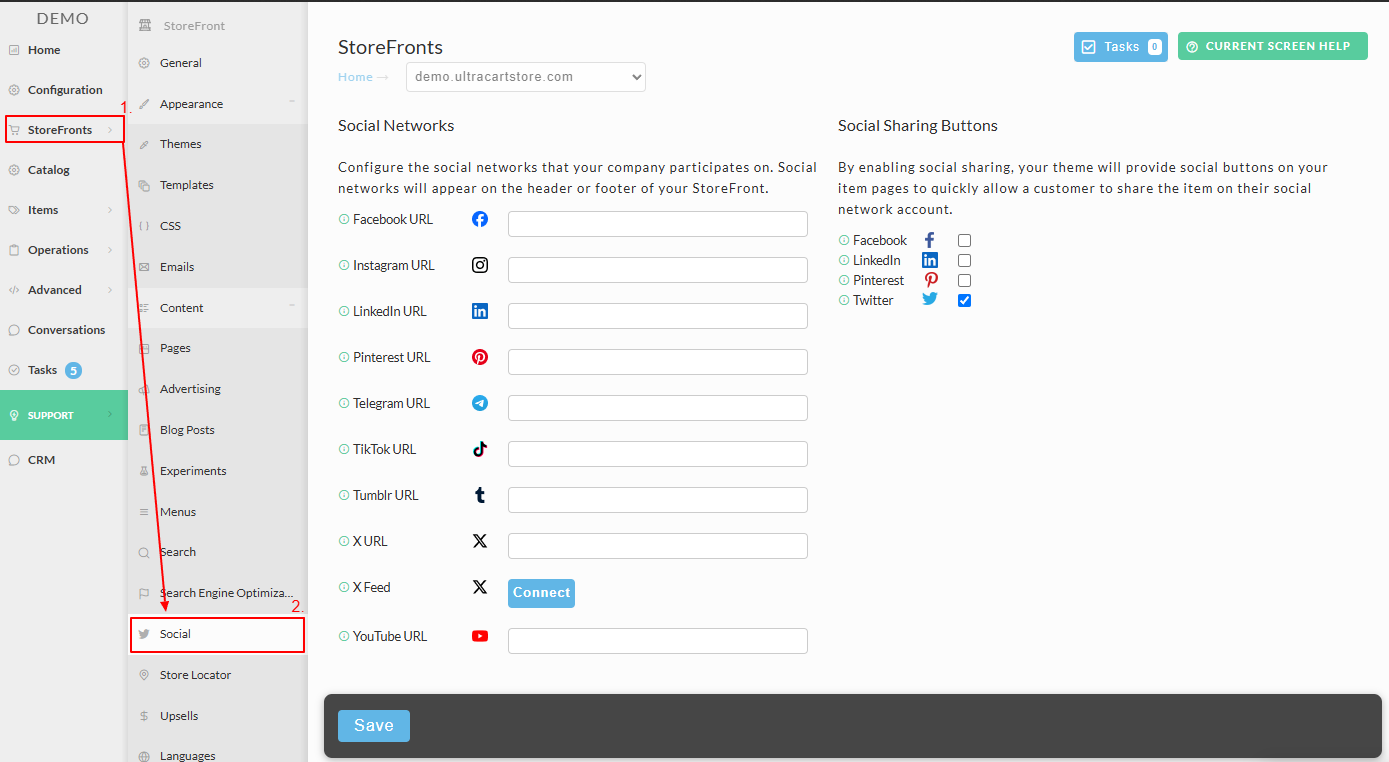
Link your social accounts
Enter the full URL of your account on each network you use, then save. The same procedure covers every network on the list.
| Network | Appears as an icon | Available for sharing |
|---|---|---|
| Yes | Yes | |
| Yes | No | |
| Yes | Yes | |
| Yes | Yes | |
| Telegram | Yes | No |
| TikTok | Yes | No |
| Tumblr | Yes | No |
| X | Yes | Yes |
| YouTube | Yes | No |
An icon only appears when you have entered a URL for that network, so leaving a field blank is how you hide it. Where each icon shows up, header or footer, is your theme's decision rather than a setting on this screen.
Turn on sharing buttons
Sharing buttons let a customer post one of your items to their own account. Under Social Sharing Buttons, select the checkbox for each network you want to offer, then save.
Sharing is available for Facebook, LinkedIn, Pinterest, and X.
Your theme has to support sharing buttons for them to appear on item pages. If you turn sharing on and nothing shows up, that is the reason.
Check your account URLs occasionally. A link to an account you have closed or renamed is worse than no icon at all.