Overview
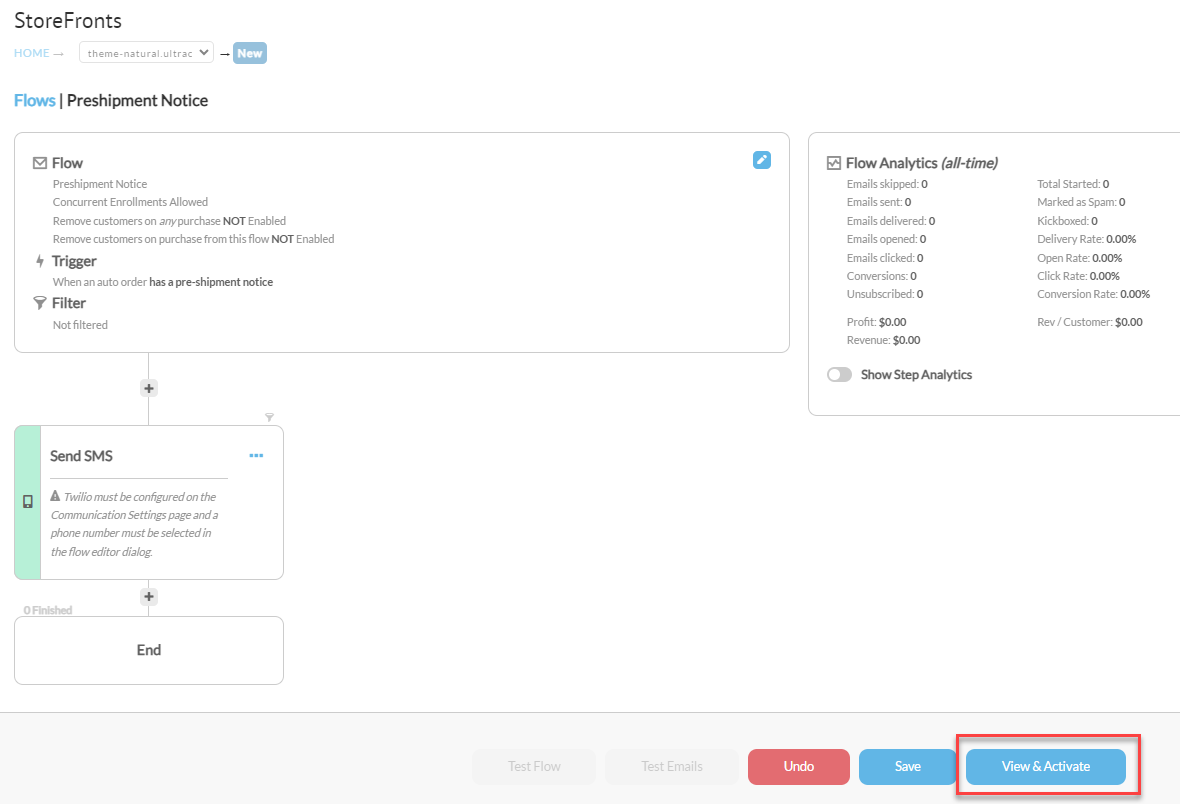
The following configuration would allow you to setup a flow that would trigger an SMS message when a customer has an Auto Order with a preshipment notice. The customer will still receive the email notification, and will only receive the SMS if they have opted in to SMS messages.
Opt-in is not the only gate. Smart sending also suppresses the message if the recipient has already received an SMS within the last 24 hours. If you need this notice to go out regardless, turn on Skip Smart Sending on the SMS step.
Step 1. Twilio
A Twilio account is required in order to send SMS message. You can configure Twilio within:
Storefronts > Communications > Settings
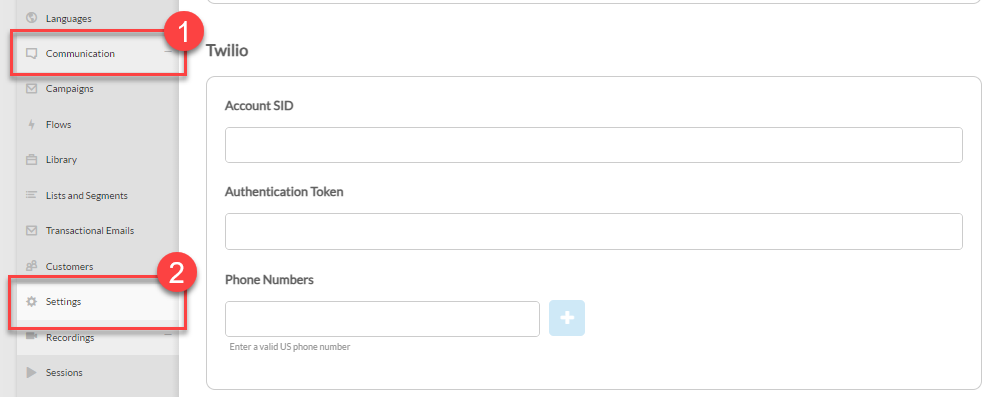
Once you have your Twilio account configured, you can now setup flows with SMS messages.
Step 2. Create the Flow
Once you have Twilio configured simply navigate to:
Storefronts > Communications > Flows
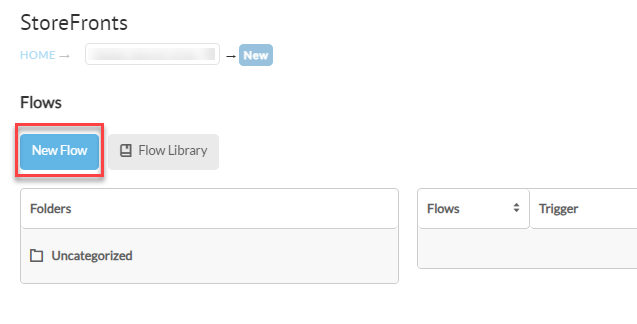
Within Flows, create a new Flow with a trigger of Auto Order - When an auto order has a pre-shipment notice.
In the same dialog, set Twilio Phone Number for SMS. This is the one you must not skip: without a phone number the SMS step carries a misconfiguration warning and nothing sends. The dropdown appears once Twilio is configured under Communication → Settings.
From Friendly Name and the sending domain are pre-filled from your account settings and are not required for an SMS-only flow. If you have no verified sending domain, the domain control is not shown at all.
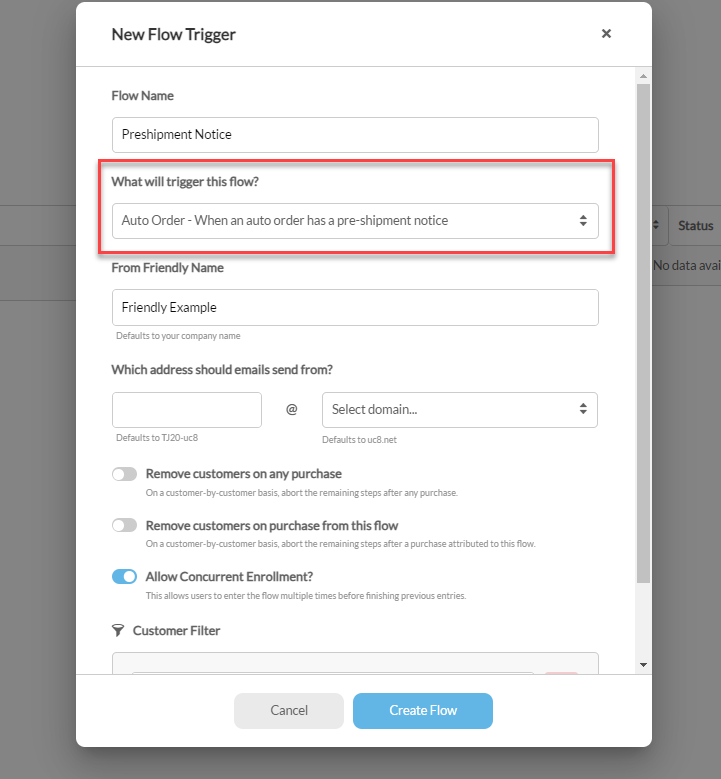
Once we have the Flow and Trigger set, we can then add in the steps we would like to flow to take.
Step 3. Creating a Step within the Flow
To create a new step simply click on the + icon as shown below.
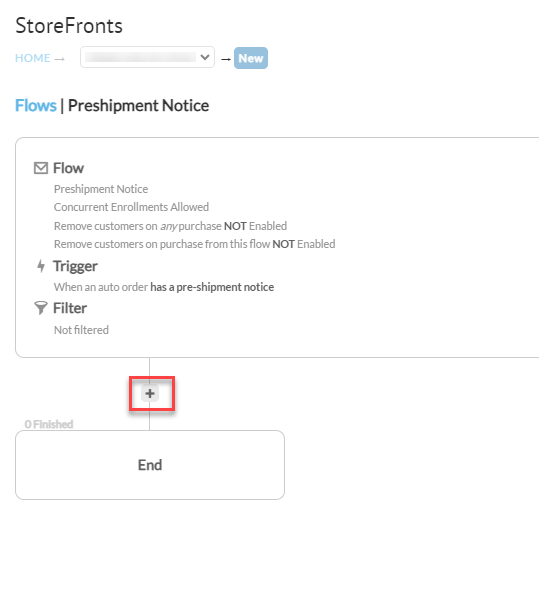
This will prompt the Step model to display where you can select the step you would like to add, in this case we are adding a “Send SMS” step.
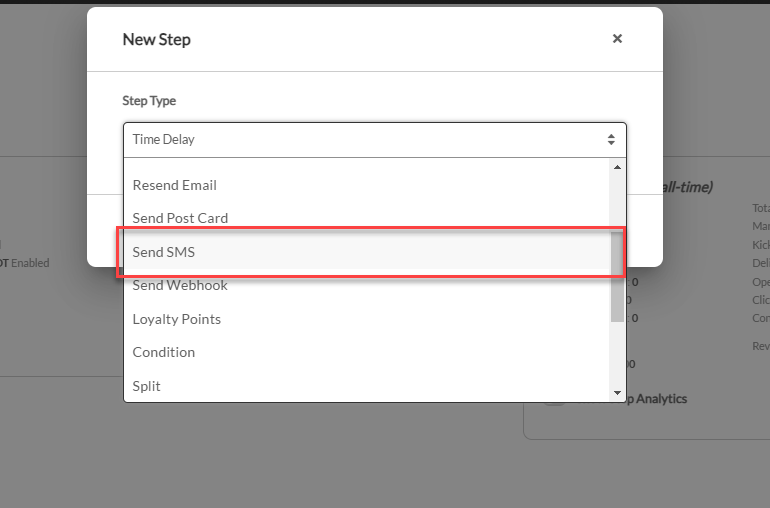
You could also add a delay step if you wanted the standard preshiment email to be sent first and then have the SMS sent a few days later.
For this example however we are just going to send the SMS message.
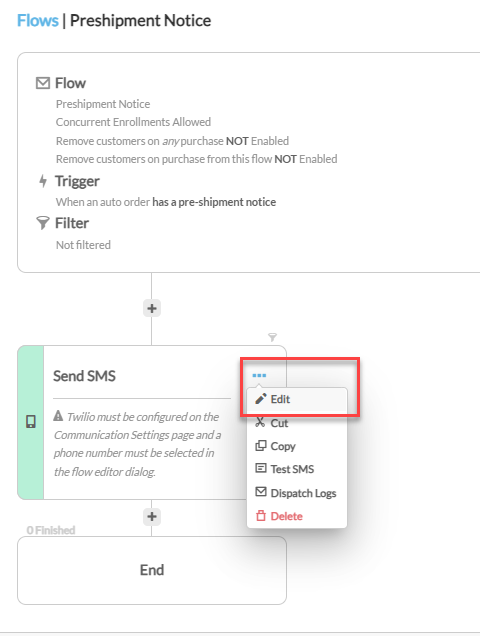
Once the step has been added, you can edit the step by clicking the … to expand the menu and select Edit
Step 4. SMS Content
Within the editor you can Add a Name and Info to the flow step, this is a display only and is not displayed to the customer.
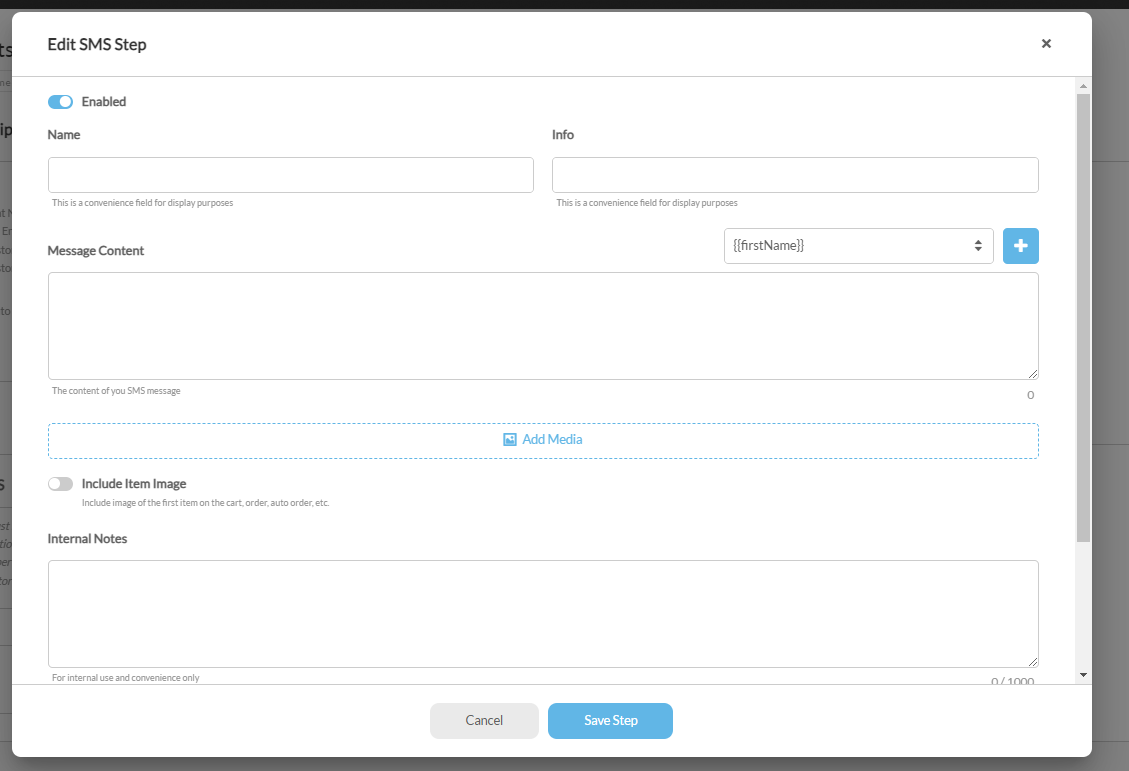
Set Message Content to the message the customer should receive. You can also use the tags on the right: pick one from the dropdown and click the + icon to insert it at the cursor.
Do not type a URL into Message Content. Any web address, or even a bare dotted name, fails validation with "URLs must not be inlined. Please use the URL token instead." and the button to apply your changes stays disabled. Insert the {{url}} tag instead.
This allows you to pass things like the customer name, the Item on the next order, the items description and so on.
Once the content is right, click Apply Step Changes.
That applies the edit to the draft but does not save the flow. A banner appears reading "Step changes have been applied to this draft. Click Save Flow before leaving to keep them." Click Save Flow before you go any further.
With every step in place and saved, click View & Activate to review and activate the flow.