Overview
Lists are the oldest form of customer grouping within marketing. Customers are subscribed to lists based upon filling out a form, a webhook subscription (from a lead generation quiz for example), selecting within their email marketing preferences, or due to the purchase of a product.
We recommend that you utilize Segments whenever possible to create targeted lists of customers based upon their historical behavior.
Creating a List
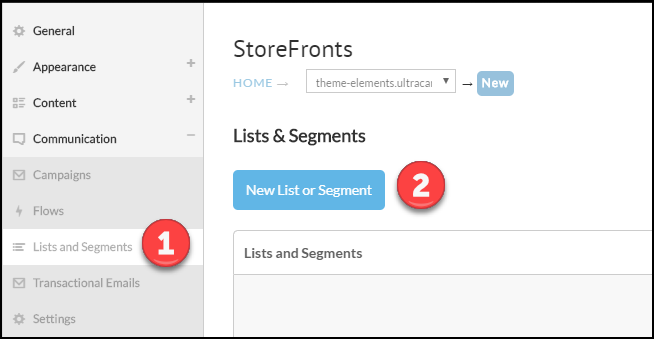
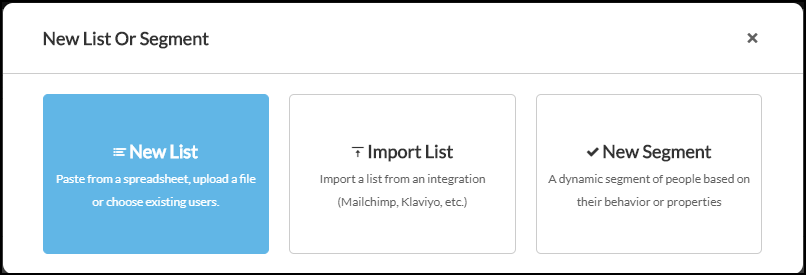
To create your first list, click on the Lists & Segments sub-menu, click New List or Segment, and then click New List.
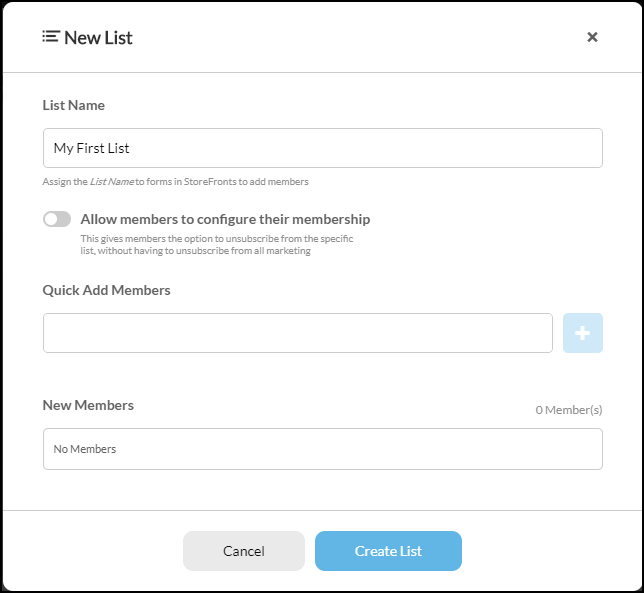
Give the list a name. You can also quick add a few email addresses during list creation.
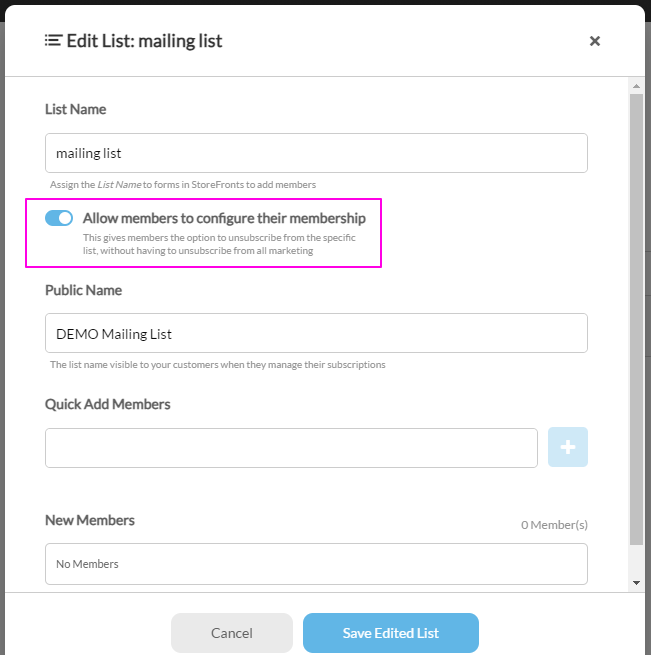
Allow members to configure their membership is on by default, which makes the list public. A public list appears on the customer-facing subscription page, where a customer can leave that one list without unsubscribing from all of your marketing. Turn the switch off for an internal list you do not want customers to see.
While the switch is on, a Public Name field appears. That is the label customers see, so fill it in. Leave it blank and customers see the internal list name instead.
Customer Unsubscribe & List Management Form
In Lists & Segments, open a list and use the Allow members to configure their membership switch. While it is on, the customer can unsubscribe from that particular list without unsubscribing from all of your marketing.
Example:
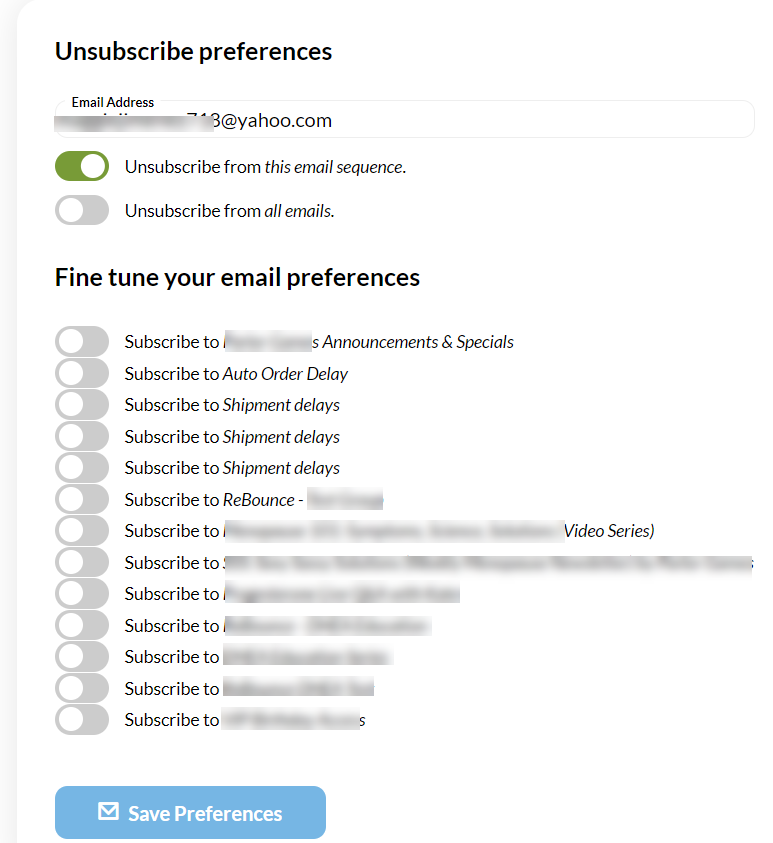
When the customer clicks on the unsubscribe link with-in a marketing email, they will have granular unsubscribe options, in addition to a global unsubscribe:
Importing a List
After you have been given permission to import lists by UltraCart Support, you can click on the middle button of the New List or Segment dialog.
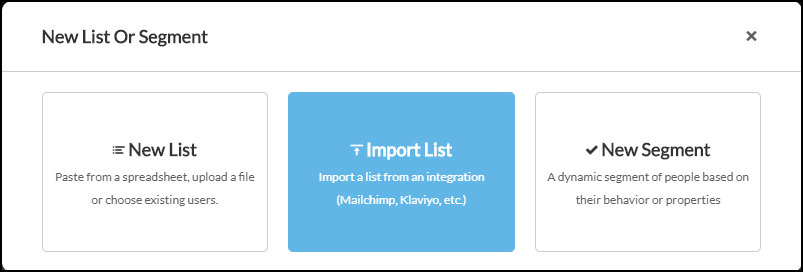
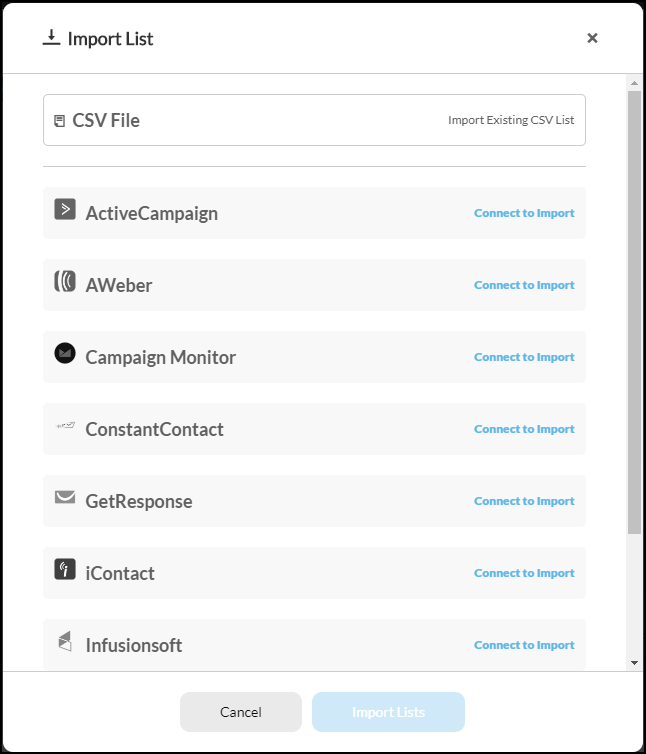
The Import List dialog offers two routes.
To import from a connected email service provider, pick the provider, select the lists you want, and click Import Lists.
To import from a CSV file, choose the CSV File card, give the list a name, and click Continue. That creates the list and takes you on to upload the file. You do not need a connected provider for this route.
For a provider import, UltraCart will use your existing API connection to the third party to import the data. The speed of the import depends upon the third party. You will receive an automated email when the list import is complete.
Important Notes Regarding Imported Email Lists
Please Note: Imported Lists are initially disabled and requires approval by UltraCart Support.
When Importing a list from an external source, please make sure that the import list:
-
Is not a purchased email list from an external source.
-
That the list contains active and up-to-date email addresses
Storefront Communications Email Campaigns will only be sent to active customers (customers that have made a purchase within the last year.