Statistics
Overview
When you first click on the Communication menu within your StoreFront the first section will give you statistics about your plan usage and critical health metrics.
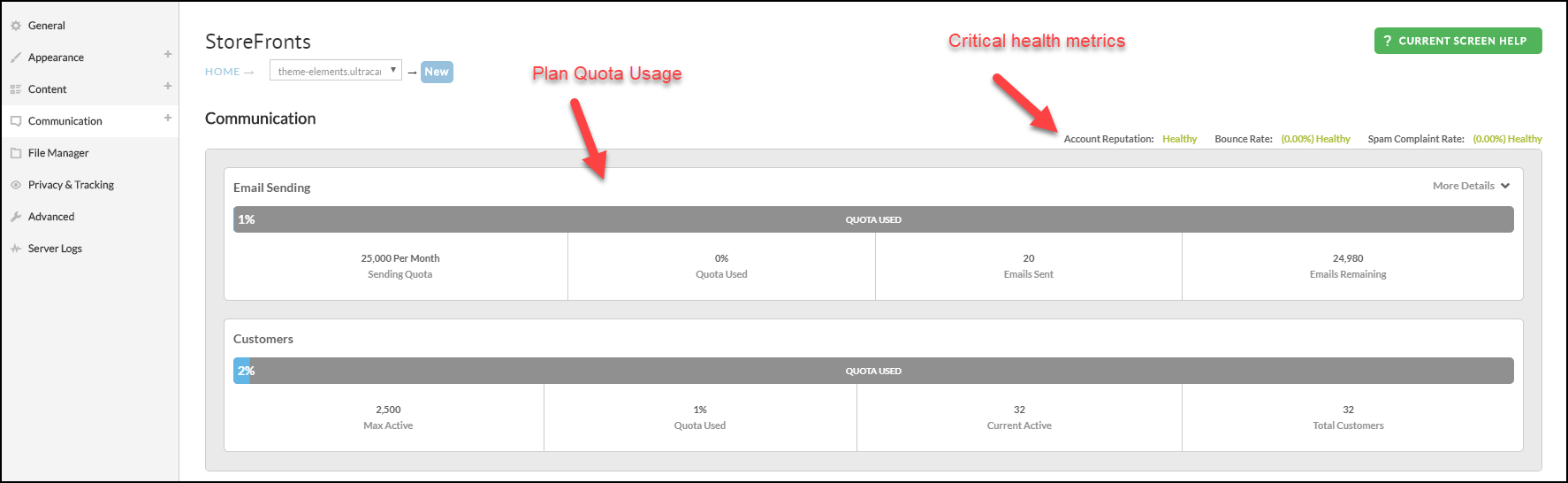
About Storefront Communications Customers
Based on your plan quota, Storefront Communications will select the most recently active customers to the customer limit.
NOTE:
Customer records in StoreFront Communications can be created from any interaction where UltraCart learns the customer's email address such as an abandon cart scenario, signup to an email list, etc.
Customer Quota applies to campaigns.
Flows, such as the “Abandon Cart” flow, will continue sending even if the Customer Quota reaches 100%.
Reading the plan usage panels and histogram
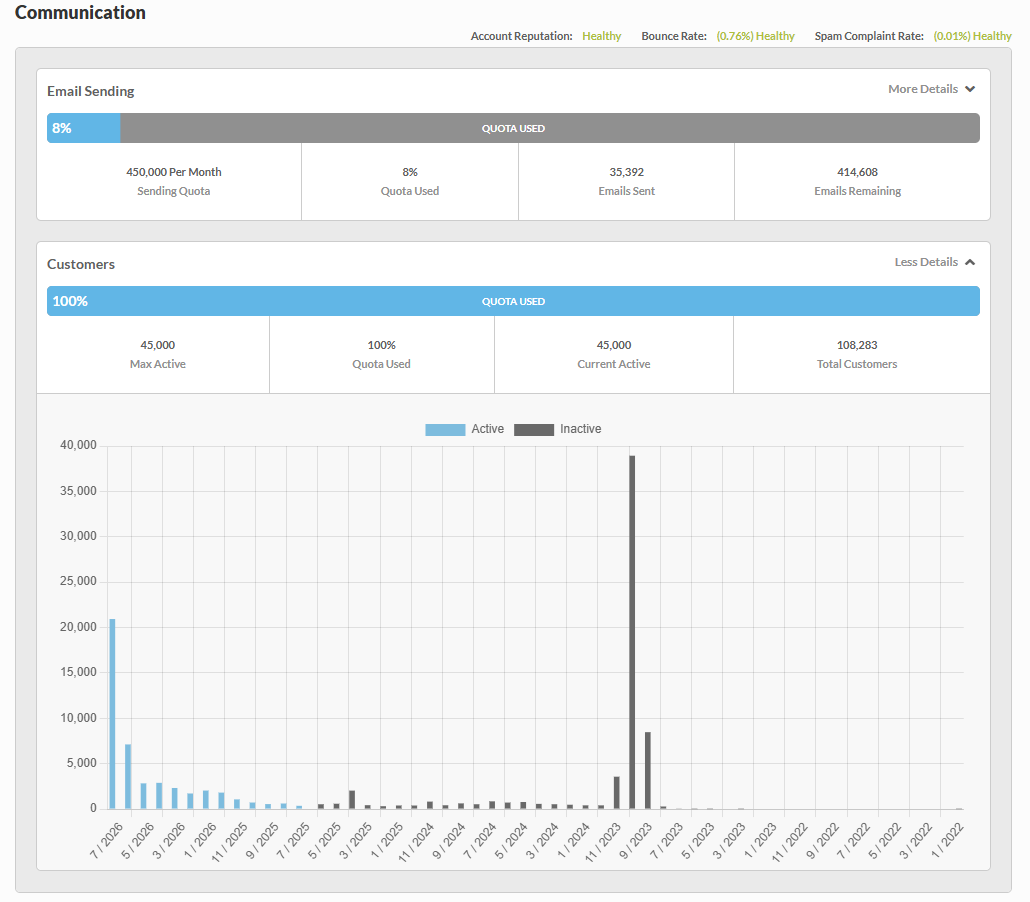
The Email Sending and Customers panels report how much of your plan you have used. The histogram below Customers explains those numbers: it groups every contact into the month they were last active, so you can see how far back your plan currently reaches.
What the panel fields mean
The Email Sending panel covers the emails you send:
| Field | What it shows |
|---|---|
| Sending Quota | The number of emails your plan allows per month. |
| Quota Used | The share of that monthly allowance you have already sent. |
| Emails Sent | Emails sent so far this month. |
| Emails Remaining | What is left of the monthly allowance. |
The allowance is monthly, so your busiest month is the useful comparison against Sending Quota, not an average one.
The Customers panel covers the contacts you can market to:
| Field | What it shows |
|---|---|
| Max Active | The number of active customers your plan allows. |
| Quota Used | The share of Max Active currently filled. |
| Current Active | The contacts counting against Max Active right now. |
| Total Customers | Every contact record in the account, active or not. |
Total Customers counts every contact you have ever captured, so it is usually several times larger than Max Active. A Quota Used of 100% on the Customers panel means your plan is holding as many active customers as it allows. It does not mean you have run out of contacts.
How to read the histogram
Each bar groups contacts by the month they were last active, and its color shows their status today. Light blue bars are Active and count toward Current Active. Dark gray bars are Inactive: those contacts fall outside the reach of your plan, so they are excluded from all segmentation and list calculation.
The month where the bars change from light blue to dark gray is how far back your plan reaches. A tall gray bar beyond that point is a pool of contacts that a larger plan would return to the active count, which is a different situation from a window that simply stops early.
Why the active window is not a setting
You do not choose the active window. StoreFront Communications fills it with the most recently active customers until Max Active is full, so the window widens or narrows as a consequence of your plan size. A Customers quota sitting at 100% is therefore something you change by resizing the plan, not by adjusting a date range.
Clicking any bar in the histogram calculates how large a plan you need to reach that month, and Modify Plan applies the new size. The new size can take up to 24 hours to take effect, so the histogram and Max Active keep showing your current plan until then. For the plan tiers, their included customer and email allowances, and guidance on how far back to aim, see Understanding StoreFront Communications Pricing.
Below the plan usage panels is a section showing the performance of your campaigns and flows for the given time period. The default is 1 month.
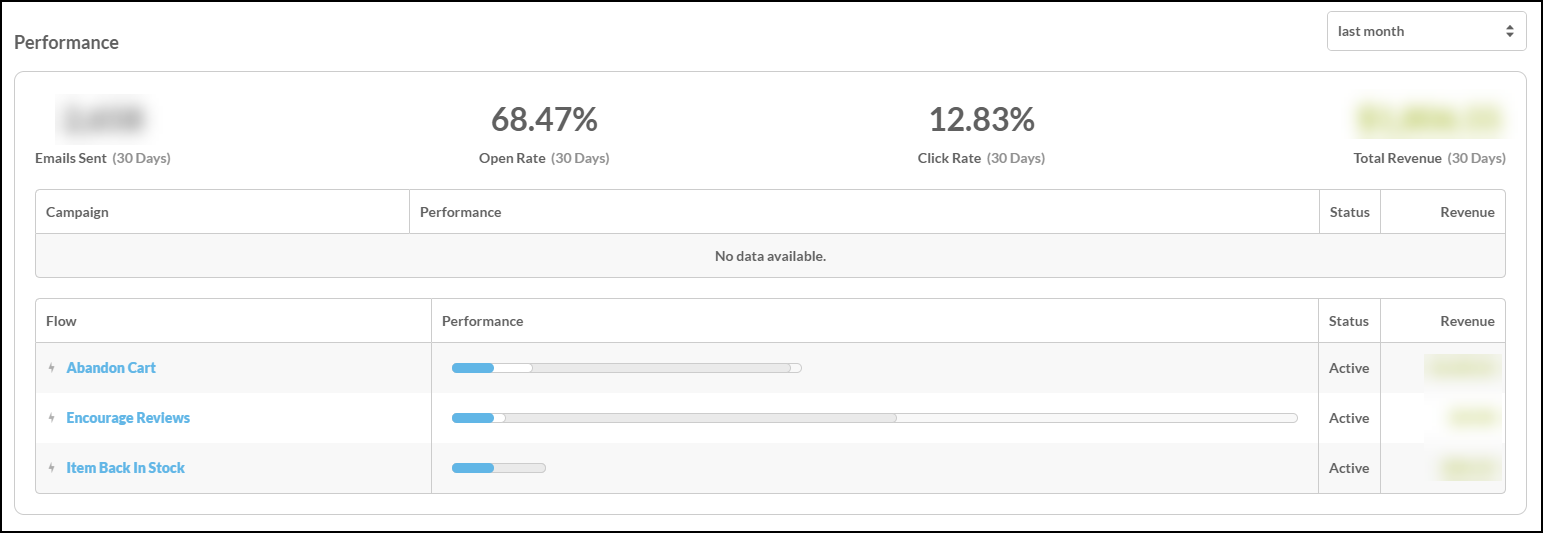
If you hover over the performance bar for each campaign or flow it will provide a detailed breakdown of the sent, opened, clicked and converted.
Flow / Campaign
For each flow or campaign you can see high level statistics at all times. Checking the Show Details box will expand step level statistics.
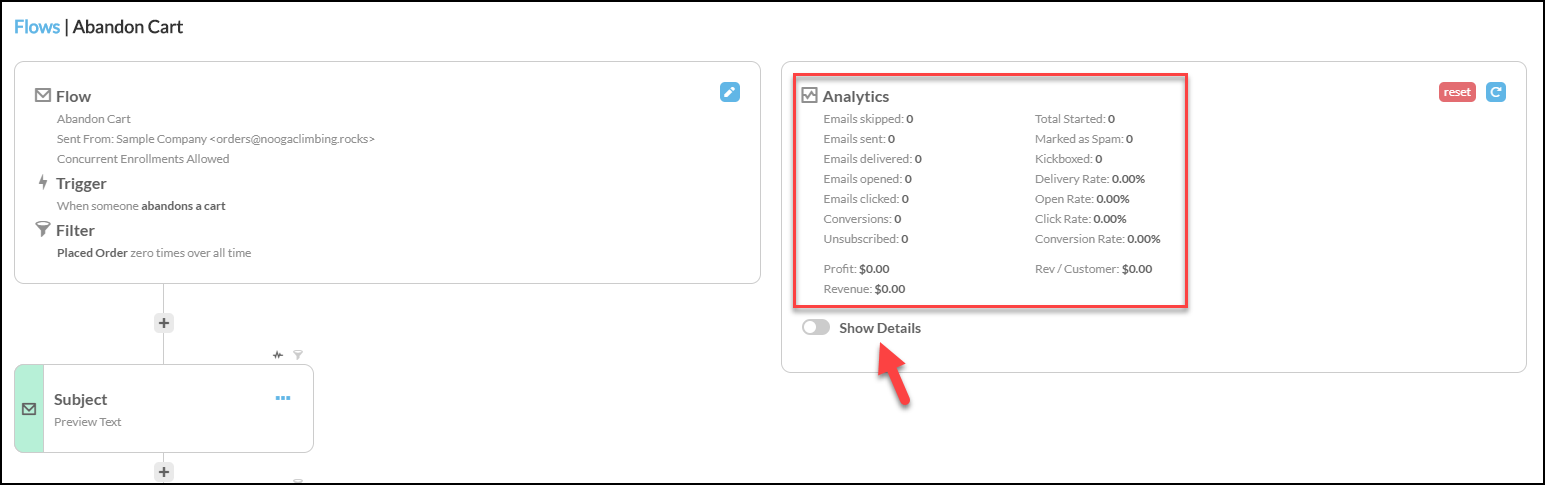
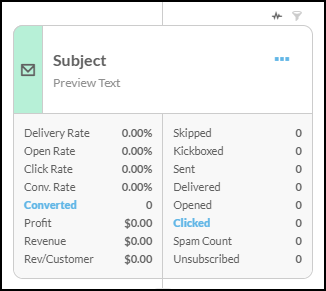
The step level statistics for emails and postcards give you a quick summary of how that step is performing. If you click on the Converted or Clicked links a dialog will appear giving you the detailed breakdown of the orders associated with this step and the links clicked.
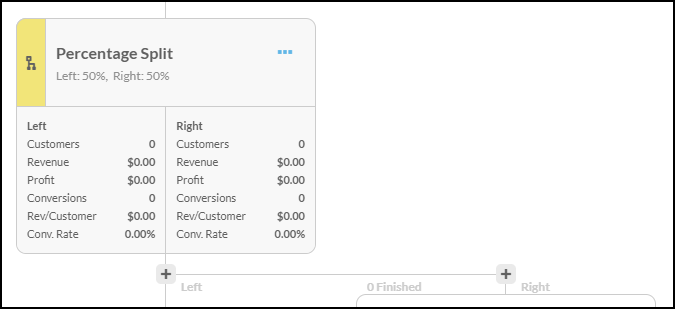
For the Split or Condition steps, statistics about each side. The statistics reflect that activity that has taken place by the customers on each side of the step.
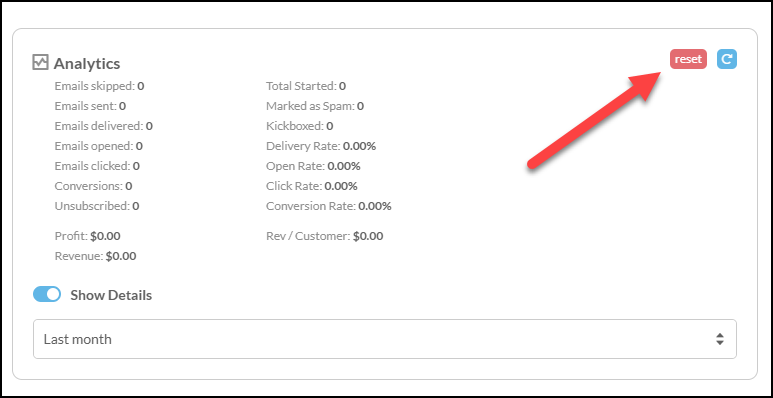
If you make a substantial change to a flow you might want to reset the statistics. To do that use the reset button in the upper right hand corner.
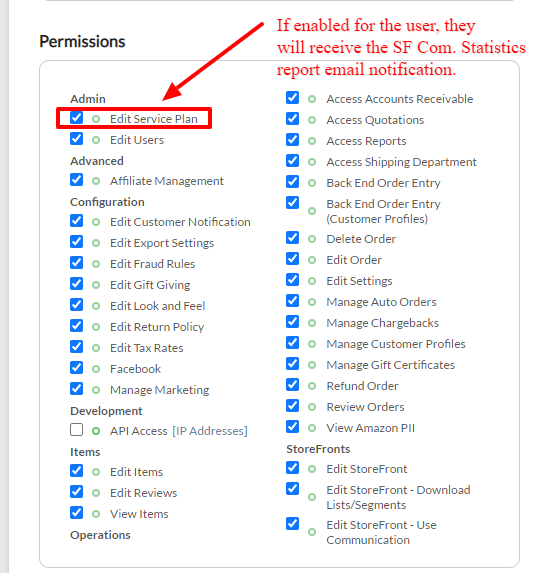
Configuring an UltraCart user to receive the Storefront Communications Statistics report via email
The automated storefront communications statistics report is sent to each Ultracart user that has the “Edit Service Plan” user permission enabled:
Frequently Asked Questions
Q: If someone marks your email as spam, are they automatically unsubscribed from future marketing emails?
A: Yes - If a recipient marks a marketing email as SPAM, they are unsubscribed from future marketing emails.