Understanding the Customer Unsubscribe Process
Customers have a variety of methods to unsubscribe from communications email. This document will describe how the system reacts to their unsubscribe activity:
Option 1: Unsubscribe Link at the bottom of their email
The customer is taken to a web page where they can manage their subscription preferences.
Option 2: Unsubscribe option within their email client
The system will react differently based upon whether the email was from a campaign or flow.
-
Campaign
-
Segment - suppressed on the segment
-
List - removed from the list
-
-
Flow
-
If the trigger was a list subscribe, unsubscribe from the list
-
If the trigger was a segment add, suppress on the segment
-
All cases terminate the rest of the flow
-
Customer Unsubscribe & List Management Form
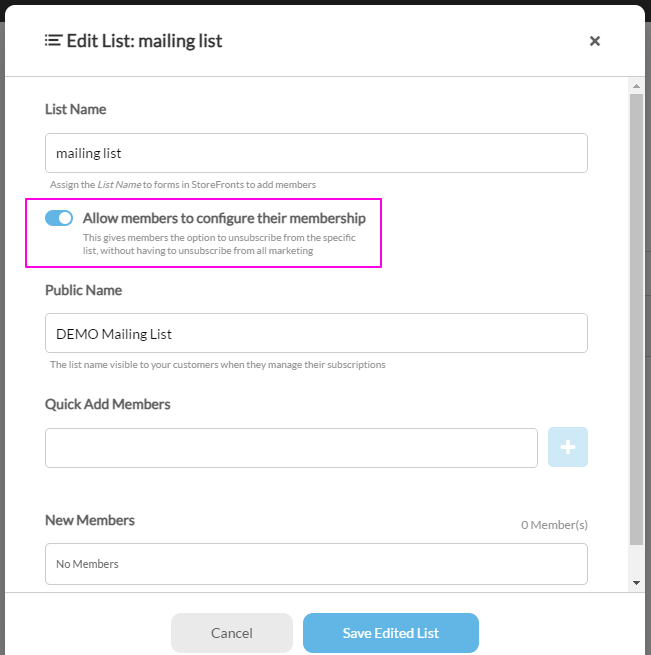
Within the Storefronts ‘List & Segments’, in List Editor, you have a slider button to enable/disable the Customer Unsubscribe & List Management form The advantage of enabling this option is that it allows the customer to unsubscribe from a particular list without having to unsubscribe from all marketing.
Example:
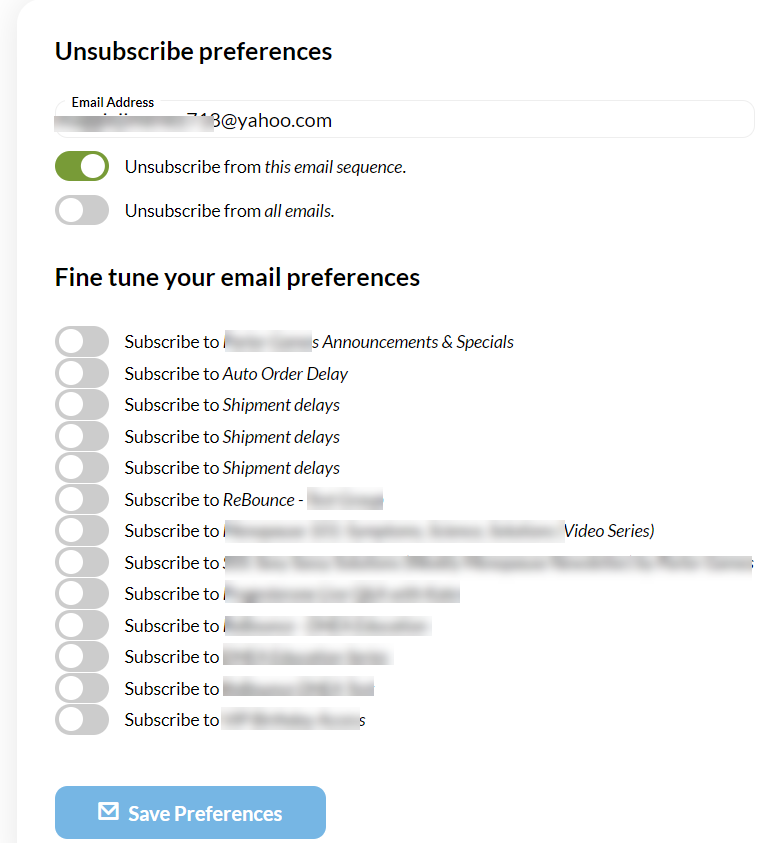
When the customer clicks on the unsubscribe link with-in a marketing email, they will have granular unsubscribe options, in addition to a global unsubscribe:
Option 3: Unsubscribing from the Communications → Customer List
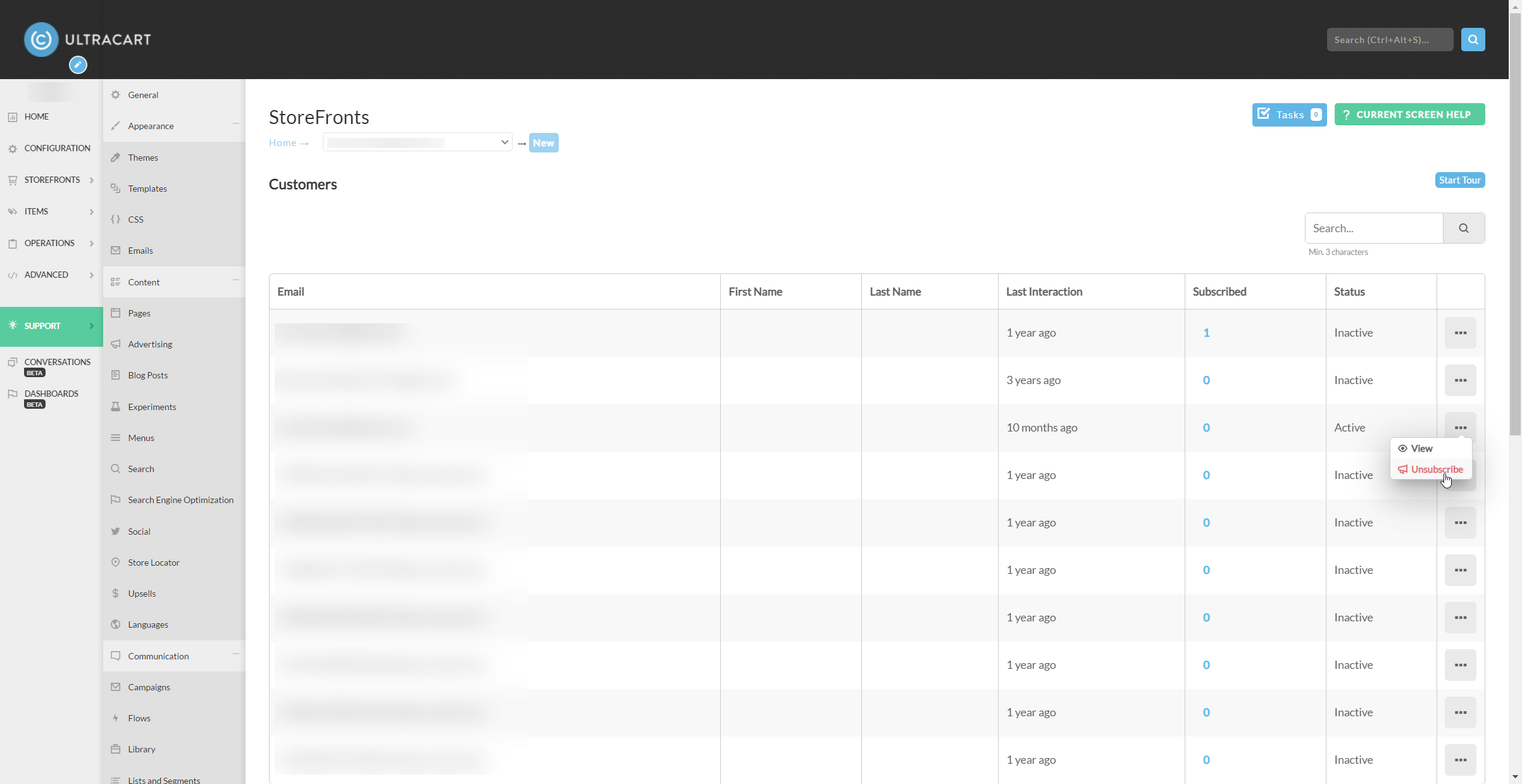
If a customer asks to be removed from your mailing, navigate to the StoreFront host, then the StoreFronts menu, then the Communications section, choose Customers, and search for the customer’s email. Click the three dots menu and choose Unsubscribe.
Unsubscribe here is a global unsubscribe. The confirmation is titled “Globally Unsubscribe”, and confirming it clears every list membership the customer has and excludes them from all current and future lists and segments. It is not limited to one mailing.
If the customer only wants off one list, use the Subscribed count in their row instead. That opens their profile, where Which lists should this customer be subscribed to? lets you remove a single list and leave the rest intact.
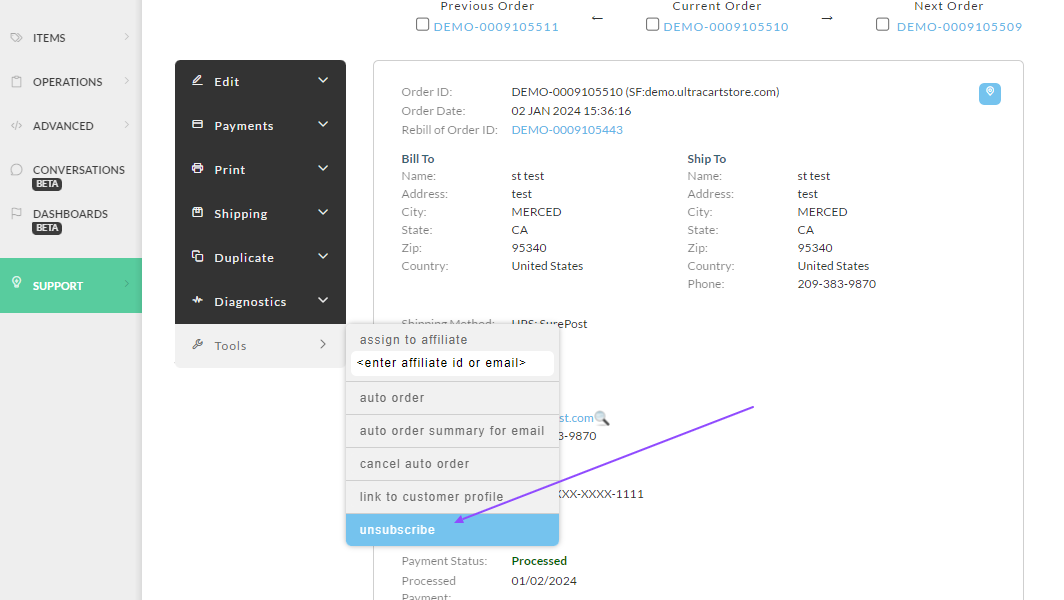
Alternatively, there is also a unsubscribe option when reviewing an order. From the order review, mouseover the ‘Tools’ menu, choose Unsubscribe':
Option 4: Spam Complaint
Ideally the customer feels confident that they are receiving your marketing emails appropriate because of the interactions with your customer and understands that you will honor the unsubscribe requests and won’t click the spam complaint button, but inevitably some customers will.
The customer is globally unsubscribed from all future marketing emails through the communications system. UltraCart will still send transactional emails like receipts and shipment notices until the customer places a future order and opts back in.