Adding SEO to your web site
Introduction
UltraCart Storefronts provide robust built-in tools to help you optimize your site for search engines. Search Engine Optimization (SEO) in UltraCart is a multi-faceted approach, allowing you to configure SEO settings at both the storefront and individual content levels. The better your SEO configuration, the more likely your products will appear prominently in search results, driving more focused traffic and increasing conversion opportunities.
Note: UltraCart Storefront themes automatically employ clean URLs that are search engine friendly. Clean URLs are short, descriptive, and omit query strings or unnecessary parameters, improving crawlability and indexing.
Prerequisites
-
StoreFront Visual Builder theme installed and configured.
-
Administrative access to your UltraCart account.
-
Access to your Google Search Central account for site registration.
Storefront SEO Settings
Navigating to SEO Settings
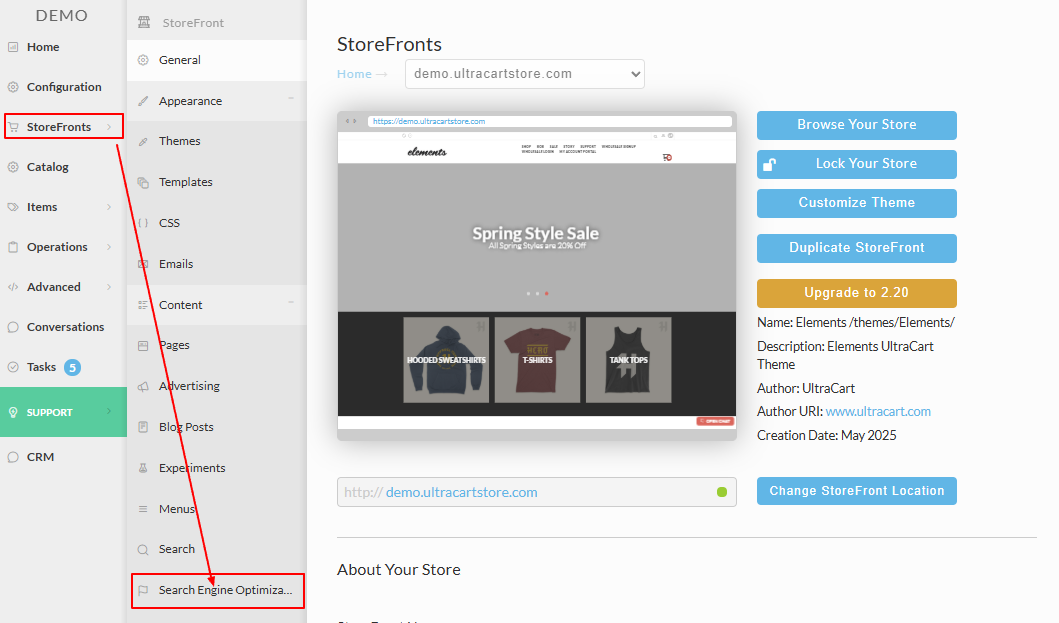
-
Log into your UltraCart Account.
-
Navigate to:
Main Menu → StoreFronts → [Select Your Storefront] → Search Engine Optimization
Configurable Fields
| Field | Description |
|---|---|
| Default Meta Description | Enter a concise description of your storefront (275–300 characters). This description may appear in search results. |
| Default Keywords | Enter default keywords relevant to your storefront content. |
| Enable Canonical Links | Enable to prevent duplicate content issues by specifying the preferred URL for content. See Understanding Canonical Links. |
| Enable http://Schema.org | Enable to output structured microdata that helps search engines better understand your content. See schema.org. |
| Prevent Search Engines from Indexing | Enable temporarily during development to hide the storefront from search engines until you're ready to launch. |
Tip: Review the "Understanding SEO" reference at the bottom of the SEO settings page in your UltraCart account for additional guidance.
Transcluded from Page specific SEO.
Adding SEO to your Items
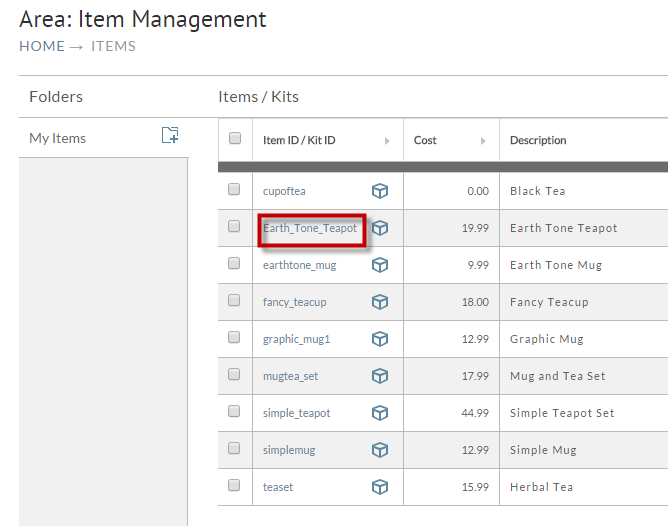
- Navigate to your items: Items -> Item Management -> Click on the Item ID to open the item as shown in the red rectangle below:
2. Scroll down the page until you reach the Search Engine Optimization Fields.
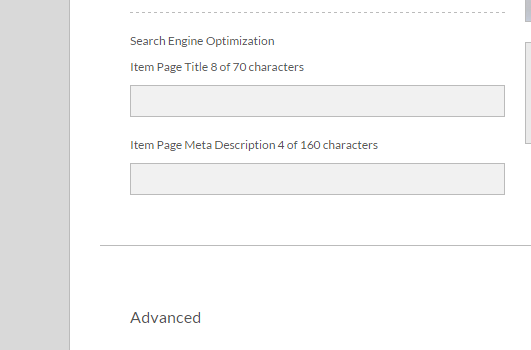
Item SEO: The item level SEO fields will only appear in items actively assigned to a storefront.
- Always click the Save Button before navigating away from the page.
Register Your Site with Google Search Central
Make sure to register your website with Google Search Central (formerly Webmaster Tools):
https://developers.google.com/search
Once you've registered your site, Google Search Central will process the storefront "site map", which will give them all the specified URL's that they can crawl on your site.
It's an important first step to improving your search engine visibility.
Registering your website with the search engines using the sitemap URLs
See: https://dynomapper.com/blog/21-sitemaps-and-seo/28-submit-sitemaps-to-google-bing-yahoo