An introduction to the Admin Panel
The UltraCart StoreFront Admin Panel provides developer level information and diagnostic tools for managing theme changes.
Enabling the Admin Panel
The Admin Panel is automatically enabled every time you visit a StoreFront page while you are logged into the backend (https://secure.ultracart.com/).
Disabling the Admin Panel
If you're logged into the UltraCart system and you wish to disable the Admin Panel, just open a private window or use a different web browser to view your web page. There is no "off" button for the Admin Panel. It's very useful and unobtrusive, so we don't see a reason why you wouldn't want it on, unless you're desiring screenshots of your site, etc.
Main Editor Links
Page Management
Content Guide
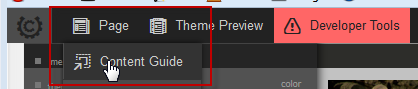
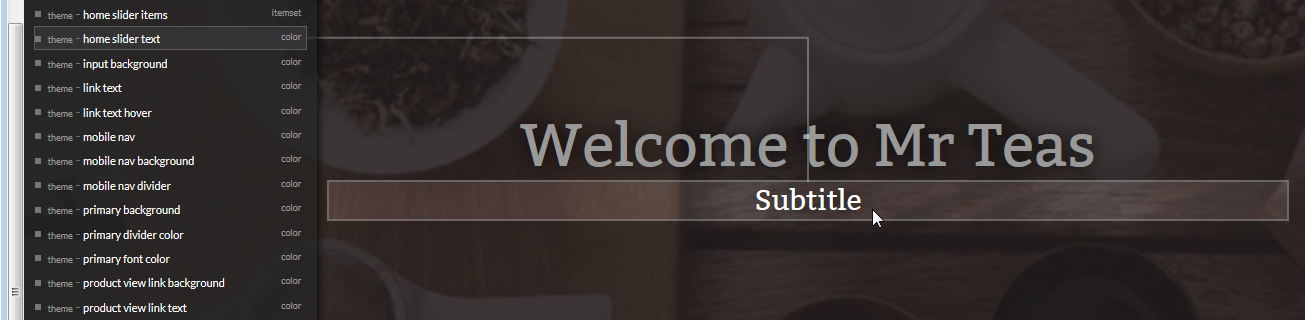
The content guide is accessed by clicking Page → Content Guide. It will display a list of all storefront, theme, and page attributes affecting the current page. You may move over the list to see where they are used, or hover over a portion of the page to see which attributes are affecting that part of the page. The content guide helps you determine what attribute is affecting the look and feel of the page, making it easy to find and change that attribute.
Page Edits
Settings
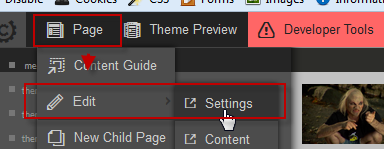
The settings link will open the page settings in another window for editing.
Content
The content link will open the content tab of the current page for editing.
SEO
The SEO link will open the SEO tab of the current page for editing.
Items
The Item link will open the Item tab of the current page for editing.
New Child Page
The New Child Page will open the page editor at a place where you may easily create a new page to live directly beneath the current page.
New Item
The New Item link will open the back end Item Editor where you may configure a new item and assign it to the current page.
Menus
Opens the editor for the desired menu.
Theme Preview
Selecting a theme to preview will apply that theme to the current page.
Developer Tools
Edit Template
Clicking the edit tempalte link will load the current template into the template editor. Please be aware that changing a template directly may affect your warranty with your theme developer.
Template MetaData
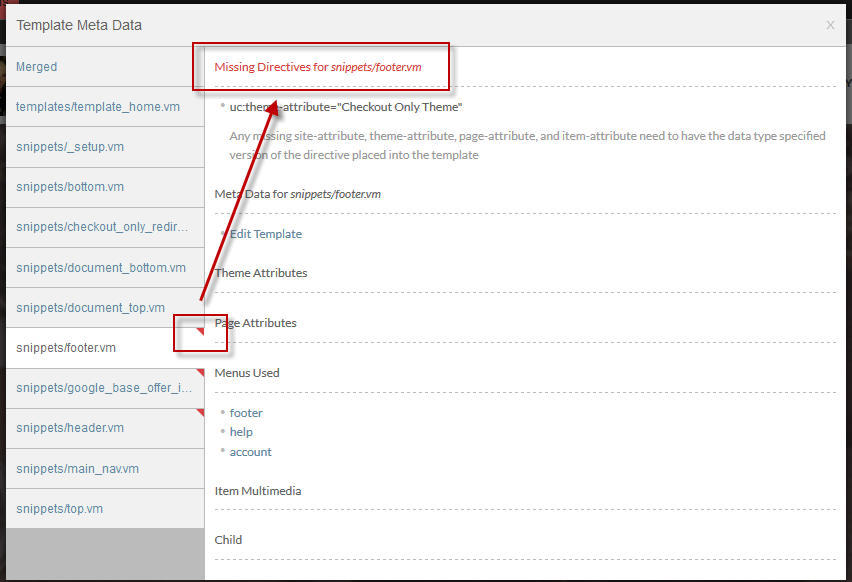
Pops up a window showing all the meta data applied to the current page. The first tab will show a merged result of all meta data. There are additional tabs for each included template snippet showing the attributes used on that particular snippet. If any template files are missing directives, a red triangle will appear in the corner alerting you to this condition.
Server Log
The server log displays all errors that happened during template processing. These will be velocity errors and will require the editing of a template file or the adjusting of attribute data on the back end
Client Log
The client log displays javascript errors.
Cloud On/Off
Turn the cloud off if you are experiencing trouble loading assets from the cloud.
Minify On/Off
Turn the minify off if you need to debug and trouble shoot css or javascript.
Refresh Page
(The refresh pagee button appear in the far right side of the admin panel.)

Clicking the page reh will reload the page. This can be useful since all major web browsers now perform a lot of caching of pages to speed up load times.