Configuring DNS at Network Solutions for StoreFronts
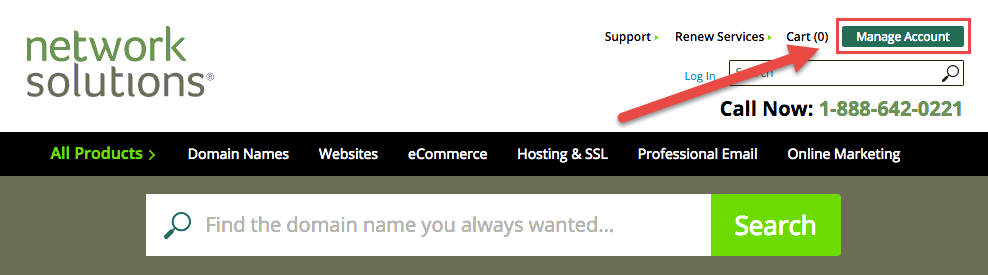
This tutorial will walk you through the process of configuring DNS at Network Solutions to point your domain properly to StoreFronts. This tutorial assumes that you're point www.yoursite.com to UltraCart. We will note the differences if you are only pointing a sub-domain at UltraCart later in the tutorial. First go to Network Solutions website and click on the Manage Account button.
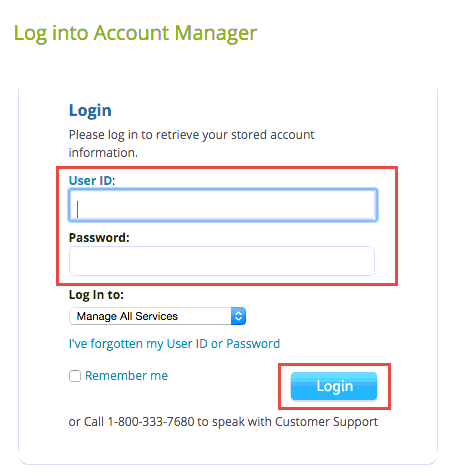
Enter your User ID and password. Click Login to submit the form as shown below.
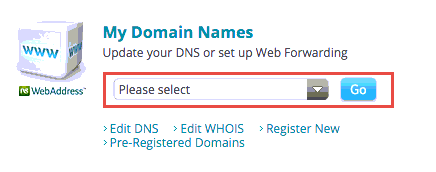
In the "My Domain Names" section click the drop down and select the domain that you're pointing to UltraCart and click Go as shown below.
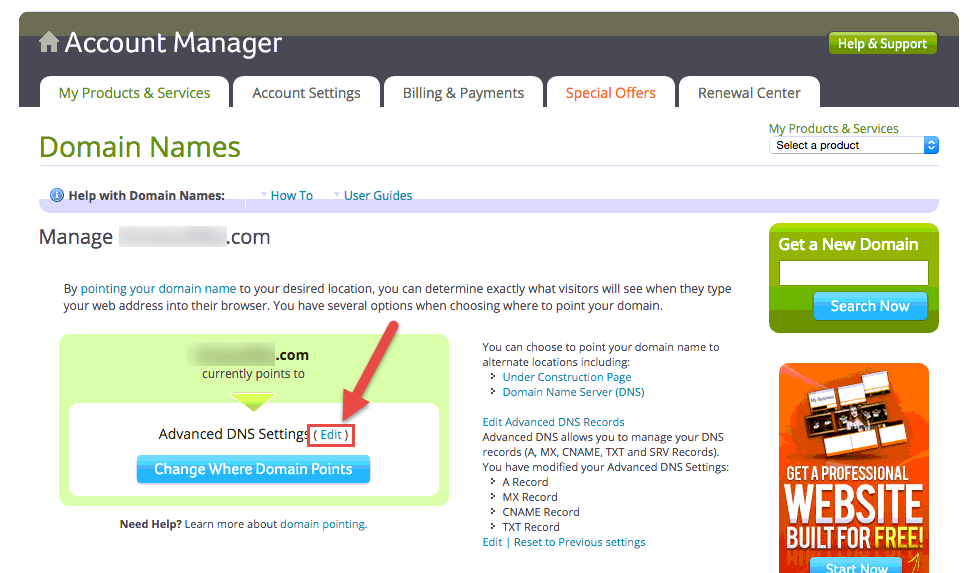
Click "Edit" next to Advanced DNS settings as shown in the picture below.
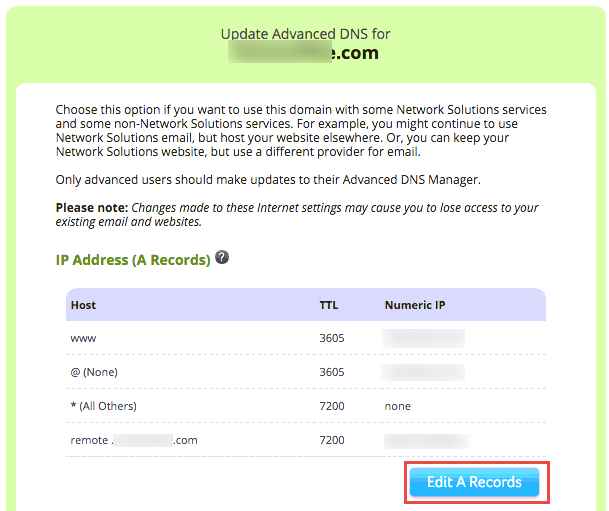
Next click the "Edit A Records" button.
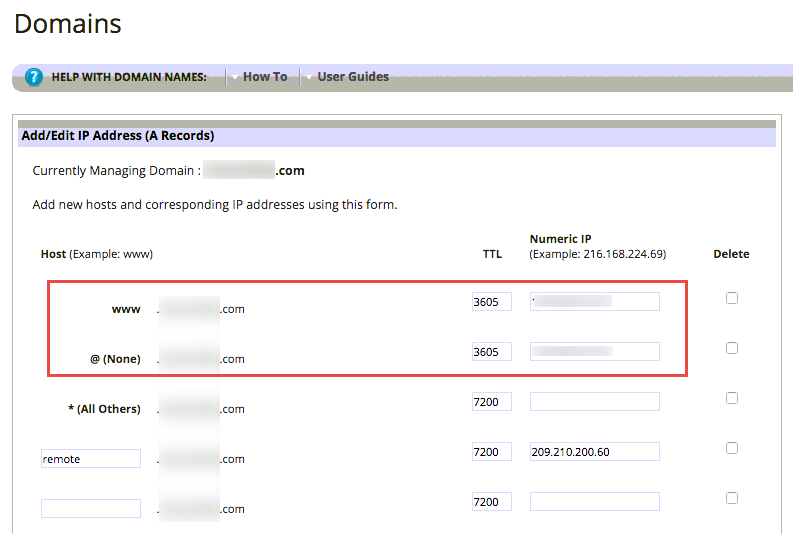
Now edit the www. and @(none) records shown below. Enter "600" for the TTL and then enter the numeric IP provided by UltraCart in your DNS instructions setup email.
If you are only pointing a subdomain such as secure.yourdomain.com or shop.yourdomain.com then you will need to enter the prefix into the input field provided and then configure the TTL and Numeric IP field.
Save the settings and apply. At this point you have properly configured DNS. You are ready to return to the StoreFront "Change Location" dialog and activate the SSL certificate.
If you have ANY questions, please contact UltraCart Support. Our DNS specialists will be happy to assist you with the configuration and launching of your StoreFront.