Overview
TODO: How to find the email templates. How to edit and save them. How to preview them.
Steps
Here are the steps for changing the web address of your store.
-
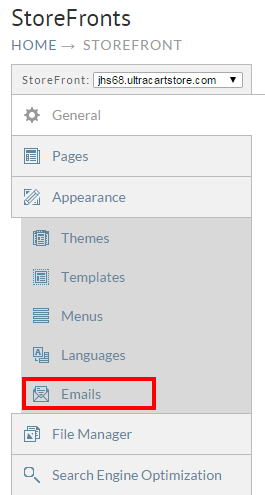
From the StoreFronts page, click on the Emails tab.
-
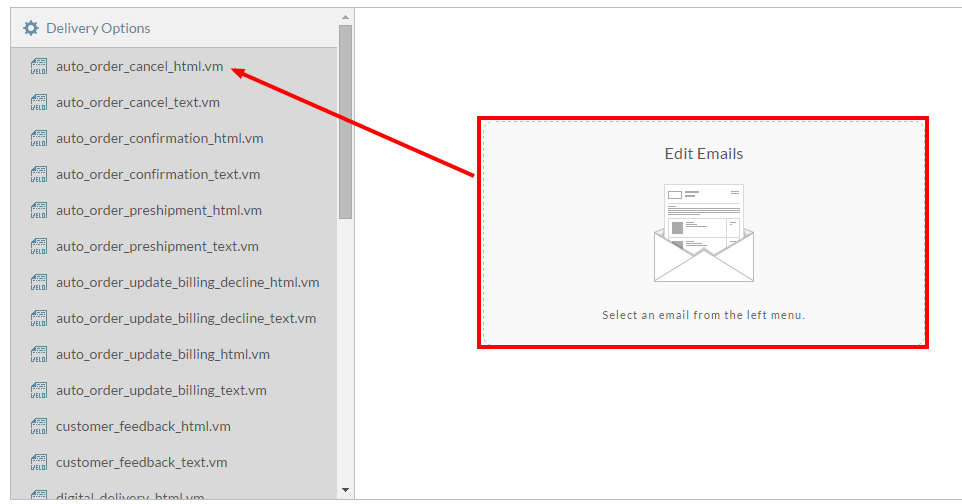
Next, click on the email template *.vm file that you wish to edit:
-
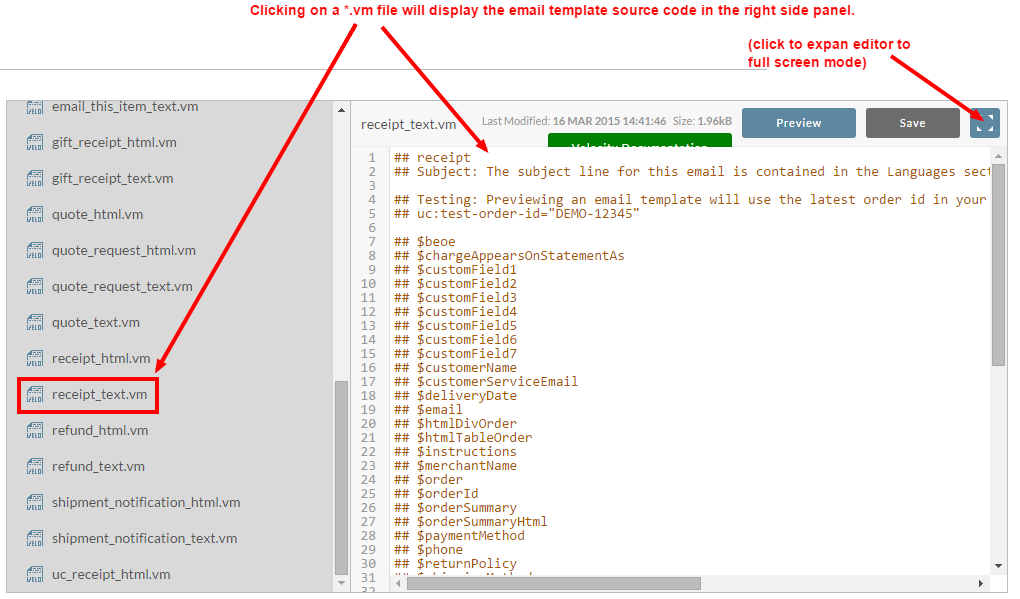
Upon selecting the template you wish to edit, the template source code will be displayed in the right side panel:
-
In this example, we are editing the receipt email template to add a section titled "additional notes" that will include a item specific inclusion of a note regarding a coupon that the customer can use on a future purchase of our Tea Set, if they have purchased a bag of black tea. We will add these lines into the template at lines 57-61 of the template source:
Additional Notes
\---------------
#if( $order.isPurchased('cupoftea'))
Your purchase of a bag "Black Tea" has earned you a coupon for 20% of our teas set. Please use the following coupon code on your next order by entering "20offTeaSet" during your checkout!
#end

5. To preview your changes, click the "Save and Preview" button:
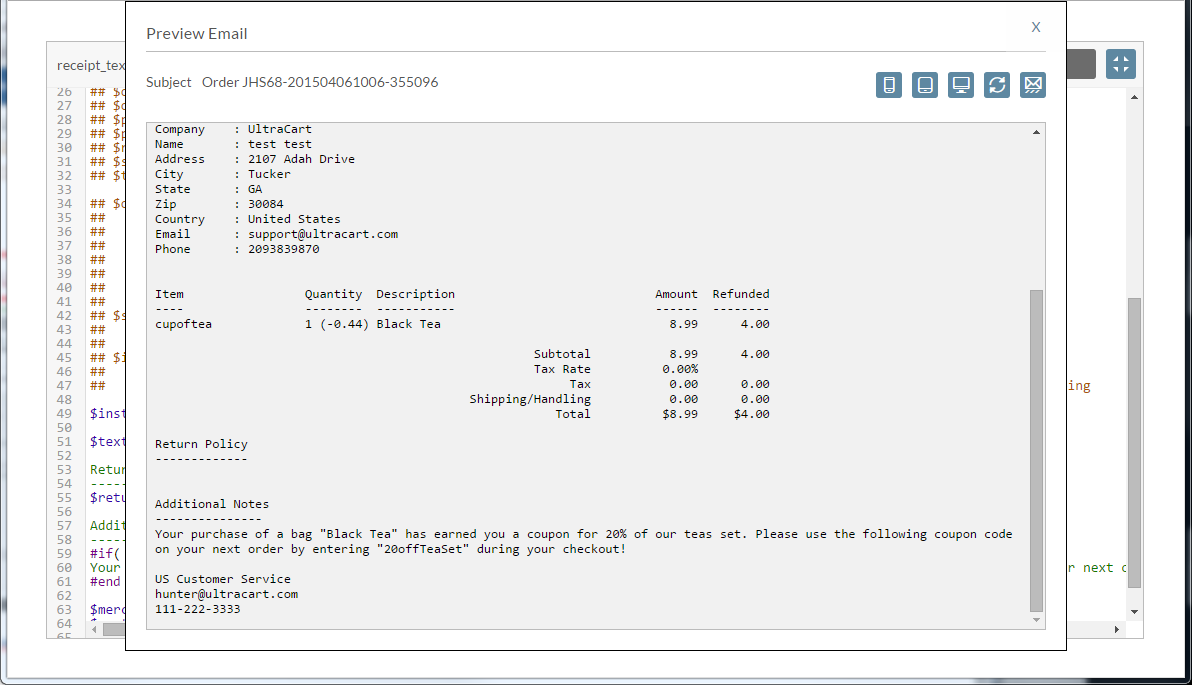
Quick Video: Storefront - quickvid - editing email template and preview changes.mp4